"Maintain Agent determination" activity
/WMD/BC_SPRO → xSuite Business Solutions → Workflow → Basis → Workflow Agents
Direct access: /WMD/XF_ AGDET
User administration determines which user may perform which roles (tasks) within the workflow. For a task, xSuite users or xSuite user groups, inspectors, releasers, etc. are defined. The agent table is then used to set which user or user group receives which tasks for processing.
The way dynamic agent determination works is basically founded on subsets which are determined based on a possible number of possible agents. This reduces the number of possible agents using various criteria to the point that in the end a single unique agent is responsible for a defined number of documents. The aim is to achieve the highest level of automation based on the settings made here.
Within xSuite agent determination, a number of decision-making criteria are available to determine the agent or the agent group. The procedure for finding an agent essentially consists of the following:
Search priorities
Agent table
The order in which the criteria are to be evaluated in the agent table is defined in the priority table. The system first searches in the priority table for the criteria used to find an agent. The system then uses the information from the document to search for the entries in the agent table. If the system does not find an entry, it continues with the next priority level. If it does find an entry, the agent search is considered complete and the document is forwarded to the user for processing.
In the upper section of the agent maintenance area, you can select data to restrict the number of agents. The result of this restriction is then displayed in the agent table below. In this way, a specific role or a combination of these selection parameters can be filtered out for a particular user:
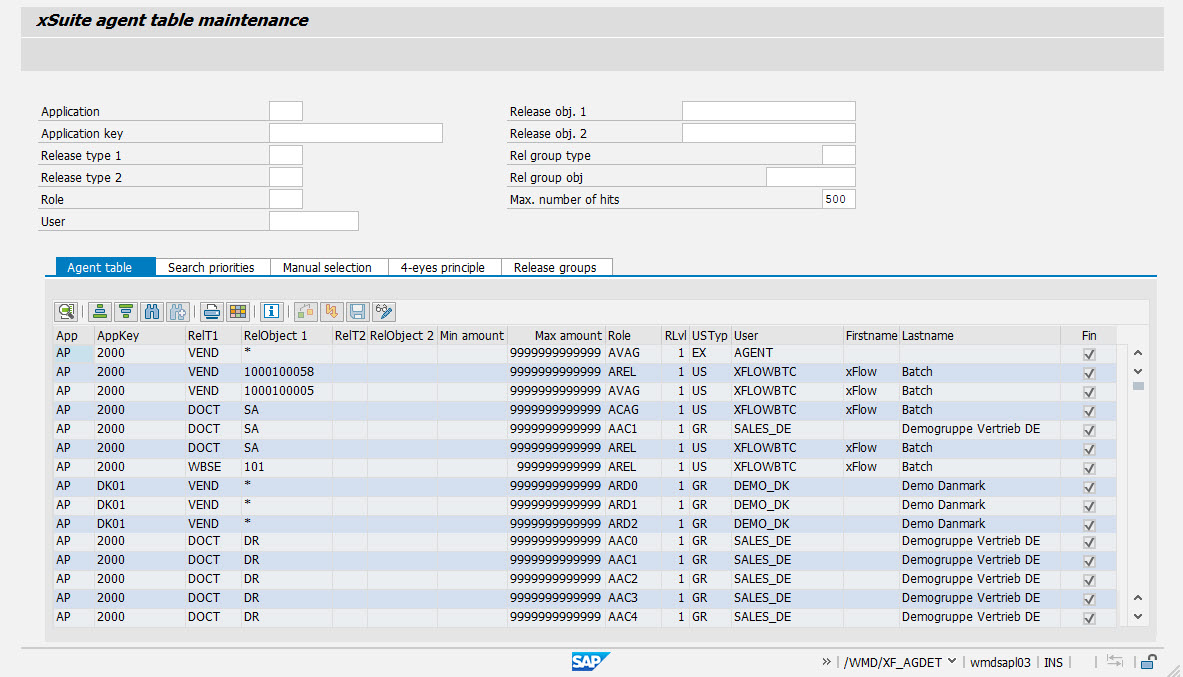 |
Selection fields – xSuite Agent Table Maintenance
Field | Description |
|---|---|
Application | Restricts results to data from an xSuite application. The following xSuite applications are available:
|
Application key | Limits the display to data of an application key such as the company code for the xSuite application |
Release type 1 | Restricts results to data from a specific first release type such as Which release types are available depends on which application key you have specified. |
Release type 2 | Restricts results to data from a specific second release type such as |
Role | Restricts results to data from an xSuite role. All xSuite roles are available for selection. For a comprehensive overview of xSuite roles, see Appendix I, Comprehensive overview of xSuite roles |
User account | Limits results to a specific user or user group. In this field, you can select among all users and user groups that have been created in xSuite User Administration. |
Release obj. 1 | Restricts results to data from a specific first release object. |
Release obj. 2 | Restricts results to data from a specific second release object. |
Rel group type | Restricts results to data from a specific second release type such as This field only controls the display in the Release groups tab. |
Rel group obj | Restricts results to data from a specific release-group object. This field only controls the display in the Release groups tab. |
Max. number of hits | Sets the maximum number of hits to display in all tabs. |
"Agent table" tab
/WMD/BC_SPRO → xSuite Business Solutions → Workflow → Basis → Workflow Agents → Maintain Agent determination
Direct access: /WMD/XF_ AGDET
Agent determination rules are displayed in the Agent table tab. The administrator can edit and/or delete existing rules and add new rules.
The administrator can limit the display of the entries in the agent table using the selection fields in xSuite Agent Table Maintenance. For more information, see Selection fields – xSuite Agent Table Maintenance.
Buttons – "Agent table" tab
Button | Name | View mode | Change mode | Description |
|---|---|---|---|---|
| Details | X | X | Opens the data of the of a selected line clicked on in the Details dialog. |
| Refresh | X | Updates the agent table data. All unsaved changes will be discarded. | |
| Append Row | X | Adds a new line to the end of the agent table. | |
| Insert Row | X | Adds new rows above the rows selected. The number of new rows corresponds to the number of rows selected. | |
| Delete Row | X | Removes the rows selected. | |
| Duplicate Row | X | Duplicates the rows selected. | |
| Sort in Ascending Order | X | X | Opens sort options with the default Ascending. |
| Sort in Descending Order | X | X | Opens sort options with the default Descending. |
| Find | X | X | Opens the search function. |
| Find next | X | X | Moves on to the next hit in the agent table. |
| X | X | Opens the dialog box for printing. | |
| Change Layout | X | X | Opens the window with layout options. |
| End User Documentation | X | X | Intended for use in a future version. |
| Check data | X | Checks whether the agent table contains incorrect data. | |
| Display xSuite errors | X | Opens the dialog box in which the incorrect data is described. | |
| Save data | X | Saves the changes made. Prerequisite: The data has been checked beforehand (Check Data button). | |
| Toggle display | X | X | Toggles between view and edit modes. |


Columns – "Agent table" tab
Name | Description |
|---|---|
App | Shows an xSuite application, e.g. |
AppKey | Displays an application key. The application key depends on the xSuite application selected (usually the company code). |
RelT1 | Shows the release type on Level 1. The release type depends on the xSuite application selected. For an overview of the release types delivered with the standard xSuite package, see Appendix M, Release types for xSuite Agent Table Maintenance. |
RelObject 1 | Displays the release-object ID on Level 1. The release-object ID on Level 1 specifies a value for the release type on Level 1 (column RelT1), e.g., a concrete cost center. |
RelT2 | Shows the release type on Level 2. The release type depends on the xSuite application selected. |
RelObject 2 | Displays the release-object ID on Level 2. The release-object ID on Level 2 specifies a value for the release type on Level 2 (column RelT1). |
Min amount | Indicates the lower limit of the amount. The minimum amount determines the amount above which a user or user group is allowed to process a workflow task. |
Max amount | Indicates the upper limit of the amount. The maximum amount determines the amount below which a user or user group is allowed to process a workflow task. |
Role | Indicates the xSuite role of a workflow task. The xSuite role defines which workflow task a user or user group is allowed to process. For a comprehensive overview of xSuite roles, see Appendix I, Comprehensive overview of xSuite roles |
RLvl | Indicates the release level. The release level determines the level at which a user or user group is allowed to process a workflow task. The lowest possible value is the value |
USTyp | Indicates the user type. The following user types are provided:
|
User | Shows an xSuite user. Which xSuite user is specified depends on the user type selected (column USTyp). The xSuite user or xSuite user group must have the rights for the xSuite role selected (Role column). |
Fin | Determines whether the final stage of a workflow task has been arrived at. This indicator must be set for each final step of a workflow task. This also applies to workflow tasks with single levels. |
"Search priorities" tab
/WMD/BC_SPRO → xSuite Business Solutions → Workflow → Basis → Workflow Agents → Maintain Agent determination
Direct access: /WMD/XF_ AGDET
Notice
The search priorities must be maintained for each workflow task. If the search priorities are not maintained or not maintained completely, errors may occur during agent determination.
In the Search priorities tab, the administrator defines the sequence in which the release categories are taken into account during agent determination. Search priorities must be defined for each task, even if only a single release category is used.
The order is determined by the priority set. The lower the value, the higher the priority.
Example
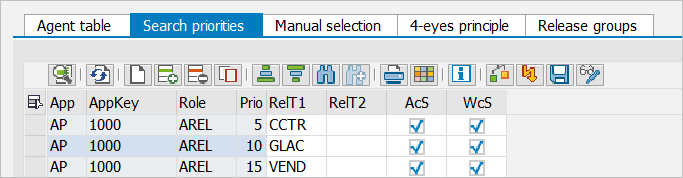 |
When a document arrives at the workflow task "Release document" (role AREL), the agent table is first searched using the cost center (CCTR). If there is a valid entry, the search will be considered completed.
If no valid entry has been found, the system will search for an entry with the G/L account based on Priority 10/G/L Account (GLAC).
If no entry is found with this criterion either, the system will continue searching with the vendor using priority 15/vendor (VEND).
If no valid entry is found with this last criterion either, the document will throw an error in the cockpit.
Columns – "Search priorities" tab
Column | Description |
|---|---|
App | Shows an xSuite application, e.g. |
AppKey | Displays an application key. The application key depends on the xSuite application selected (usually the company code). |
Role | Indicates the xSuite role of a workflow task. The xSuite role defines which workflow task a user or user group is allowed to process. For a comprehensive overview of xSuite roles, see Appendix I, Comprehensive overview of xSuite roles |
Prio | Indicates the priority with which the entries are treated. The smaller the value, the higher the priority. Note: We recommend specifying the values in steps of 5 (1st value = |
RelT1 | Shows the release type on Level 1. The release type depends on the xSuite application selected. |
RelT2 | Shows the release type on Level 2. The release type depends on the xSuite application selected. |
AcS | Activates an exact search for an entry. With the exact search, an entry with the exact values is searched for in the editor table. Note: If both the exact search and the wildcard search are enabled, the exact search will take priority. |
WcS | Activates a wildcard search for an entry. The wildcard search looks for wildcard values (*) in the agent table, e.g., the agents for all vendors with the value Note: If both the exact search and the wildcard search are enabled, the exact search will take priority. |
"Manual selection" tab
/WMD/BC_SPRO → xSuite Business Solutions → Workflow → Basis → Workflow Agents → Maintain Agent determination
Direct access: /WMD/XF_ AGDET
In the tab Manual selection, the administrator specifies the workflow tasks in which manual agent selection is to take place.
With manual selection, you can choose the user from a list of all possible users for a task. The manual selection can be used, for example, by the factual verifier to select the individual responsible for release.
Columns – "Manual selection" tab
Column | Description |
|---|---|
App | Shows an xSuite application, e.g. |
AppKey | Displays an application key. The application key depends on the xSuite application selected (usually the company code). |
Role Resp | Indicates the xSuite role of the workflow task in which a user proceeds with manual selection. The agent of the role specified here selects the agent of the workflow task specified in the Role column. |
Role | Indicates the xSuite role of the workflow task for which a user has been manually selected. The agent of the role specified here is selected by the agent of the workflow task specified in the Role Resp column. |
MSelect | Sets the type of manual selection. The following values are available:
In the selection options If you select option |
Level | Defines the level of the workflow task for which the manual selection is made. For example, the administrator can specify that the factual verifier selects the releaser on Level 2. The releaser on Level 1 will then also be defined through the agent table. It is not possible to perform manual selection for multiple levels in sequence. |
Self-sel. | Determines whether self-selection is possible. When self-selection is activated, an agent can select himself. If the 4-eye principle and manual selection are enabled at the same time between two roles, then self-selection must not be activated. |
Multi-sel. | Sets whether multiple selection is allowed. If multiple selection is activated, the same agent can be selected for several levels of a workflow task. If the 4-eye principle and manual selection are enabled at the same time between two roles, then self-selection must not be activated. |
"4-eye principle" tab
/WMD/BC_SPRO → xSuite Business Solutions → Workflow → Basis → Workflow Agents → Maintain Agent determination
Direct access: /WMD/XF_ AGDET
In the tab 4-eye principle, the administrator defines the workflow tasks in which the principle of dual control is applied.
The four-eye principle ensures that different workflow tasks are not performed by the same agent. For example, permissions may specify that the factual auditor of an invoice may not also be the approver of the invoice.
For a list of permitted combinations, see Appendix L, Role combinations permitted for use of the 4-eye principle.
Columns – "4-eye principle" tab
Column | Description |
|---|---|
App | Shows the xSuite application where the four-eye principle is applied. |
AppKey | Displays an application key. The application key depends on the xSuite application selected (usually the company code). |
Role | Indicates the xSuite role of the workflow task where the four-eye principle is applied. An agent of the workflow task specified here is excluded from processing the workflow task specified in the Excl. role column. |
Excl. role | Shows the xSuite role of the workflow task that excludes a specific user as agent of the workflow task. |
"Release groups" tab
/WMD/BC_SPRO → xSuite Business Solutions → Workflow → Basis → Workflow Agents → Maintain Agent determination
Direct access: /WMD/XF_ AGDET
In the Release groups tab, the administrator can group release types into release groups. For example, the administrator can combine several vendors to form a single vendor group.
Release groups can then be used in the agent table.
Columns – "Release groups" tab
Column | Description |
|---|---|
RelGT | Type of release group, e.g. |
RelGT_Obj | Name of the group that is repeated per line until the release group is assembled. |
RelObject | Values of the release group, depending on the release-group type For example, if it is a cost-center group, the cost centers are specified here. |