The Workflow Builder in SAP Fiori
The Workflow Builder in SAP Fiori has the same functions as the Workflow Builder in the SAP GUI.
The user can create new workflows and edit existing workflows.
Opening the configuration screen for the Workflow Builder (SAP Fiori)
Click on the Workflow Builder tile on the SAP Fiori start page.
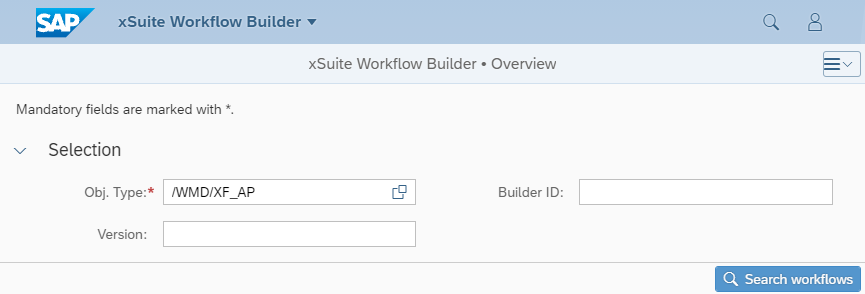
Enter the search criteria in the following view:
Field
Description
Object type
The business application to be processed is selected here. The function of the object type is to encapsulate the specific functions of a workflow class or workflow application.
The following object types are available:
Builder ID
An existing workflow definition of the workflow type entered in the Object type field can be set here.
Version
In addition to the Builder ID, the version can also be selected using the actual version of a workflow.
Click the button Search workflows.
➤ The configuration view will open.
Buttons (Configuration view) – Workflow Builder – SAP Fiori
Icon | Name | Description |
|---|---|---|
| Display | Opens the workflow selected. |
| New ID | Creates a new workflow with a new builder ID and version 001. |
| Copy to new ID | Creates a new workflow based on the workflow selected in the table. The builder ID is regenerated. |
| New version | Creates a new workflow version for the workflow selected in the table. |
| Copy to new vers. | Creates a new workflow version based on the workflow version selected in the table. |
| Request new values | Reloads the contents of the table using the filter criteria specified. |
| Detail | Opens a dialog that shows the details of the workflow selected. The user can edit some of the details. |
| Activate | Activates the workflow selected. |
| Deactivate | Disables the workflow selected. |
| Status | Changes the status of the workflow selected. |
| Delete | Deletes the workflow selected. |
| Export WF | Exports the selected workflow to a TXT file that is downloaded. |
| Import WF | Opens a dialog for importing a workflow based on a TXT file. |
| Filter | Opens the filter options for the list. |
| Clear all filters | Removes all filters set for the list. |
| Sorting | Opens the sort options for the list. The user can select one or more columns and sort the columns in ascending or descending order. |
| Restore default sorting | Removes all sorting set and restores the original sorting. |


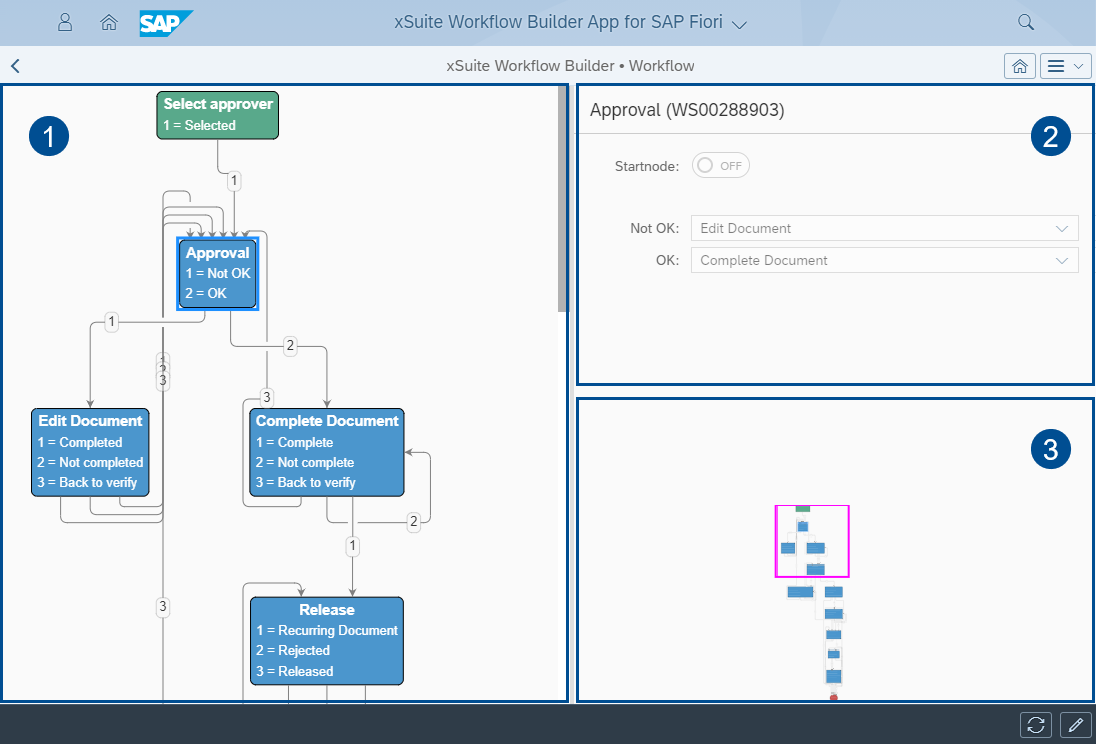
Graphical interface – xSuite Workflow Builder – SAP Fiori
Call: Tile Workflow Builder → Field Object type → Button Search workflows → Select line → Button Display
 |
Element | Description | |
|---|---|---|
1 | Workflow diagram | Represents a workflow in the form of a diagram. Workflow tasks are displayed as nodes. |
2 | Detail view | Shows the outputs of the node selected. |
3 | Mini-map | Displays a small version of the workflow diagram. The border indicates which area of the workflow is displayed in the workflow diagram. |
4 | Buttons |
|


Edit Mode – xSuite Workflow Builder – SAP Fiori
A selection of nodes is displayed in the edit mode of a workflow. Each node represents a workflow task.
The user can drag and drop a node into the workflow diagram. In the detail view, the user can edit the outputs of a node and mark a node as a start node.
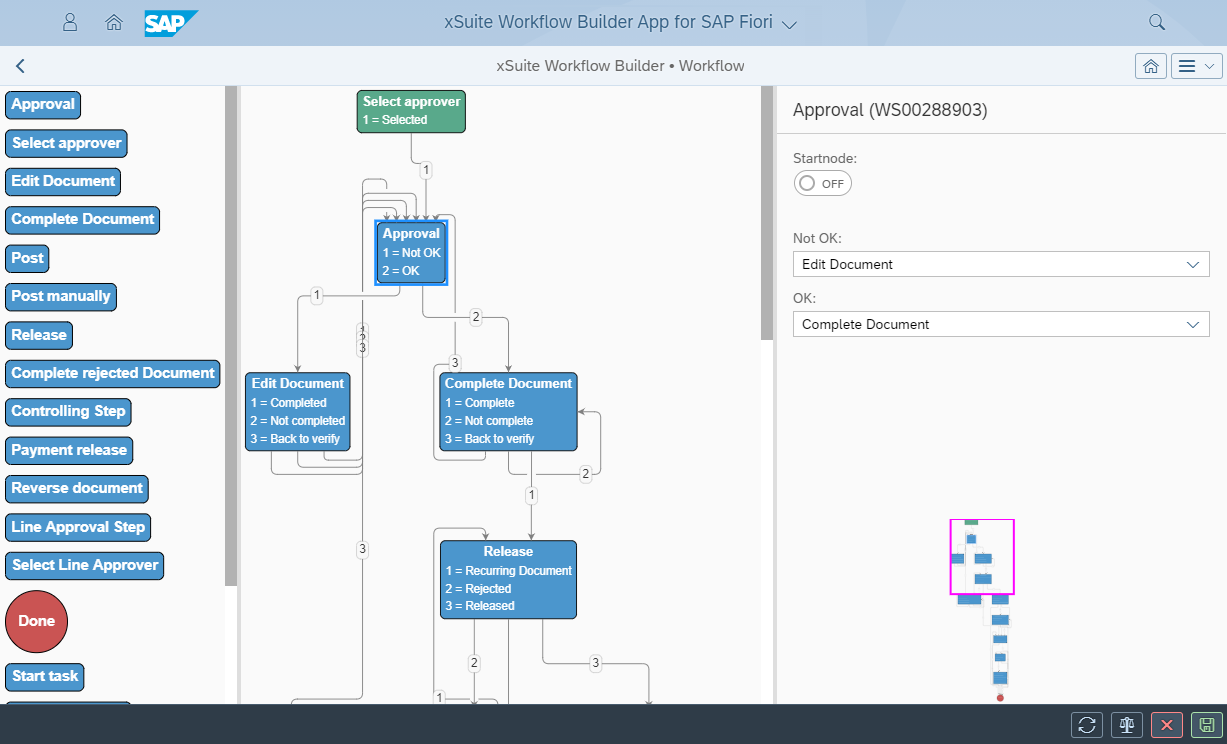 |
In the edit mode of a workflow, three additional buttons are available:
Icon | Name | Description |
|---|---|---|
| Check | Checks the workflow data. |
| Decline | Closes edit mode without saving changes. |
| Save | Saves all changes to the workflow and then closes edit mode. |


