Editing xSuite text elements
Work-item texts are processed in transaction /WMD/XF_TEXTMAIN.
The administrator can edit xSuite text elements by xSuite application or globally.
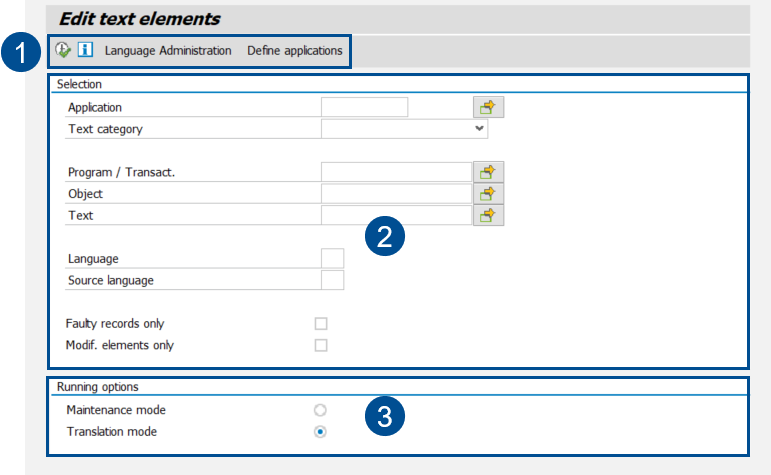
UI elements in the "Edit text elements" view
 |
Element | Description | |
|---|---|---|
1 | Buttons in the Edit text elements view | See Overview of the buttons in the "Edit text elements" view. |
2 | Fields in the Edit text elements view | See Overview of the fields in the "Edit text elements" view. |
3 | Running options | Determines whether changes are made to the standard languages delivered (Maintenance mode checkbox) or to the translations (Translation mode checkbox). |
Overview of the buttons in the "Edit text elements" view
Button | Description |
|---|---|
Execute | Evaluates the entries in the Edit text elements view. The Modify text elements or the Translate text elements view will open. |
Program Documentation | Displays a short description of the functions. |
Language Administration | Opens the Language Administration view. Language Administration displays available languages and their statuses. The administrator can edit existing languages and create new ones. For more information, see Overview of the columns in the "Language Administration" view. |
Define applications | Opens settings for creating custom applications. The administrator can define a name and the original language for an application here. By creating customer-specific values, the administrator can maintain text elements for these applications. |
Overview of the fields in the "Edit text elements" view
Field | Description |
|---|---|
Application | Defines the xSuite application. Text elements are edited by application or globally. The following applications are available:
|
Text category | Defines the text type to which the text elements are assigned. The following text element are available: Data element, domain fixed value, function code, frame, list, menu, message, tree node, push button, popup, quick info (tooltip), title, tabstrip, text table, text (unspecified) |
Program/Transact. | Defines the xSuite module whose text elements are edited. |
Object | Defines the object whose text elements are edited. These text elements are created as globally applicable, not program-specific. They are mainly DDIC elements. |
Text | Limits the editing or translation to specific text elements. Text input is case-sensitive. |
Language | Defines the language in which the text elements are edited, e.g. The administrator can either edit text elements of a language (Maintenance mode) or translate them into another language (Translation mode). The Maintenance mode requires an entry in the Language field. The Translation mode requires an entry in the Language field and in the Source language field. |
Source language | Specifies the language that serves as the source language for the translation, e.g. |
Faulty records only | Determines whether only text elements with errors are displayed. Text elements are incorrect if they contain a message. Such text elements might include ones that are blank or ones that exceed the permitted length. |
Modif. elements only | Determines whether only text elements that have already been edited are displayed. |
Maintenance mode | Specifies that the text elements will be displayed in Maintenance mode. The administrator can edit text elements of a language in Maintenance mode. The edited text elements will be added and can be deleted at any time. The text elements delivered remain unchanged. For more information, see Overview of columns in the Maintenance and Translation modes for text elements. |
Translation mode | Specifies that the text elements will be displayed in Translation mode. The administrator specifies the source language in the Source language field and the target language into which the translation is to be made in the Language field. In Translation mode, only text elements of the target language can be edited. For more information, see Overview of columns in the Maintenance and Translation modes for text elements. |
Overview of the columns in the "Language Administration" view
Column | Description |
|---|---|
S (Status) | Shows the processing status of a of a language. The following processing statuses are available:
|
Name of language | Indicates the language key of a language. |
ISO Code | Shows the abbreviation of a language (according to ISO standard 639). |
Delivery class | Shows whether the language is a delivered standard language or a customer-specific language.
|
Suppl. language | Shows the language that is used in the case of text elements that are not maintained. |
Overview of columns in the Maintenance and Translation modes for text elements
Column | Description |
|---|---|
Status | Shows the processing status of a of a text element. The following processing statuses are available:
|
Locked | Shows whether a text element is locked. Locked text elements are not editable. |
Language Key | Shows the language of a text element, e.g. |
Application | Shows the xSuite application in which a text element is used. |
Program/Transact. | Shows the xSuite program within an xSuite application in which a text element is used. |
Text category | Shows the text type of a text element, e.g. |
Text ID | Shows the text ID of a text element. The text ID is used for internal identification in the xSuite system. |
Text | Indicates the text displayed in the xSuite system. |
Editing a text element in Maintenance mode
Execute the transaction /WMD/BC_TEXT.
➣ The Edit text element view will open.
Enter a language in the Language field, e.g.
DE= German.Activate the check box Maintenance mode.
If necessary, add key words to the remaining search fields.
For information on the fields, see Overview of the fields in the "Edit text elements" view.
Click on the
 Execute button or press F8.
➣ The view Modify text elements will open.
Select a text element in the table that you wish to edit.
Click the
 Append Row button.
➣ A copy of the selected text element has now been created.
Select the copy of the text element and click
 Change.
➣ The Modify text element window will open.
Make changes in the Text field and then click
 Save.
Save.➤ Your changes have been saved. The edited text element will now be displayed in the xSuite system.
Notice
To display the original text element in the xSuite system again, delete the edited copy of the text element (button  Delete Row).