Fixing incorrect customizing
Work items with incorrect customizing are displayed to the administrator in a list.
The administrator can view the work items and jump to the xSuite Agent Table and the xSuite Cockpit to customize.
The listing of work items with incorrect customizing is available in SAP GUI and SAP Fiori.
Fixing incorrect customizing – SAP GUI
Work items of the type "Customize" can be called in the SAP GUI via the SAP Business Workplace (transaction SBWP).
To see a list of these work items, go to the SAP Business Workplace and navigate to Workplace → Inbox → Workflow → Check Customizing.
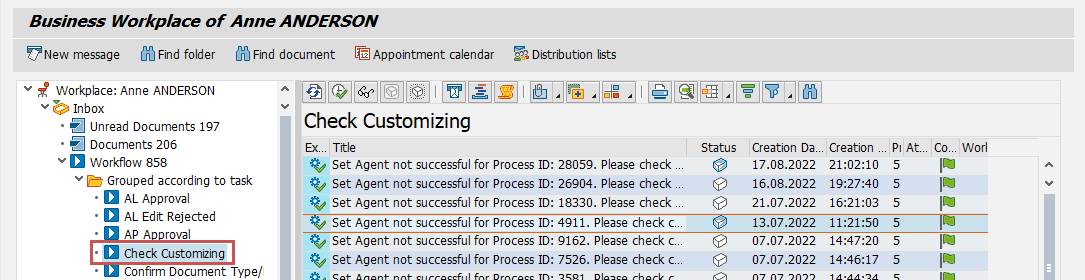
Here, the administrator can view and edit work items that have incorrect customizing.
A click on the button  Execute will open the Customizing task for xSuite Administrator dialog.
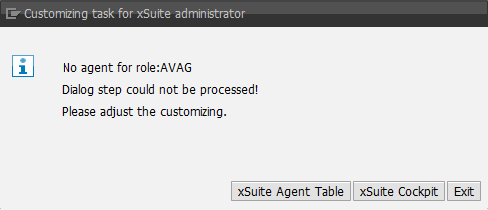 |
The administrator can jump to the xSuite Agent Table (see "Agent table" tab) and to the xSuite Cockpit (see The xSuite Cockpit) via this dialog.
Fixing incorrect customizing – SAP Fiori
Work items of the type "Check Customizing" can be called in SAP Fiori via the tile Check Customizing.
Notice
An SAP user is required to open the app. This SAP user must be authorized to call transaction SBWP.
In the xSuite Check Customizing App, work items of the type "Check Customizing" are listed.
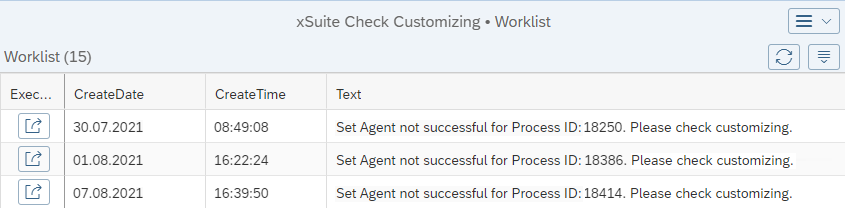 |
Here, the administrator can view and edit work items that have incorrect customizing.
A click on the button  Execute will open the Customizing task for xSuite Administrator dialog.
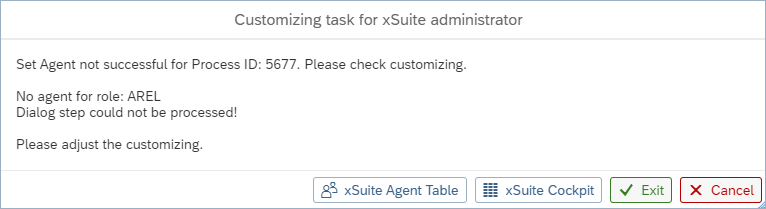 |
The administrator can jump to the xSuite Agent Table (see "Agent table" tab) and to the xSuite Cockpit (see The xSuite Cockpit) via this dialog.
Buttons – xSuite Check Customizing App
Button | Description |
|---|---|
xSuite Agent Table | Opens the corresponding role in the xSuite Agent Table. There the administrator can correct the incorrect customizing. To return to the xSuite Check Customizing App, click Back in the xSuite agent table. |
xSuite Cockpit | The work item with incorrect customizing is opened in the xSuite Cockpit App. In the xSuite Cockpit App, the administrator can use the agent preview to check whether an agent is found with the (changed) customizing. |
Exit | When you as the administrator have fixed the customizing so that an agent is found in the agent preview, the task can be finished. The customizing task is then removed from the list. The associated work item is restarted in the workflow task and assigned to the agents. |
Cancel | If the task was not finished because the administrator did not fix the customizing, for example, the dialog can be closed using this button. The customizing task then remains. The associated work item will remain unchanged. |