LDAP connection
The administrator can integrate users that are maintained in an external LDAP system into xSuite User Administration. The SAP system must be able to communicate with the LDAP node for this.
The administrator must make the following settings for the integration of LDAP users into xSuite User Administration:
Definition of xSuite parameters in the xSuite parameter table
For more information, see LDAP configuration in the xSuite parameter table.
Definition of xSuite user attributes in xSuite User Administration
For more information, see LDAP configuration in xSuite User Administration.
Configuration of the communication between the LDAP system and the SAP system
For more information, see Configuring an LDAP connection in SAP.
LDAP configuration in the xSuite parameter table
The administrator must make the following entries in the xSuite parameter table (transaction /WMD/XF_PARAM) for the LDAP connection:
xSuite parameter | Description | Sample value | Range of values |
|---|---|---|---|
LDAP_DOMAIN_SUFFIX | By entering the LDAP domain, the web login can be made by entering the LDAP user name, without specifying the domain. This parameter must be maintained if the xSuite user name is the same as the LDAP user name. | -- | LDAP domain |
LDAP_HOLDSESS | Maximum time in minutes for an automatic logoff from the system in the case of inactivity. |
| Time in minutes |
LDAP_SERVER_ID | Server name for LDAP connector | XF_LDAP1 | Server name |
LDAP_WAITTIME | Wait time in minutes within which a response from the LDAP server after a request is expected. As soon as the time span has been exceeded, the current process will be aborted with an error message. |
| Time in minutes |
LDAP configuration in xSuite User Administration
Notice
In User Administration, the same user name must be specified for an LDAP user as in the LDAP system.
The administrator must make the following entries for the LDAP connection in xSuite User Administration (transaction /WMD/XF_USR_ADMIN) in the Attributes tab:
User attribute | Description | Sample value | Range of values |
|---|---|---|---|
LDAP_DOMAIN_SUFFIX | Appends an LDAP domain suffix to the user name. This user attribute overwrites the value of the parameter with the same name. |
| LDAP domain |
XF_LDAP_NAME | Assigns an LDAP user name to the user. This parameter is only to be maintained if the xSuite user name is the same as the LDAP user name. |
| LDAP user name
Info: The maximum number of characters is 40. |
Configuring an LDAP connection in SAP
Call transaction LDAP.
The Directory Service Interface view will open.
Click the LDAP Servers button.
The View Server: Overview view will open.
Click the
 Display -> Change button.
Click the New Entries button.
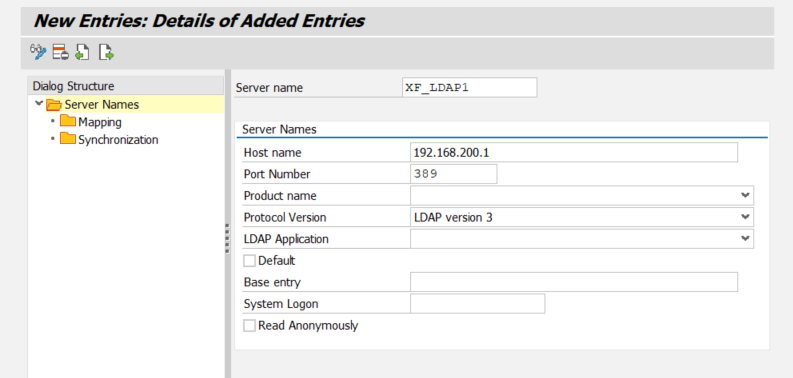
The view New Entries: Details of Added Entries will open.
Enter the data of the LDAP server and click
 Save.
Save.Example of configuration of an LDAP server:
Click the button LDAP Connectors in the view Directory Service Interface.
The LDAP-Connector (Maintenance View) view will open.
Click the
Display -> Change button.Click the New Entries button.
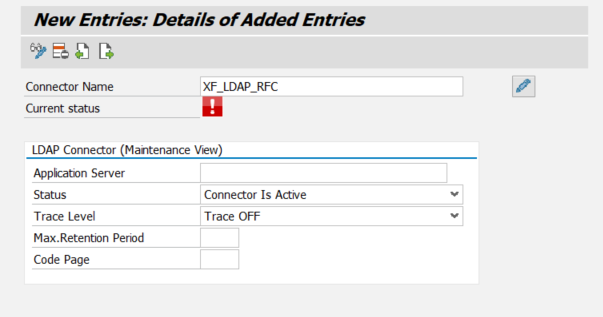
The New Entries: Detail of Added Entries view will open.
Enter the LDAP connector data and click
Save.Example of configuration of an LDAP connector:
Enter the name of the LDAP server in the Directory Service Interface in the field Server.
Enter the name of the LDAP connector in the view Directory Service Interface, in the field Connector.
Click the Log On button.
➤ The LDAP connection is now configured.