Scheduling the escalation report as a job in SAP
Execute the transaction SM36.
➣ The Define Job view will open.
In the field Job Name, enter a name for the job, e.g.
xSuite_MailEskalation.In the field Job Class, enter the value
C.Click the button Start condition.
➣ The dialog Start Time will open.
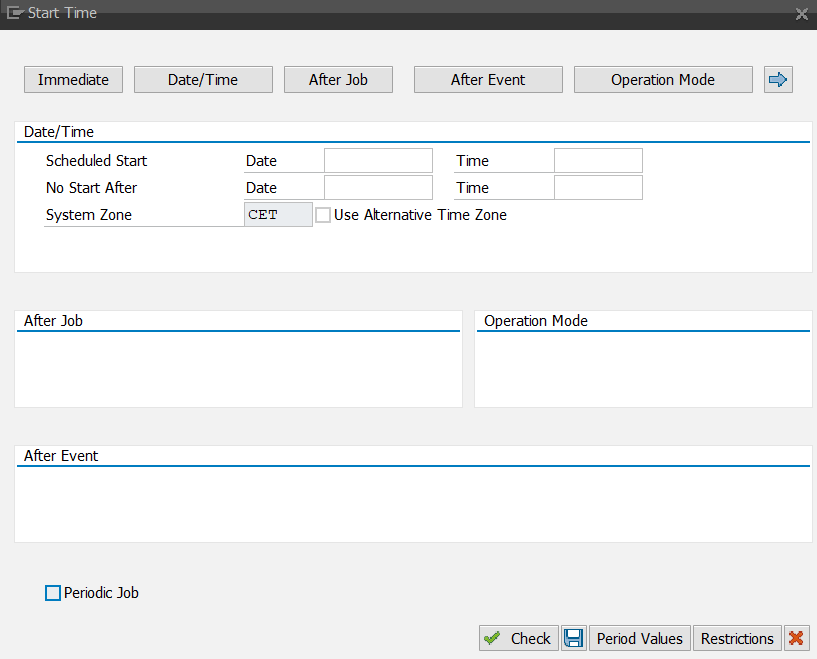
Click the Date/Time button.
Navigate to Scheduled Start → Date and Time and enter the time and date at which to start.
Click the Period Values button.
➣ The Period Values dialog will open.
Select a value for the period and click
 Save.
Save.Recommended setting:
DailyIn the view Define Job, click the button Step.
➣ The Create Step 1 dialog will open.
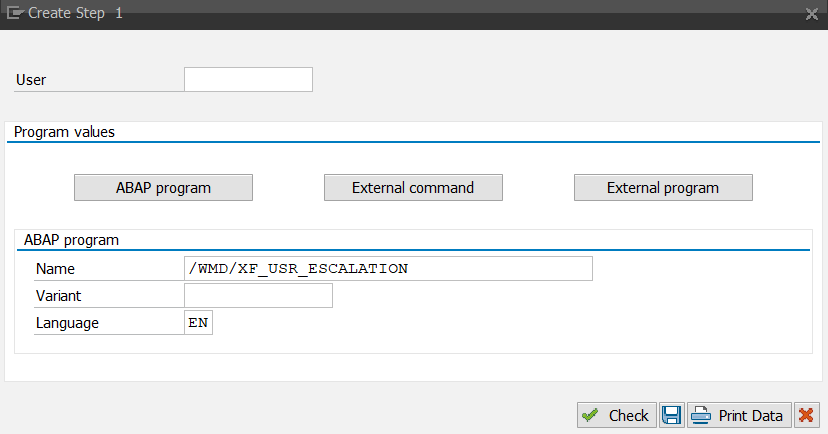
Navigate to ABAP program → Name and enter the value
/WMD/XF_USR_ESCALATION.In the Variant field, select an existing variant in the escalation report.
In the Language field, enter a language key such as
DE= Deutsch (German).Click
Save.In the Define Job view, click the button
Save.➤ Your settings will be saved. The escalation report is now scheduled as a job.