xSuite Viewer in SAP Fiori
xSuite Viewer: xSuite Monitors in SAP Fiori
The table below shows the xSuite monitors that use the xSuite Viewer.
xSuite monitor | SAP Fiori tile | Documents handled |
|---|---|---|
Invoice Monitor | Invoice Monitor |
|
Order Confirmation Monitor | OC Monitor | Order confirmations |
Sales Document Monitor | Sales Document Monitor | Orders |
xSuite Viewer: Main Overview in SAP Fiori
 |
Element | Information and comments | |
|---|---|---|
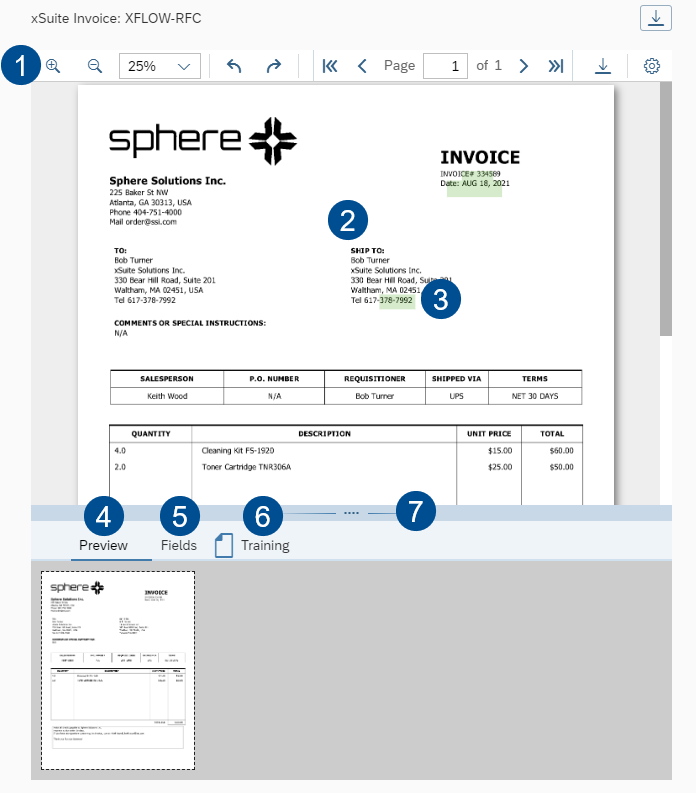
1 | xSuite Viewer toolbar | Contains the buttons used in the xSuite Viewer. For more information, see xSuite Viewer: Buttons in SAP Fiori. |
2 | Image display | This is where the individual pages of the image are displayed. |
3 | Highlighting | In the xSuite Viewer, found field values will be highlighted in green. For more information, see Field Values in the Image. |
4 | Preview tab | Shows the pages of the image in preview mode. For information on navigation, see Navigating to a Page in the Image. |
5 | Fields tab | Shows the properties of the image in the form of fields. For information on fields, see "Fields" Tab: Columns. |
6 | Training tab | This is where the business partner or the fields of a business partner are trained. For information on training, see Business-Partner and Field Training. |
7 | Splitter | You can move the splitter to change the size of the display area and the tab area. |
xSuite Viewer: Buttons in SAP Fiori
Button | Name | Description |
|---|---|---|
| Zoom in | Zooms in on the page. |
| Zoom out | Zooms out of the page. |
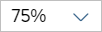
| Zoom | Indicates the current zoom factor. You can select different zoom values to expand or shrink the image displayed, or one of the following settings:
|
| Rotate left | Turns the page 90° to the left. |
| Rotate right | Turns the page 90° to the right. |
| Go to first page | Brings you to the first page. |
| Go to previous page | Scrolls one page back. |
| Direct entry of page / current page | Displays the current page number. You can navigate to any page by entering the page number and pressing Enter. |
| Go to next page | Scrolls one page forward. |
| Go to last page | Brings you to the last page. |
| Download document | Downloads the image. |
| Open viewer menu | Opens the menu of the xSuite Viewer. For setting the highlighting of field values and the page display of the document. For more information, see xSuite Viewer: Options in SAP Fiori. |




xSuite Viewer: Options in SAP Fiori
Option | Description |
|---|---|
Highlight field values found | Highlights all field values that were found in the image during data extraction, in green. |
Remove highlighting | Removes all highlighting. |
Select any text | Specifies that any text can be selected in the document. |
Select field values found | Specifies that only found field values may be selected in the document. |
Settings | Opens the page display settings. For more information, see Defining Page Display. |
Defining Page Display
Open a document via the associated xSuite monitor. For more information, see xSuite Viewer: xSuite Monitors in SAP Fiori.
➣ The xSuite Viewer will display the document image.
In the xSuite Viewer, click the button
 Open viewer menu, and then on Settings.
➣ The Settings dialog will open.
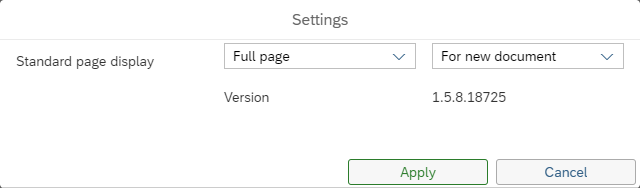
From the drop-down list on the left, select the page display that you wish to set as default.
You have the following options:
Option
Description
Full page
The full page is displayed.
Fit width
Display of the page is adjusted to fill the available space in width.
Fit height
Display of the page is adjusted to fill the available space in height.
Original size
The page is displayed in its original size.
In the drop-down list on the right, select when to use the default page display.
You have the following options:
Option
Description
Never
A new page will be displayed in the same size of the last page opened.
For new document
Another page of the document is displayed according to the page display set as default by the user.
For new page
When opening a document, the first page of the document is displayed according to the user-specific default page display.
Click the button Apply.
➤ The default page display has now been set.
Field Values in the Image
All field values extracted from the image during data extraction are displayed in the Fields tab. These field values also include ones which are not found in the image. An example of a preset field value is a company code.
"Fields" Tab: Columns
Column | Description |
|---|---|
State | The status of a field. For information on field status, see xSuite Viewer: Field Status in SAP Fiori. |
Name | The name of a field. If a field is related to item data, then it will be output by item. An example: Item Quantity. |
Value | The value of a field. Field values are identified in the document extraction. If a field value in the image has a format other than the corresponding field value in SAP, the field value in the document extraction will be adjusted to the SAP format. The adjusted field value is located in the column Value. Example: In the document, the amount of the order is specified with two decimal places. In SAP it is specified without any decimal places. The document would contain |
Page | The number of the page on which the identified field value was found. |
On doc. | Indicates whether an identified field value has been found in the document. |
Alt. | Indicates whether an identified field value has been found multiple times in the document. You can highlight alternative field values in the document in green. For more information, see Highlighting Alternative Field Values Found in the Image. |
xSuite Viewer: Field Status in SAP Fiori
Status | Color | Value | Explanatory notes |
|---|---|---|---|
| Gray | -- | This field is neither a mandatory field nor part of a rule. For this reason, the field value identified will not be checked. If all fields are gray, the completeness check for the document is considered fulfilled. |
| Green | 1 | This field is mandatory. The field value identified has been found in the image. If all fields are green or gray, the completeness check for the document is considered fulfilled. |
| Red | -1 | This field is mandatory. The field value identified has not been found in the image. If one or more fields is red, the completeness check for the document is considered not fulfilled. |
| Red | -2 | This field is part of a rule. The field value identified goes against a rule. Example of rules:
If one or more fields is red, the completeness check for the document is considered not fulfilled. |


Highlighting All Field Values Found in the Image
Open a document via the associated xSuite monitor. For more information, see xSuite Viewer: xSuite Monitors in SAP Fiori.
➣ The xSuite Viewer will display the document image.
In the xSuite Viewer toolbar, click the button
Open viewer menu and then on Highlight field values found.➤ All field values found in the image will be highlighted in green.
Highlighting Field Values Found in an Area of the Image
Open a document via the associated xSuite monitor. For more information, see xSuite Viewer: xSuite Monitors in SAP Fiori.
➣ The xSuite Viewer will display the document image.
In the xSuite Viewer toolbar, click the button
Open viewer menu.Activate the option Select field values found.
Drag the mouse over an area while holding down the mouse button.
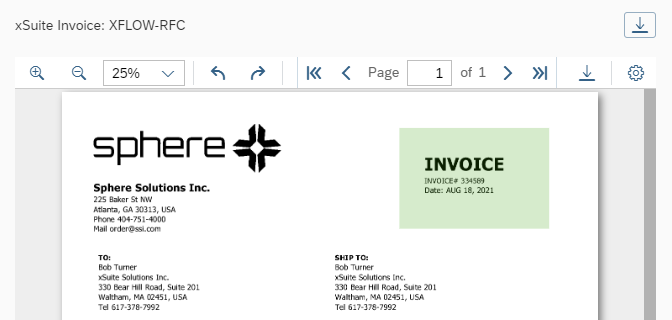
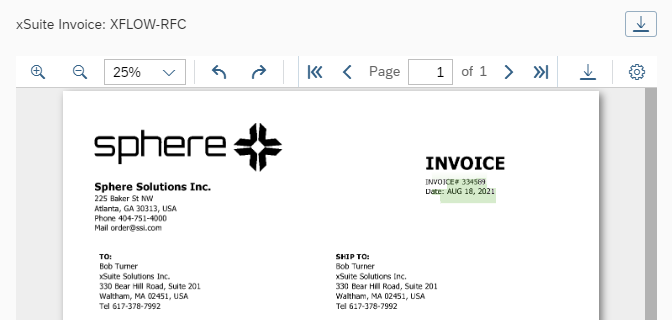
➤ All found field values that are located within the frame will be highlighted in green.
Highlighting Header and Item Data in the Image
Open a document via the associated xSuite monitor. For more information, see xSuite Viewer: xSuite Monitors in SAP Fiori.
➣ The xSuite Viewer will display the document image.
Click the button
 Activate highlighting in the page header.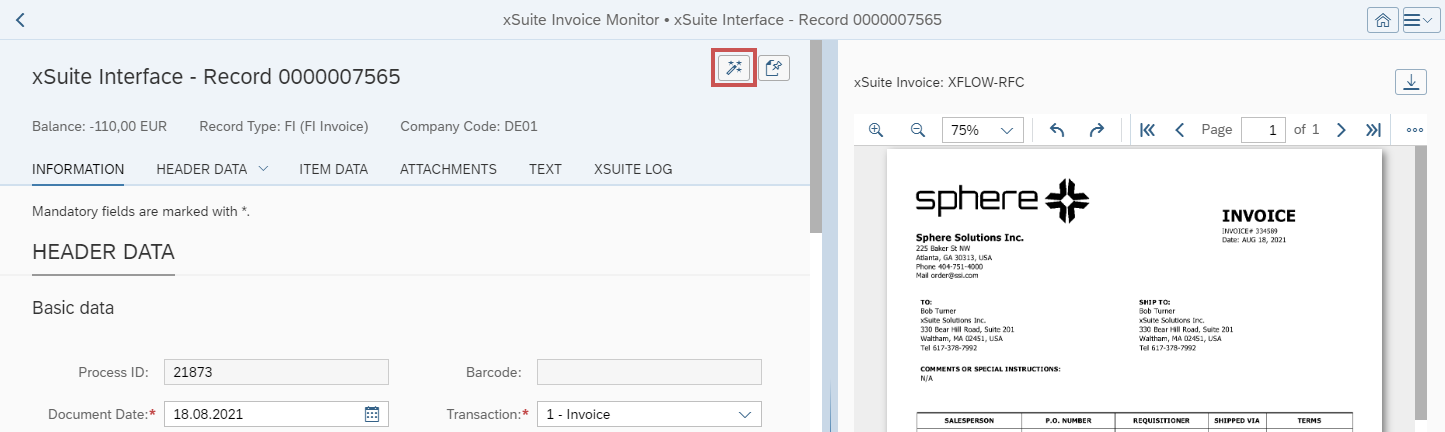
In the Header Data section or in the Item Data section, click in a field that contains a value.
➤ If the field value belonging to it is found in the image, it will be highlighted in green.
➤ If alternative field values belonging to it are found in the image, they will also be highlighted in green.
Highlighting Alternative Field Values Found in the Image
Open a document via the associated xSuite monitor. For more information, see xSuite Viewer: xSuite Monitors in SAP Fiori.
➣ The xSuite Viewer will display the document image.
Select the Fields tab.
Notice
The number of alternative field values will be displayed in the Alt. column.
Click on the number in the Alt. column.
➤ The alternative field values will be displayed.
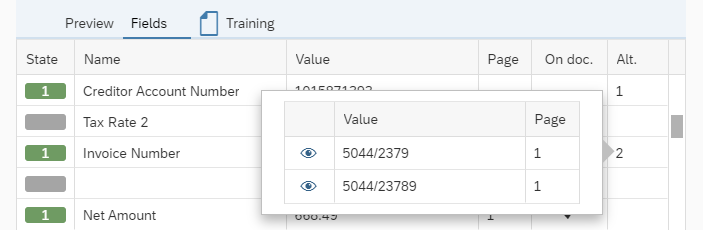
Click on
 Show field next to a field value.
➤ The field value will be highlighted in green in the image.
Navigating to a Page in the Image
Open a document via the associated xSuite monitor. For more information, see xSuite Viewer: xSuite Monitors in SAP Fiori.
➣ The xSuite Viewer will display the document image.
Execute one of the following steps:
Click one of the following buttons in the xSuite Viewer toolbar:
 Go to next page
 Go to previous page
 Go to first page
 Go to last page
Enter a page number in the field in the xSuite Viewer toolbar which contains the current page number, and press Enter.
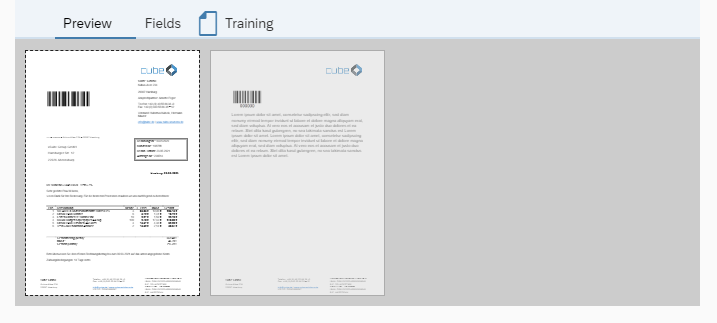
Select the Preview tab and click on one of the pages.
Selecting Values and Transferring Them to the Document
Open a document via the associated xSuite monitor. For more information, see xSuite Viewer: xSuite Monitors in SAP Fiori.
➣ The xSuite Viewer will display the document image.
In the xSuite Viewer toolbar, click the button
Open viewer menu.Perform one of the following steps:
Activate the option Select any text.
Activate the option Select field values found, as well as the option Highlight field values found.
If you have activated the option Select any text, click and drag the mouse over the value that you wish to transfer.
➣ The selected value will be highlighted in blue.
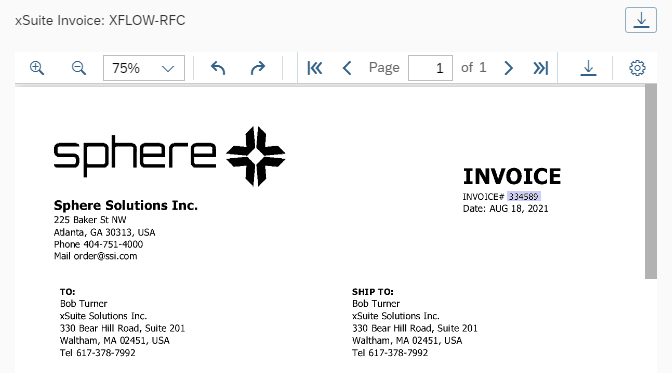
If you have activated the option Select field values found, click on a value that is highlighted in green.
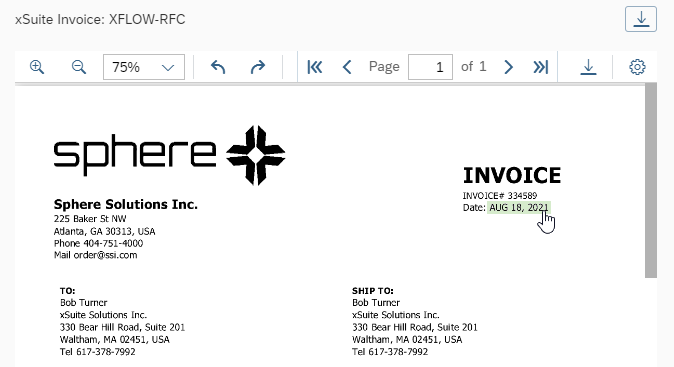
Drag and drop the selected value in a document field.
➤ If the data type of the selected text and the data type of the form field are identical, the selected text will be adopted.
➤ If the data type of the selected text and the data type of the form field are not identical, an error message will appear.
➤ If you drag the text into a comment field, the text will be copied without formatting.
Business-Partner and Field Training
During document extraction, an attempt will be made to identify the business partner and properties of the document.
If it was not possible to determine the business partner, you can train the business partner.
If the business partner has been identified but the properties have not, you can train the properties in the form of fields for the business partner.
The training improves the results of future document extraction and reduces manual follow-up work.
"Training" Tab: Columns
Column | Description |
|---|---|
Action | The current action in a training A training may be in the Train action or in the Delete action. |
State | The status of a training. For information on training status, see xSuite Viewer: Training Status in SAP Fiori. |
Name | Name of the training |
Value | Value that is selected when creating the training |
Page | Number of the page on which the training is based |
Visible | Indicates whether a field value has been found in the image. A field value does not qualify as found if there is no field value in the trained position or if the field value has a data type that is not identical to the data type trained. |
xSuite Viewer: Training Status in SAP Fiori
Status | Explanatory notes |
|---|---|
New | The training has just been created. Processing has not yet been started (Apply button). Training has not yet been used for document extraction. |
Pending | May apply to one of two scenarios:
|
Trained | Creation of the training has been successfully processed. Training is used for document extraction. |
ToDelete | The training has been deleted ( Processing has not yet been started (Apply button). Training continues to be used for document extraction. |
Training a Business Partner without a Safeguard
Notice
To replace an existing business partner training, delete the existing training before creating a new one.
For information on deleting a training, see Deleting a Training.
Open a document via the associated xSuite monitor. For more information, see xSuite Viewer: xSuite Monitors in SAP Fiori.
➣ The xSuite Viewer will display the document image.
Select the Training tab.
Enter the business partner ID in the field Creditor.
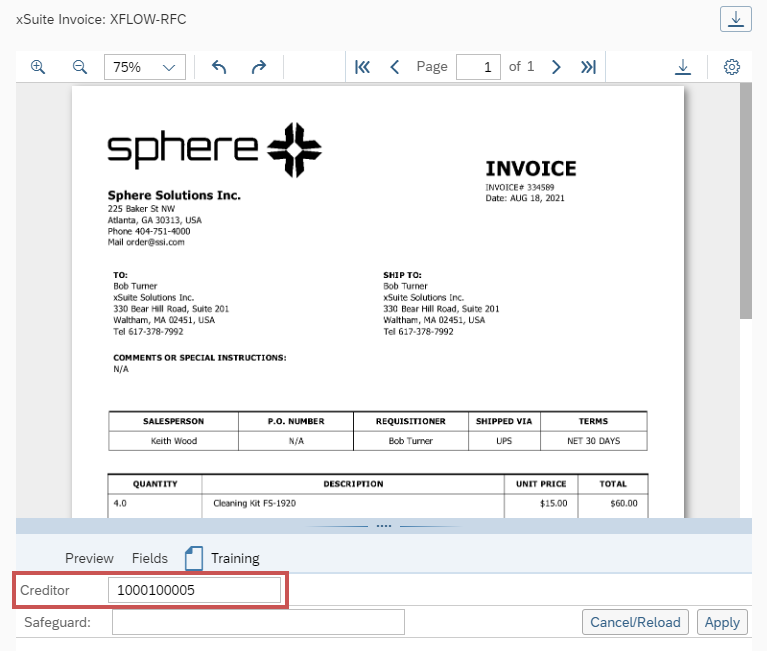
Click the button Apply.
➣ The new training is now being processed. The status will switch to Pending.
➤ After processing is complete, the status will switch to Trained.
Training a Business Partner with a Safeguard
Notice
To replace an existing business partner training, delete the existing training before creating a new one.
For information on deleting a training, see Deleting a Training.
Open a document via the associated xSuite monitor. For more information, see xSuite Viewer: xSuite Monitors in SAP Fiori.
➣ The xSuite Viewer will display the document image.
Select the Training tab.
Enter the business partner ID in the field Creditor.
Drag a frame around those fields of the image that uniquely identify the business partner, e.g., the postal code, the account number, or the sender line.
➣ The fields will be adopted to the Safeguard field.
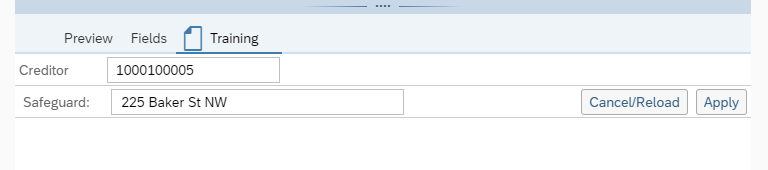
Notice
The fields will only be adopted if the frame around them is large enough.
Click the button Apply.
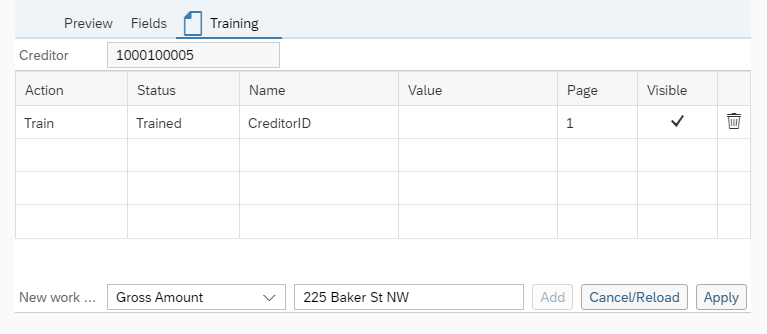
➣ A training for the CreditorID field will be created in the table. The status will be Pending.
➤ After processing is complete, the status will switch to Trained.
Training a Field for a Business Partner
Open a document via the associated xSuite monitor. For more information, see xSuite Viewer: xSuite Monitors in SAP Fiori.
➣ The xSuite Viewer will display the document image.
Select the Training tab.
➣ The business-partner ID is located in the upper field.
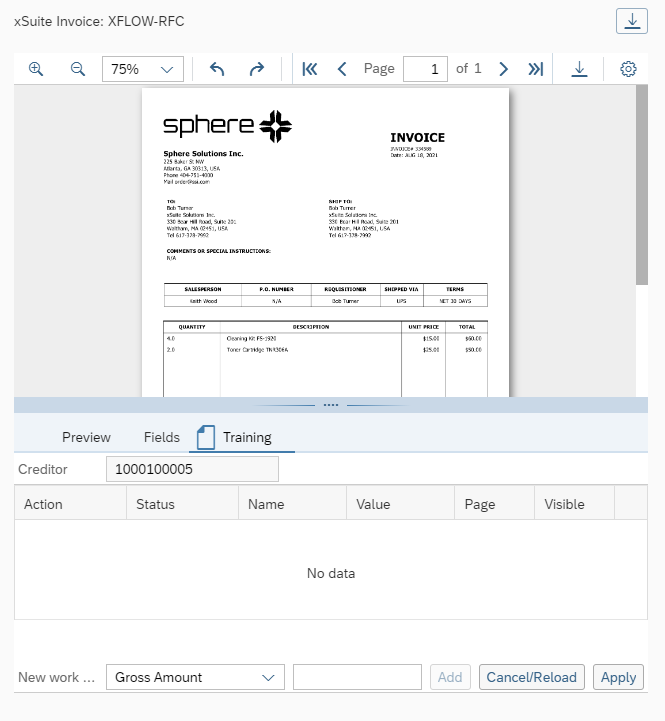
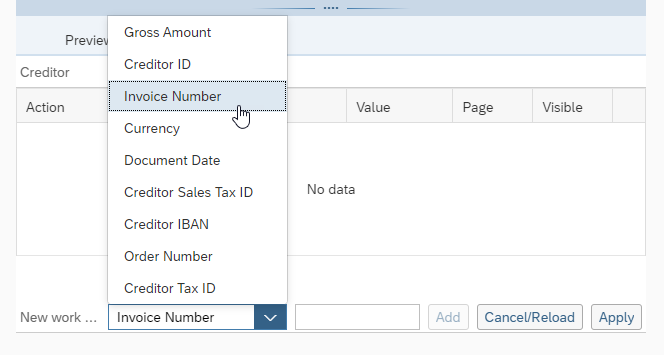
In the drop-down list, select the field that you wish to train, e.g., Invoice Number.
While holding down the mouse button, drag the mouse over the area you wish to train.
Notice
The field will only be adopted if the frame around it is large enough.
Click the button Add.
➣ A training for the business-partner field will be created in the table. The status will be New.
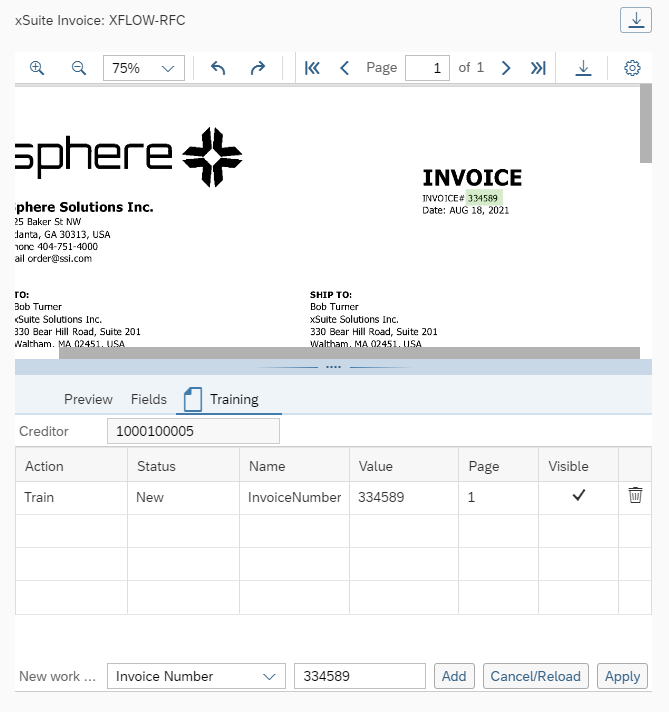
Click the button Apply.
➣ The new training is now being processed. The status will switch to Pending.
➤ After processing is complete, the status will switch to Trained.
Deleting a Training
Open a document via the associated xSuite monitor. For more information, see xSuite Viewer: xSuite Monitors in SAP Fiori.
➣ The xSuite Viewer will display the document image.
Select the Training tab.
In the line of a training in the table, click the button
 Delete.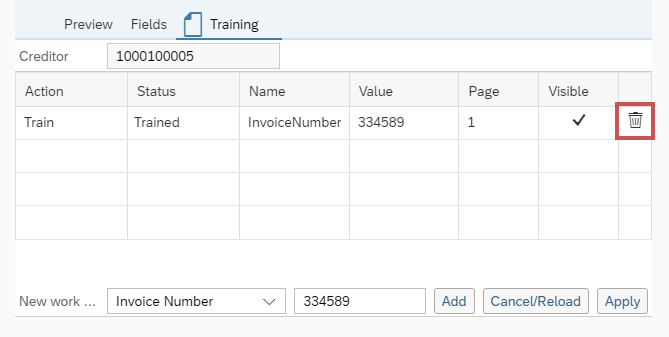
Click the button Apply.
➣ The status will switch to ToDelete.
Click the button Apply.
➣ The deletion process will begin. The status will switch to Pending.
➤ Once processing has been completed, the training will be removed.