The PNG Viewer in SAP Fiori
PNG Viewer: xSuite Monitors in SAP Fiori
The PNG Viewer is available in the following xSuite monitors:
xSuite monitor | SAP Fiori tile | Documents handled |
|---|---|---|
Invoice Monitor | Invoice Monitor |
|
Order Confirmation Monitor | OC Monitor | Order confirmations |
Sales Document Monitor | Sales Document Monitor | Orders |
PNG Viewer: Main Overview in SAP Fiori
 |
Section | Information and comments | |
|---|---|---|
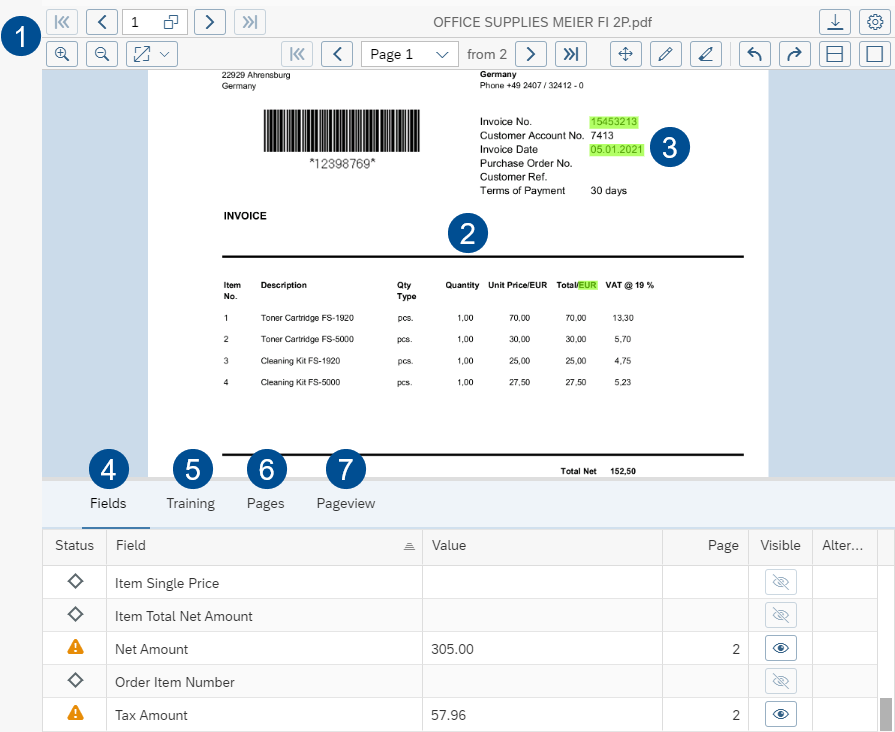
1 | The PNG Viewer toolbar | Contains the buttons of the PNG Viewer. For more information, see PNG Viewer: Buttons in the Toolbar in SAP Fiori. |
2 | Image display | This is where the individual pages of the image are displayed. |
3 | Highlighting | In the PNG Viewer, found field values are highlighted in green. |
4 | Fields tab | Shows the properties of the image in the form of fields. |
5 | Training tab | Here, you can train the vendor or the fields of a vendor. For more information, see PNG Viewer: Creditor and Field Training in SAP Fiori. Note: When using xSuite Capture Helix, this tab is hidden, because xSuite Capture Helix always runs an implicit training when posting or parking an SAP document. |
6 | Pages tab | A gallery view of all individual pages is displayed here. Clicking on a single page will open that page in the Viewer pane. |
7 | Pageview tab | This is where the preview of the current page is displayed. The section of the page displayed in the displayed area is highlighted. The size of the area displayed will vary depending on how far you have zoomed in and how large your browser window is. You can move the highlighted page section by holding down the left mouse button and dragging it. The page view in the display area will adjust accordingly. |
PNG Viewer: Buttons in the Toolbar in SAP Fiori
Button | Name | Description | ||
|---|---|---|---|---|
| Download document | Downloads the image. | ||
| Settings | Opens the display settings of the PNG Viewer. Here the user can configure the display the settings for displaying a new document or a new page. If the settings have been changed, these changes will apply to the current session. If the changes are to be applied permanently, the app settings must be saved. The settings apply to the PNG Viewer regardless of which xSuite monitor is being used. | ||
| Zoom in | Zooms in on the page. | ||
| Zoom out | Zooms out of the page. | ||
| Zoom options | Opens the zoom options of the PNG Viewer. You can select different zoom values to expand or shrink the image displayed, or one of the following settings:
| ||
| First page | Brings you straight to the first page. | ||
| Page back | Scrolls one page back. | ||
| Page forward | Brings you forward a page. | ||
| Last page | Brings you straight to the last page. | ||
| Activate selection mode Activate navigation mode | Switches between navigation and selection mode. In navigation mode, the user can move the page by holding down the left mouse button. In selection mode, the user can select a page range by holding down the left mouse button. NoticeMore options for marking an area of the page (regardless of the mode selected):
| ||
| Show all recognized fields | Highlights all field values found. | ||
| Remove all highlights | Removes all highlighting. | ||
| Rotate 90° to the left | Turns the page 90° to the left. | ||
| Rotate 90° to the right | Turns the page 90° to the right. | ||
 | Restore the default splitter size distribution | Displays the tabs and restores the default size of the image display in relation to the tabs. | ||
 | Hide tabs | Hides the tabs. |


PNG Viewer: Field Values in the Image in SAP Fiori
All field values extracted from the image during data extraction are displayed in the Fields tab. These field values also include ones which are not found in the image. An example of a preset field value is a company code.
"Fields" Tab: Columns in SAP Fiori
Column | Description |
|---|---|
State | Shows the status of a field. For information on field status, see PNG Viewer: Field Status in SAP Fiori. |
Field | Shows the name of a field. If a field relates to items, the field will be output by item, e.g. Item Quantity. |
Value | Shows the value of a field. Field values are identified in the document extraction. If a field value in the image has a format other than the corresponding field value in SAP, the field value in the document extraction will be adjusted to the SAP format. The adjusted field value is located in the column Value. Example: In the document, the amount of the order is specified with two decimal places. In SAP it is specified without any decimal places. The document would contain |
Page | Shows the page number on which an identified field value was found. |
Visible | Indicates whether an identified field value has been found in the document. |
Alternatives | Indicates whether an identified field value has been found multiple times in the document. Alternative field values can be highlighted in the document. For more information, see PNG Viewers: Highlighting Alternative Field Values in the Image in SAP Fiori. |
PNG Viewer: Field Status in SAP Fiori
Status | Color | Explanatory notes |
|---|---|---|
| Gray | This field is neither a mandatory field nor part of a rule. For this reason, the field value identified will not be checked. If all fields are gray, the completeness check for the document is considered fulfilled. |
| Green | This field is mandatory. The field value identified has been found in the image. If all fields are green or gray, the completeness check for the document is considered fulfilled. |
| Orange | This field is mandatory. The field value identified has not been found in the image. If one or more fields is orange, the completeness check for the document will be considered not fulfilled. |
| Red | This field is part of a rule. The field value identified goes against a rule. Example of rules:
If one or more fields is red, the completeness check for the document is considered not fulfilled. |


PNG Viewer: Highlighting Header or Item Data Fields in the Image in SAP Fiori
Open a document in the associated xSuite monitor. For more information, see PNG Viewer: xSuite Monitors in the SAP GUI.
➣ The image of the document will be displayed in the PNG Viewer.
Click the button
 Activate highlighting in the page header.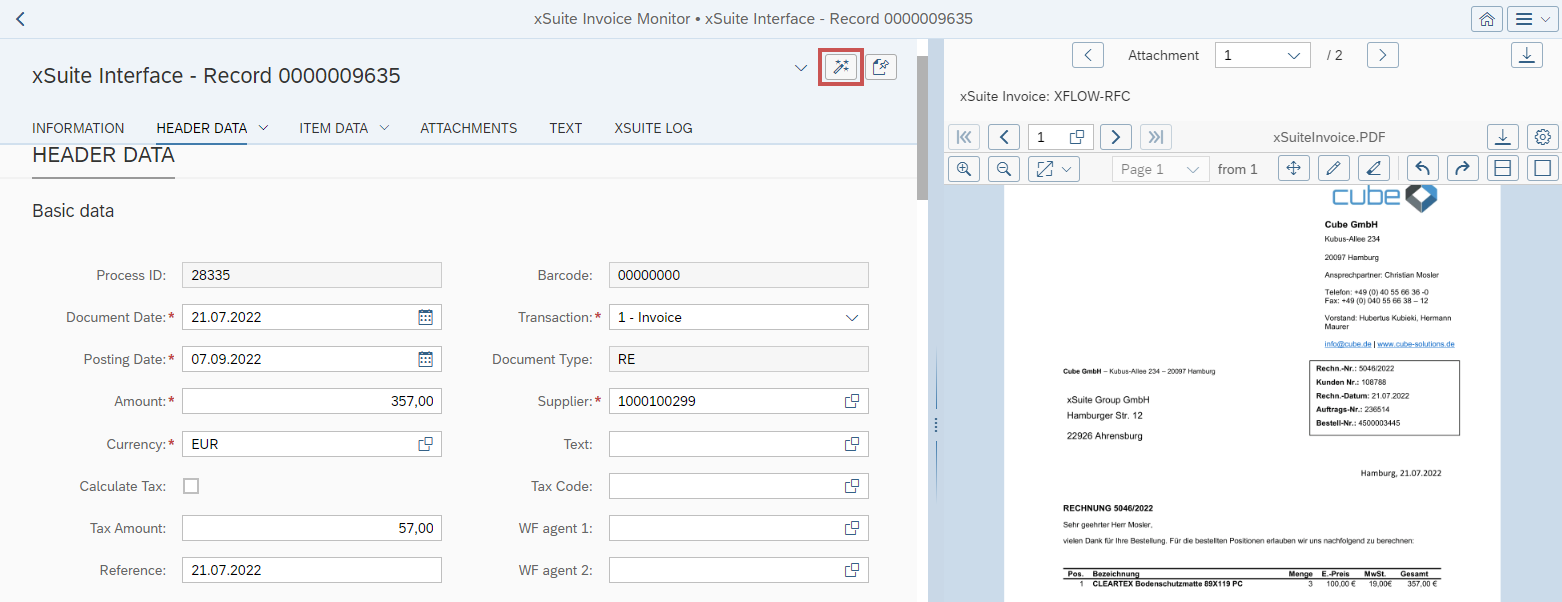
In the Header Data section or in the Item Data section, click in a field that contains a value.
➤ If the field value belonging to it is found in the image, it will be highlighted in green.
PNG Viewers: Highlighting Alternative Field Values in the Image in SAP Fiori
Open a document via the associated xSuite monitor. For more information, see PNG Viewer: xSuite Monitors in SAP Fiori.
➣ The image of the document will be displayed in the PNG Viewer.
Select the Fields tab.
Notice
The number of alternative field values appears in the column Alternatives.
Click on the button in the column Alternatives.
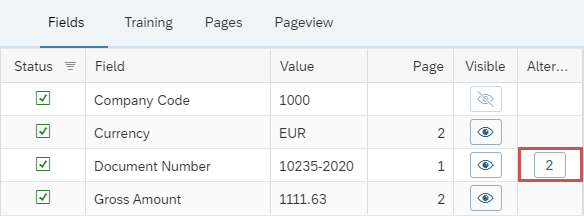
➣ A list of alternative values for the field will open in a new window.
In the line of an alternative value, click on the button
 Visible.
Notice
To copy a value to the clipboard, click on the button
 Copy.
Copy.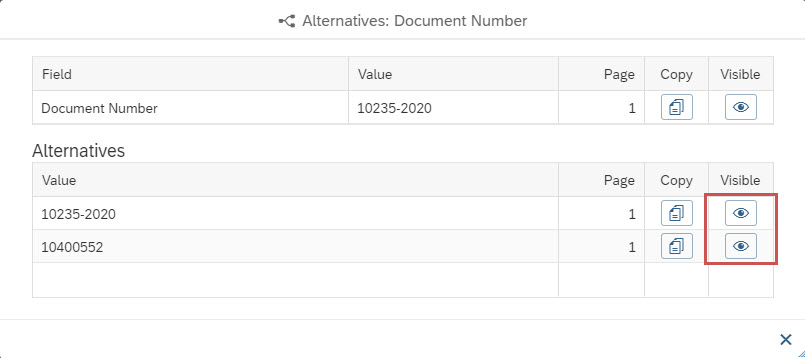
➤ The alternate field value will be highlighted in the image.
Selecting values and transferring them to the document – the PNG Viewer in SAP Fiori
Open a document in the associated xSuite monitor. For more information, see PNG Viewer: xSuite Monitors in the SAP GUI.
➣ The image of the document will be displayed in the PNG Viewer.
In the PNG Viewer toolbar, click the button
 Show all recognized fields.
➣ All field values identified in the document will now be highlighted.

Drag and drop the selected field value into a header or item field of the document.

➤ If the data type of the selected field value and the data type of the header or item field are identical, the selected value will be adopted.

➤ If the data types are different, you will receive an error message.
➤ If you drag the value into a comment field, the value will be transferred unformatted.
Notice
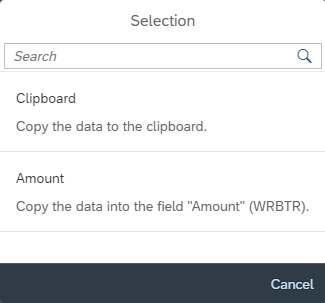
As an alternative, you can left-click directly on a recognized field value.
In the dialog Selection that then appears, you can select whether the field value is to be copied to the clipboard or whether it is to be transferred to the respective field.
Open a document in the associated xSuite monitor. For more information, see PNG Viewer: xSuite Monitors in the SAP GUI.
➣ The image of the document will be displayed in the PNG Viewer.
Holding down the right mouse button, drag the mouse over a field value that you want to apply.
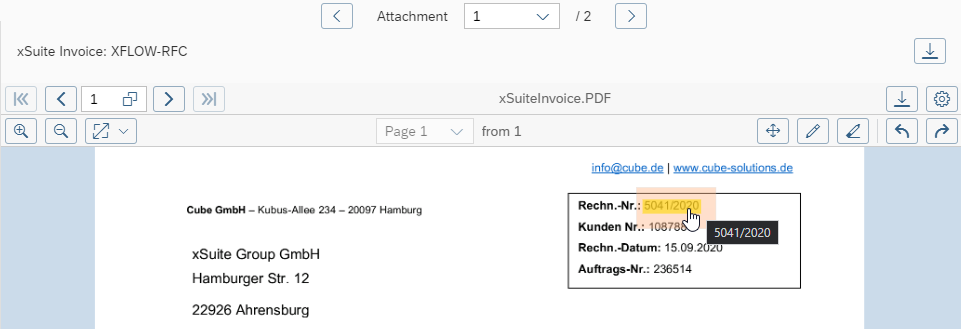
Drag and drop the field value into a header or item field in the document.

➤ If the data type of the selected field value and the data type of the header or item field are identical, the selected value will be adopted.
➤ If the data types are different, you will receive an error message.
➤ If you drag the value into a comment field, the value will be transferred unformatted.
PNG Viewer: Creditor and Field Training in SAP Fiori
The document extraction function will attempt to determine the vendor of a document as well as the properties of a document.
If it was not possible to determine the vendor, you can train the vendor.
If it was possible to determine the vendor but not the properties, you can train the properties in the form of fields for the vendor.
Training will improve the results of future document extraction and reduce manual post-processing work.
"Training" Tab: Columns in SAP Fiori
Column | Description |
|---|---|
State | Shows the status of a training. For information on training status, see PNG Viewer: Training Status in the SAP GUI. |
Display training area | If you click on the |
Delete | If you click on the |
Training (area + text) | If you click on the The text is displayed in the Value column. |
Training (only area) | If you click on the |
Field | Shows the field name. |
Value | Shows the value that you selected when creating the training. |
Type | Shows the data type of the field, e.g. String or Decimal. |
Index | Depending on the status of a training, displays one of the following values:
Note: This column is only relevant for training item data. |
Page | Shows the page number to which the training refers. |
Visible | Shows whether a field value was found in the image. A field value is considered not found if there is either no field value in the trained position or the field value has a data type that is not identical to the data type trained. |
PNG Viewer: Training Status in SAP Fiori
Status | Explanatory notes |
|---|---|
Initial | There are no associated trainings for this field. |
New | The training has just been created. Processing has not been started yet ( Training has not yet been used for document extraction. |
Trained | Creation of the training has been successfully processed. Training is used for document extraction. |
ToDelete | The training was deleted ( Processing has not been started yet ( Training continues to be used for document extraction. |
PNG Viewer: Training the Vendor without a Safeguard in SAP Fiori
Caution
When you replace an existing vendor training with a new vendor training, the associated field training will be deleted.
Open a document via the associated xSuite monitor. For more information, see PNG Viewer: xSuite Monitors in SAP Fiori.
➣ The image of the document will be displayed in the PNG Viewer.
Select the Training tab.
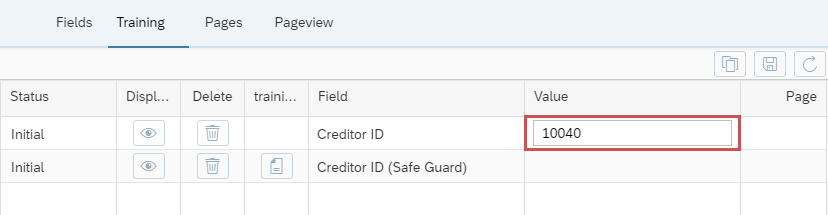
Enter the creditor ID in the column Value of the line Creditor ID.
Notice
The system always uses the entire first page of the document as the area to be trained.
Click on
 Save training.
➣ The new training will be processed.
➤ After processing is complete, the status will switch to Trained.
PNG Viewer: Training the Vendor with a Safeguard in SAP Fiori
Caution
When you replace an existing vendor training with a new vendor training, the associated field training will be deleted.
Open a document via the associated xSuite monitor. For more information, see PNG Viewer: xSuite Monitors in SAP Fiori.
➣ The image of the document will be displayed in the PNG Viewer.
Select the Training tab.
Enter the creditor ID in the column Value of the line Creditor ID.
Notice
The system always uses the entire first page of the document as the area to be trained.
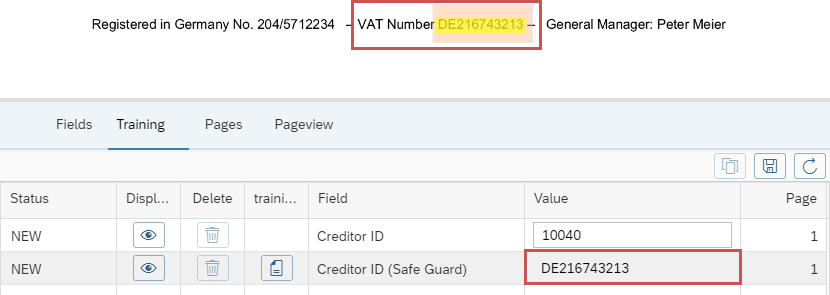
Holding down the right mouse button, drag a frame around the fields that uniquely identify the vendor, e.g. the postal code, the IBAN or the sender line.
In the line Creditor ID (Safe Guard), click on
Training (Area + Text).➣ The text of the selected area will now be displayed in the Value field.
Click on
Save training.➣ The new training will be processed.
➤ After processing is complete, the status will switch to Trained.
PNG Viewer: Training a Field of a Vendor in SAP Fiori
Open a document via the associated xSuite monitor. For more information, see PNG Viewer: xSuite Monitors in SAP Fiori.
➣ The image of the document will be displayed in the PNG Viewer.
Select the Training tab.
Holding down the right mouse button, drag a frame around the value of the field to be trained.
Notice
The field will only be adopted if the frame around it is large enough.
Perform one of the following steps:
In the field to be trained, click on
 Training (Area + Text).
➣ The selected area will be adopted with full text. The text will be displayed in the Value column.
➣ The status will change to New.

In the field to be trained, click on
 Training (only area).
➣ The selected area will be adopted.
➣ The status will change to New.
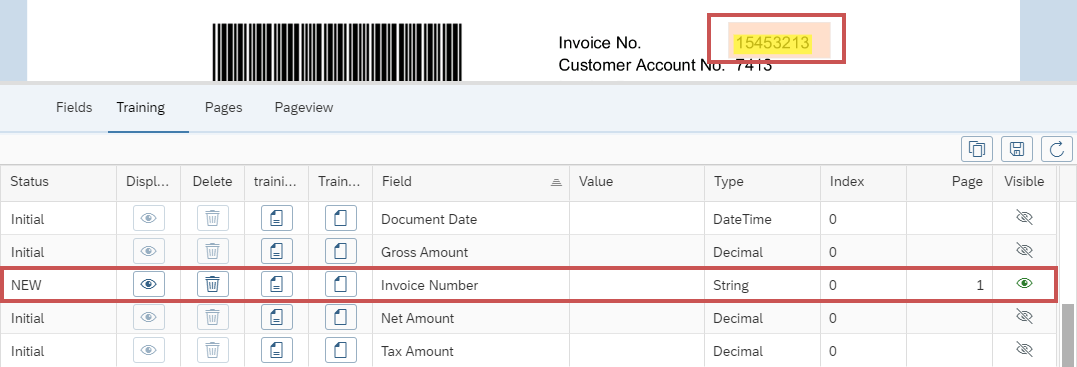
Click on
Save training.Notice
The training is always saved for all fields simultaneously.
➣ The new training will be processed.
➤ After processing is complete, the status will switch to Trained.
PNG Viewer: Deleting a Training in SAP Fiori
Open a document via the associated xSuite monitor. For more information, see PNG Viewer: xSuite Monitors in SAP Fiori.
➣ The image of the document will be displayed in the PNG Viewer.
Select the Training tab.
In the line of a training, click on
 Delete.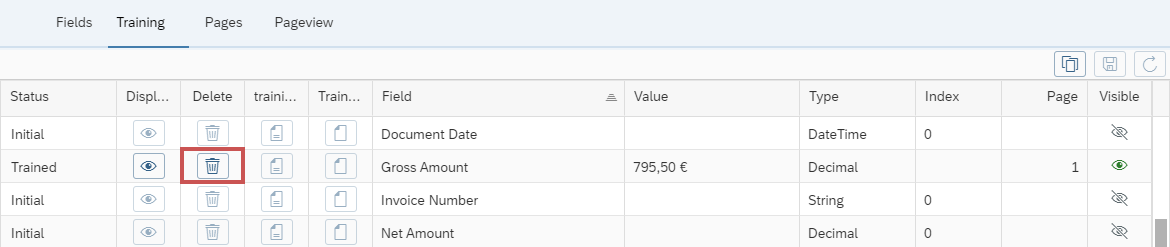
➣ The status of the training will change to ToDelete.
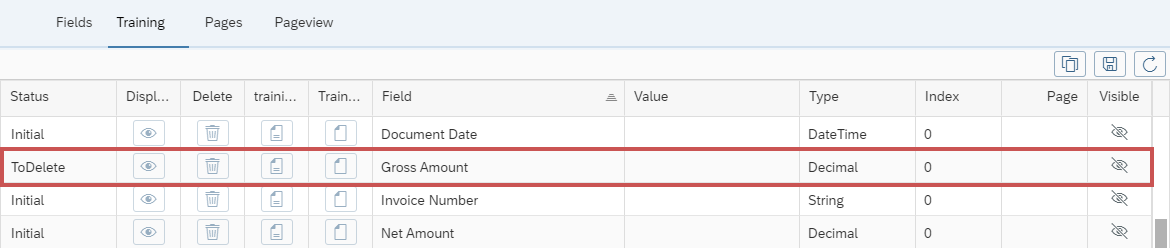
Click on
Save training.➣ The deletion process will now start.
➤ After the deletion process is complete, the training will be removed. The status of the training will now be Initial.