Validation: Main Overview in SAP Fiori
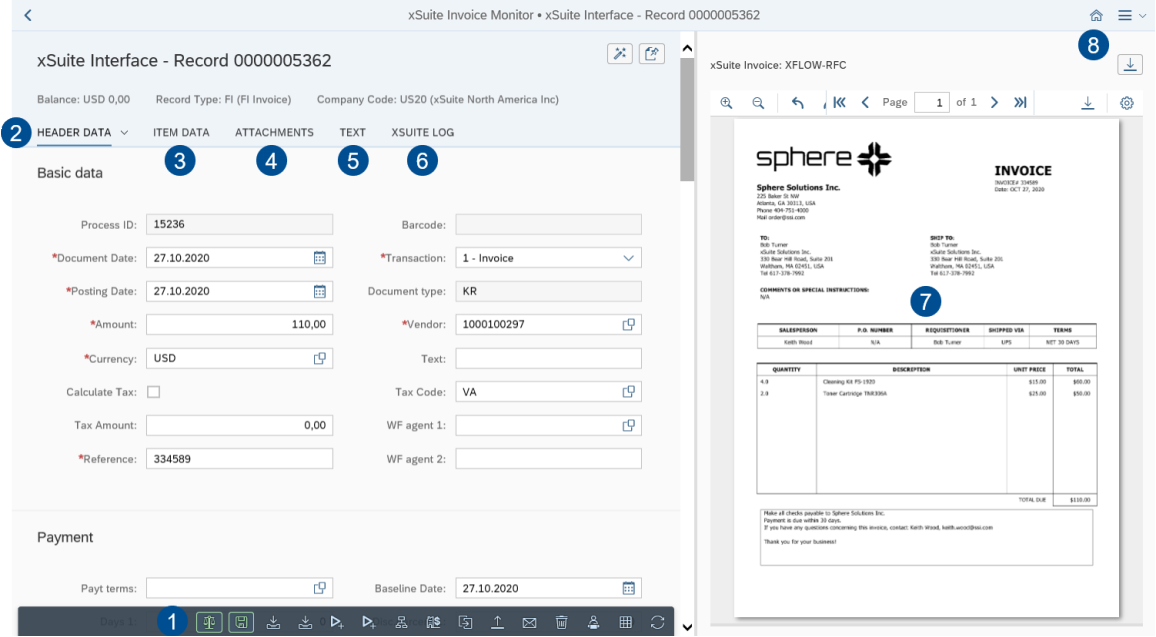 |
Area | More information | |
|---|---|---|
1 | Document buttons | |
2 | Header Data | The primary data of the document is displayed in the header data. You can add and/or edit individual header data, such as Document date, Posting date, Amount, Currency, Reference and Transaction. |
3 | Item Data | This is where the item data of a document can be viewed and edited. Which buttons and data are available depends on the document type. For information on the item data of documents, see: |
4 | Attachments | The document is displayed in xSuite Viewer. All other attachments are displayed in a simple page view. |
5 | Text | |
6 | xSuite Log | |
7 | Viewer | This is where the image and other attachments to the document are displayed. The image of the document is displayed in the xSuite Viewer or in the PNG Viewer. All other attachments are displayed in a simple page view. For information on the xSuite Viewer, see xSuite Viewer in SAP Fiori. For information on the PNG Viewer, see The PNG Viewer in SAP Fiori. |
8 | Settings | Here, you can determine personal document display (Settings→ Global → Document view:
|