"Change Purchase Order / Post GR" (Role LGPO)
The workflow task for changing the purchase order ("Change document" button) or post GR consists of checking and removing price and/or quantity blocks by editing the purchase order data and posting goods receipts.
UI – SAP GUI
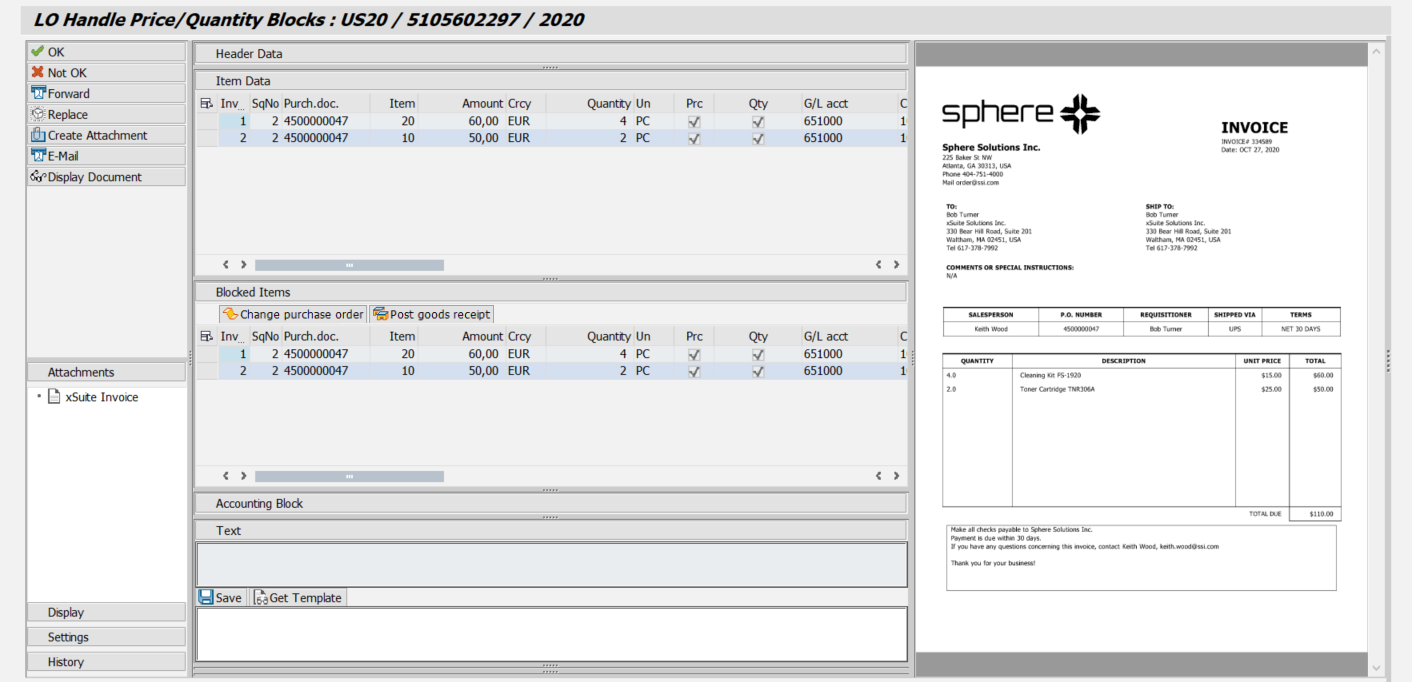 |
UI – SAP Fiori
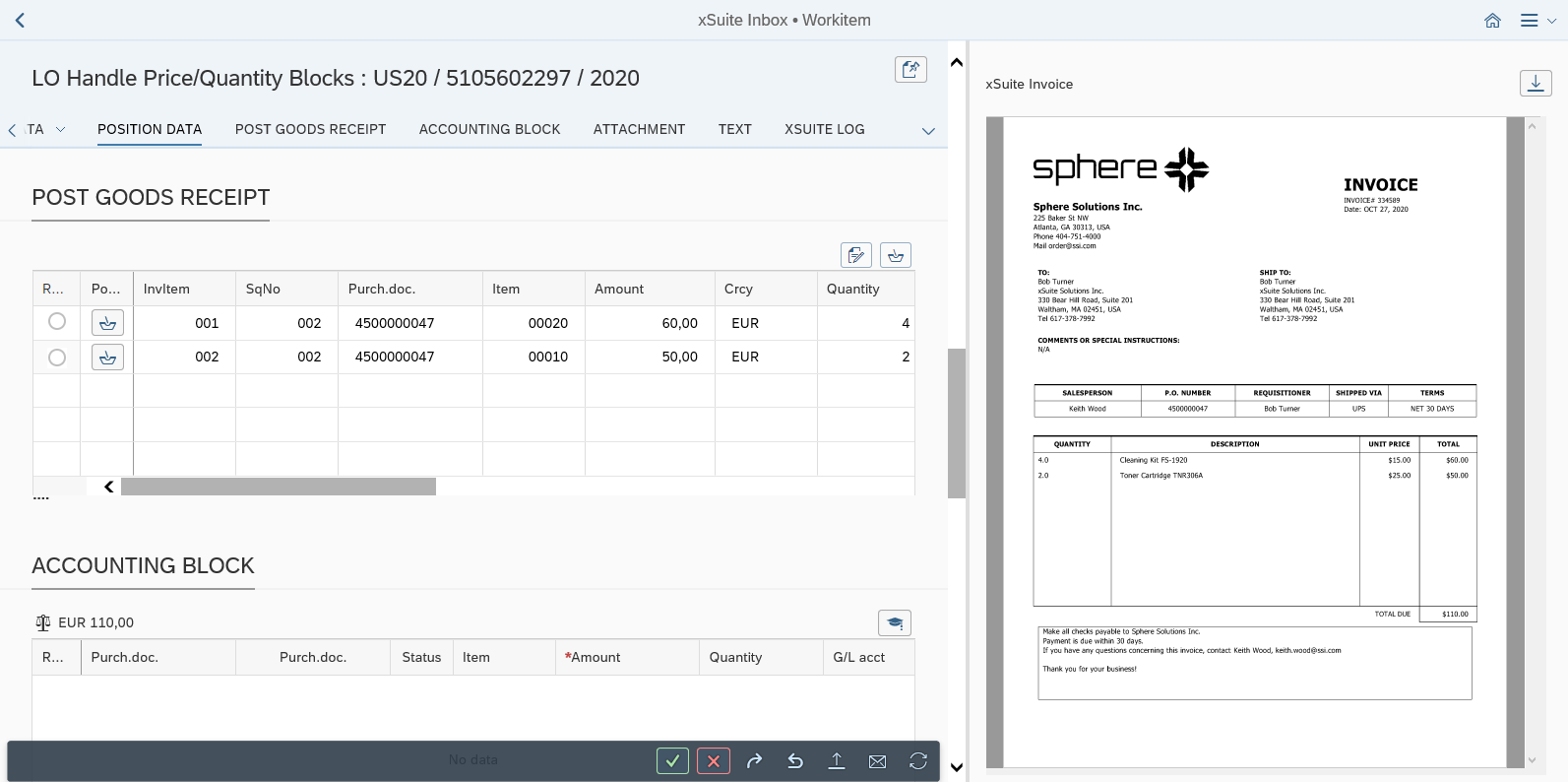 |
UI – xSuite Web
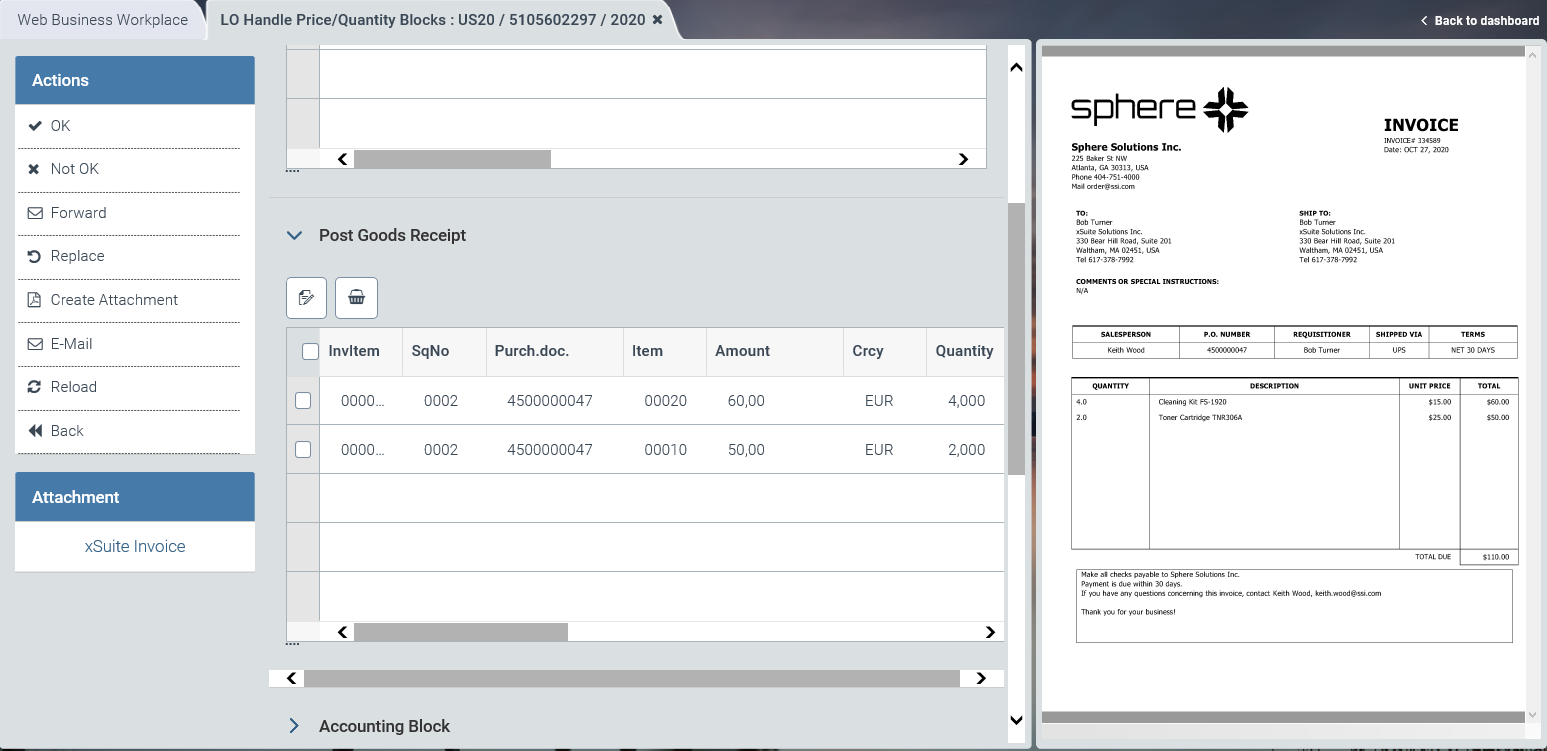 |
For information on UI elements, see Work Items: Main Overview in the SAP GUI, Work Items: Main Overview in SAP Fiori, and Work Items: Main Overview in xSuite Web.
"Change Purchase Order / Post GR": Buttons
SAP Fiori | SAP GUI / xSuite Web | Description |
|---|---|---|
| OK | Shortcut in the SAP GUI: CtrlF7 |
| Not OK | Shortcut in the SAP GUI: CtrlF8 |
| Forward | |
| Replace | |
| Create Attachment | |
| ||
-- | Display Document | Note: This button is only available in the SAP GUI. |
| Refresh | Note: This button is only available in xSuite Web and in SAP Fiori. |
| Back | Note: This button is only available in xSuite Web and in SAP Fiori. |


"Change Purchase Order / Post GR": Buttons for Blocked Items
SAP GUI | SAP Fiori | xSuite Web | Description |
|---|---|---|---|
Change purchase order |
|
| Opens the SAP purchase order of a selected, price-blocked item line in edit mode (transaction ME22N). In xSuite Web and in SAP Fiori, the SAP document is opened via the Internet Transaction Server Service (ITS). |
Post goods receipt |
|
| Branches to the SAP transaction for goods receipt posting (transaction MIGO) for a selected, quantity blocked item line. In SAP Fiori and xSuite Web, the Post Goods Receipt dialog opens. |


Posting Goods Receipt in xSuite Web
Proceed with one of the following steps.
In the xSuite Web Overview, click on the Goods Receipt tile.
In the editing section of a work item that is located in the workflow task "Change purchase order / Post GR", click the Post goods receipt button.
➣ The Post Goods Receipt window will open.
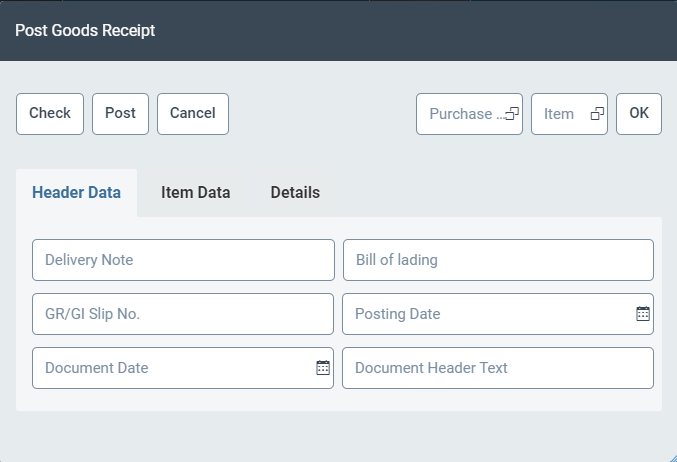
In the field Purchase Order, enter a purchase order in which data is to be loaded.
To limit the data to one item of the purchase order, enter an item number in the Item field.
Click OK.
➣ The data of the order entered will be loaded.
If necessary, enter additional data in the Header data area.
Click Post.
➤ The goods receipt will be posted for the purchase order.
Posting Goods Receipt in SAP Fiori
Proceed with one of the following steps.
On the SAP Fiori home page, click the Goods Receipt tile.
In the validation screen of an MM document, click the button Post goods receipt.
In the editing section of a work item that is located in the workflow task "Change purchase order / Post GR", click the Post goods receipt button.
➣ The Post Goods Receipt screen will open.
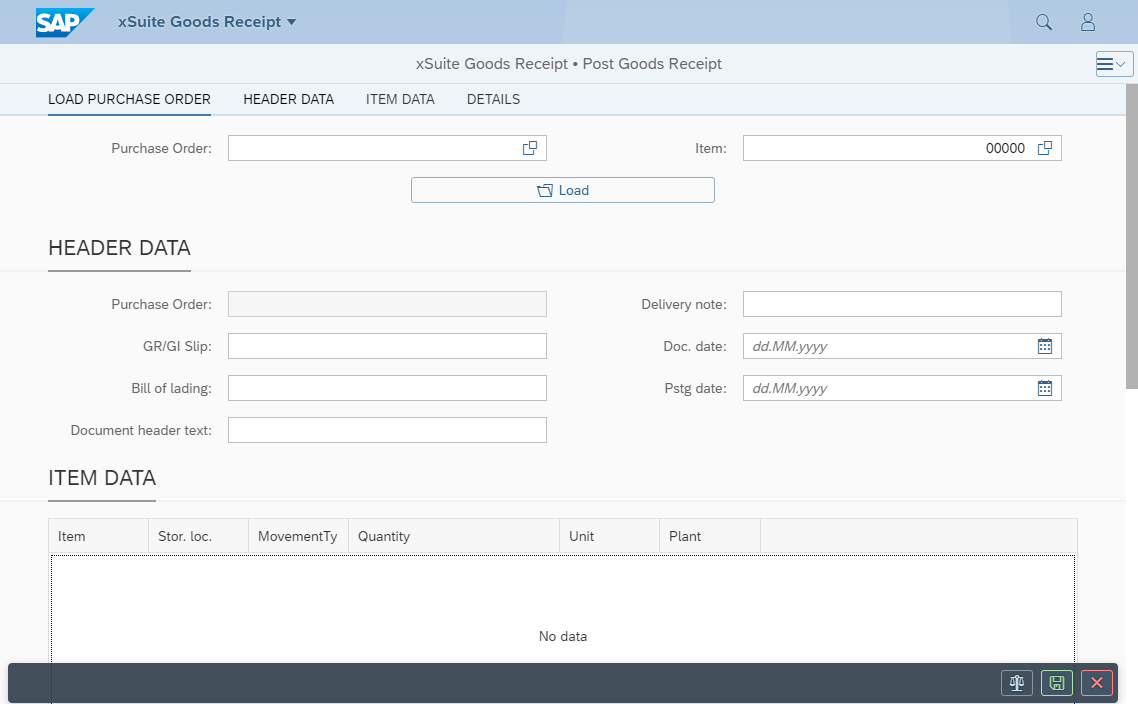
In the field Purchase Order, enter a purchase order in which data is to be loaded.
To limit the data to one item of the purchase order, enter an item number under Load purchase order → Item.
Click
 Load.
Load.➣ The data of the order entered will be loaded.
If necessary, enter additional data in the Header data area.
Click
 Post.
Post.➤ The goods receipt will be posted for the purchase order.