The Process Analyzer in SAP Fiori
Opening the Process Analyzer in SAP Fiori
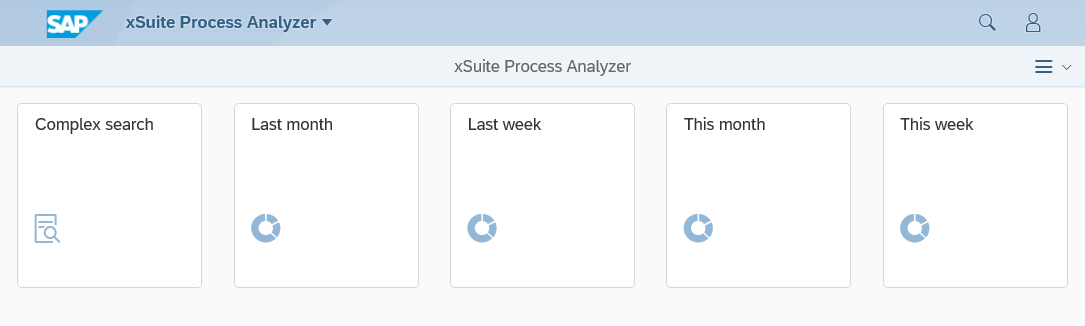
On the SAP Fiori start page, click the Process Analyzer tile.
➣ The selection screen will open.
Click
 Menu →
  Settings.
The Settings dialog will open.
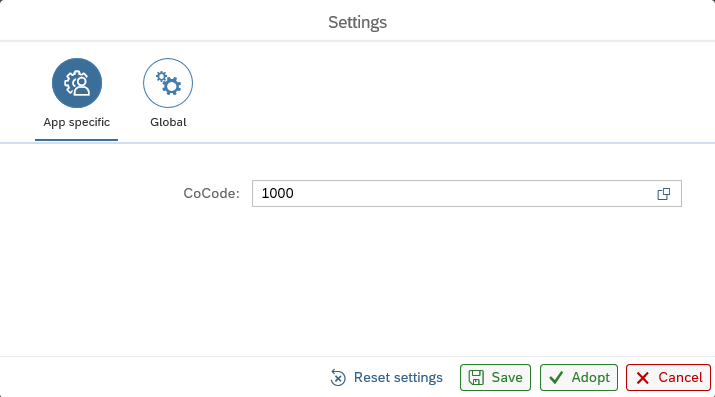
In the CoCode field of the App specific area, enter a company code and click Save.
Click one of the five tiles in the selection screen:
Last month: Opens the overview for the last month.
Last week: Opens the overview for the last week.
This month: Opens the overview for the current month.
This week: Opens the overview for the current week.
Complex search: Opens the search parameters for the complex search. Complex searches offer the option of generating an individual overview based on the search parameters specified.
For information on search fields of complex searches, see Process Analyzer: Search Fields in SAP Fiori.
Process Analyzer: Search Fields in SAP Fiori
Search field | Description |
|---|---|
Bus. Area | Restricts results to data from one or more business areas. |
Doc. Date | Restricts results to data from a certain period of time using the document date. |
Reference | Restricts results to data from a specific document using the reference number. |
Vendor | Restricts results to data from one or more suppliers. |
DocumentNo | Restricts results to data from a single document or a specified range of documents based on the document number. |
Entry Date | Restricts results to data from a certain period of time using the date of entry. |
Pstng Date | Restricts results to data for a specific posting period using the posting date. The entry of a posting date is mandatory. |
Customer | Restricts results to data of one or more customers. |
Type | Restricts results to data of one or more document types, such as |
CoCode | Restricts results to data from a specific company code. The specification of a company code is mandatory. |
Process Analyzer: Main Overview in SAP Fiori
 |
Element | Description | |
|---|---|---|
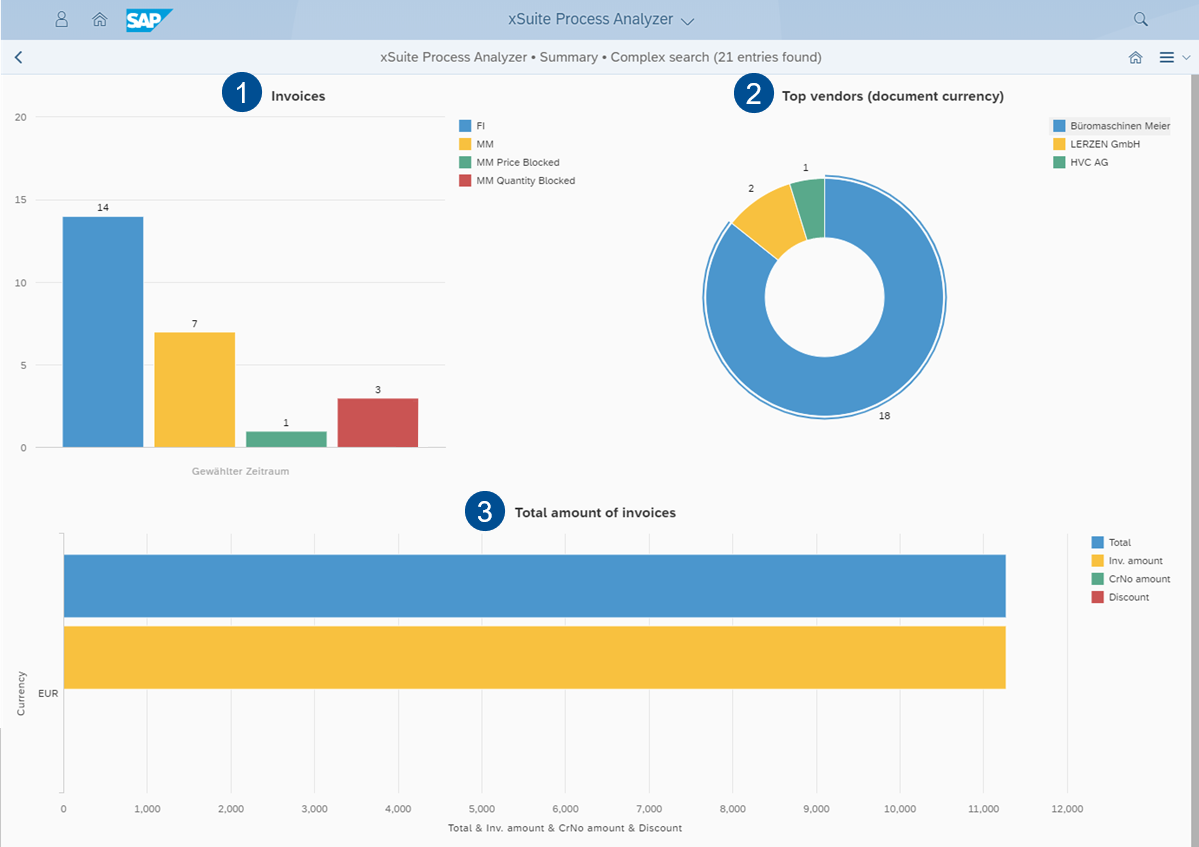
1 | Invoices | Shows the total of all invoices in the selected period, broken down by invoice type. |
2 | Top vendors (document currency) | Shows the top ten suppliers and their share of invoices in the selected period. |
3 | Total amount of invoices | Shows the total amount of all invoices in the selected period. |
Notice
To view more information about a bar, move the mouse pointer over the bar of a graph.
Process Analyzer: Detail View in SAP Fiori
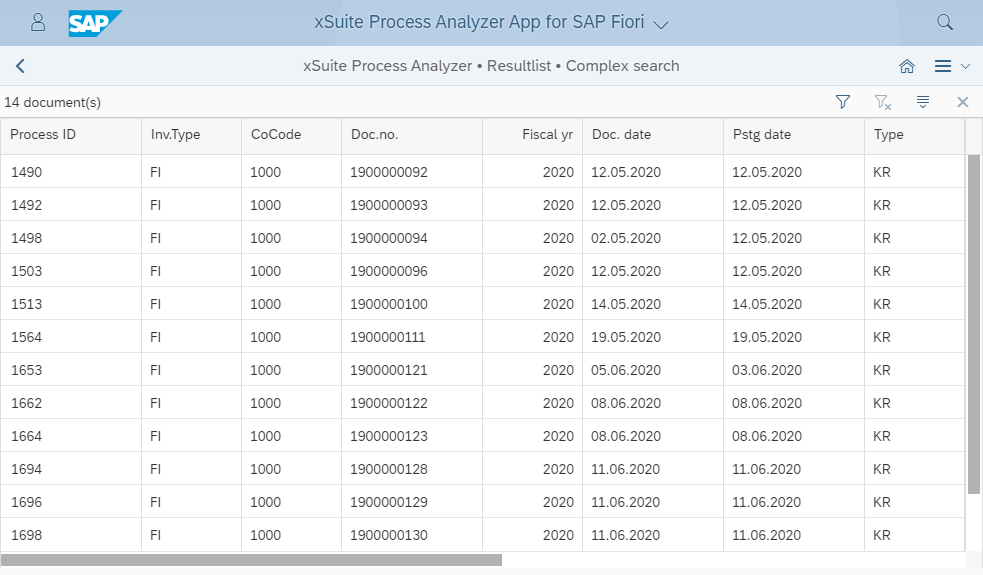
The detailed view of the Process Analyzer displays selected invoice data of a certain period in a detailed list.
The list can be filtered and sorted with the buttons  Filter and
  Sorting.
 |
Process Analyzer: Opening the Detail View in SAP Fiori
Open the Process Analyzer in SAP Fiori. For more information, see Opening the Process Analyzer in SAP Fiori.
Click on a bar of a graph.
➤ The detailed view of this bar will open.