Configuring and testing web services in the IIS
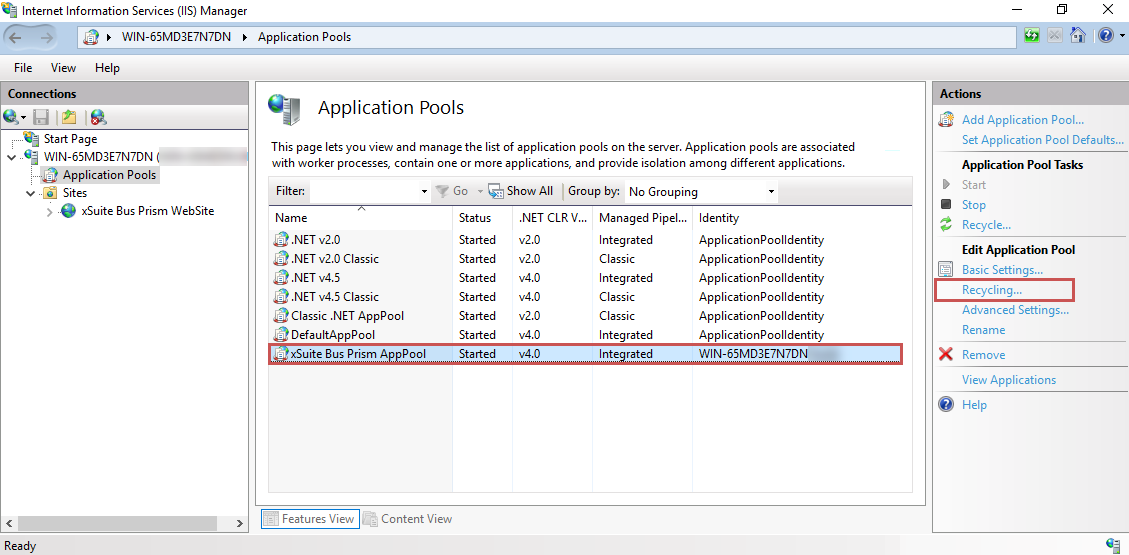
In the IIS Manager, open the Application Pools menu item.
Select the xSuite Bus Prism AppPool entry and then click Recycling....
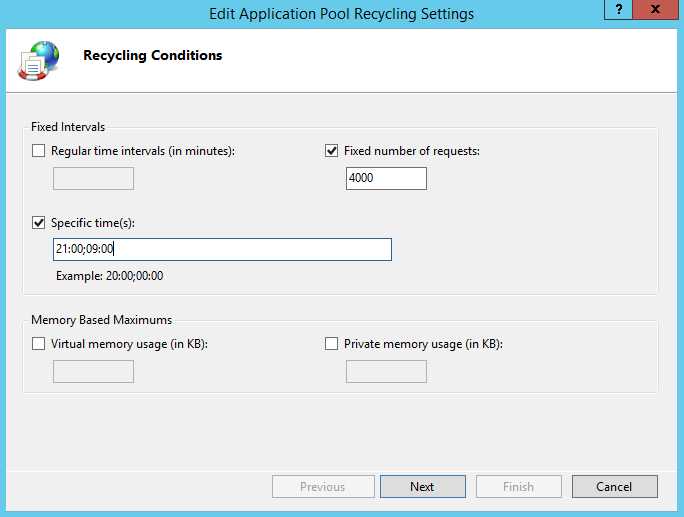
Specify when the web service will be restarted, and then click Next.
It is recommended that the web service be restarted twice a day and after 4,000 requests at the latest.
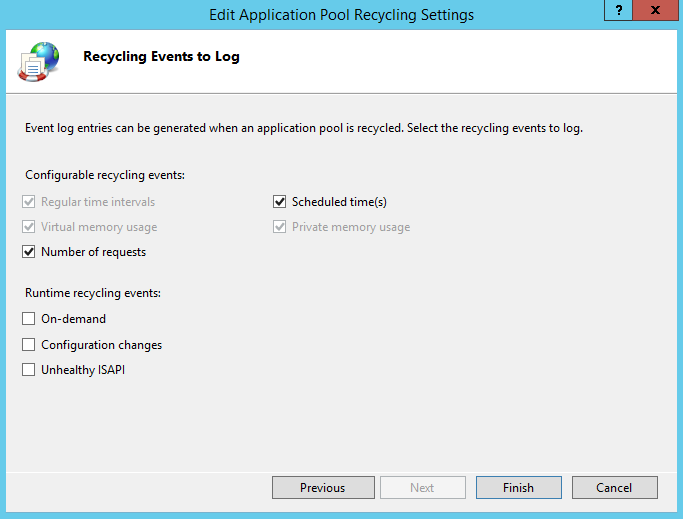
Enable the events you configured in the previous step, and then click Finish.
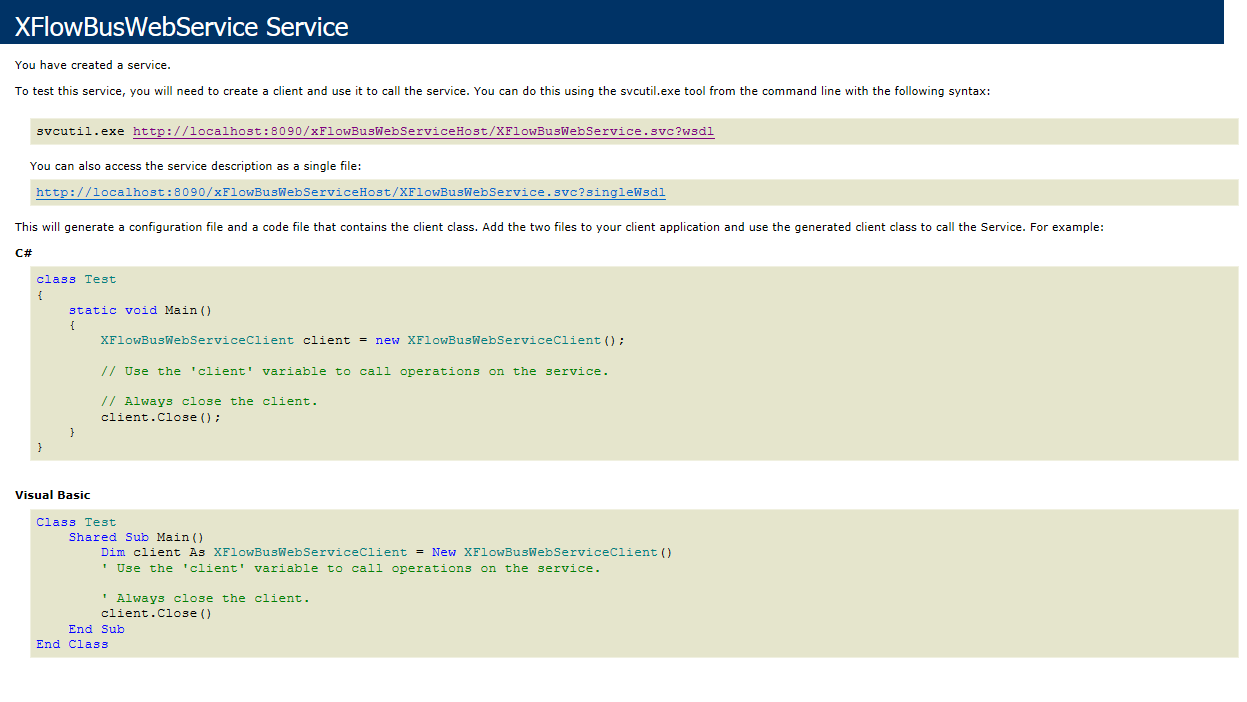
To test the availability of the xSuite Bus Web Service, go to Sites → xSuite Bus Prism WebSite and open the xFlowBusWebServiceHost application in Content View.
Right-click on the
XFlowBusWebService.svcfile, and then click Browse.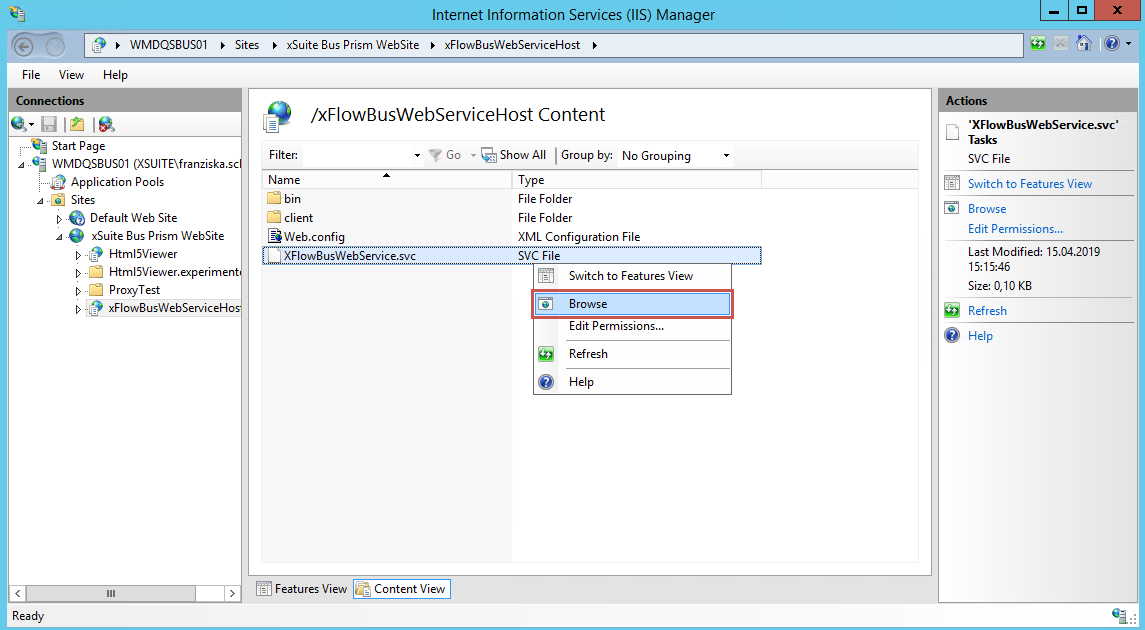
➤ The file will be displayed in the browser.
Now you can check whether the Web Service of the xSuite Viewer has been installed correctly.
Testing the HTML5 Viewer web service
In the IIS Manager, go to Sites → xSuite Bus Prism WebSite and open the Html5Viewer application in Content View.
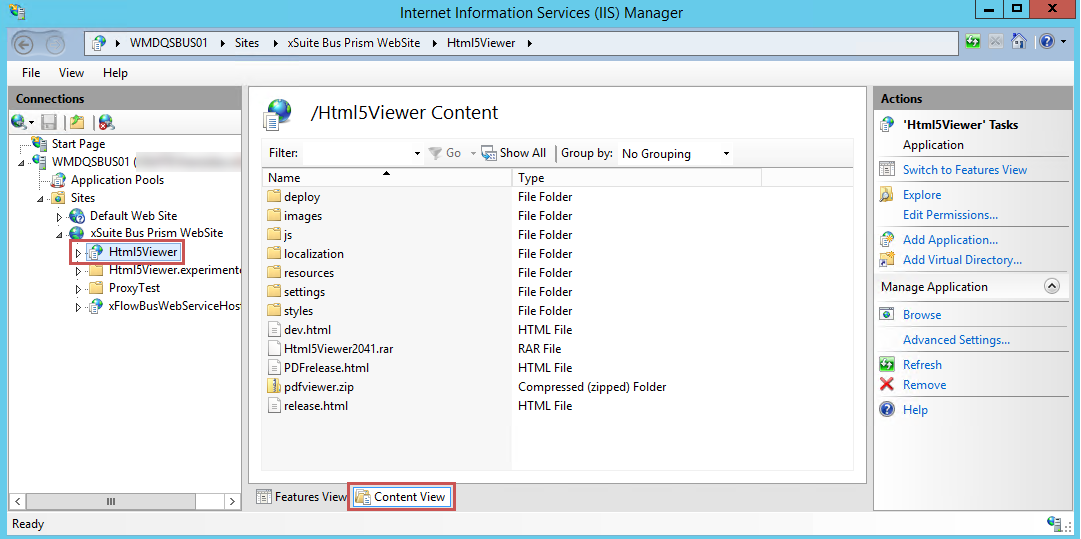
Right-click on the release.html file, and then click Browse.
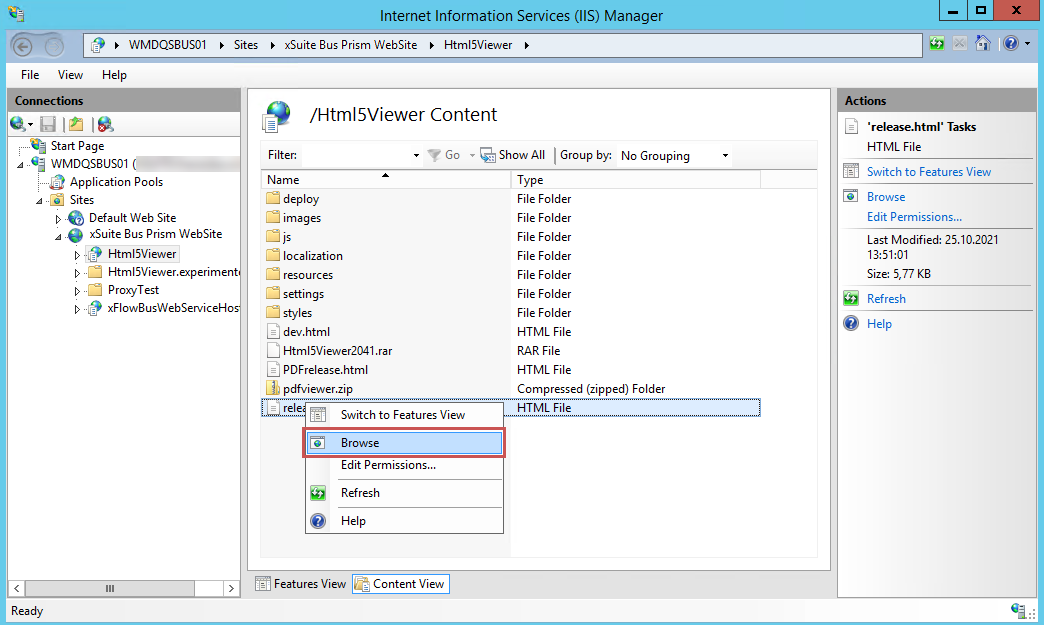
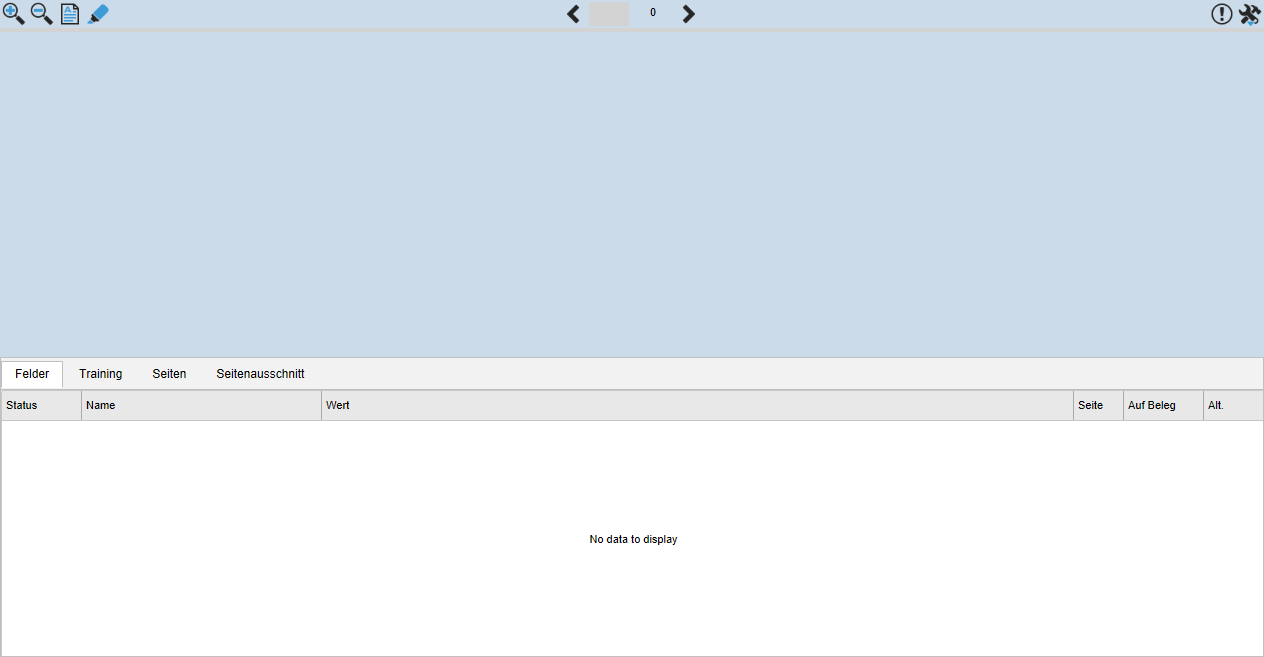
➤ The file will be displayed in the browser.
This will allow you to check whether the Web Service of the xSuite Viewer has been installed correctly.
Notice
IIS logging requires a lot of memory. Therefore the logging should be deactivated after installation, configuration and test operation of xSuite Bus Prism.
To do this, open the xSuite Bus Prism WebSite in the IIS Manager. Click Logging. In the Logging section, set the value to Disable.