Document Classification
The Document Classification section covers all actions that are responsible for classifying documents based on texts or images. The xSuite Bus uses the software FPS Document Analysis for this. This software reads the documents made available and classifies them into the categories or classes that have been configured.
To configure the document classification actions, you can select your settings from the following options:
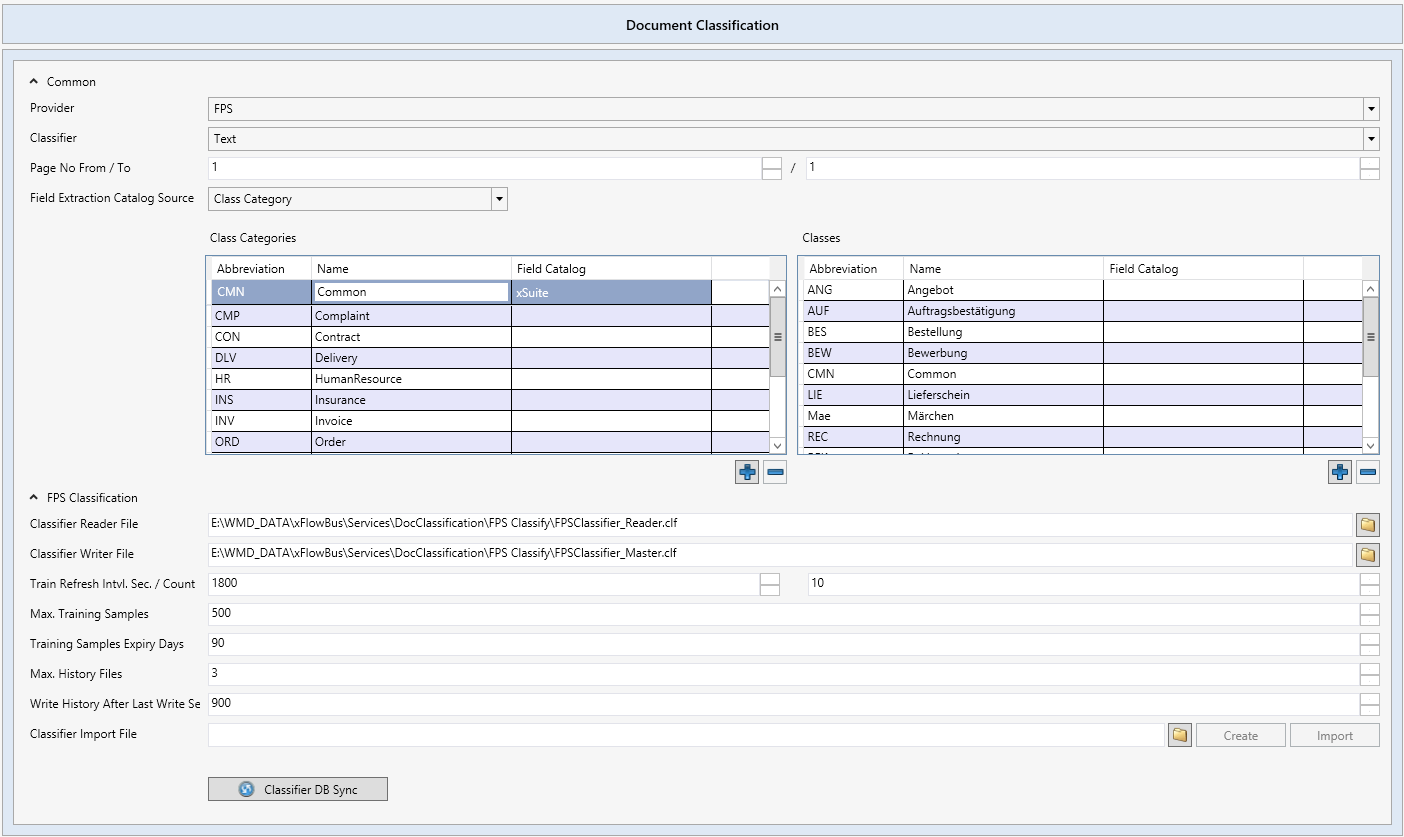 |
Parameter | Description |
|---|---|
Provider | Provider of the data classification. At the moment, only FPS is available as a provider. |
Classifier | Type of classification to be employed by FPS. Text and Image are the options available. |
Page No From / To | Here, you can specify which page or pages (from page... / to page...) are to be used for classification. To keep the processing of the data extraction short, the default settings only have the first page classified. |
Field Extraction Catalog Source | In this section, you can set how the classification should differentiate the documents. Documents can be differentiated by category, class, or a combination of both. |
FPS Classification | This is the option where all settings for classification software are made. |
Classifier Reader File | File path to be used for training the classification solution. The default path is: |
Classifier Writer File | File path containing all trained classes. The default path is: |
Train Refresh Intvl. Sec. | After the seconds specified have passed, the trainings are adopted from that of the master in the reader file. This process activates the trainings. |
Train Refresh Count | Here, the number of trainings is entered that are to be reserved by xSuite Bus until they have been saved in the classifier. As they will not be considered by FPS until then, trainings will not be effective until after this number of trainings. |
Max. Training Samples | The maximum number of the trainings reserved by document class. |
Training Samples Expiry Days | Period of validity for the trainings reserved by document class. Older trainings are deleted so that the maximum number of training samples to be kept is not exceeded. |
Max. History Files | xSuite Bus Prism backs up the training files in a backup folder as a precautionary measure in case an error occurs. Here, you can set how many backup files are to be set up by xSuite Bus. |
Writer History After Last Write Se | Time in seconds after which xSuite Bus sets up a backup file. |
Classifier Import File | The administrator has the possibility to create and train categories and classes. For information on how to create a training of categories and classes, see Classification in xSuite Bus and xSuite Mailroom. |
Classifier DB Sync | Function for convenience in transfer of categories and classes from the database into a folder structure and XML file to provide future availability as a basis for a training. |
Classification in xSuite Bus and xSuite Mailroom
The solution xSuite Mailroom is a digital inbox, which collects documents from different channels (e-mail, scan client, etc.). These documents are then classified by xSuite Bus. After classification, xSuite Mailroom distributes the documents to upstream systems.
In order for the documents to be assigned to the correct classes, set up and configure the respective classification action with the associated categories and classes. Then bring the sample documents for the first training into the system. Additional categories and classes can be added at a later point in time.
Creating classes for the first time
Notice
For the first creation of categories and classes, the xSuite Group has created the best practice described below. This example demonstrates the setup of the classes and the super-ordinated categories.
Set up categories in the table Class Categories.
Set up classes in the categories in the table Classes.
Save the xSuite Bus project.
➣ The categories and classes that have been created are now set up in the database tables.
In the Classifier Import File field, click the button
 and create a
 ClassifierImport.xmlproject file.➣ The folder will later be created in the same directory, with the categories under which the folders with the classes are then to be created.
Click Create.
➣ The directory structure is now created and the
ClassifierImport.xmlis filled.Notice
Sample files for the individual classes can now be stored in the class folders. These are used for the first training and form the base of trainings.
To perform a training import, click Import.
➣ It reads the XML file that was created and which indicates where a given training document has been stored.
Click Start in this dialog to start the training.
➣ The existing documents will be extracted and assigned to the classes. This completes the training.
To transfer the training from the master file to the reader file, click the Classifier DB Sync button.
Restart the xSuite Bus Windows Services that are responsible for the classification.
➤ Documents can now be classified.

Extending categories and classes
Extend the table Class Categories to include the categories desired.
Extend the table Classes to include the categories desired.
Save the xSuite Bus project.
➣ The changes will be transferred to the database.
Click the Classifier DB Sync button.
➣ The new categories and classes will be entered in the existing XML file, and the folders for the categories and classes will be created.
Load sample documents into the new folders.
To perform a training import, click Import.
➣ It reads the XML file that was created and which indicates where a given training document has been stored.
Click Start in this dialog to start the training.
➣ The existing documents will be extracted and assigned to the classes. This completes the training.
To transfer the training from the master file to the reader file, click the Classifier DB Sync button.
Restart the xSuite Bus Windows Services that are responsible for the classification.
➤ Documents can now be classified.
Caution
If a category has been set up wrong or is no longer up to date, it can be deleted from the table Class Categories. This only works if all the classes under it are also deleted from the table Classes.