Job Items
The Job Items option takes you to a dedicated window that will list all items currently undergoing processing based on the filter settings you made. This is the central xSuite Bus inbox that provides key information such as item status, action, priority, etc.
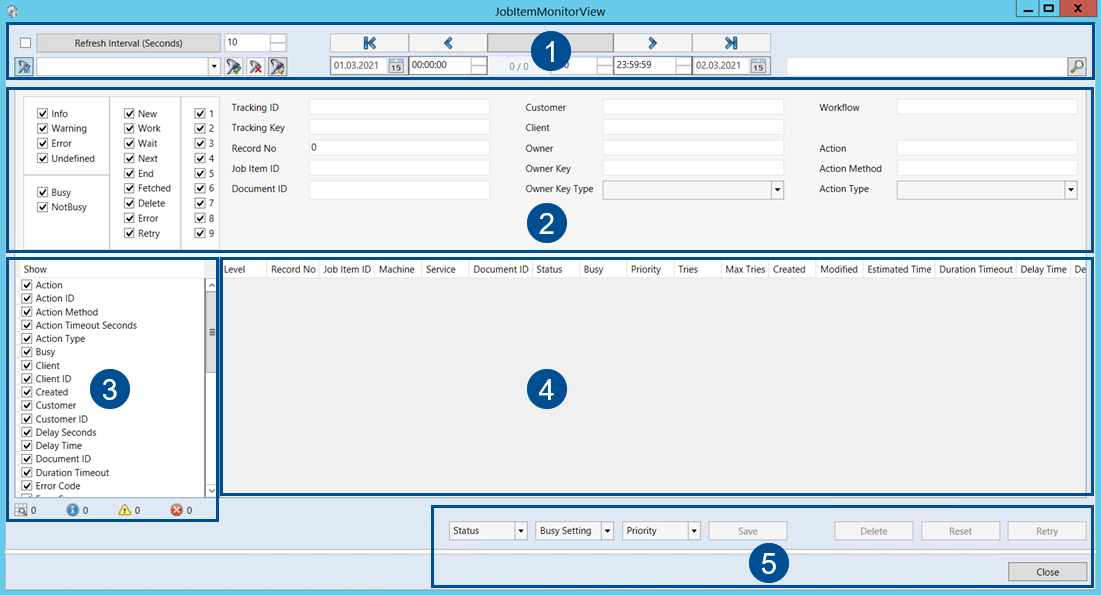 |
Element | Description | |
|---|---|---|
1 | Filter settings | The entire upper section provides filters for changing the list view. You can save filter settings in order to speed up repeat searches. For more information, see Overview of filter settings in the Job Item Monitor. |
2 | Filter values | The filter values are stored in the filter profile and reduce the number of items shown in the hit list. For more information, see Overview of filters in the Job Item Monitor. |
3 | Column selection | When a check box is activated in the column set, the respective column will be displayed. |
4 | Table | The table of the Job Items section shows the settings for displaying columns as well as the actual table view. |
5 | Item settings | Use the lower section of the screen to manage items in the inbox. Here, you can adjust the status and activity type and increase or reduce an item’s priority. Do so by selecting at least one line and then make the desired settings. Apply by clicking the Save button. Changes to the column values will be made accordingly.  You can also use these buttons to change the status of items in the table view, as follows: Click Delete to delete an item, click Reset to set it to its default value, and use Retry to return it to the previous processing step. |