OAuth APIs and OAuth clients
In the OAuth APIs and OAuth Clients sections, new OAuth APIs and OAuth Clients can be added or existing OAuth APIs and OAuth Clients removed.
Adding an OAuth API
Open Encore administration.
Click on OAuth APIs.
Click
 Add.
Add.➣ The Add OAuth API dialog will open.
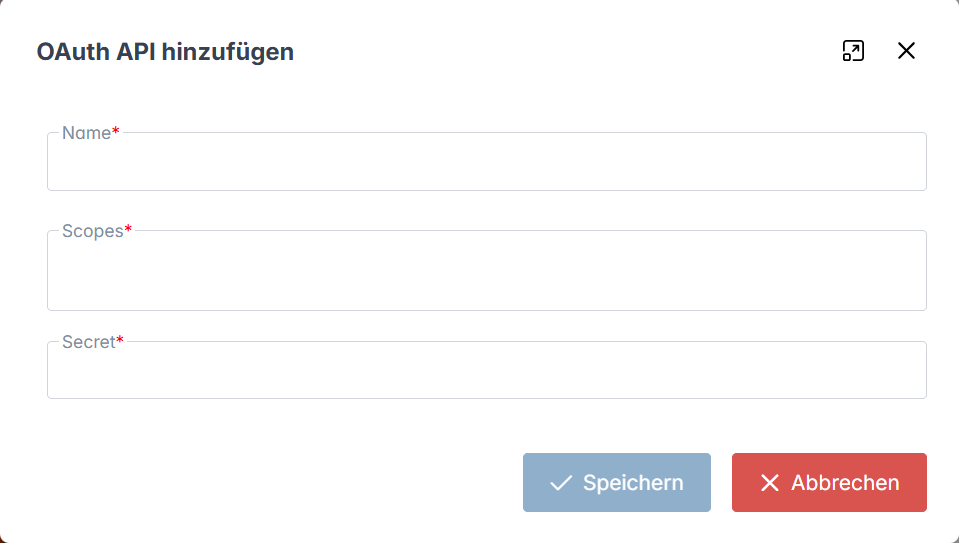
Enter the name of the API in the Name field (e.g.,
cmis).Enter a scope for each xSuite Archive tenant in the Scope field.
Notice
Use the pattern
cmis.{mandant}to specify the scope.The scope of the default tenant is
cmis._default.In the Secret field, enter a string of your choice.
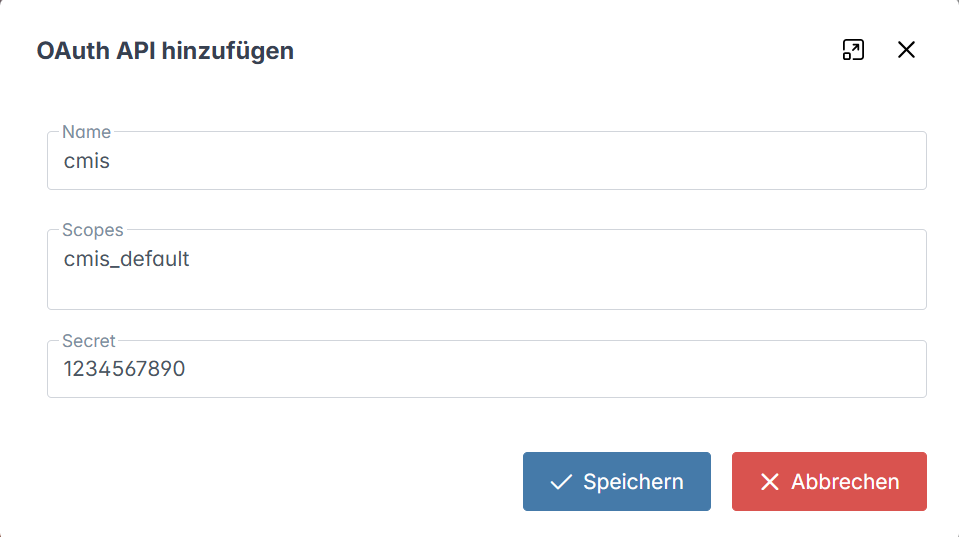
Click on Save.
➤ The OAuth API has now been added.
Adding an OAuth client
Open Encore administration.
Click on OAuth Clients.
Click
Add.➣ The Add OAuth Client dialog will open.
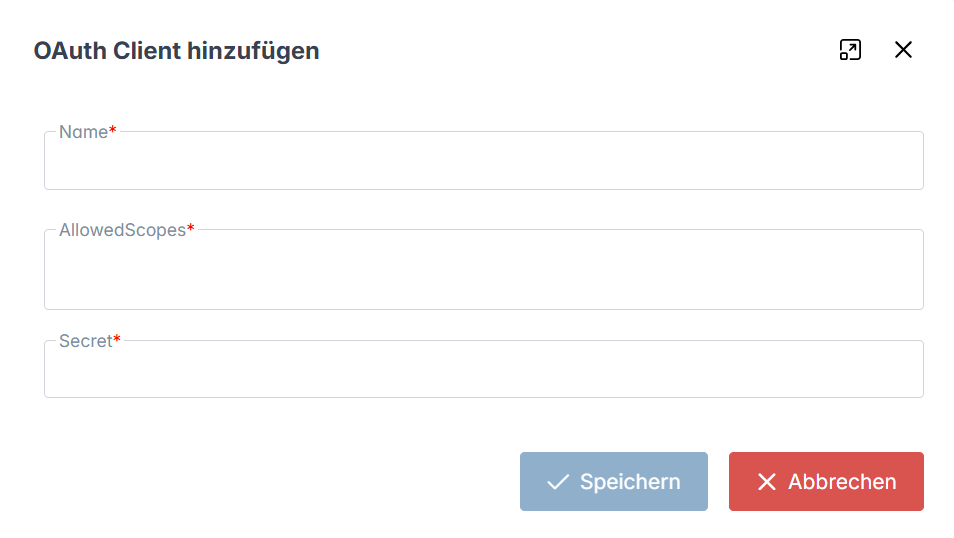
Enter the name of the client in the Name field (e.g.,
cmis).Enter a scope for each xSuite Archive tenant in the AllowedScopes field.
Notice
Use the pattern
cmis.{mandant}to specify the scope.The scope of the default tenant is
cmis._default.In the Secret field, enter a string of your choice.
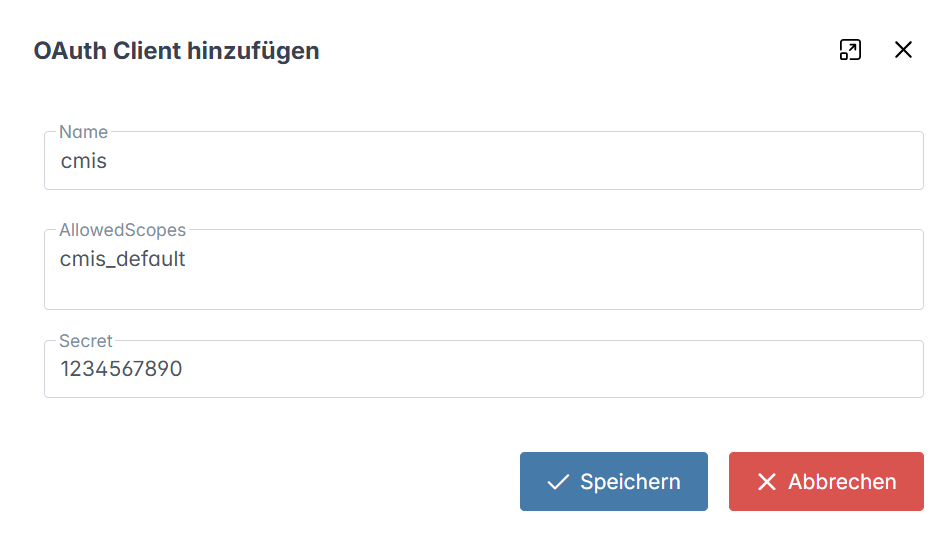
Click on Save.
➤ The OAuth client has now been added.
Deleting the OAuth API or the OAuth client
Open Encore administration.
Click on OAuth APIs or on OAuth Clients.
➣ The existing APIs or clients are displayed.
Click on an existing API or an existing client.
➣ The data of the OAuth APIs or the OAuth client will open in a dialog.
Click Delete.
➣ A security prompt will open.
Confirm the security prompt with Yes.
➤ The OAuth API or the OAuth client has now been deleted.