Tenant management
In tenant management, new customers and tenants can be created and existing customers and tenants removed.
Creating a customer
Open Encore administration.
Click on Manage customers/tenants.
Click
 Add.
Add.➣ The Customer dialog will open.
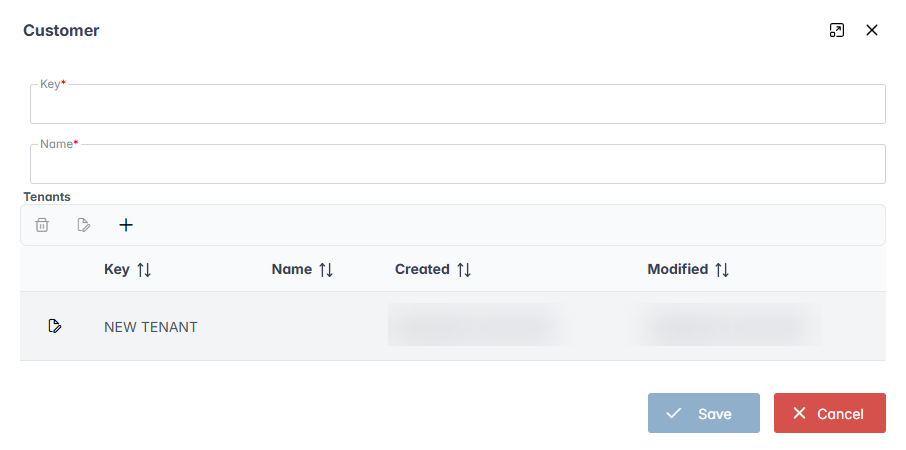
Select an existing tenant in the Tenants area.
Notice
You can create a new tenant.
Enter a key for the customer in the Key field.
Notice
Once a key has been created, it can no longer be changed.
Enter a display name for the customer in the Name field.
Click Save.
➤ The customer has now been created.
Creating a tenant
Open Encore administration.
Click on Manage customers/tenants.
Click
Add.➣ The Customer dialog will open.
In the Tenants area, click on the button
 .
.➣ The Add dialog will open.
Enter a key for the tenant in the Key field.
Notice
Once a key has been created, it can no longer be changed.
Enter a display name for the tenant in the Name field.
Click Save.
➤ The tenant has now been created.
➤ You can now change the display name of the tenant after creating it by clicking on the
 button in the Customer dialog.