The Dashboard
xSuite Archive Prism offers extensive functions for electronic archiving, including quick searches, automatic versioning, revision security, decentralized access to files, and easy storage of files from different channels. You can view data from the dashboard and navigate to various workspaces in xSuite Archive Prism.
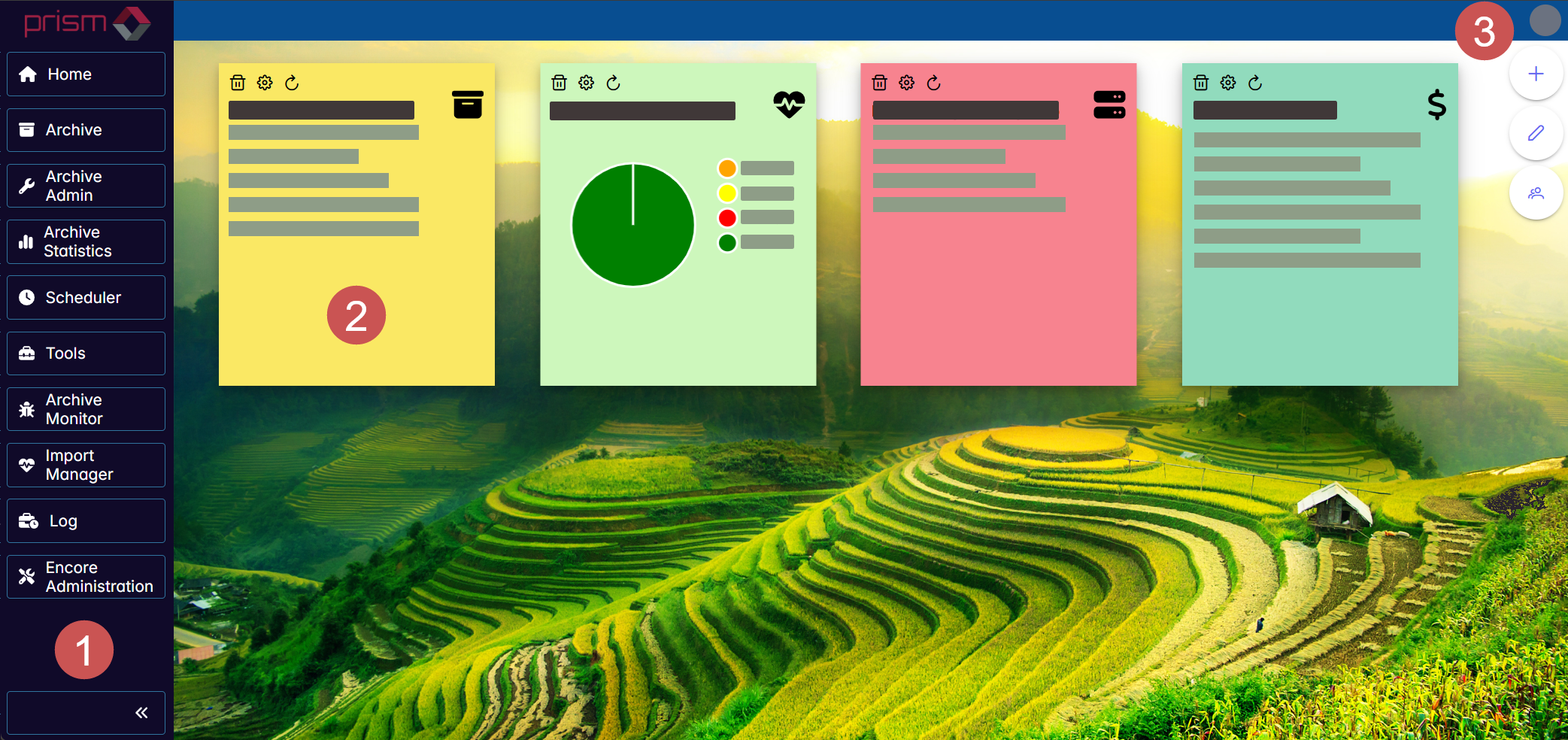
The xSuite Archive Prism dashboard consists of the following elements:
 |
Element | Description | |
|---|---|---|
1 | Sidebar | The sidebar is used to navigate to the various areas of xSuite Archive Prism (e.g., Archive or Archive Administration). The areas that appear are dependent on user rights. Collapse and expand the sidebar by clicking on the |
2 | Tiles | The tiles display key data on the archives and the archived documents. To view and/or edit data, select a tile. Add tiles to the dashboard, or edit the tiles in the tile overview. |
3 | User menu | The user menu is a dropdown menu where user functions such as changing languages or tenants can be performed. The following functions are available:
|
