Authorizations (Permissions)
The Permissions configuration node provides the system objects to which authorizations can be set, as follows:
Caution
Do not lock yourself out! Make sure that you can open the /Config/Permissions node yourself.
For this, we recommend using an "all-powerful" user role. With this user role, xSuite Support can perform an import that resets the authorizations for this node.
Object | Right | Description |
|---|---|---|
Archive | read | All read operations in the archive If the "Read" permission is missing, the archive will not be displayed in the client. |
write | All write operations | |
delete | Deletion of documents | |
drop | Deletion of archives | |
legal | All legal operations (e.g., changing legal hold or retention ) | |
Indexes | read | Reading index descriptions, hit lists, etc. |
write | Writing to the index | |
query | Searching | |
delete | Deletion from the index | |
Config | admin | Administration of a node The /Permissions/Config node is a mirror image of the configuration database. Here you can explicitly define who is allowed to administer which nodes. |
Tenants | read | Reading the tenant list |
Restrictions
Restrictions are visibility rules. The visibility of data is restricted by user and/or role.
If a restriction prevents a user from searching for documents or other archived materials, the materials will not be displayed to the user during a search. However, the user will still be able to access these documents through other system access points (e.g., through a direct link) or by programming an application that directly accesses a document via the Rest API.
In the case of archives for which restrictions are set for logged-in user, metadata search is deactivated. When searching archives, this will lead to an addition to the query (restriction Query), which will restrict the set of results. To apply a restriction only to document-type fields, the restriction Field is available.
Notice
For an example of a query restriction, go to Example: Setting query restriction for an index.
Setting restrictions for an index
Open Encore administration.
Under Permissions → Indexes, click on an existing index.
In the Main tab, click on
 Add group.
➣ The Restrictions tab has now been added.
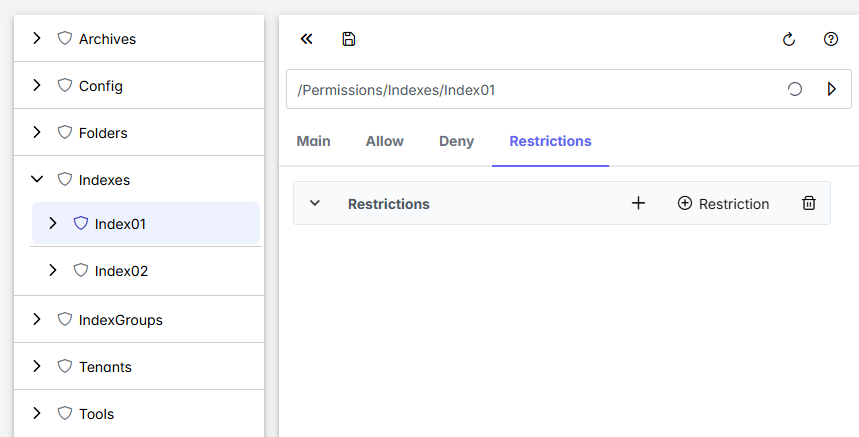
Click on
 Restriction
➣ A new grouping will be added.
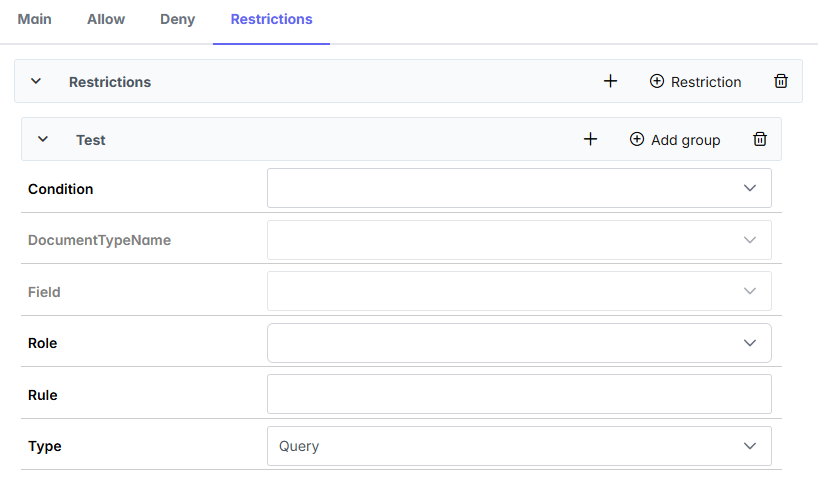
Define the following properties:
Property
Description
Type
The type of restriction
The following values are available for selection:
Query: Query restrictionSearching in archives is restricted.
Notice
You can find an example of a query restriction at Example: Setting query restriction for an index.
Field: Field restrictionThe document type fields are restricted. If you select this value, the DocumentTypeName and Field fields will be editable.
Condition
Type of link
The following values are available for selection:
AND: The condition is AND-linked.OR: The condition is OR-linked.
DocumentTypeName
The document type to which the restriction applies
Prerequisite: The value Field is selected in the Type field.
Field
The field to which the restriction applies
The available fields depend on the document type you have selected in the DocumentTypeName field.
Prerequisite: The value Field is selected in the Type field.
Role
The roles to which the restriction applies
Rule
Elasticsearch query
Information on the syntax can be found at Query syntax.
Click
 Save.
Save.➤ The restrictions have now added to the index.