The "Archives" configuration node
In the Archives configuration node, you can create new archives and edit existing ones.
Creating an archive
Open Archive Administration.
Open the Archive → Archives configuration node.
Notice
To create the new archive below an existing archive, click on the existing archive.
Click on the button
 and then go to Create new node.
➣ The Create new node dialog will open.

Enter a name for the archive.
Caution
The name must not contain the following characters:
Blank character
$(dollar sign)
Click Confirm.
Notice
To open the properties of the archive directly after having created it, activate the Open new node afterwards checkbox.
➤ The archive has now been created.
➤ You can now edit the properties of the archive.
Editing the properties of an archive
Open Archive Administration.
Click on an archive under Archive → Archives.
Define the following properties:
Property
Description
MongoDB Connection
MongoDB database connection
Default value:
mongodb://localhostLocation storage
Default storage directory
Caution
A default storage directory must always be specified. If no default storage directory is specified, the archive will not work.
IndexName
Path of the associated index (optional)
Create and assign index automatically
Controls whether an index is automatically created when the archive is created.
If this property is activated, an associated index will automatically be created when the archive is created. The index is given the same name as the archive.
DeletePreviousIndexVersions
Controls whether only the latest version is indexed during storage. The older versions are removed from the index.
IsReplica
Controls whether the archive is a replica archive.
A replica archive cannot be changed by way of normal operations, only through replication.
SingleInstance
Controls whether the archive is executed in "Single Instance" mode.
Notice
To operate an archive with "Single Instance," the active shard must be set to the
FileBoxstorage format.DefaultDocumentType
Document type that is automatically used for the creation of a new document
This only applies to documents that are created via the xSuite Archive Prism client. Documents with a different document type can still be created.
ForceDefaultDocumentType
Controls whether the default document type (see ForceDefaultDocumentType property) is always used for the creation of new documents that do not have a document type.
Detect unknown content types when reading a document
Controls whether the MIME type is to be automatically recognized when loading a document.
Detect unknown content types when writing a document
Controls whether the MIME type of a document is to be recognized automatically.
Retention
Standard expiry date of a document
Syntax:
{number}{unit}A document can no longer be opened after the standard expiry date. To physically remove documents after the expiration date, the RetentionJob scheduler job is available.
The following units are available:
d= daysm= monthsy= years
Example:
100dfor 100 daysDefault value: no expiry time
Notice
Alternatively, you can define an expiry time for documents in the properties of the document type.
The standard expiry time defined for the archive will overwrite the expiry time for the document type. If no expiry time is defined for the archive, the expiry time of the document type will apply.
Stream type
Sets whether data is saved in encrypted or compressed form.
The following values are available:
Plain: Storage without compression or encryptionZipped: compressed storageCrypted: encrypted filing
IsTemplate
Template archive label
Notice
An archive that is labelled as a template archive cannot be used for archiving.
If a path is specified that is below the template path, the archive will be created automatically. A storage location below the storage location of the template is used for the archive.
Example: The template archive is /SAP_HOME and the storage location is
E:\SAP. When accessing /SAP_HOME/XS, the archive /SAP_HOME/XS will be automatically created and stored in the storage locationE:\SAP\XS.Check replication
Controls whether a replication check is carried out for the archive. During the replication check, the master archive and the slave archive are compared with each other.
After saving, a message is displayed stating that a replication check will take place the next time the ReplicaJob is run.
Label
Archive label
You can use Locale to define the name for different languages (e.g.,
defor German andenfor English).SAPArchiveLinkLevel2Enabled
Controls whether ArchiveLink Level 2 indexing is used.
ArchiveLink Level 2 indexing is required for archives that are used for SAP archiving.
Delete to trash until
Defines the duration for which a document remains in the Trash folder ("Deleted documents") after deletion.
Syntax:
{number}{unit}The following units are available:
d= daysm= monthsy= years
Example:
30dfor 30 daysClick
 Save.
Save.➤ The properties are now saved.
Shards
Archive data can be split. For this procedure, shards are used. You can define rules that determine which documents are stored in which shard. Shards support the following storage types:
FileBox: The document and all its attachments are in separate files that refer to each other.
DocumentBox: The document, including all attachments, is managed in one file. The "DocumentBox" contains multiple "FileBoxes."
ContainerBox: The "ContainerBox" contains multiple "DocumentBoxes."
Notice
The storage types FileBox and DocumentBox can be used for archives with the status "filed" and "archived." The storage type ContainerBox only allows final archived documents.
You can also define a replication shard. A replication shard contains configuration data for replication. An archive can either be replicated to another archive on the same server or to another archive server.
Default shard
Each archive has a default shard. All documents that do not have the status "final archiving" go into this default shard. To set up final archiving, always define an additional shard with the storage type ContainerBox. For more information, see Creating a shard for long-term archiving.
If you set a shard to Closed, this shard will no longer be used. If you set the default shard to Closed, a new default shard must be set. An example of when to use this procedure is in the case that a hard disk does not have enough free space.
The shard that is reverted to as default will always be the one that is not set to Closed, has a storage type other than ContainerBox, is not a replication shard, and does not have any sharding rules.
Sharding rules
The purpose of sharding rules is to distribute archive document data to different directories with a dependance on field values. A new shard must have the property Location storage and the property Storage type with the value Documentbox or Filebox.
Caution
Do not save the shard if only the Location storage property and the Storage type property is defined with the value Documentbox or Filebox. If you save the shard with these properties, it will be used as the default shard.
To define sharding rules, use the ShardRule property. Sharding rules are structured according to the following pattern: {Data type}.{Field name} Operator Parameter
The following operators are permitted:
Operator | Description |
|---|---|
| The value of the field must be larger than the value in the rule. |
| The value of the field must be smaller than the value in the rule. |
| The value of the field must correspond to the value in the rule. |
| The value of the field must be less than or equal to the value in the rule. |
| The value of the field must be greater than or equal to the value in the rule. |
| The field must correspond to one of the values. The operator is followed by a list of values, each separated by a semicolon ( |
| The minimal length of a text of a field |
| The maximal length of a text of a field |
| Regular expression The text must correspond to this expression. |
| Regular expression The text must correspond to this expression. Capitalization is ignored. |
Rule: string.place ?Hamburg;Berlin
In the example, presuming the Location field is a string and contains the texts Hamburg or Berlin, documents are written to the new shard. All other documents are written to the default shard or a shard to which this rule applies.
You can define multiple rules for a field, e.g:
decimal.sum > 1000decimal.sum < 10000
If multiple rules are defined for a field, all rules must apply (AND condition). If rules are defined for different fields, only one rule must apply (OR condition), e.g:
decimal.sum > 10000decimal.gross > 20000
In this example, the shard is triggered if the sum is greater than 10000 or the gross amount is greater than 20000.
Creating a shard for long-term archiving
Caution
Merely the creation of a shard will not initiate the transfer for long-term archiving. What is required to start it is the TransferJob scheduler job.
Open Archive Administration.
Click on an archive under Archive → Archives.
Select the Shards tab.
Click on
 Shard.
➣ The New grouping (Shard) dialog will open.
Enter a name for the shard and then click Confirm.
➣ The shard has now been added.
Select the value
Containerboxfor the Storage type property.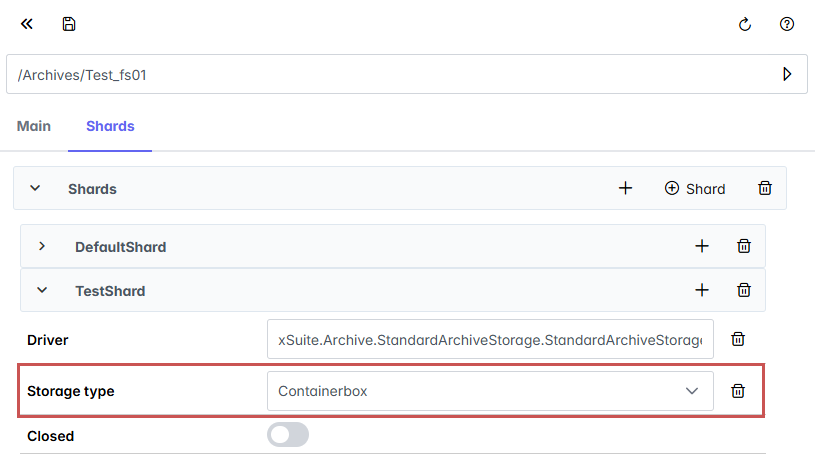
Click
Save.➤ The shard for long-term archiving has now been created.
Notice
To use this new shard for the long-term archiving of another shard as the default shard, set the Transfer to shard property in the other shard to the name of the newly created shard for long-term archiving.
Creating a replication server
Open Archive Administration.
Click on an archive under Archive → Archives.
Select the Shards tab.
Click on
Shard.➣ The New grouping (Shard) dialog will open.
Enter a name for the shard and then click Confirm.
➣ The shard has now been added.
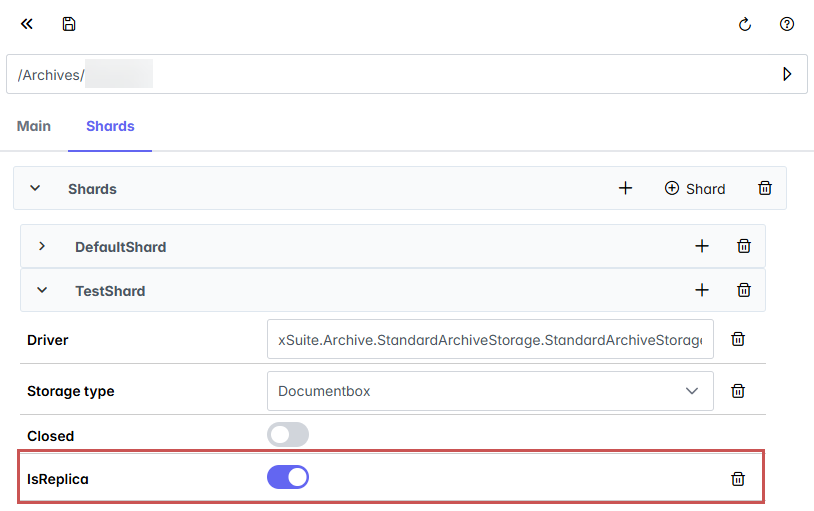
Add the IsReplica property and activate this property.
➣ The shard is now flagged as a replication shard
Carry out one of the following steps:
To replicate to another archive on the same server, enter the path to the existing replication archive in the Replica archives field (e.g.,
/MyReplicaArchive).To replicate to an archive on another archive server, enter the foreign server in the Replica servers field.
Notice
The foreign server must be defined under ForeignServers.
Click
Save.➤ The replication shard has now been created.
Notice
Replication can also be executed conditionally. To do so, define sharding rules.