The "Indexes" configuration node
Indices enable searches in fulltext and fields. Indices are assigned to an archive. Indexing an archive document is optional. Only if a document is indexed can it be found on the xSuite Archive Prism UI. An index can contain hit lists and search forms.
The following data is indexed:
Notice
This data is stored by Elasticsearch in the All field. This field is used when the user performs a full-text search.
All index fields
All attachments
All notes
All metadata
You can use the properties of an index to define the following functions, among others:
Function | Description |
|---|---|
Thumbnails | Thumbnails can be stored for attachments and displayed in the hit list. Thumbnails must already be created during indexing. In the index, you can configure the creation of thumbnails using the ForceThumbsize property. Further information can be found at Editing the properties of an index. |
Hit highlighting | Hits can be highlighted in the attachments of documents. Hit highlighting for attachments is only possible if the attachments are saved in the index. You can configure highlighting in the index using the AttachmentHighlighting property. Further information can be found at Editing the properties of an index and Configuring highlighting. CautionThis property can only be activated in the process of creating an index. Activation at a later point in the process is not possible. NoticeGeneral settings for highlighting in all indexes are available via SystemSettings → Index. |
Search in index fields | Fields and metadata can be searched by field. Area searches are also possible. Wildcards The index can be used to display suggestions when searching. You can configure the composition of these suggestions in the index. CautionThe maximum number of searchable fields in the index is 1024. If more than 1024 fields are held in the index (sum of all fields of all document types used in the index and "Free Fields"), increase the number of fields permitted in Elasticsearch. To do this, add the following parameter to the
Increasing this parameter has a negative effect on the performance of Elasticsearch. xSuite Group GmbH recommends not exceeding the value of 1024 fields per index. |
Creating an index
Notice
Alternative to manually creating an index, when you are creating a new archive you can automate the creation of an associated index. To do so, use the archive property Create and assign index automatically.
Open Archive Administration.
Open the configuration nodes Archive → Indexes.
Notice
To create the new index below an existing index, click on the existing index.
Click on the button
 and then go to Create new node.
➣ The Create new node dialog will open.

Enter a name for the index.
Click Confirm.
Notice
To open the properties of the index directly after creating it, activate the Open node afterwards checkbox.
➤ The index has now been created.
➤ You can edit the properties of the index.
Editing the properties of an index
Open Archive Administration.
Click on an index under Archives → Indexes.
➣ The properties of the index will open.
Define the following properties:
Property
Description
TopVersionFlag
Controls whether the latest versions of a document are flagged.
Caution
This property can only be activated in the process of creating an index. Activation at a later point in the process is not possible.
If this property is activated, new documents will be flagged and older documents unflagged. This allows the user to search for the latest version of a document. You can use the hit-list property ForceTopversionFlag to define whether this flag is to be used in the search.
StoreAttachments
Controls whether the entire attachment, including the text, is to be saved in the index. Saving the entire attachment greatly increases the volume of the index.
Deactivate did you mean search
Deactivates the "Did-you-mean" search.
The "Did-you-mean" search shows the user suggestions that come closest to the user's search entry.
AttachmentHighlighting
Controls whether attachments are written in full to the index to enable highlighting.
Activated highlighting consumes memory space.
Caution
This property can only be activated in the process of creating an index. Activation at a later point in the process is not possible.
AllowWildcard
Controls whether the wildcard search in index fields is activated.
Notice
The wildcard search is resource-intensive. If you activate this function, expand the working memory.
SuggestionFields
Controls whether default fields are used.
The following values are available:
None: no suggestions
All: suggestions from all fields
Suggestion: suggestions from suggestion fields (indicated by the Suggestion property)
Notice
The suggestion function does not serve as a correction for incorrect user input or as a fuzzy search. Only the last five SuggestionFields entries that are very similar to the word entered will be displayed to the user.
ForceThumbsize
Size of the preview images (thumbnails)
Enter a numerical value as the value (e.g.,
128). You can use this property to force thumbnails to always be calculated. If this value is not set or is0, the indexing application will determine whether thumbnails are generated.IndexName
Elasticsearch index name
This index name is generated automatically and is not displayed in xSuite Archive Prism.
BlockedMimeTypes
MIME types that are not indexed
You can specify multiple MIME types.
Label
Index display name
You can use Locale to define the name for different languages (e.g.,
defor German andenfor English).Click
 Save.
Save.➤ The properties are now saved.
Adding a hit list to an index
Open Archive Administration.
Open the configuration nodes Archive → Indexes.
Click on the HitList tab.
➣ The hit-list view will open.
Click on
 HitList.
➣ The New grouping (HitList) dialog will open.
Enter a name for the hit list.
Click Confirm.
➣ The hit list has been added.
Define the following properties:
Property
Description
Label
Display name of the hit list
You can use Locale to define the name for different languages (e.g.,
defor German andenfor English).DocType
Document type
If a document type is specified, the search with the hit list will only include this document type.
AggregationField
Name of the field used for aggregation
Syntax:
Fieldname@DocumentTypeThe aggregation provides information on how many documents in a field contain the value X.
AggregationSize
Maximum number of aggregations
Default value:
50Notice
The quantity must be limited, as a field might have a different value in each document.
Example: There are 10 million documents in an archive. The aggregation field LfdNummer contains the number
1-10,000,000. If the aggregation is not restricted, 10,000,000 entries will appear per hit-list page.OrderByModificationTime
Controls whether the documents are sorted according to the date of modification.
If this property is activated, the most recently changed documents will appear first in the hit list.
TreeColumnCount
Number of columns displayed in the tree structure
ForceTopVersionFlag
Controls whether the user can search for the latest document version in the hit list.
Prerequisite: The index property TopVersionFlag is activated.
Click
Save.➤ The hit list has now been added to the index.
➤ You can now add fields to the hit list.
Add a field to a hit list
A hit list is used to display the results of a search. When the user searches in the archive (e.g., via a search form), the search results will appear in the form of a hit list. You can define which fields are available in the results list and how the search results are sorted.
Open Archive Administration.
Open the configuration nodes Archive → Indexes.
Click on the HitList tab.
➣ The hit-list view will open.
Click on an existing hit list.
➣ The properties of the hit list are now displayed.
Click on
Fields.➣ The New grouping dialog will open.
Enter a name for the field.
Click Confirm.
➣ The field will be added to the list of fields.
Click on the field name in the list of fields.
➣ The properties of the field are now displayed.
Define the following properties:
Property
Description
Size
Maximum size (as text) in the hit list
Default value:
100SortOrder
Sorting order
The following values are available:
None: No sortingAscending: sorting starting with the lowest and going upDescending: sorting starting with the highest and going down
Type
Field data type
If the field already exists in the index, this property will be pre-assigned and cannot be changed.
The following values are available:
StringBoolIntegerDateDecimalAttachment
Label
UI name of the field
You can use Locale to define the name for different languages (e.g.,
defor German andenfor English).Click
Save.➤ The field will now have been added to the hit list.
Configuring highlighting
Highlighting for index fields in the hit list can be configured. By default, there is always an Attachment field that appears at any position in the hit list. This field is used to configure the highlighting for attachments.
Open Archive Administration.
Open the configuration nodes Archive → Indexes.
Click on the HitList tab.
➣ The hit-list view will open.
Click on an existing hit list.
➣ The properties of the hit list are now displayed.
Click on an existing field in the list of fields (e.g., Attachment).
➣ Highlighting properties are displayed in the Highlighting area.
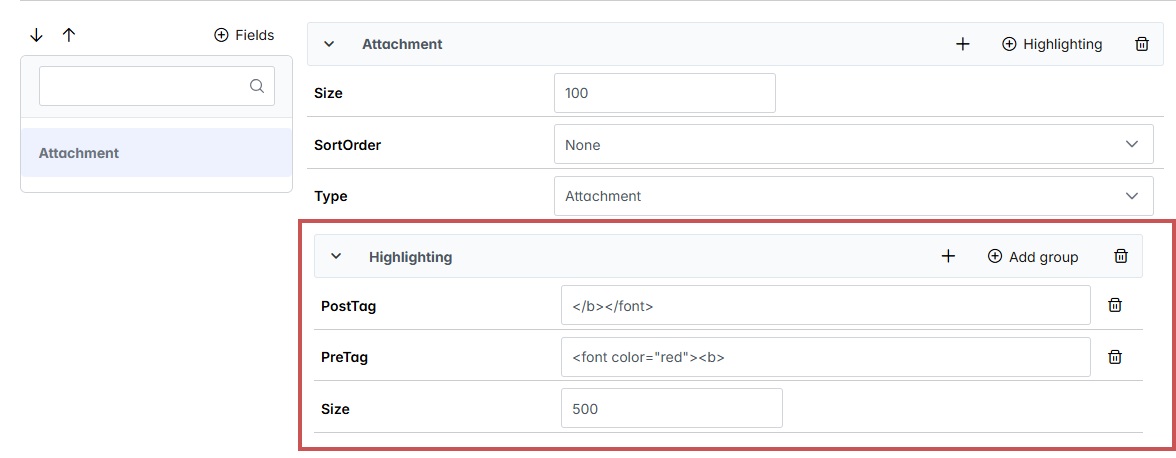
Notice
Click on the button
 Highlighting to add a new highlighting.
Define the following properties:
Property
Description
Size
Maximum size of the highlighting fragment as an integer (e.g., the text excerpt from an attachment)
PreTag
HTML code that initiates highlighting
This setting overwrites the setting under SystemSettings → Index.
Example:
<font color="red"><b>This example is of highlighting in bold, red font.
PostTag
HTML code that ends highlighting
This setting overwrites the setting under SystemSettings → Index.
Example:
<b></font>This example ends the highlighting as it was introduced in the example under PreTag.
Caution
Incorrect HTML tags in the highlighting might mean that the HTML page cannot be displayed.
Click
Save.➤ Highlighting has now been configured.
Adding a search form to an index
Search forms are used to provide the user with pre-defined search fields for searching in the archive. To add a search form, define which fields are available in a search form and how these fields are displayed. An example of what you can define would be lookups.
Open Archive Administration.
Open the configuration nodes Archive → Indexes.
Click on the Queryforms tab.
➣ The search form view will open.
Click on
QueryForm.➣ The New grouping (QueryForm) dialog will open.
Enter a name for the search form.
Click Confirm.
➣ The search form has now been added.
Click on
Fields.➣ The New grouping dialog will open.
Enter a name for the field.
Click Confirm.
➣ The field will be added to the list of fields.
Edit the following field properties:
Property
Description
ValueLookup
Controls whether a lookup is activated for this field.
If a selection list is to be used for the field, this property must be activated.
Type
Field data type
The data type of the field determines what type of value the user can enter in the search.
If the field already exists in the index, this property will be pre-assigned and cannot be changed.
The following values are available:
StringBoolIntegerDateDecimalAttachment
DefaultValue
Standard search value
The field is pre-assigned with this value in the search form.
Label
UI name of the field
You can use Locale to define the name for different languages (e.g.,
defor German andenfor English).Click
Save.➤ The search form has now been added to the index.