Purchase Requisition Workflow: Workflow Tasks
"Approve Purchase Requisition" (Role PRVA)
The workflow task "Approve purchase requisition" is assigned to an agent or a group of agents via the role PRVA.
In this workflow task, the agent checks whether the content of the purchase requisition is correct with regard to the data and information.
In this task, the agent performing approval can go to the purchase requisition via the button Display Document. In the SAP purchase requisition, details from the workflow log and notes will be visible in the text block. This additional information may also be helpful in the approval task.
Only SAP users can go straight to the SAP purchase requisition. Display will correspond to specific SAP user authorizations. With the appropriate authorization, an SAP user can also check the data in SAP Fiori and xSuite Web.
The agent is not authorized to change or add information. The agent in the PRVA role checks only for whether the purchase requisition is necessary and, if so, whether the data is correct.
With the default settings, if the agent rejects any items, a reason must be entered in the comment field.
After editing, the approver will receive the work item back to be checked again, unless the work item has been deleted.
Main Overview in the SAP GUI
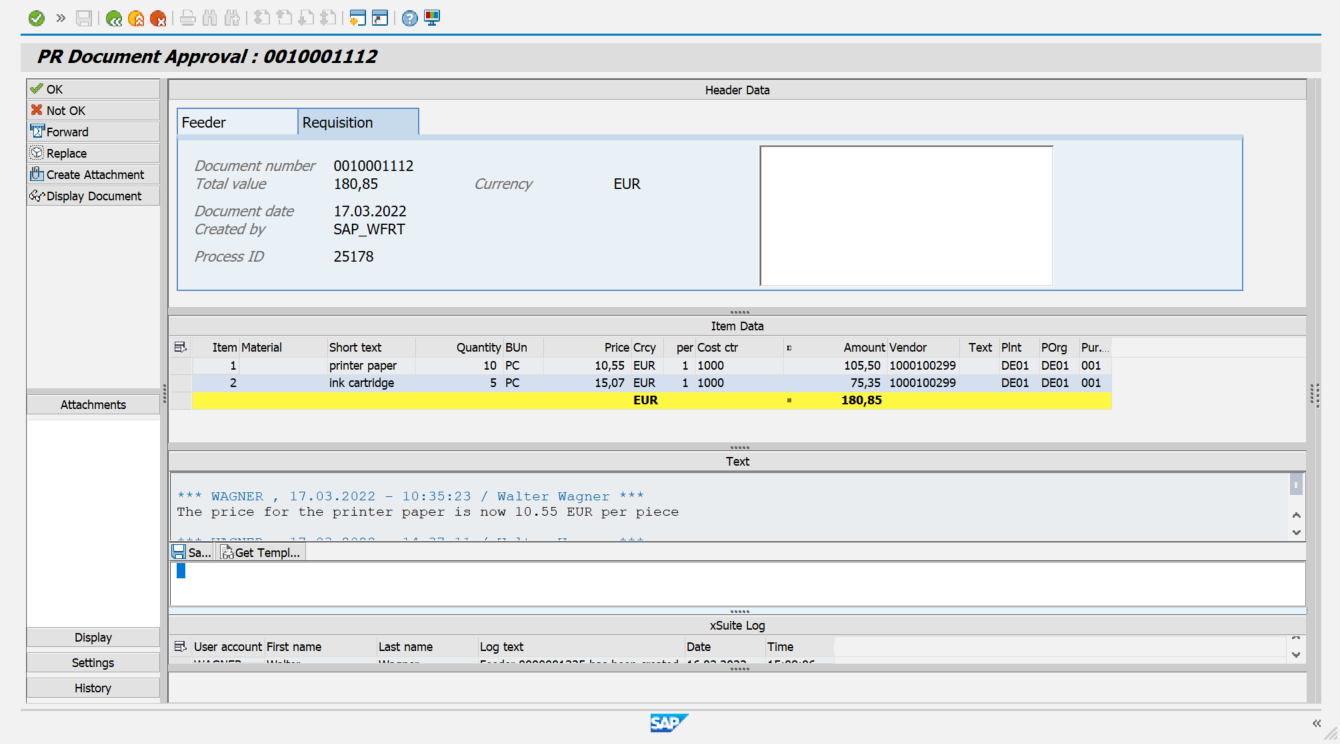
For more information on the areas for work items in the SAP GUI, see Work Items: Main Overview in the SAP GUI.
Main Overview in SAP Fiori
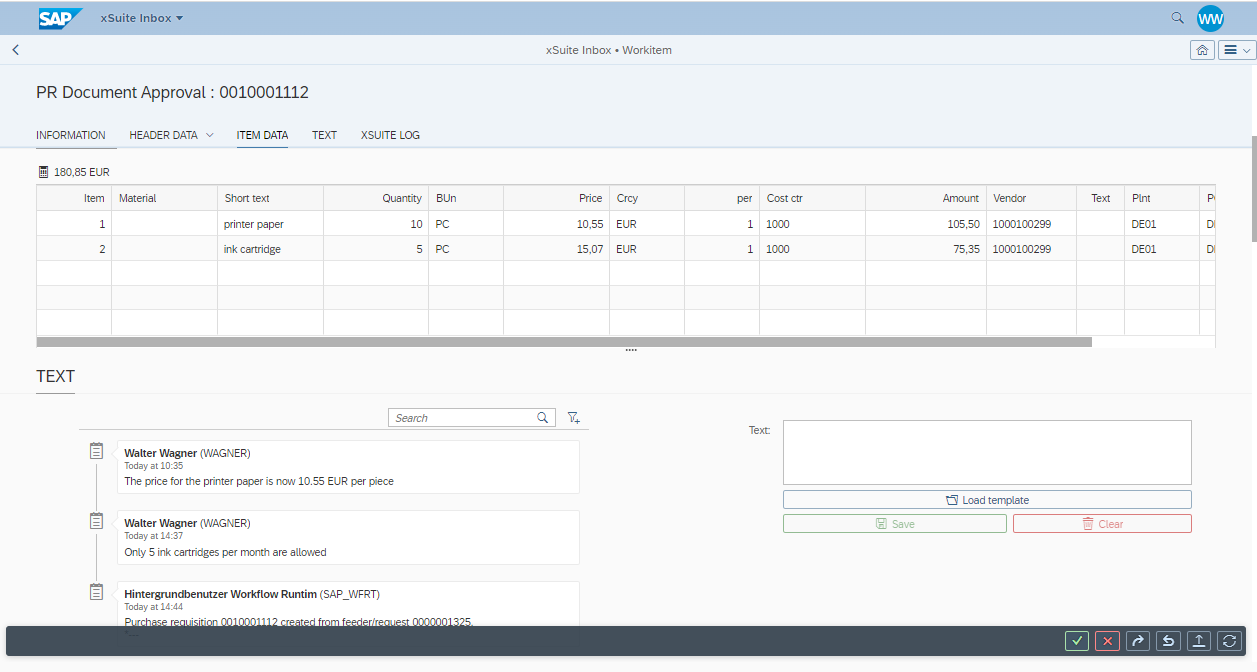
For more information on setting up a work item in SAP Fiori, see Work Items: Main Overview in SAP Fiori.
Main Overview in xSuite Web
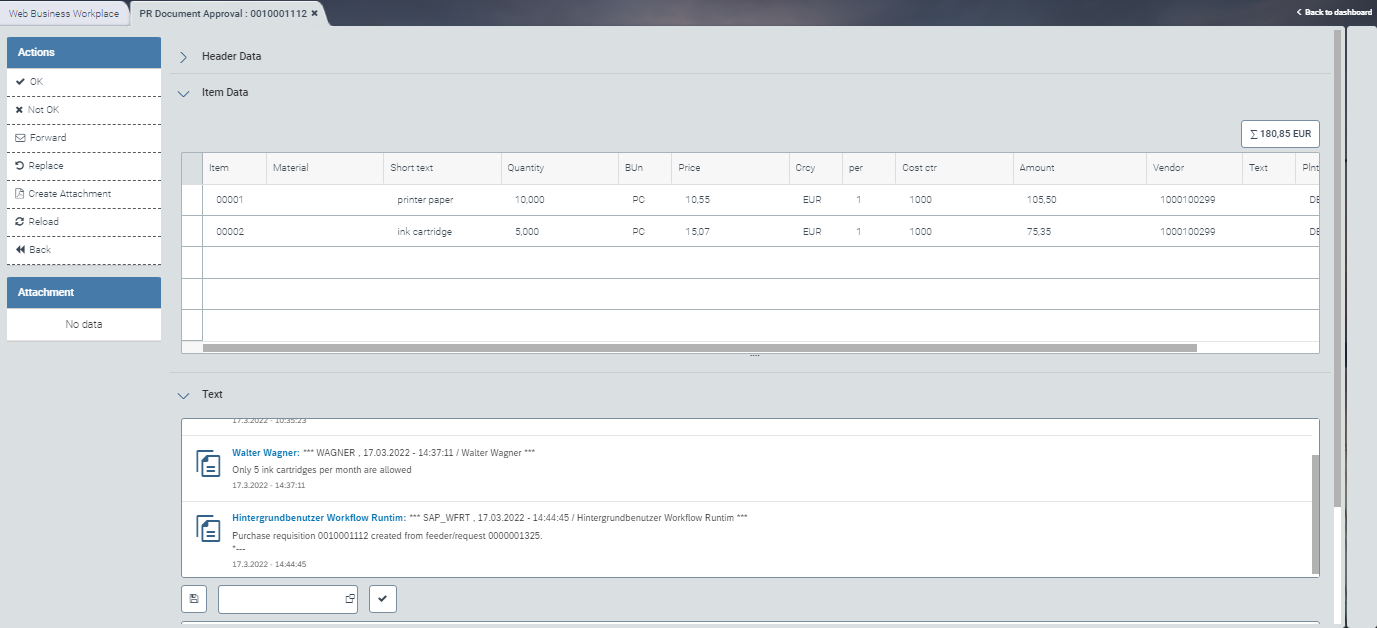
For more information on what a work item looks like in the xSuite web client, see Work Items: Main Overview in xSuite Web.
For more information about work item buttons, see Purchase Requisition Workflow: Buttons for Processing Work Items (Role PVRA).
Purchase Requisition Workflow: Buttons for Processing Work Items (Role PVRA)
SAP Fiori | SAP GUI / xSuite Web | Description | |
|---|---|---|---|
| OK | Confirms that the document is correct and concludes the workflow step. The following steps are executed:
| |
| Not OK | Rejects the work item and ends the workflow step. The agent in the PRER role ("Process purchase requisition after rejection") can open the work item for editing. Requirement: A comment must be entered in the section Text. The following steps are executed:
| |
| Forward | ||
| Replace | ||
| Create Attachment | ||
––– | Display Document | Opens the document in display mode in SAP transaction ME23N. Note: This button is only available in the SAP GUI. | |
| Refresh / Reload | Note: This button is only available in SAP Fiori and xSuite Web. | |
––– | Back | Note: This button is only available in xSuite Web. |


"Edit Purchase Requisition" (Role PRET)
The "Edit purchase requisition" task is assigned to an agent or a group of agents via the PRET role.
This workflow task is used only for editing a purchase requisition if more information is required to generate a purchase order from the purchase requisition.
If the system fails to create a purchase order from the purchase requisition, an error message appears in the comment field, specifying what is missing. To enable generation of the purchase order, the agent must add the specified information to the purchase requisition.
Notice
"Edit purchase requisition after rejection" (role PRER) and "Edit purchase requisition" (role PRET) are the only workflow tasks in which an agent can change header and item data of the purchase requisition.
You can go from the xSuite purchase requisition document straight to the SAP purchase requisition. In display mode, use the Display Document button; in the edit mode, use the Change Document button.
Only SAP users can go straight to the SAP purchase requisition. Display will correspond to specific SAP user authorizations. With the appropriate authorization, an SAP user can also check the data in SAP Fiori and xSuite Web.
Main Overview in the SAP GUI
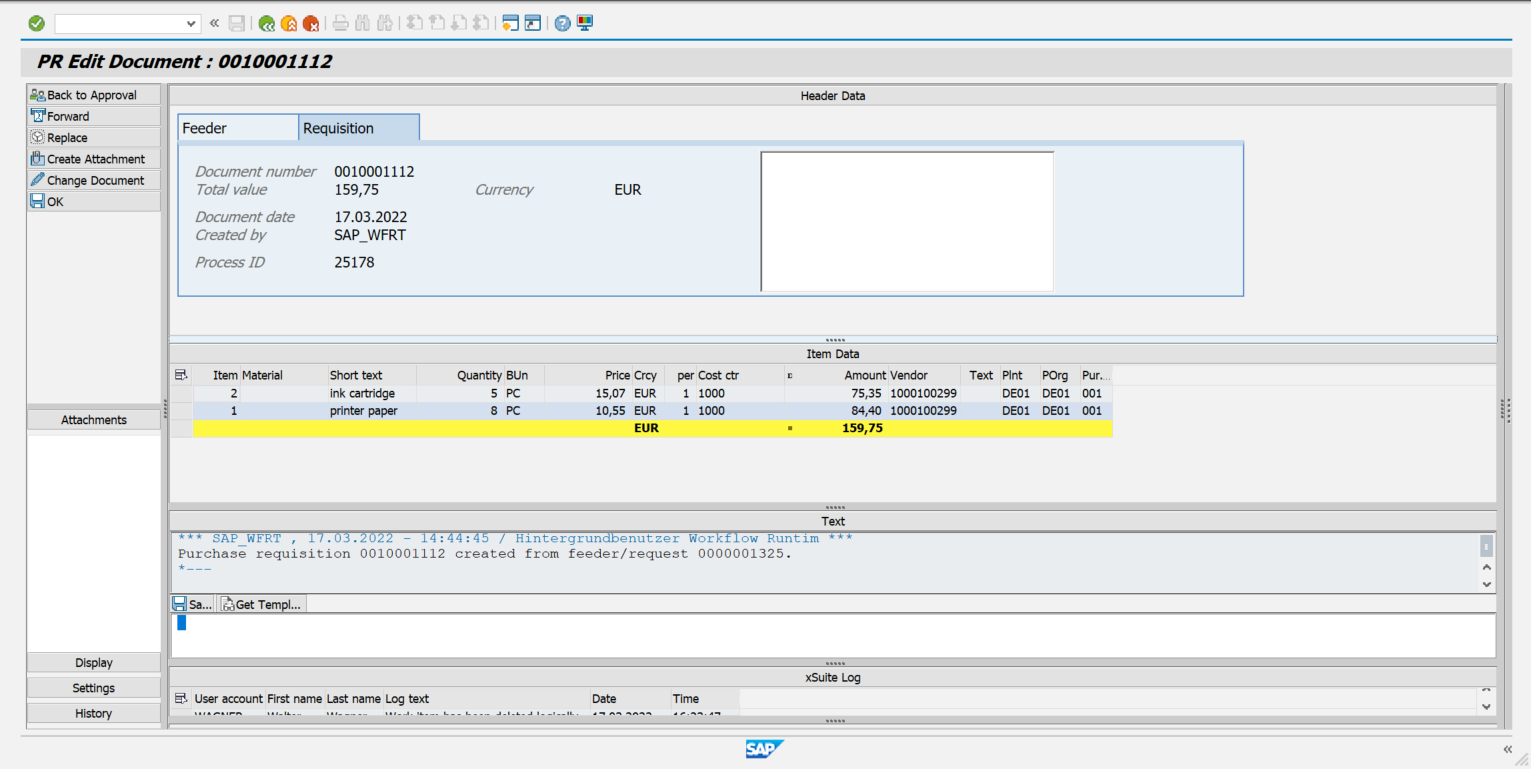
For more information on the areas for work items in the SAP GUI, see Work Items: Main Overview in the SAP GUI.
Main Overview in SAP Fiori
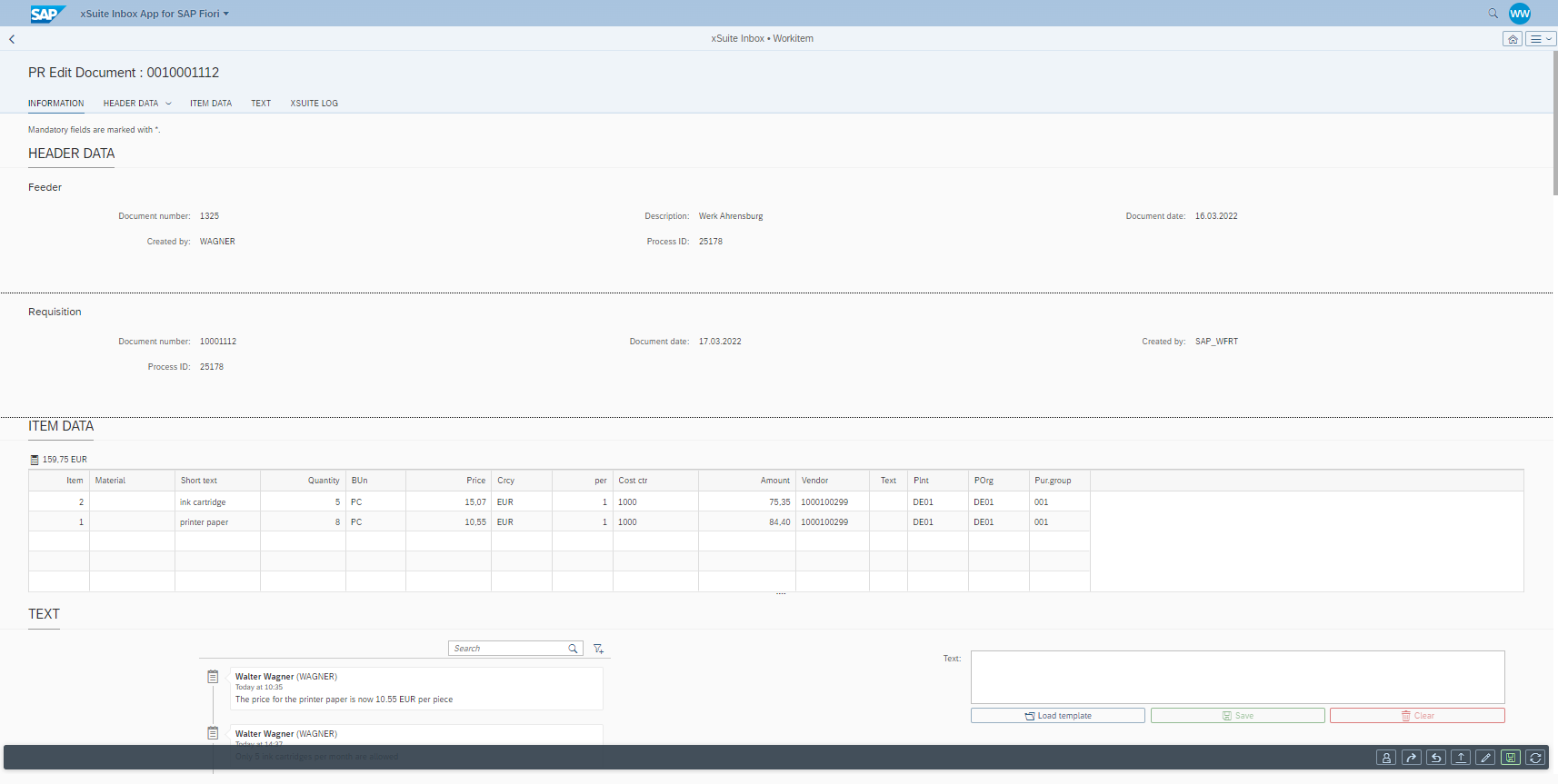
For more information on setting up a work item in SAP Fiori, see Work Items: Main Overview in SAP Fiori.
Main Overview in xSuite Web
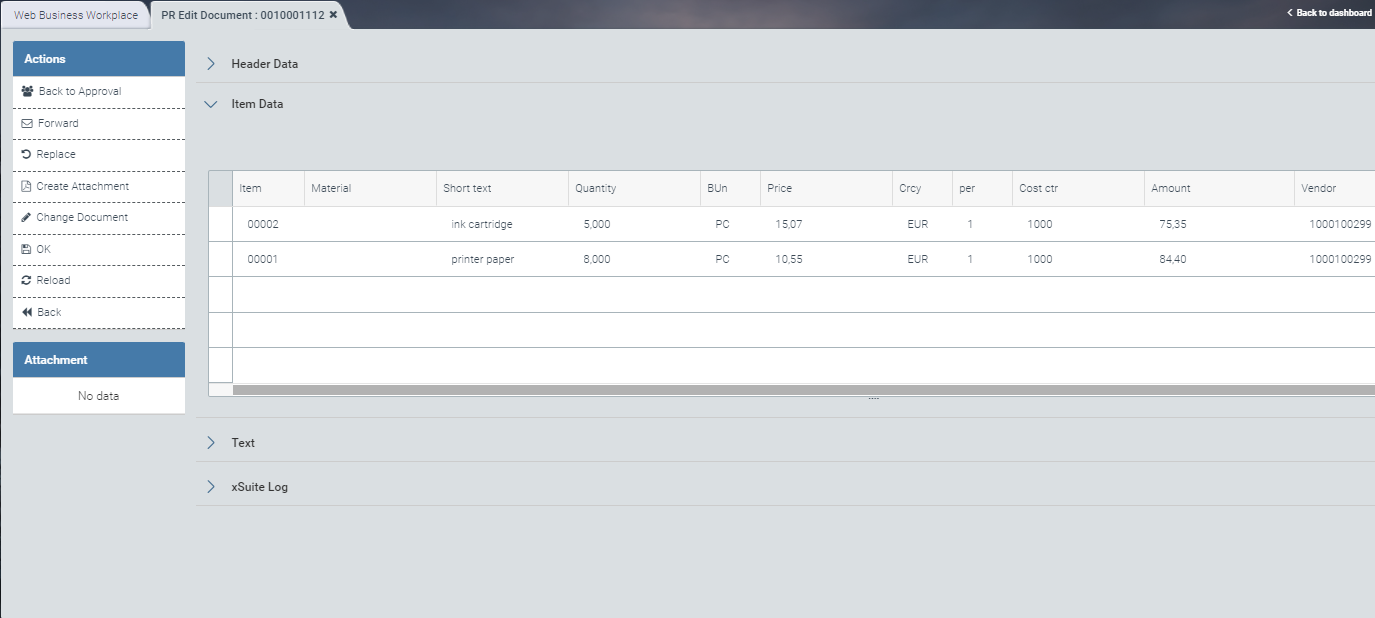
For more information on what a work item looks like in the xSuite web client, see Work Items: Main Overview in xSuite Web.
For more information about work item buttons, see Purchase Requisition Workflow: Buttons for Processing Work Items (Role PRET).
Purchase Requisition Workflow: Buttons for Processing Work Items (Role PRET)
SAP Fiori | SAP GUI / xSuite Web | Description | |
|---|---|---|---|
| Back to Approval | Transfers the document to the workflow step "Approve purchase requisition" (PRVA). For this, the agent must select an approver from the dialog. The agent can open the dialog by clicking the button Back to Approval. For information on how to approve a purchase requisition, see "Approve Purchase Requisition" (Role PRVA). | |
| Forward | ||
| Replace | ||
| Create Attachment | ||
| Change Document | Goes straight to the purchase requisition in SAP GUI via transaction ME52N. Here the agent can make changes to the purchase requisition. Opens the SAP document in SAP Fiori and xSuite Web via the Internet Transaction Server Service (ITS) in edit mode. Note: Changing an SAP document is only possible for SAP users. | |
| OK | Confirms that the document is correct and concludes the workflow step. The following steps are executed:
When the system has all the necessary information, a purchase order will be generated from the purchase requisition in the next workflow step. | |
| Refresh / Reload | Note: This button is only available in SAP Fiori and xSuite Web. | |
--- | Back | Note: This button is only available in xSuite Web. |


"Release Purchase Requisition" (Role PRRE)
The workflow task "Release purchase requisition" is assigned to an agent or a group of agents via the PRRE role.
The purpose of this workflow step is to release the purchase requisition, based on the information and data available in the purchase requisition and in any attachments.
Information cannot be added or changed by the agent, but specific assigned items can be released or rejected.
The actual release takes place in the item release block (see Release Data: Buttons). The agent can click buttons to release or reject individual items, or to release all items at once.
With the default settings, if the agent rejects release of any items, a reason must be entered in the comment field.
If the work item needs to be edited again, it moves on to the step "Edit after rejection" and then returns to the releasing agent.
If the agent editing the work item has returned it for approval, the releasing agent will not receive that work item until all prior steps have been completed.
Deleted work items do not return to the workflow.
The number of release levels ultimately involved depends on company release strategy.
Main Overview in the SAP GUI
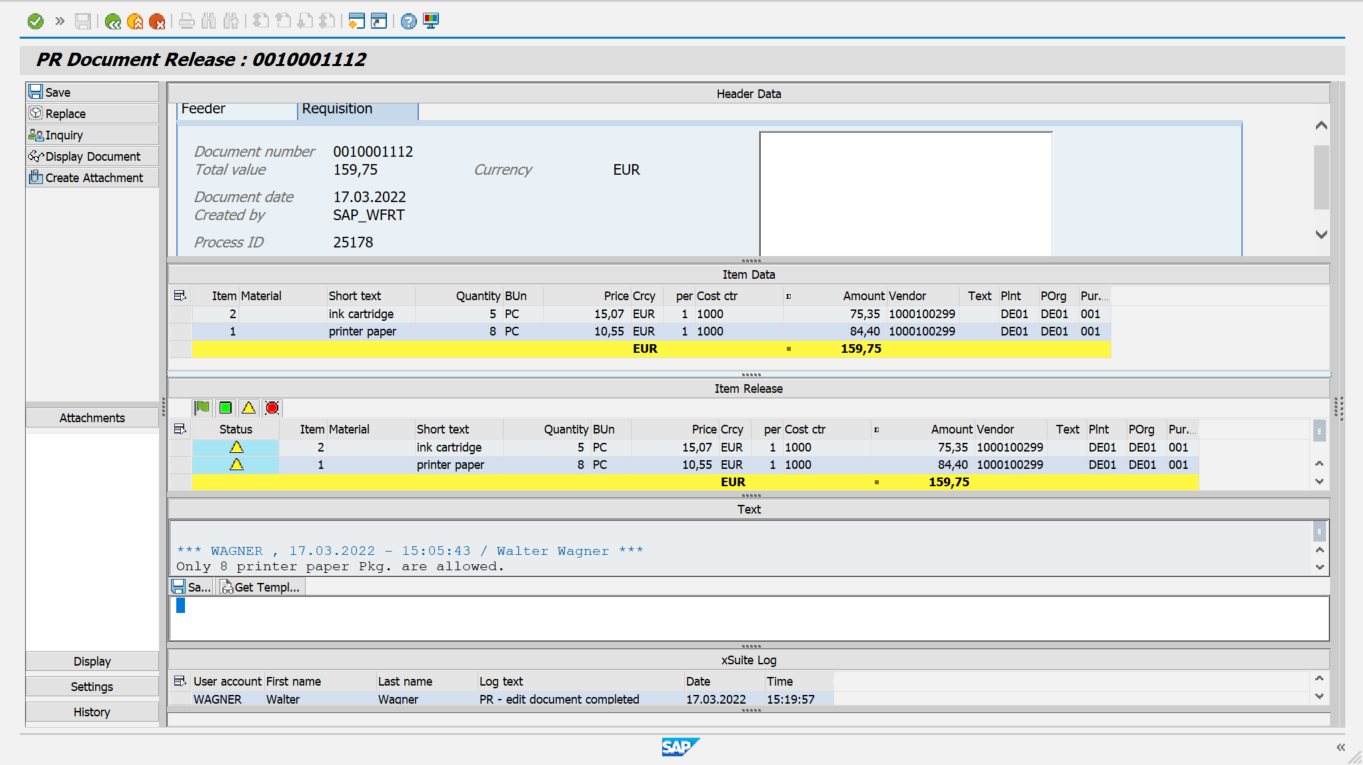
For more information on the areas for work items in the SAP GUI, see Work Items: Main Overview in the SAP GUI.
Main Overview in SAP Fiori
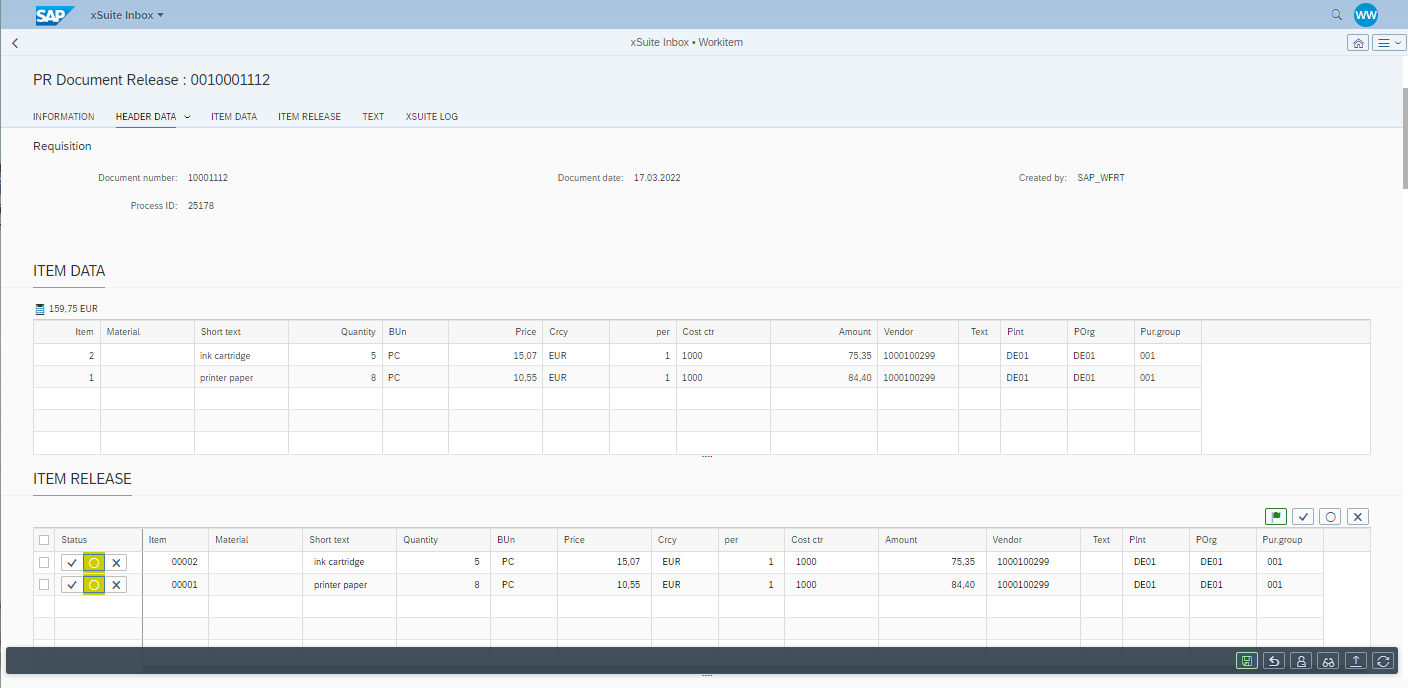
For more information on setting up a work item in SAP Fiori, see Work Items: Main Overview in SAP Fiori.
Main Overview in xSuite Web
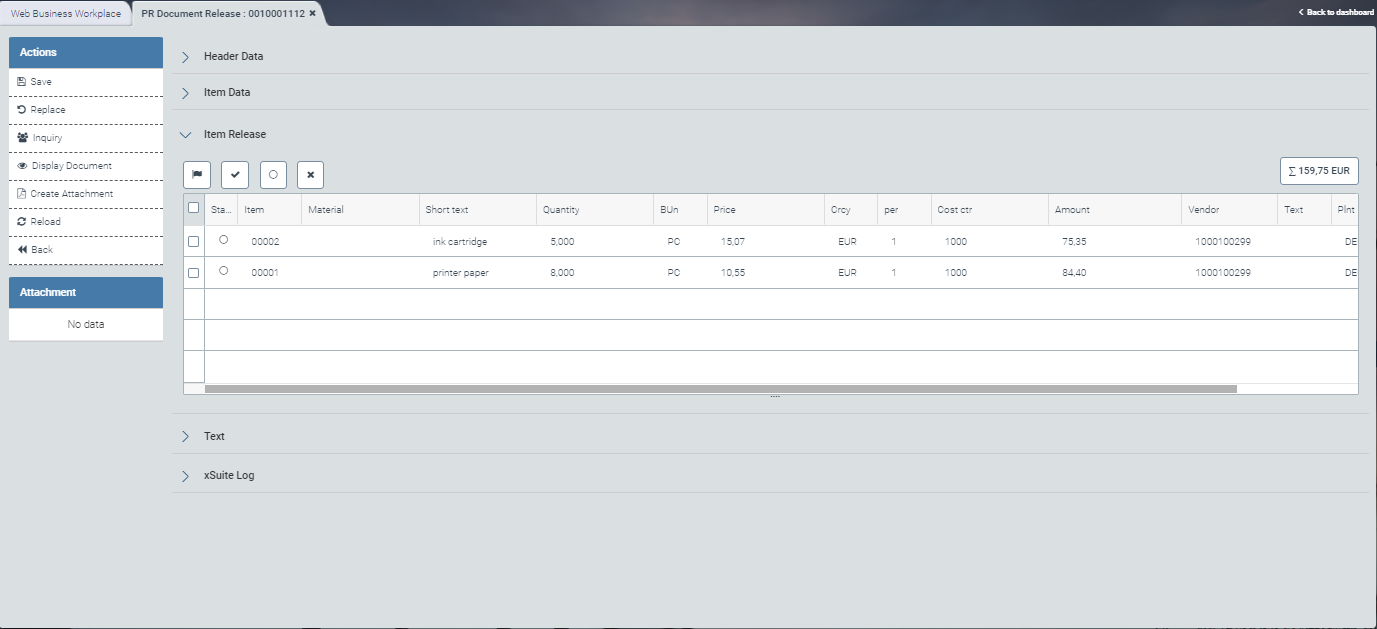
For more information on what a work item looks like in the xSuite web client, see Work Items: Main Overview in xSuite Web.
For more information about work item buttons, see Purchase Requisition Workflow: Buttons for Processing Work Items (Role PRRE).
Purchase Requisition Workflow: Buttons for Processing Work Items (Role PRRE)
SAP Fiori | SAP GUI / xSuite Web | Description | |
|---|---|---|---|
| Save | Only by releasing or rejecting the work item will the workflow task be completed and changes saved. To be able to reject a work item, the workflow task agent must leave a comment in the Text area. | |
| Replace | ||
| Inquiry | After completion of the query, the task will once again be available to be edited by any agent specified in the agent determination. | |
| Display Document | Opens the document in display mode in SAP transaction ME23N. In SAP Fiori and xSuite Web, opens the SAP document via the ITS service (Internet Transaction Server Service) in display mode. Note: Whether the SAP document can be displayed depends on the user's authorization. Without permission, the user cannot see the button. | |
| Create Attachment | ||
| Refresh / Reload | Note: This button is only available in SAP Fiori and xSuite Web. | |
--- | Back | Note: This button is only available in xSuite Web. |

Release Data: Buttons
Actual release takes place in the line-item release pane, which has buttons for release single item selection, and selection of all items. In addition to these buttons, this pane offers a table with the line-item information relevant to the specific releaser. The agent cannot edit this table.
SAP GUI | SAP Fiori | xSuite Web | Name / Description | |||
|---|---|---|---|---|---|---|
|
|
| Release all items Releases all items. | |||
|
|
| Release selected items Releases selected items. | |||
|
|
| Cancel (process later) Cancels release or rejection of selected items | |||
|
|
| Reject selected items Rejects selected items. |


"Edit Purchase Requisition After Rejection" (Role PRER)
The workflow task "Edit purchase requisition after rejection" is assigned to an agent or a group of agents via the role PRER.
This task comes up in the workflow only if the purchase requisition was previously rejected in approval or release. In this workflow step, the user can revise the purchase requisition and add to the data already entered.
The reason for rejecting the purchase requisition in approval or release will have been noted in the comment field. The agent must make the changes requested in order to enable a positive outcome in the approval or release steps.
The agent can use the transaction ME52N or the Change Document button to go straight to the SAP document to edit the purchase requisition in the SAP GUI.
Only SAP users can go straight to the SAP purchase requisition. Display will correspond to specific SAP user authorizations. With the appropriate authorization, an SAP user can also check the data in SAP Fiori and xSuite Web.
Purchase requisition data can be edited in SAP Fiori, xSuite Web, or the SAP GUI.
Notice
"Edit purchase requisition after rejection" (role PRER) and "Edit purchase requisition" (role PRET) are the only workflow tasks in which an agent can change header and item data of the purchase requisition.
The purchase requisition can also be deleted if the releaser has rejected the document and asked that this be done.
Main Overview in the SAP GUI
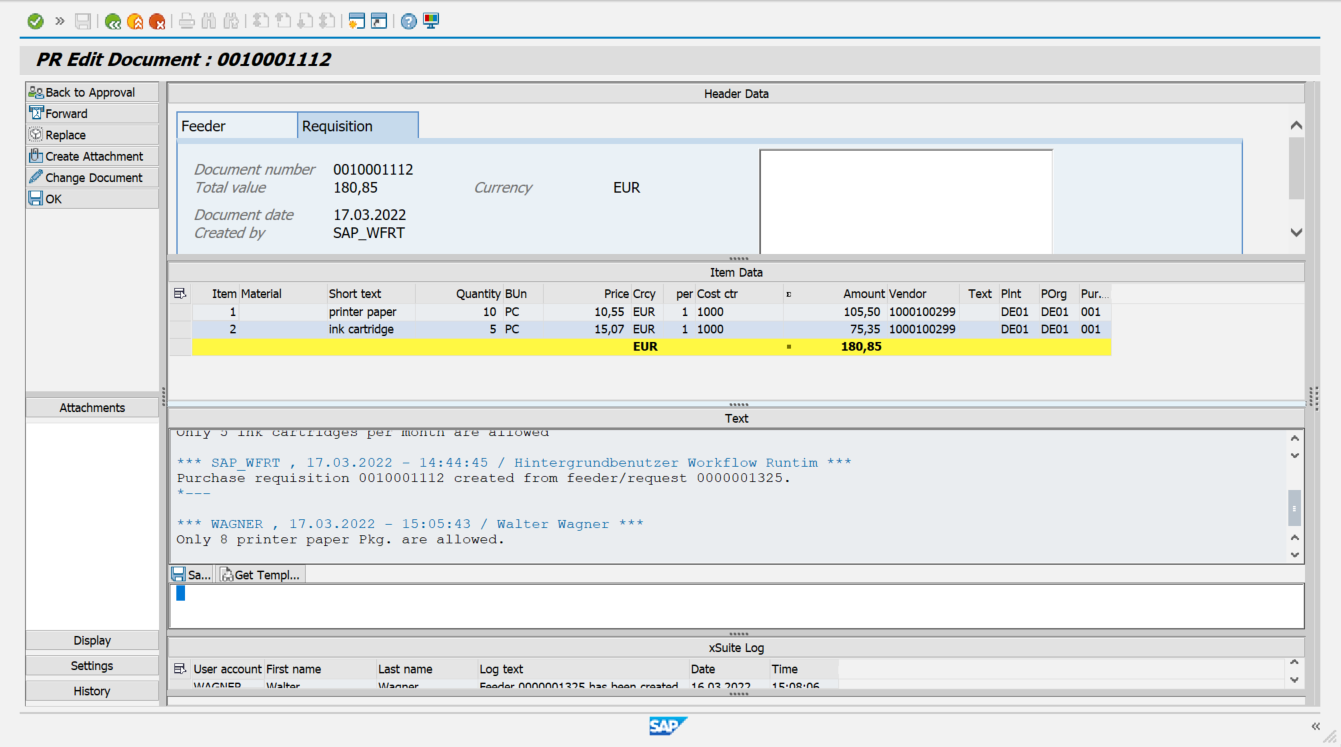 |
For more information on the areas for work items in the SAP GUI, see Work Items: Main Overview in the SAP GUI.
Main Overview in SAP Fiori
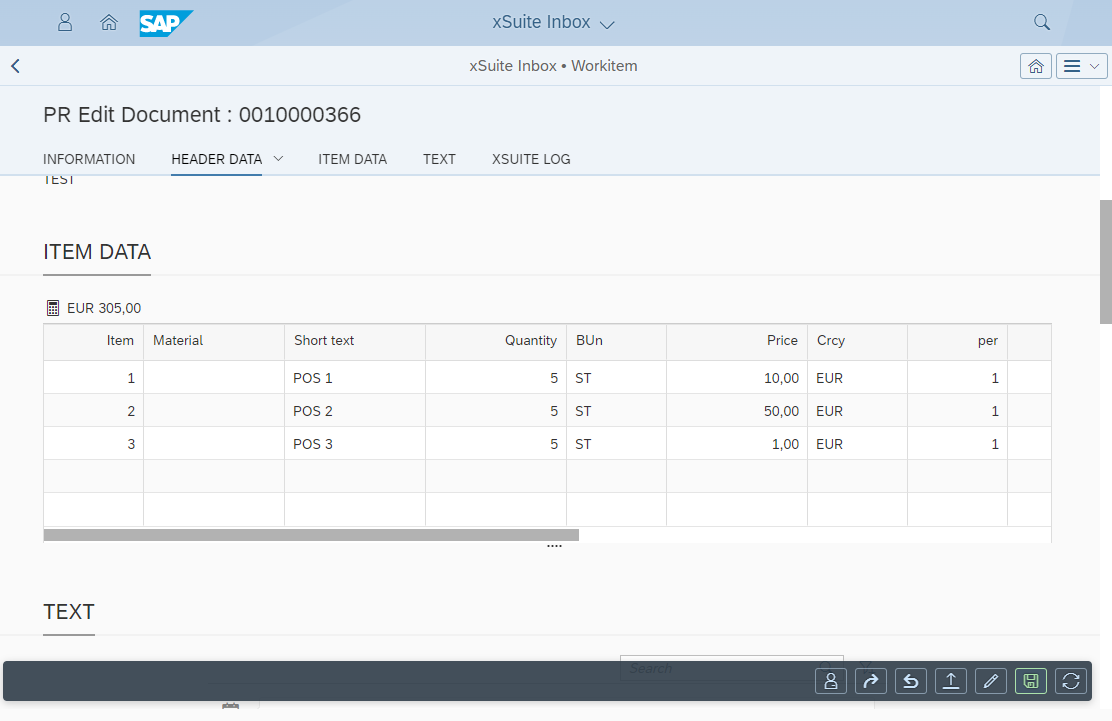 |
For more information on setting up a work item in SAP Fiori, see Work Items: Main Overview in SAP Fiori.
Main Overview in xSuite Web
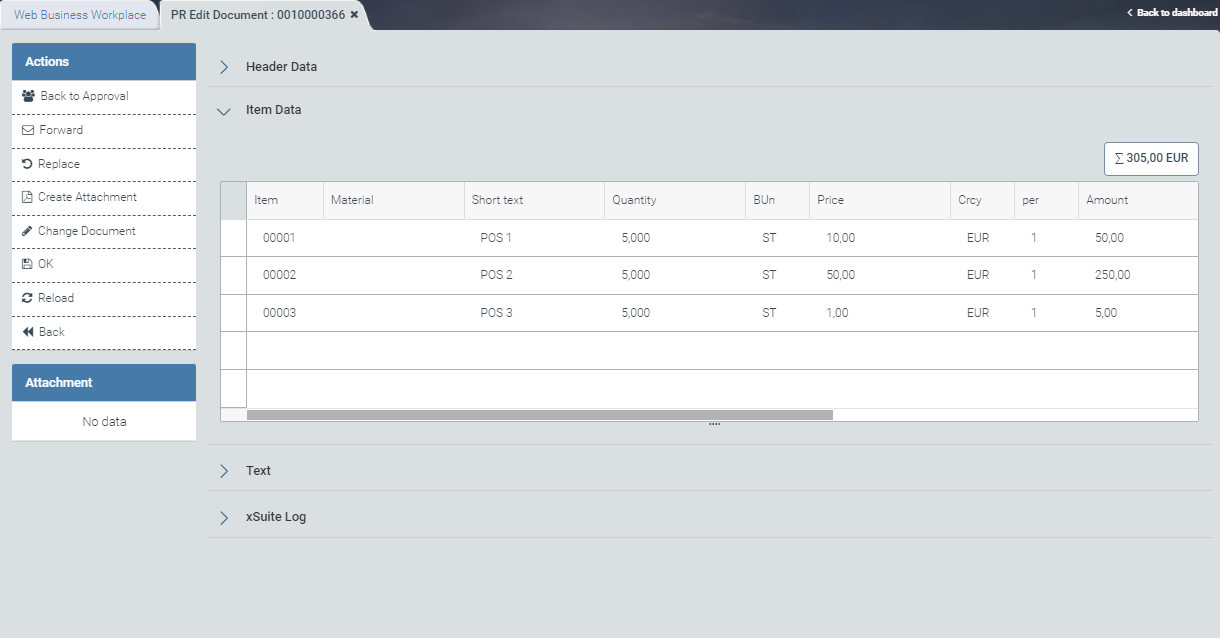 |
For more information on what a work item looks like in the xSuite web client, see Work Items: Main Overview in xSuite Web.
Clicking the Change Document button will open the /WMD/PR_CHANGE transaction as a Web Dynpro application.
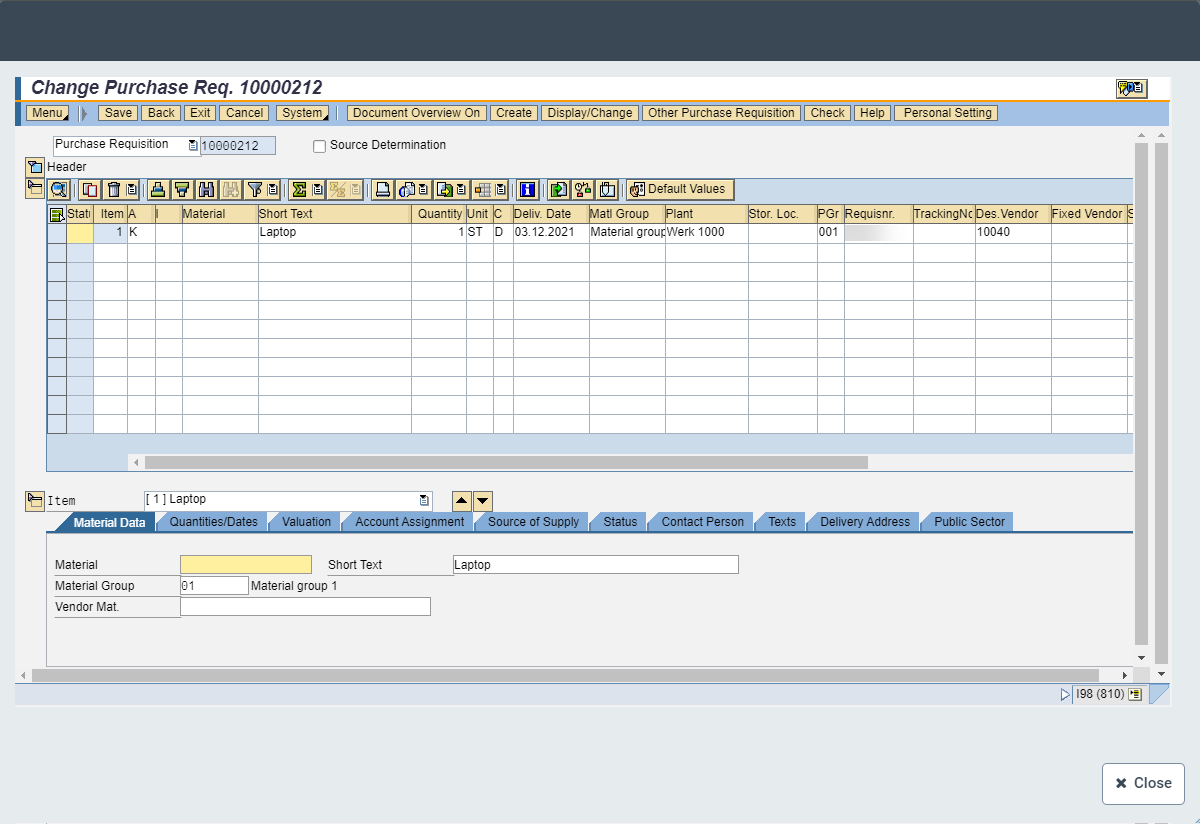 |
After the user edits the SAP document, it will be updated in the background. The workflow view will then also display the changes made.
For more information about work item-buttons, see Purchase Requisition Workflow: Buttons for Processing Work Items (Role PRER).
Purchase Requisition Workflow: Buttons for Processing Work Items (Role PRER)
SAP Fiori | SAP GUI / xSuite Web | Description | |
|---|---|---|---|
| Back to Approval | Transfers the document to the workflow step "Approve purchase requisition" (PRVA). For this, the agent must select an approver from the dialog. The agent can open the dialog by clicking the button Back to Approval. For information on how to approve a purchase requisition, see "Approve Purchase Requisition" (Role PRVA). | |
| Forward | ||
| Replace | ||
| Create Attachment | ||
| Change Document | Goes straight to the purchase requisition in SAP GUI via transaction ME52N. Here the agent can make changes to the purchase requisition. Note: Changing an SAP document is only possible for SAP users. | |
| OK | Confirms that the document is correct and concludes the workflow step. The following steps are executed:
| |
| Reload | Note: This button is only available in SAP Fiori and xSuite Web. | |
--- | Back | Note: This button is only available in xSuite Web. |
"Create Purchase Order" (Role PRCR)
This task is used only for the automatic generation of a purchase order in the background.
This role cannot be assigned to a human agent.
Notice
To create the purchase order manually outside the PRCR role, use the SAP transaction ME21N.
If automatic creation is not possible, a human agent will be assigned the workflow task "Edit purchase requisition" (role PRET). Which agent can perform this task is defined in agent determination.
In the task "Edit purchase requisition", the agent adds information that is missing in the purchase requisition. A completed status is preconditional if a purchase order is to be generated from a purchase requisition in the background task "Create purchase order".