Opening the Procurement Overview
Opening the Procurement Overview in the SAP GUI
Call the transaction /WMD/XF_PU_ADMIN.
➣ The selection screen will open.
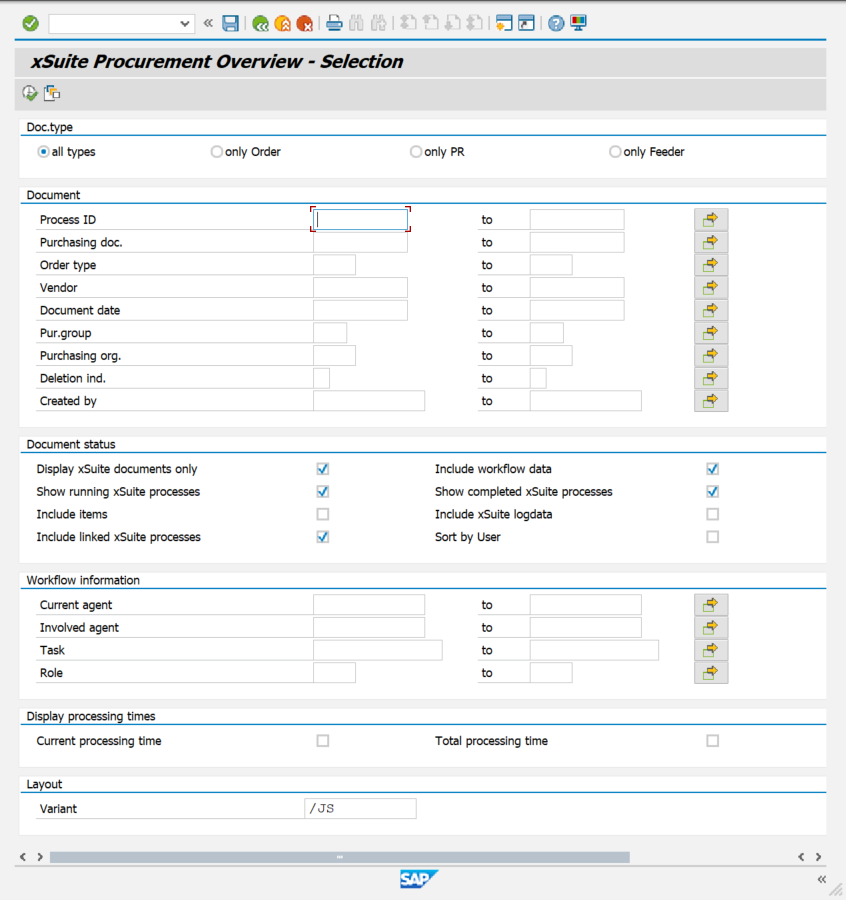
Enter search terms in the search fields as needed.
For information on search fields, see Procurement Overview: Search Fields.
Click
 Execute or press F8 on your keyboard.
➤ The Procurement Overview will open.
Opening the Procurement Overview in SAP Fiori
Open the SAP Fiori start page.
Click on the tile PO Overview.
➣ The search field will open.
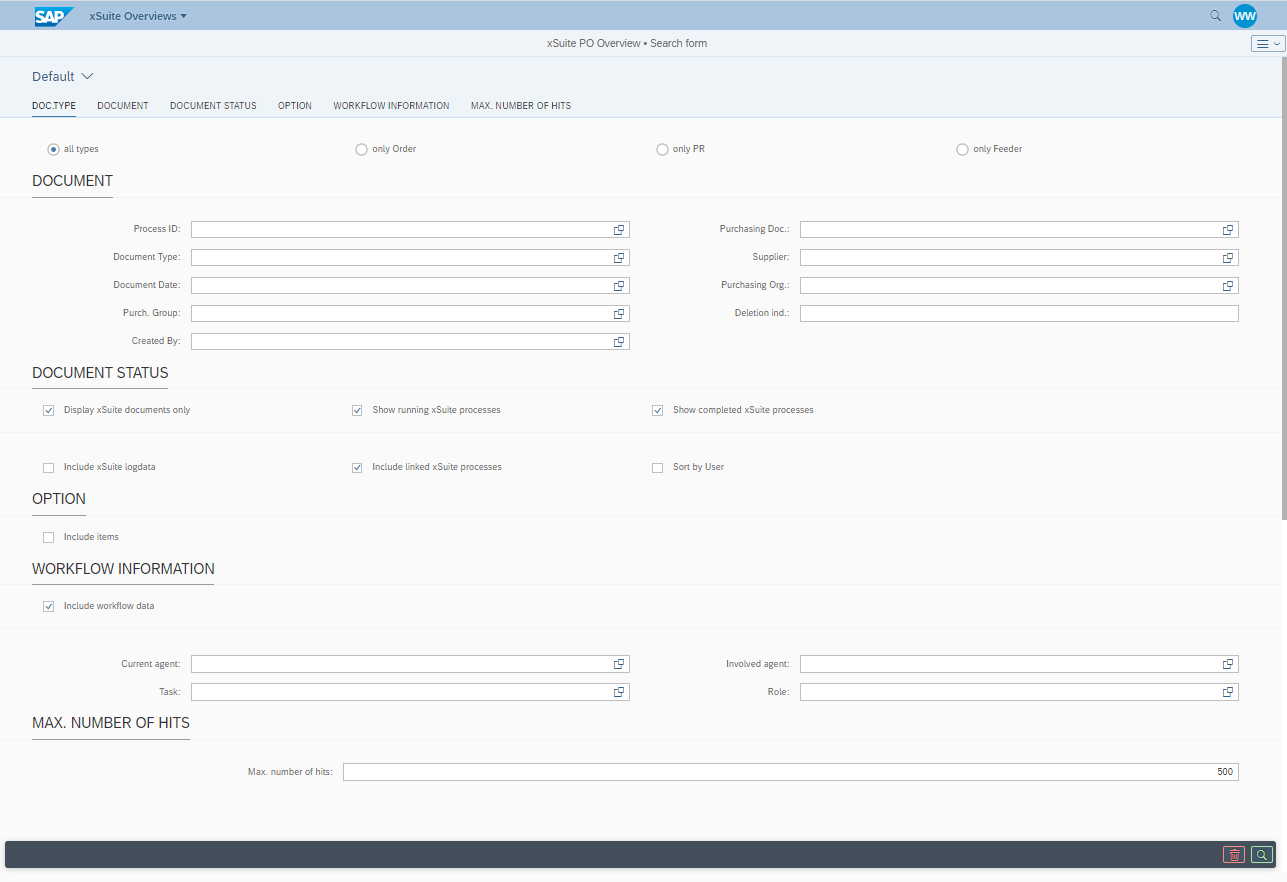
Do one of the following:
Enter the search criteria and clik the
 Search button.
For information on search fields, see Procurement Overview: Search Fields.
➤ The hit list will open. Only documents that match your search criteria will be displayed.
Notice
The search criteria you have entered can be saved as a view. The data of existing views can be loaded.
For more information, see Views in xSuite Web.
Click the
Search button.➤ The hit list will open. All documents will be displayed.
Opening the Procurement Overview in xSuite Web
Open the xSuite Web Workplace.
Click the Back to dashboard button.
➣ Your dashboard will open.
Click on the tile PO Overview.
➤ The Procurement Overview will open.
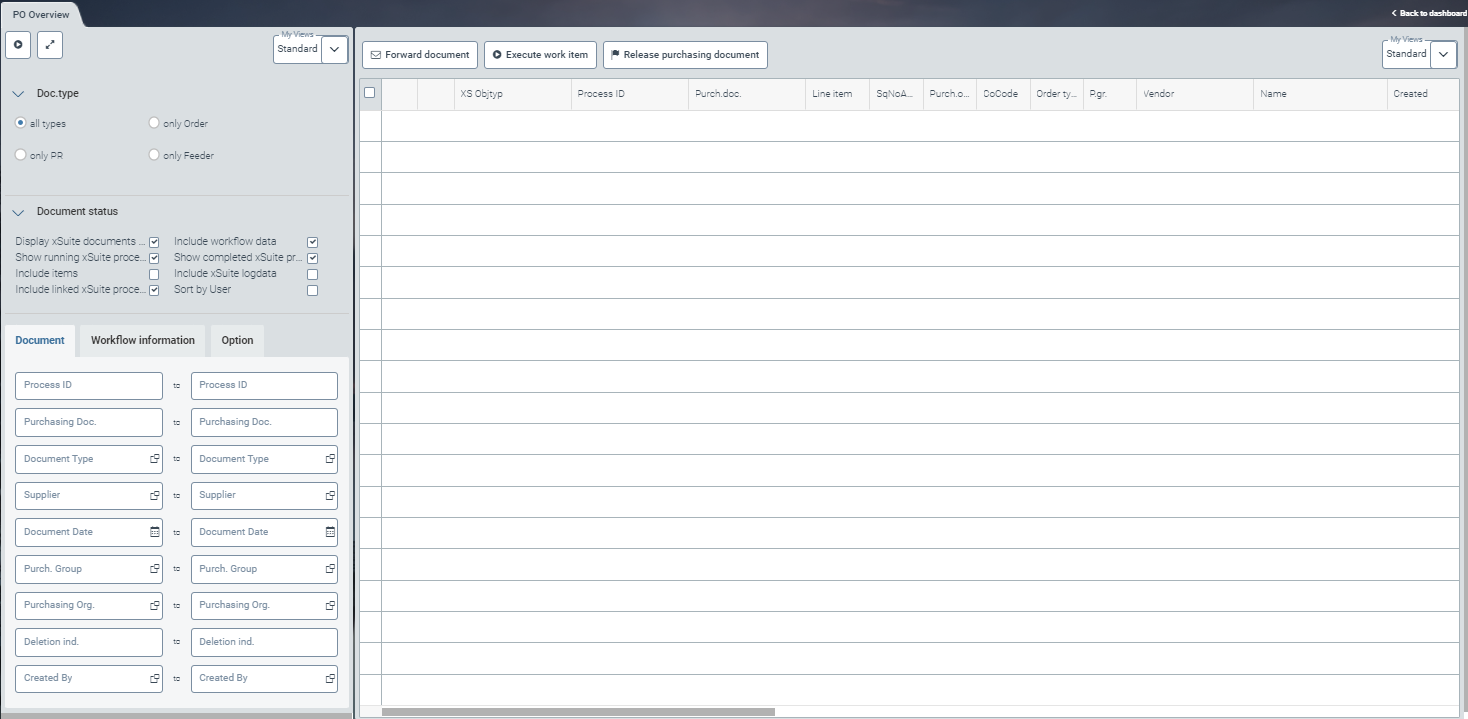
Do one of the following:
Enter the search criteria and click the
 button.
For information on search fields, see Procurement Overview: Search Fields.
➤ The hit list will open. Only documents that match your search criteria will be displayed.
Notice
The search criteria you have entered can be saved as a view. The data of existing views can be loaded.
For more information, see Views in xSuite Web.
Click the button
.➤ The hit list will open. All documents will be displayed.