Work Items in SAP Fiori
In SAP Fiori, work items are displayed in the xSuite inbox (homepage → Tile Inbox).
All workflow tasks have the same basic look and feel. However, which specific buttons and actions you see will differ depending on the workflow task.
xSuite Inbox: Main Overview
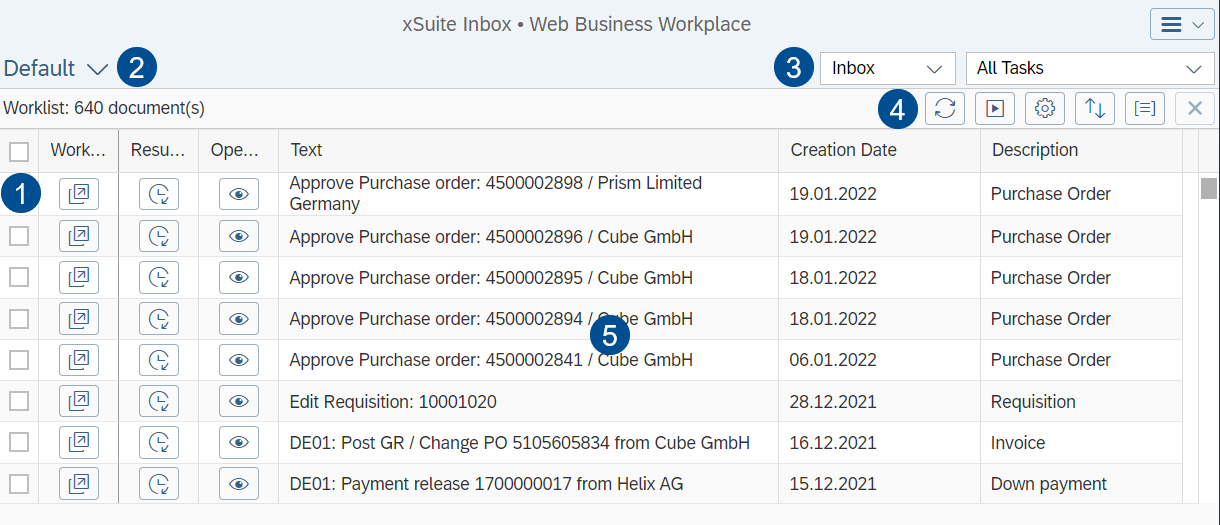 |
Area | Information and comments | |
|---|---|---|
1 | Button per work item | |
2 | Views | For more information, see Views in SAP Fiori. |
3 | Filter | |
4 | Buttons in the xSuite Inbox | |
5 | Work item list | For information on the columns, see xSuite Inbox: Columns in SAP Fiori. You can change selected columns with the |

xSuite Inbox: Buttons in SAP Fiori
Button | Name | Context | Description | |
|---|---|---|---|---|
| Refresh worklist | xSuite Inbox | Refreshes the xSuite Inbox. Among other things, work items are displayed that have not been added until the xSuite Inbox was opened. | |
| Open selected workitems | xSuite Inbox | Opens the selected work items. This allows multiple work items to be processed quickly in sequence. Note: Use the | |
| Columns | xSuite Inbox | ||
| Delete from history | xSuite Outbox | Deletes the selected work items from the list. The work items themselves are not deleted, they are simply no longer displayed in the list. This button is only available in the Outbox. | |
| Sorting | xSuite Inbox | Opens sorting options You can select one or more columns and specify the type of sorting (ascending/descending) in each case. | |
| Categorization | xSuite Inbox | Opens options for categorizing. You can select a column whose values are to be categorized. This categorization will then be used for sorting as well. | |
| Clear all sorting and categorization | xSuite Inbox | ||
| Settings | xSuite Inbox | ||
| Open Workitem | Work item | Opens a work item. | |
| Resubmit Workitem | Work item | Returns a document to the inbox so that it can be edited at a later point in time. Documents that have been flagged for resubmission will not be displayed in the hit list until the resubmission date. | |
| Workitem Preview | Work item | Opens a preview and displays the image of the work item. You can release or reject work items directly from the work item preview using the Release and Reject buttons if you have the appropriate rights. |


xSuite Inbox: Filters in SAP Fiori
Filter | Description |
|---|---|
Worklist type | Filters the xSuite Inbox according to Inbox, Outbox, or Resubmit. |
Task type | Filters the xSuite Inbox for a workflow task. |
xSuite Inbox: Columns in SAP Fiori
Column | Description |
|---|---|
Creation date | Indicates the date on which the work item was created. |
Description | Shows the company code of a work item. |
Object Key | Indicates the object key of the SAP purchase order. |
Object Type | Shows the xSuite module which houses a given workflow task. |
Obj.type/Obj.ID | Shows the task type of a work item. |
Process ID | Shows the process ID of a document. The process ID is assigned by xSuite. The purpose of a process ID is to identify a document throughout the process of workflow-supported document approval. |
Role | Shows the role assigned to the workflow task in which a work item is located. |
Text | Shows the description of a work item. |
Work Item ID | Shows the ID of the work item. |
Work Items: Main Overview in SAP Fiori
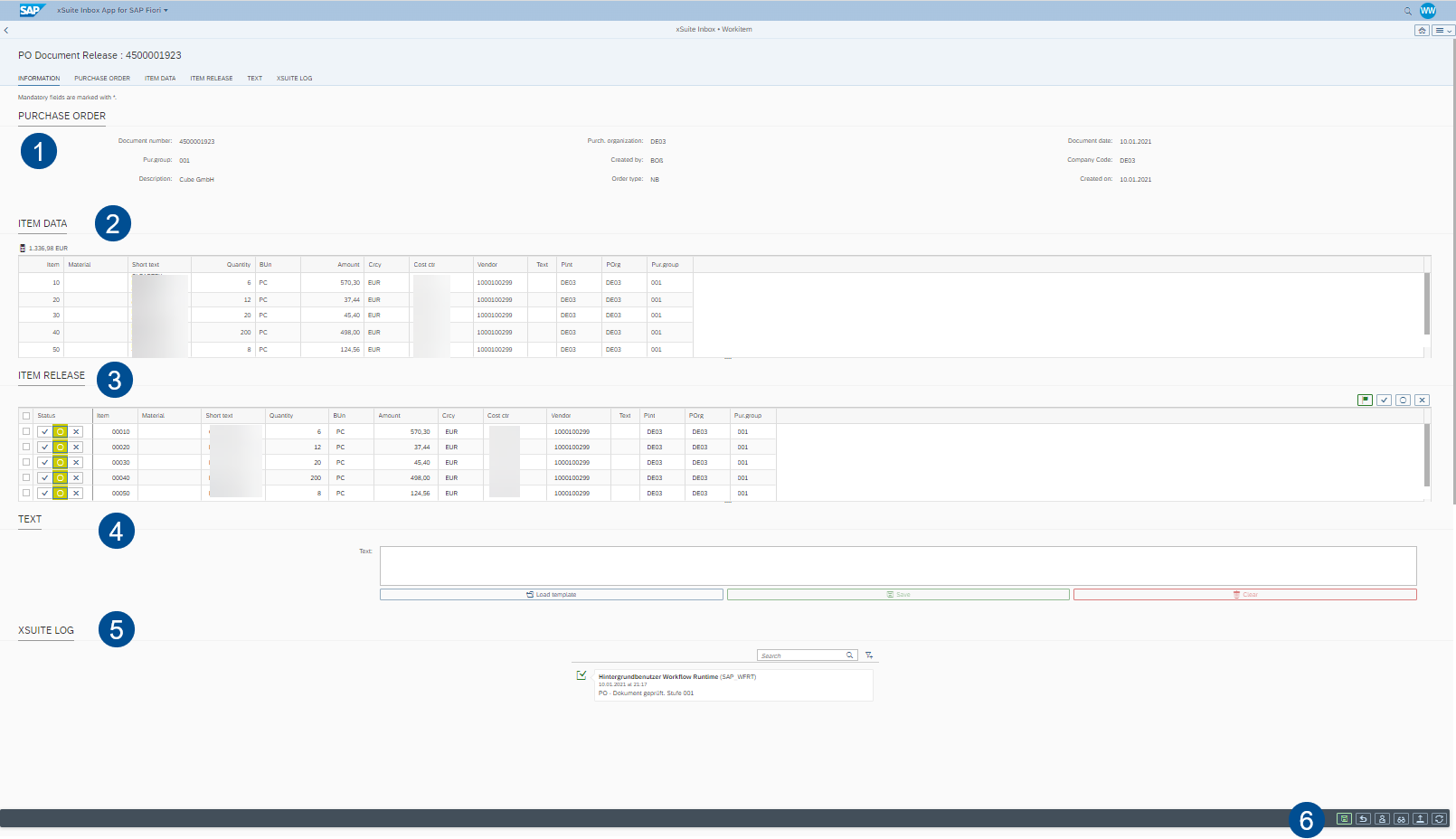
Area | Information and comments | |
|---|---|---|
1 | Header Data | In the header data section, the primary data of the work item (e.g., vendor or company code) is displayed. |
2 | Item Data | Here, you can view the order items of the work item. Note: In the workflow tasks leading up to release, you can find additional release data below the item data. |
3 | Attachment | More attachments can be added by drag-and-drop. |
4 | Text | |
5 | xSuite Log | |
6 | Workflow action | The buttons and actions available in this section will differ depending on workflow task. For information on the buttons available for work items in workflows, see: For feeders:
For purchase requisitions:
|
Image display | Note: When a purchase order has been released and the release indicator has been set, an image of a document will appear on the right side of the window. This is the area where attachments are otherwise displayed. | |
Substitute Maintenance in SAP Fiori
You can set your own substitute for planned times of absence. If you have multiple roles, you can select substitutes by role.
Substitute maintenance can be accessed in SAP Fiori via the Substitute Maintenance tile.
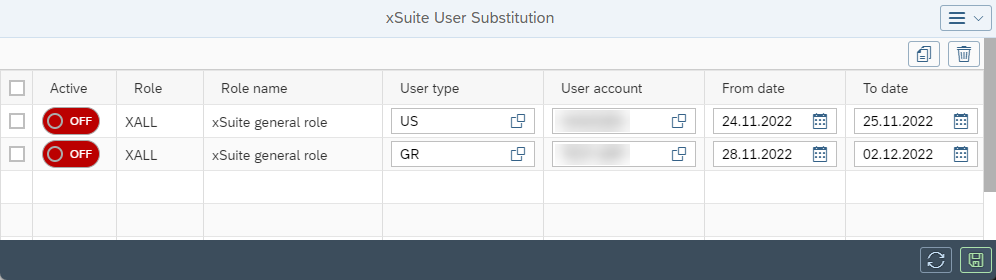 |
During the period for which you are being substituted, both you and your substitute will receive the work items that are assigned to your role. Your substitutes will be able to process your work items during your absence.
Substitute Maintenance: Columns
Column | Description | Editable |
|---|---|---|
Active | Activates a substitute assignment. | X |
Role | Indicates your role. | |
Role name | Indicates the description of a role. | |
User type | Indicates whether the substitute is a user (US) or a user group (GR). | X |
User account | Indicates the name of a substitute. | X |
From date | Indicates the date on which a substitution period is to start. | X |
To date | Indicates the date on which a substitution period is to end. | X |
Substitute Maintenance: Buttons
Button | Name | Description | |
|---|---|---|---|
| Copy Substitution Entry | Copies the line selected. | |
 | Delete Substitution Entry | Deletes the line selected. | |
| Refresh | Updates the data in the table. | |
| Save | Saves all changes. Caution: If you exit substitute maintenance without saving, any changes you have made will be lost. |


