The Feeder Monitor
In the Feeder Monitor, all feeders are displayed that were created via web service.
You can search for specific feeders and validate and edit preliminary feeders. Once you have finished validating and editing the feeders, you can transfer them to the workflow.
The Feeder Monitor is available in SAP Fiori and the SAP GUI.
Opening the Feeder Monitor
Opening the the Feeder Monitor in the SAP GUI
Call the transaction /WMD/XF_PFM.
➣ The selection screen will open.
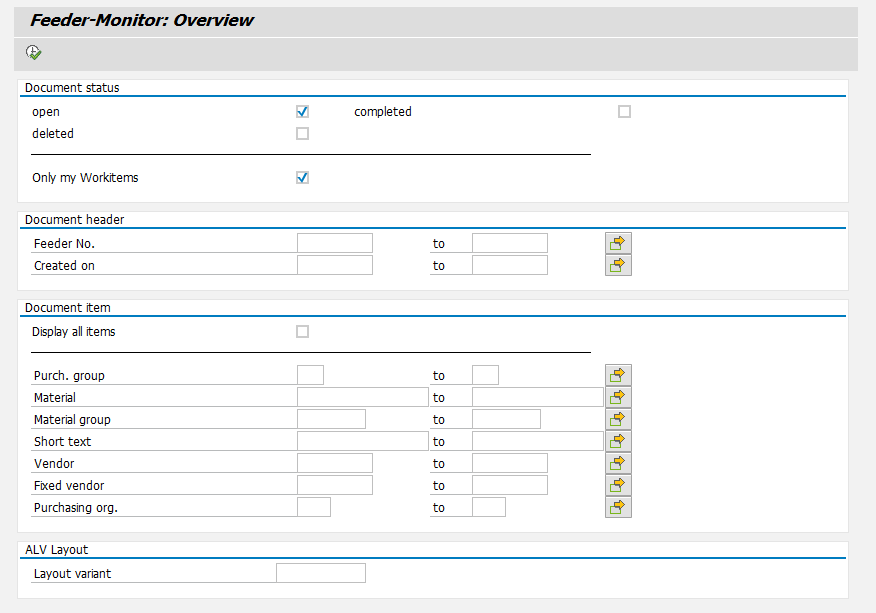
In Document status, select one or more of the following statuses:
open: Searches for preliminary feeders (workflow task "Edit preliminary feeder"). These feeders can be edited.
completed: Searches for feeders that have already been created. These feeders cannot be edited; they can only be opened in display mode.
deleted: Searches for feeders that were rejected and deleted at a certain time. These feeders cannot be edited; they can only be opened in display mode.
Notice
If you select the document status open with the checkbox Only my Workitems activated, all feeders will appear that can be processed.
If necessary, add key words to the remaining search fields.
For information on search fields, see Feeder Monitor: Search Fields.
Click the button
 Execute, or press F8.
➤ The Feeder Monitor will open.
Opening the The Feeder Monitor in SAP Fiori
On the SAP Fiori home page, click the Feeder Monitor tile.
➣ The selection screen will open.
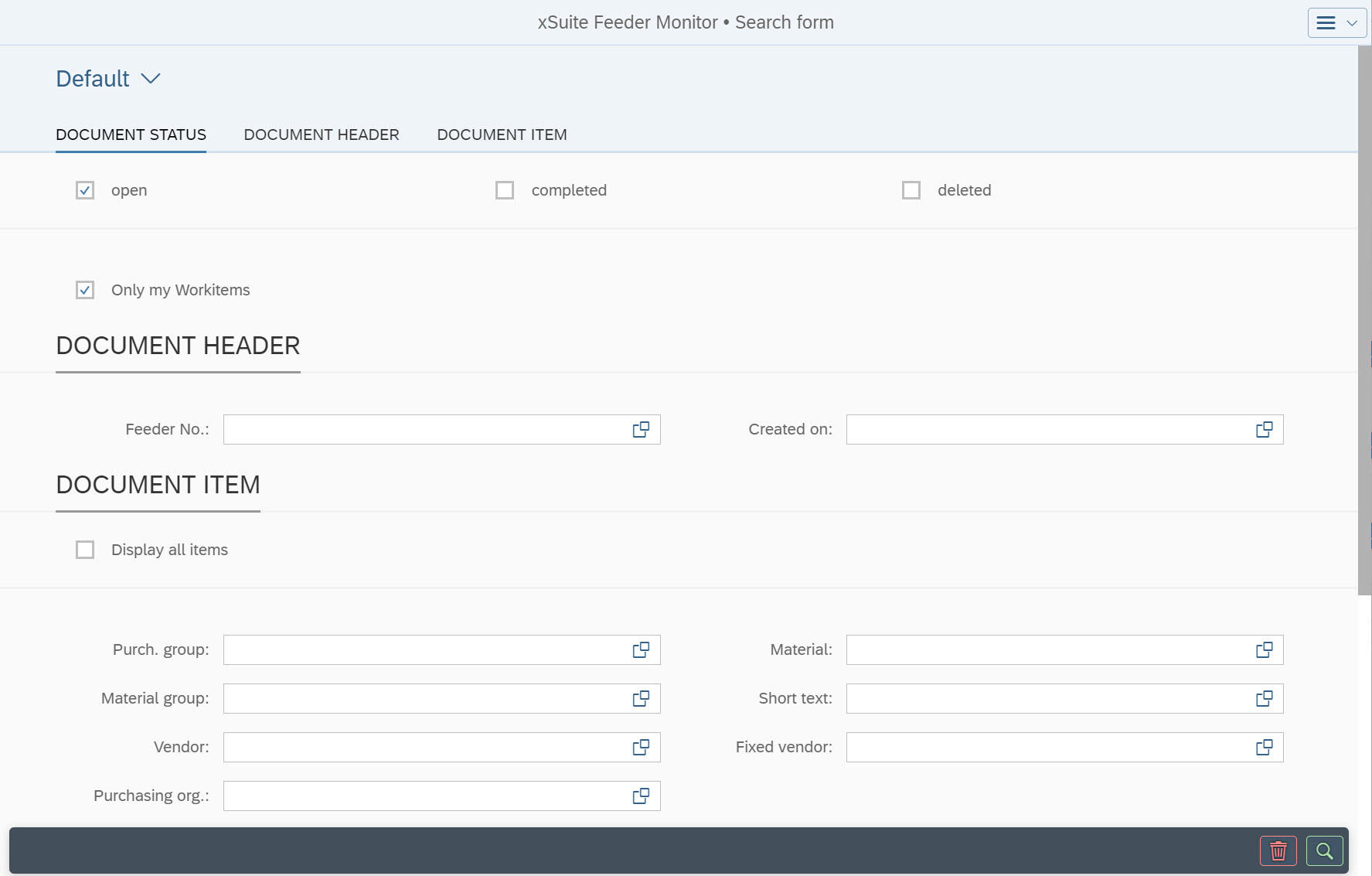
In Document status, select one or more of the following statuses:
open: Searches for preliminary feeders (workflow task "Edit preliminary feeder"). These feeders can be edited.
completed: Searches for feeders that have already been created. These feeders cannot be edited; they can only be opened in display mode.
deleted: Searches for feeders that were rejected and deleted at a certain time. These feeders cannot be edited; they can only be opened in display mode.
Notice
If you select the document status open with the checkbox Only my Workitems activated, all feeders will appear that can be processed.
If necessary, add key words to the remaining search fields.
For information on search fields, see Feeder Monitor: Search Fields.
Notice
The search criteria you have entered can be saved as a view. The data of existing views can be loaded.
For more information, see Views in SAP Fiori.
Click the button
 Search.
➤ The Feeder Monitor will open.
Feeder Monitor: Search Fields
Area | Search Field | Description |
|---|---|---|
Document status | open | Determines whether to search for feeders that can be edited. Feeders can be changed if they have the Feeder status Warning For information on feeder status, see Feeder Monitor: Feeder Status. |
completed | Select to find feeders with the status completed For information on feeder status, see Feeder Monitor: Feeder Status. | |
deleted | Select to find feeders with the status Deleted For information on feeder status, see Feeder Monitor: Feeder Status. | |
Only my Workitems | Controls whether only feeders created by the user are displayed. If the checkbox Only my work items and the checkbox Modifiable are selected at the same time, all feeders that the user can edit will be displayed in the hit list. | |
Document header | Feeder No. | Searches feeders by their feeder number The user can specify a single feeder number or a range of feeder numbers. |
Created on | Searches for feeders by their creation date. The user can specify a single date or a date range. | |
Document item | Display all items | Determines whether the item data of the feeder is displayed in the hit list. |
Purch. group | Searches feeders by their assigned purchasing group. | |
Material | Searches for feeders by their assigned material. | |
Material group | Searches feeders by their assigned material group. | |
Short text | Searches for feeders that have a specific short text to the requested material. | |
Vendor | Searches for feeders by assigned vendor. | |
Fixed vendor | Searches for feeders by assigned fixed supplier. | |
Purchasing org. | Searches feeders by assigned purchasing organization. | |
ALV Layout | Layout variant | Note: This field is only available in the SAP GUI. |


Feeder Monitor: Structure
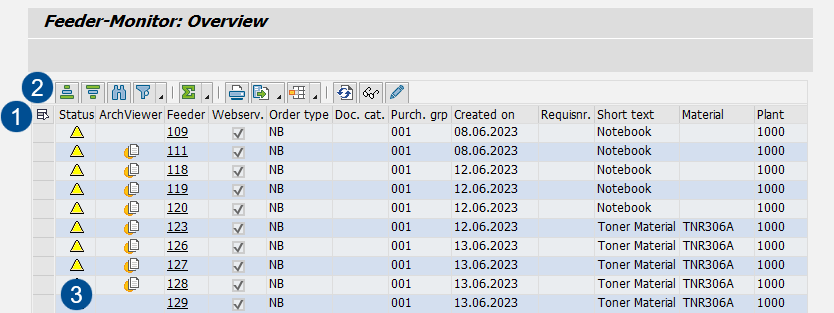
Feeder Monitor: Structure in the SAP GUI
 |
Area | Information and comments | |
|---|---|---|
1 | Feeder Monitor columns | |
2 | Feeder Monitor buttons | |
3 | Feeder status | Indicates the processing step in which a feeder is located. For information on feeder status, see Feeder Monitor: Feeder Status. |
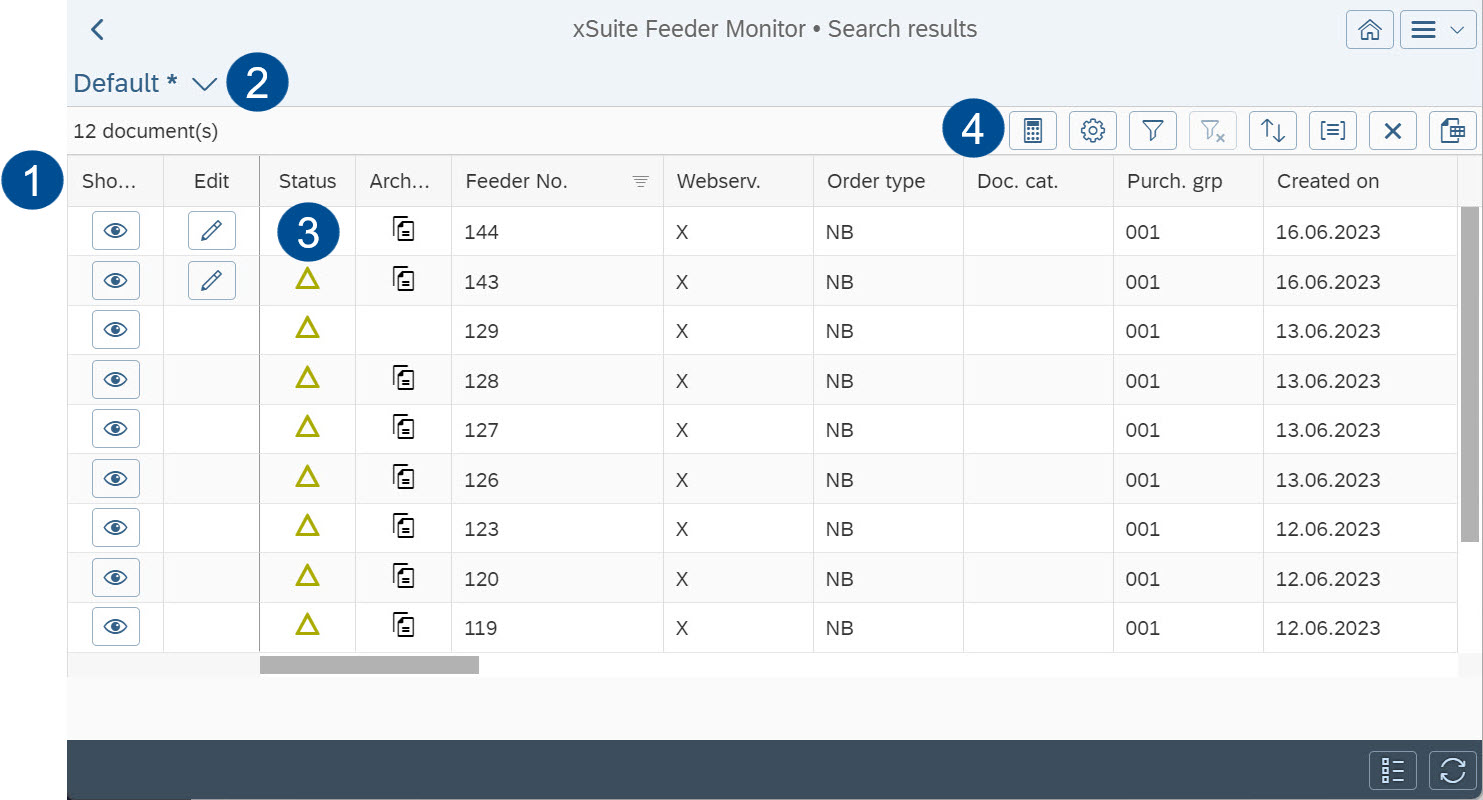
Feeder Monitor: Structure in SAP Fiori
 |
Area | Information and comments | |
|---|---|---|
1 | Feeder Monitor columns | |
2 | Views | You can save the display of the hit list (e.g., the columns shown and filters set) as a view. You can then call up the views saved. For more information, see Views in SAP Fiori. |
3 | Feeder status | Indicates the processing step in which a feeder is located. For information on feeder status, see Feeder Monitor: Feeder Status. |
4 | Feeder Monitor buttons | |
Feeder Monitor: Feeder Status
SAP Fiori | SAP GUI | Name | Description |
|---|---|---|---|
|
| Warning | The feeder is in the workflow task "Edit temporary feeder" (role PFCC). This feeder can be edited. |
|
| Completed | The feeder is completed and has already been created. This feeder cannot be edited. |
|
| Deleted | The feeder was rejected or deleted. This feeder cannot be edited. |
Feeder Monitor: Buttons
SAP GUI | SAP Fiori | Name | Description | ||
|---|---|---|---|---|---|
|
| Sort in Ascending / Descending Order | Sorts the search results. You can select one or more columns and specify the type of sorting (ascending/descending) in each case. In the default layout, the hit list is sorted in ascending order by feeder number. | ||
|
| Set Filter | |||
-- |
| Clear all filters | Note: This button is only available in SAP Fiori. | ||
-- |
| Columns | Note: This button is only available in SAP Fiori. | ||
-- |
| Categorization | Note: This button is only available in SAP Fiori. | ||
-- |
| Restore default sorting and clear categorization | Note: This button is only available in SAP Fiori. | ||
| -- | Find | Opens a pop-up for searching the hit list. | ||
|
| Total | |||
| -- | Opens the print function for the hit list. | |||
|
| Export | Exports the hit list. The following export formats are available: Spreadsheet, Word processing, and Local file. | ||
| -- | Choose Layout | Offers options for handling the layout of the hit list. A drop-down menu will offer you the following options: Choose Layout, Change Layout, Save Layout, and Manage Layouts. | ||
|
| Refresh | Refreshes the hit list. | ||
| -- | Change | Opens a document in edit mode. The edit mode is available only for feeders created by the user. | ||
| -- | Display | Opens a document in display mode. | ||
-- |
| Show document | Note: This button is only available in SAP Fiori. | ||
-- |
| Edit | Note: This button is only available in SAP Fiori. | ||
-- |
| Show search criteria | Shows the selection screen and hides the hit list. Note: This button is only available in SAP Fiori. |


