Feeder Workflow: Workflow Tasks
"Edit Preliminary Feeder" (Role PFCC)
The "Edit preliminary feeder" workflow task is assigned to an agent or a group of agents via the PFCC role.
This step is for an agent to open and modify feeders that have been saved or returned to the inbox. The agent in this role can add all the information necessary for feeder approval. This task is only used for adding information to a feeder which has not yet been saved as final.
This workflow task allows the feeder to be saved as final; also, it allows the agent to return the feeder to the inbox for later editing. For more information on creating a feeder, see Create Feeder.
Main Overview in the SAP GUI
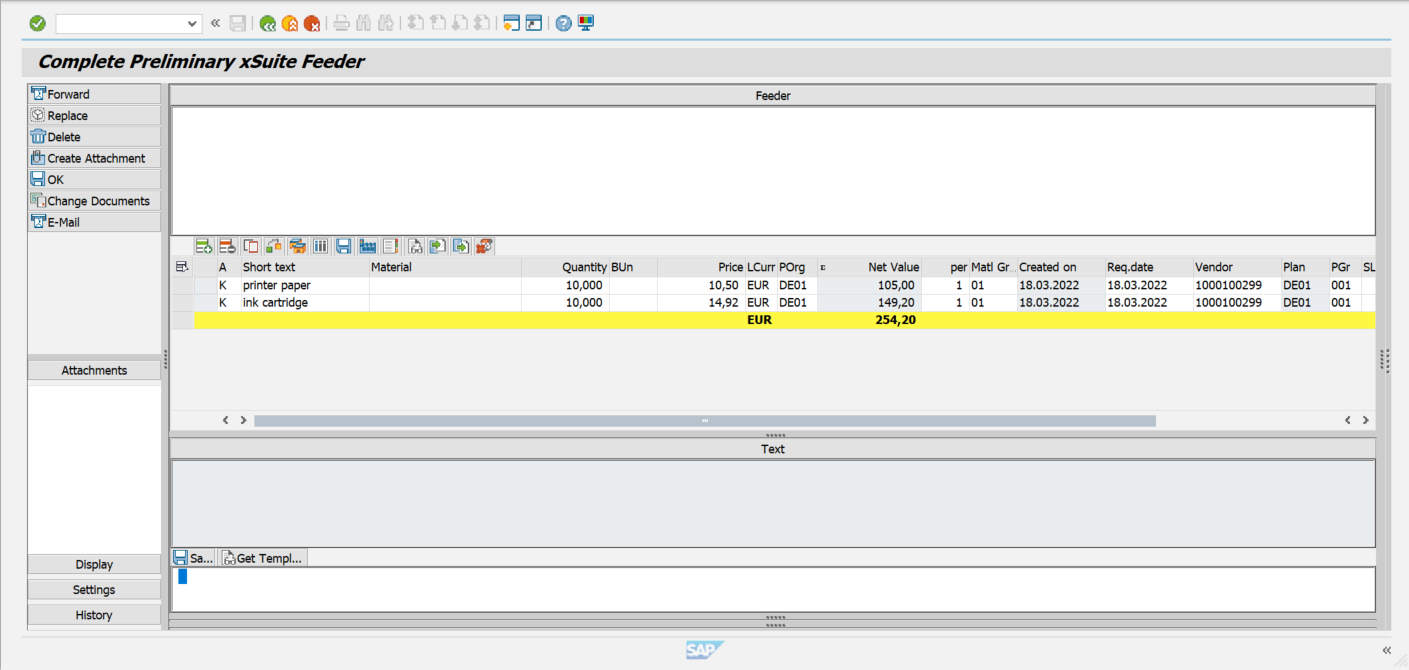
For more information on the areas for work items in the SAP GUI, see Work Items: Main Overview in the SAP GUI.
Main Overview in SAP Fiori
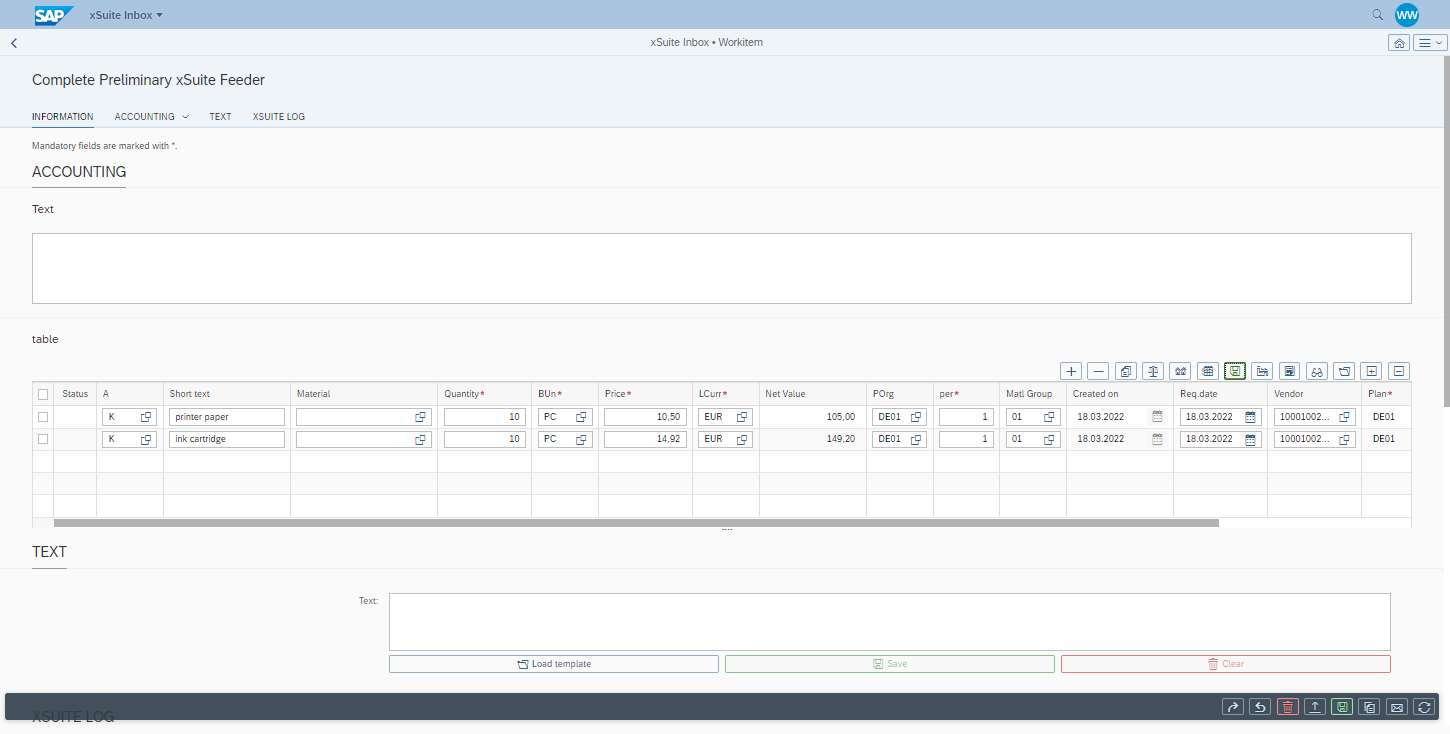
For more information on setting up a work item in SAP Fiori, see Work Items: Main Overview in SAP Fiori.
Main Overview in xSuite Web
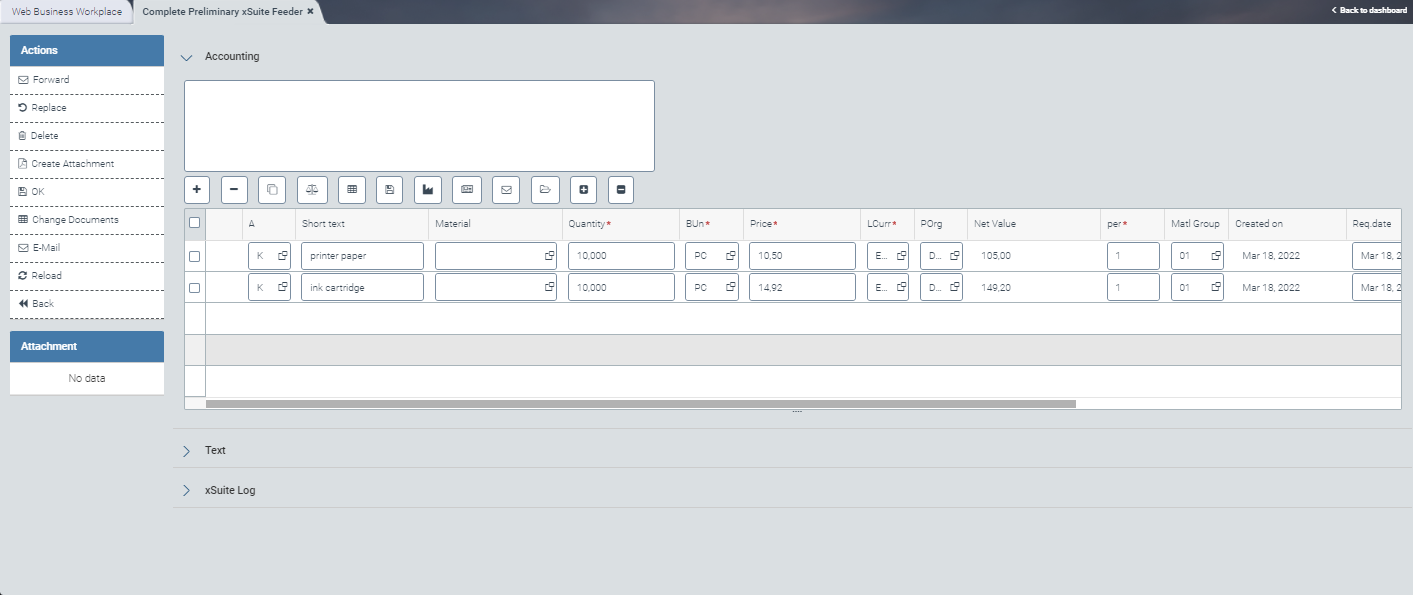
For more information on what a work item looks like in the xSuite web client, see Work Items: Main Overview in xSuite Web.
For an overview of the document buttons, see Feeder Workflow: Buttons for Processing Work Items (Role PFCC).
Feeder Workflow: Buttons for Processing Work Items (Role PFCC)
SAP Fiori | SAP GUI / xSuite Web | Description | |
|---|---|---|---|
| Forward | Note: The button Forward backs up the feeder automatically in the background. | |
| Replace | ||
| Delete | Deletes the current work item and ends the workflow. | |
| Create Attachment | ||
| OK | Confirms that the document is correct and concludes the workflow step. The following steps are executed:
| |
| Change Documents | The agent in the PFCC role can call the "change documents" transaction for deleted feeder documents using the report RSSCD100. | |
| Sends an email based on the email template configured. | ||
 | Refresh / Reload | Note: This button is only available in SAP Fiori and xSuite Web. | |
--- | Back | Note: This button is only available in xSuite Web. |


"Approve Feeder" (Role PFVA)
The workflow task "Approve feeder" is assigned to an agent or a group of agents via the role PFVA.
In this workflow step, the user in the PFVA role checks whether the content of the feeder is correct with regard to the data and information.
The agent is not authorized to change or add information, but just checks for whether the feeder request is necessary and, if so, whether the data is correct.
This workflow task is available in SAP Fiori, xSuite Web, and the SAP GUI.
With the default settings, if the agent rejects any items, a reason must be entered in the comment field.
After editing, the approver will receive the work item back to be checked again, unless the work item has been deleted.
Main Overview in the SAP GUI
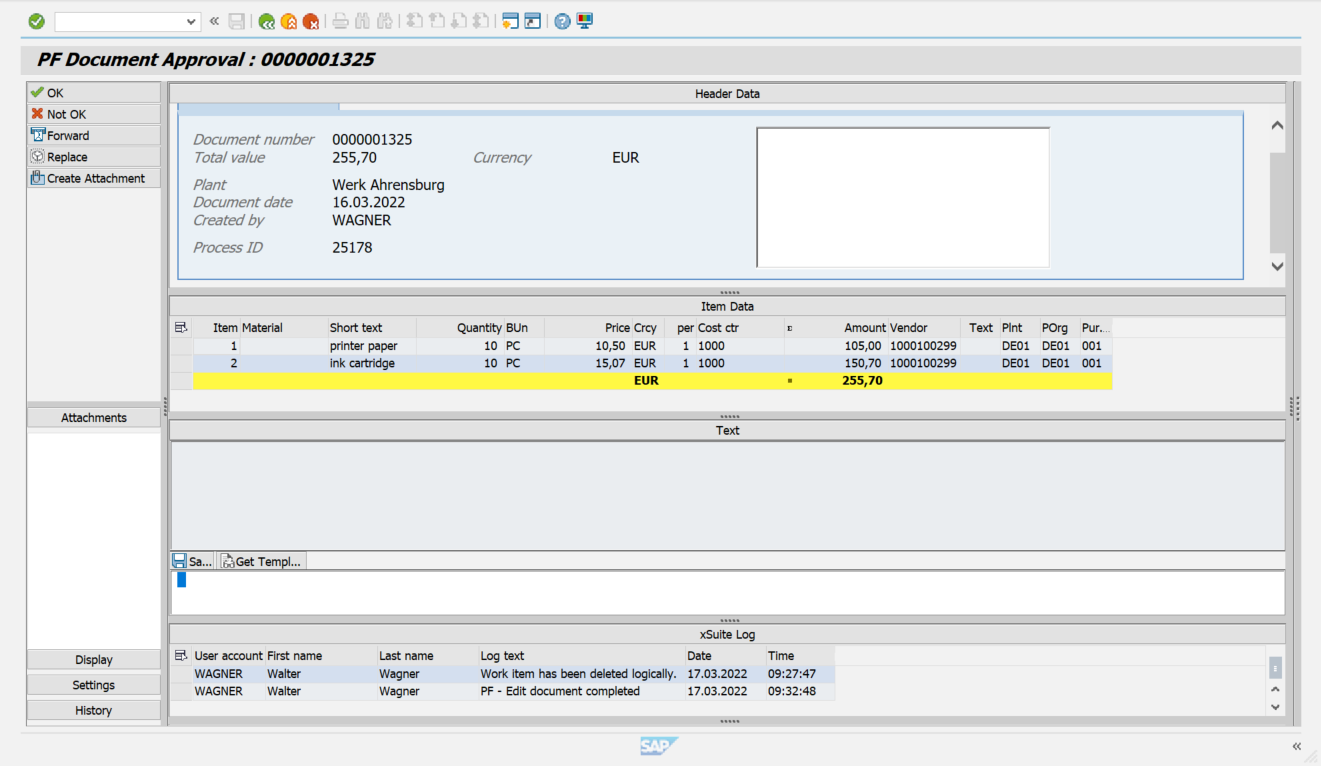
For more information on the areas for work items in the SAP GUI, see Work Items: Main Overview in the SAP GUI.
Main Overview in SAP Fiori
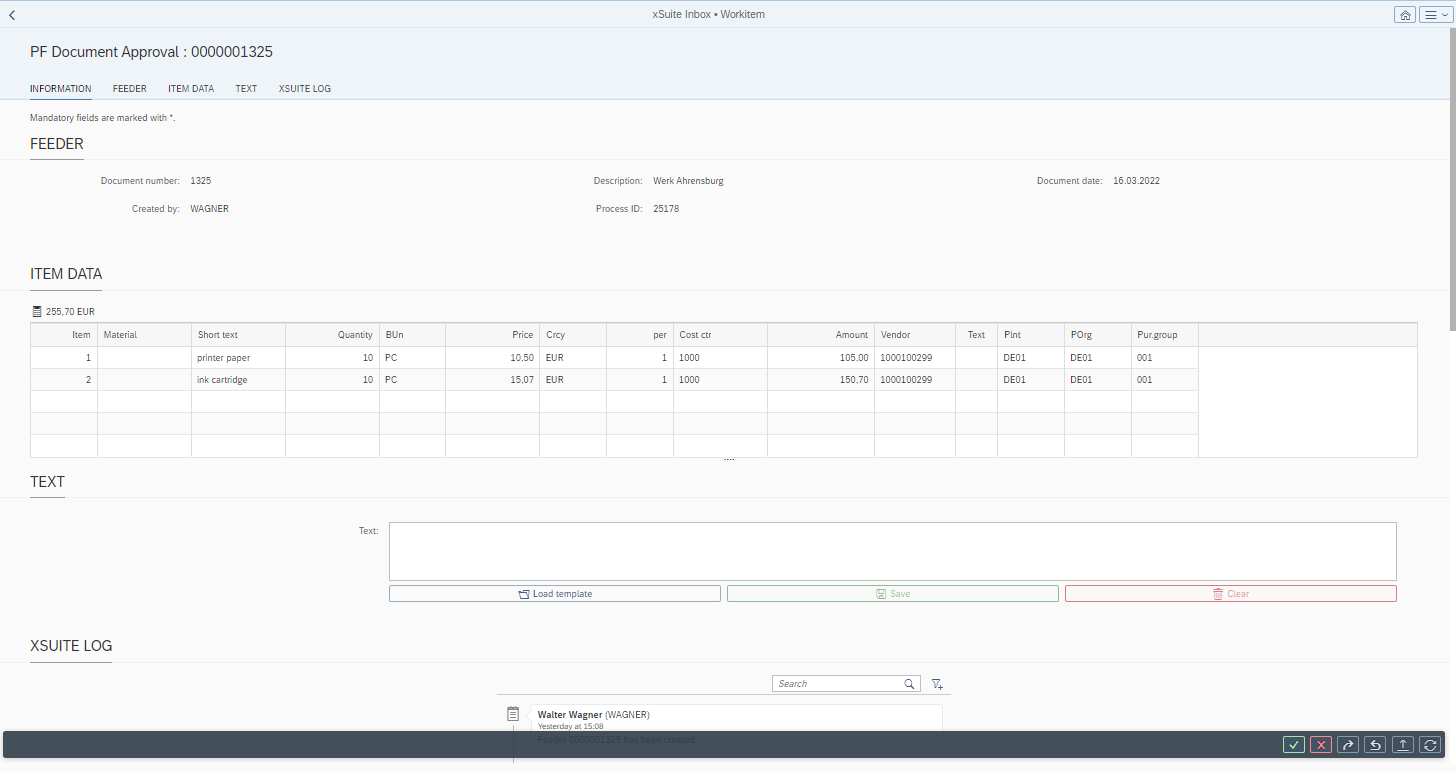
For more information on setting up a work item in SAP Fiori, see Work Items: Main Overview in SAP Fiori.
Main Overview in xSuite Web
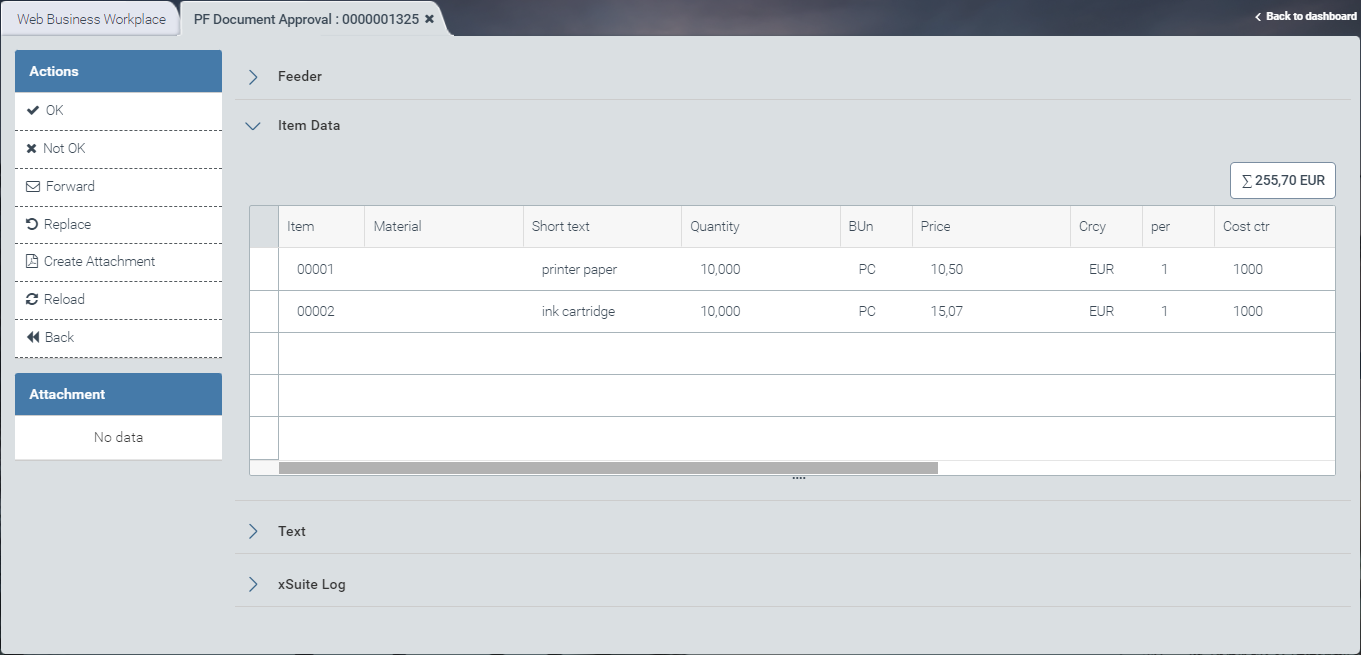
For more information on what a work item looks like in the xSuite web client, see Work Items: Main Overview in xSuite Web.
For more information on the buttons for editing the document, see Feeder Workflow: Buttons for Processing Work Items (Role PFVA).
Feeder Workflow: Buttons for Processing Work Items (Role PFVA)
SAP Fiori | SAP GUI / xSuite Web | Description | |
|---|---|---|---|
| OK | Confirms that the document is correct and concludes the workflow step. The following steps are executed:
| |
| Not OK | Rejects the work item and ends the workflow step. The agent in the task "Edit feeder after rejection" (role PFER) can open the work item and edit it. Requirement: A comment must be entered in the section Text. The following steps are executed:
| |
| Forward | ||
| Replace | ||
| Create Attachment | ||
| Refresh / Reload | Note: This button is only available in SAP Fiori and xSuite Web. | |
––– | Back | Note: This button is only available in xSuite Web. |


"Edit Feeder" (Role PFET)
The task "Edit Feeder" is assigned to an agent or a group of agents that possesses the role PFET.
In this workflow step, the agent can edit the feeder if no purchase requisition could be generated from the feeder due to missing data.
An error message in the comment field (1) states reason that the purchase requisition failed to be generated from the feeder. When the agent in the PFET role adds the required information to the feeder, the purchase requisition can be generated from it.
Notice
"Edit feeder after rejection" (role PFER) and "Edit feeder" (role PFET) are the only workflow tasks in which an agent can change the header and item data of the feeder.
Main Overview in the SAP GUI
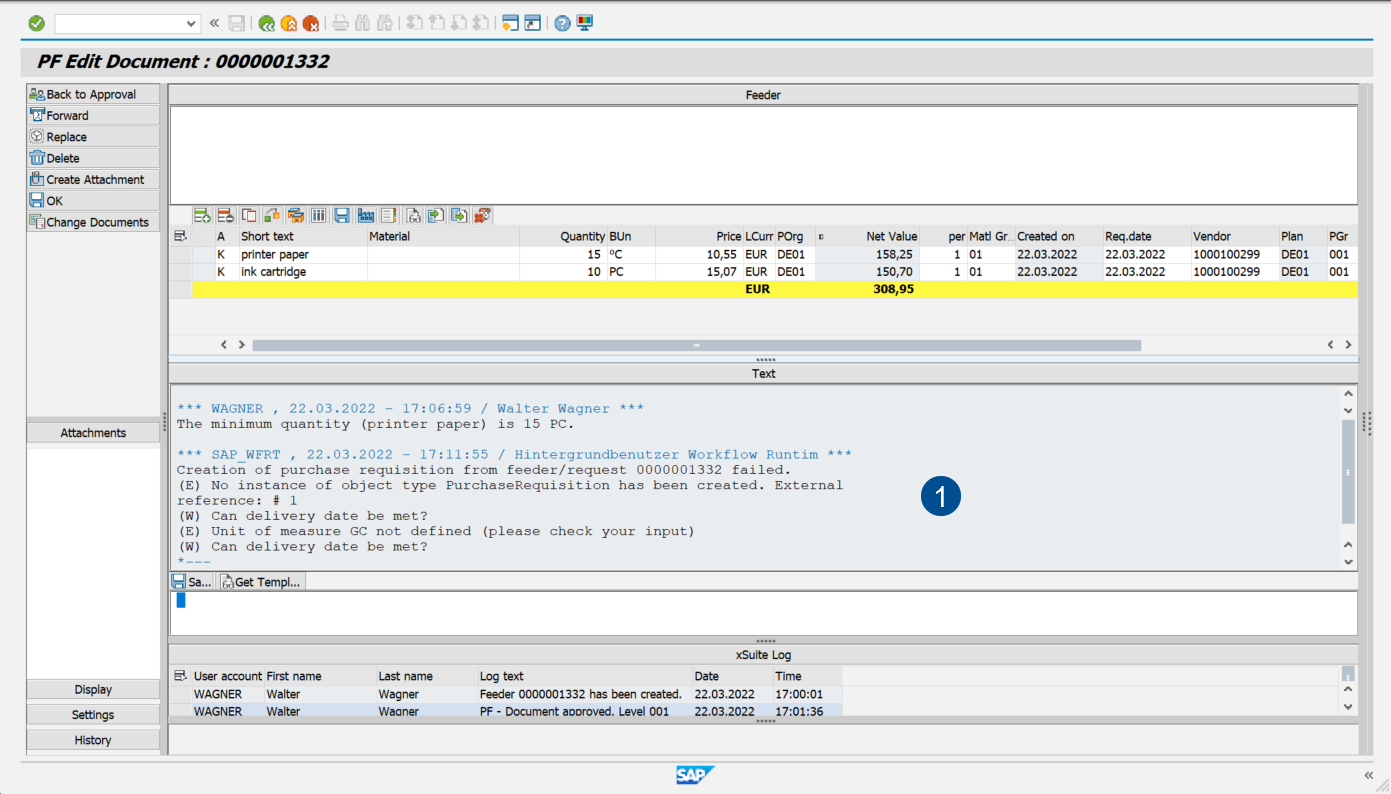
For more information on the areas for work items in the SAP GUI, see Work Items: Main Overview in the SAP GUI.
Main Overview in SAP Fiori
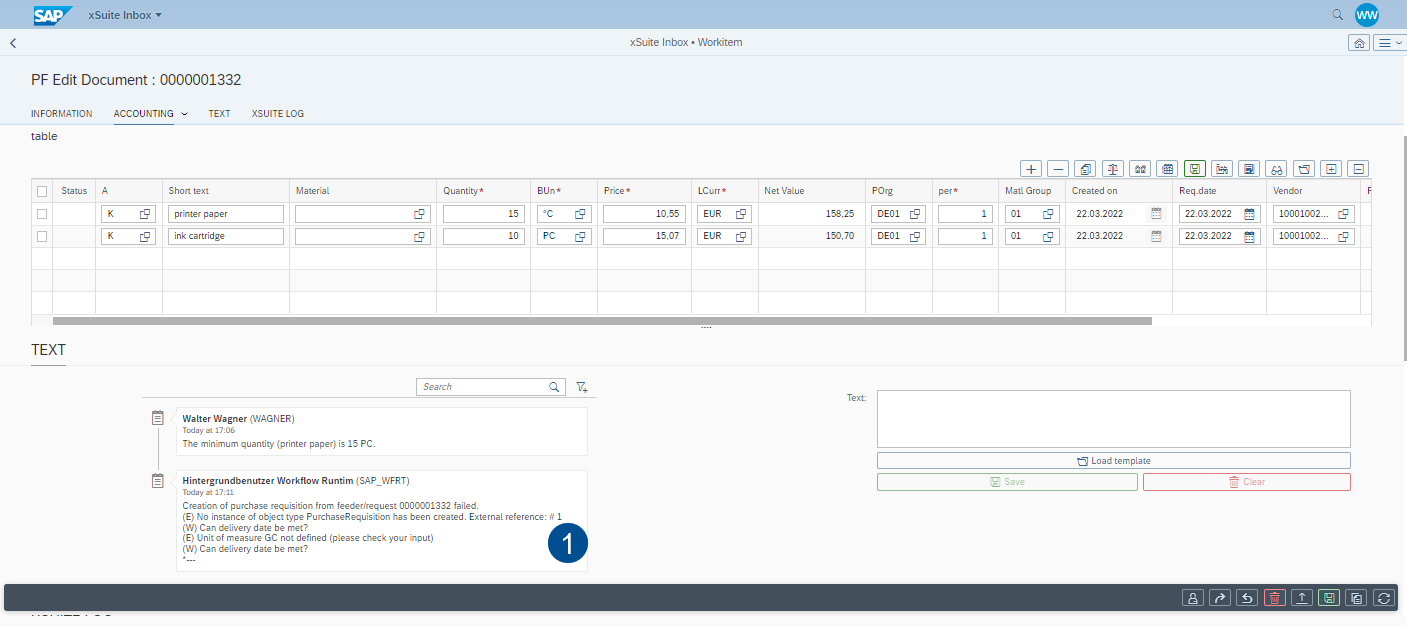
For more information on setting up a work item in SAP Fiori, see Work Items: Main Overview in SAP Fiori.
Main Overview in xSuite Web
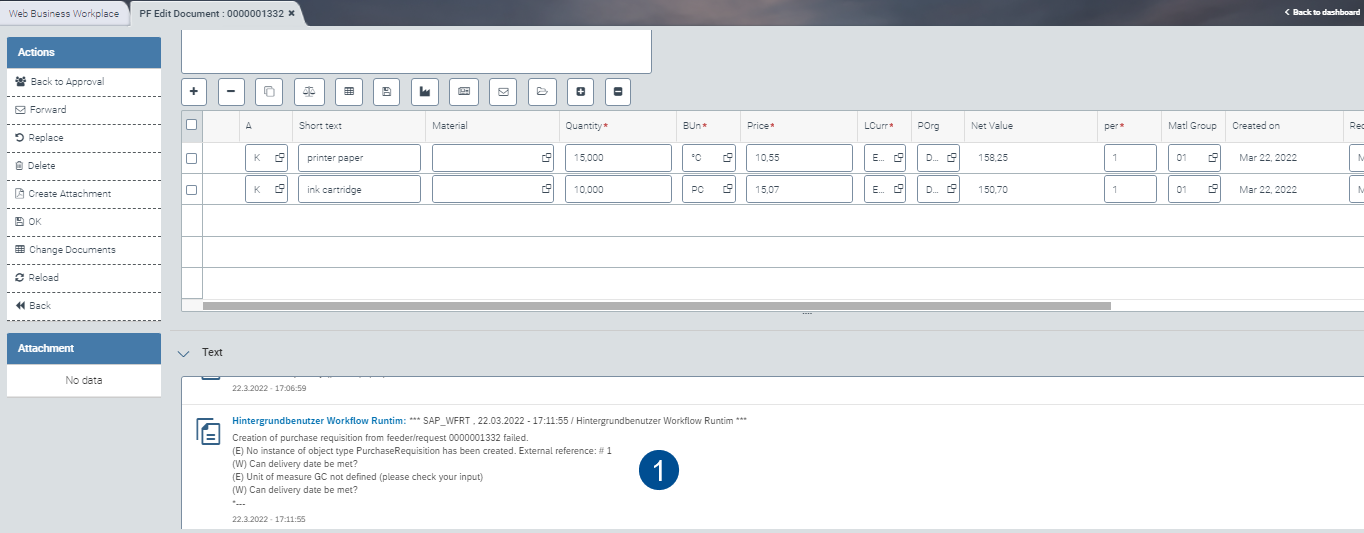
For more information on what a work item looks like in the xSuite web client, see Work Items: Main Overview in xSuite Web.
For more information on the buttons for editing the document, see Feeder Workflow: Buttons for Processing Work Items (Role PFET).
Feeder Workflow: Buttons for Processing Work Items (Role PFET)
SAP Fiori | SAP GUI / xSuite Web | Description | |
|---|---|---|---|
| Back to Approval | Directs the work item into the workflow step "Approve feeder" (role PFVA). For this, the agent must select an approver from the dialog. The agent can open the dialog by clicking the button Back to Approval. IFor more information on the workflow step "Approve feeder", see "Approve Feeder" (Role PFVA). | |
| Forward | ||
| Replace | ||
| Delete | Deletes the current work item and ends the workflow. | |
| Create Attachment | ||
| OK | Confirms that the work item has been customized; completes the workflow step. The following steps are executed:
If the system registers that all required information is available, the workflow will proceed to the next step, in which a purchase requisition is generated from the feeder. | |
| Change Documents | ||
| Refresh / Reload | Note: This button is only available in SAP Fiori and xSuite Web. | |
--- | Back | Note: This button is only available in xSuite Web. |

"Release Feeder" (Role PFRE)
The workflow task "Release feeder" is assigned to an agent or a group of agents via the role PFRE.
Based on the information and data available in the feeder, including that contained in any attachments, this step concludes the release process for the feeder.
Information cannot be added or changed by the agent, but specific assigned items can be released or rejected.
Notice
Customizing has a parameter for controlling whether released items can be seen or not. If this parameter is activated, previously released items will remain hidden.
The actual release takes place in the item release block (see Release Data: Buttons). The agent can click buttons to release or reject individual items, or to release all items at once.
With the default settings, if the agent rejects release of any items, a reason must be entered in the comment field.
If the work item needs to be edited again, it moves on to the step "Edit after rejection" and then returns to the releasing agent.
If the agent editing the work item has returned it for approval, the releasing agent will not receive it until all prior steps have been completed.
Deleted work items do not return to the workflow.
The number of release levels ultimately involved depends on company release strategy.
Main Overview in the SAP GUI
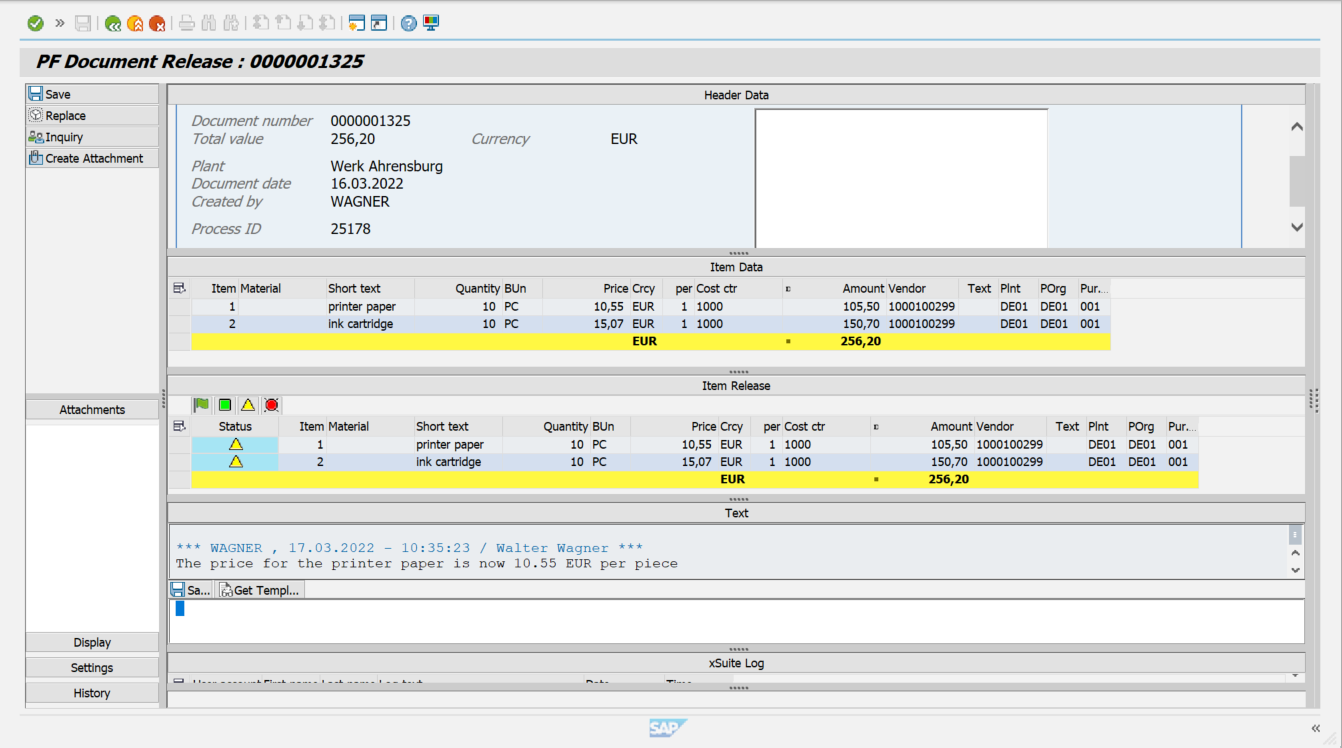
For more information on the areas for work items in the SAP GUI, see Work Items: Main Overview in the SAP GUI.
Main Overview in SAP Fiori
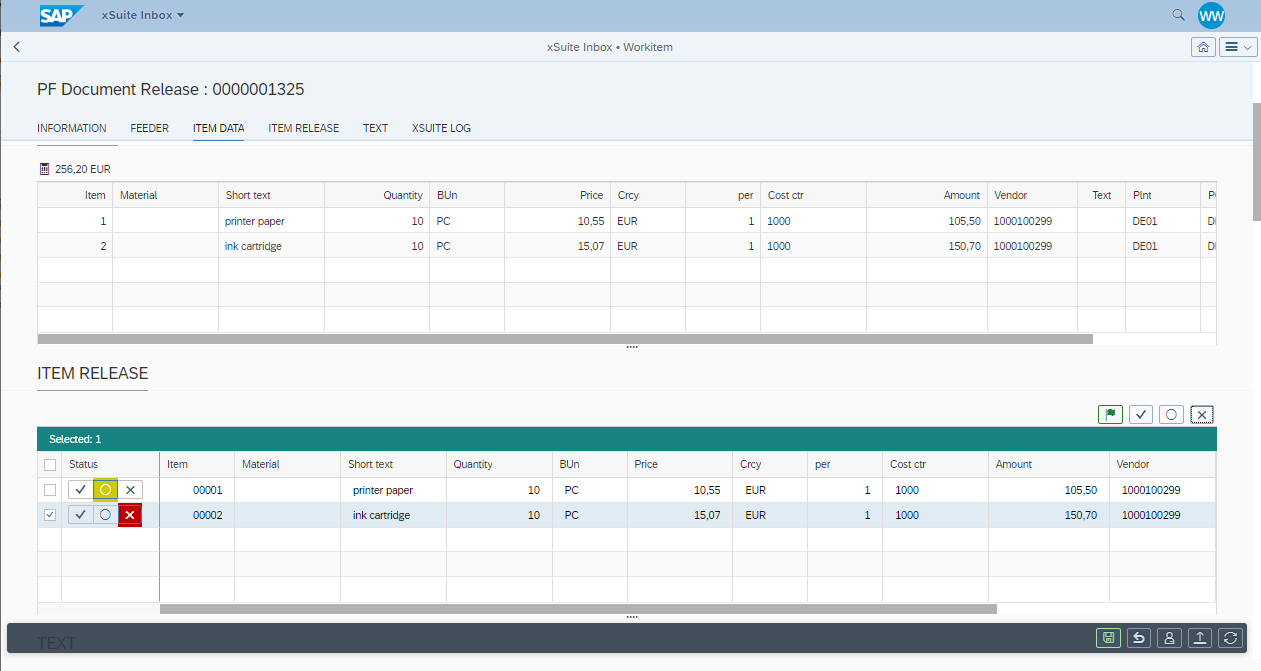
For more information on setting up a work item in SAP Fiori, see Work Items: Main Overview in SAP Fiori.
Main Overview in xSuite Web
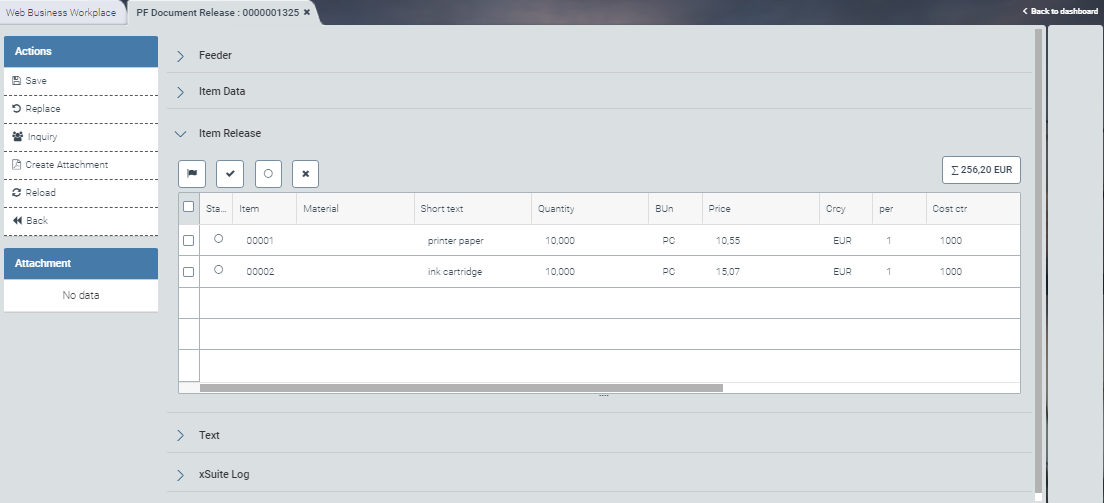
For more information on what a work item looks like in the xSuite web client, see Work Items: Main Overview in xSuite Web.
For an overview of the buttons for processing a work item, see Feeder Workflow: Buttons for Processing Work Items (Role PFRE).
Feeder Workflow: Buttons for Processing Work Items (Role PFRE)
SAP Fiori | SAP GUI / xSuite Web | Description | |
|---|---|---|---|
| Save | Only by releasing or rejecting the work item will the workflow task be completed and changes saved. To be able to reject a work item, the workflow task agent must leave a comment in the Text area. | |
| Replace | ||
| Inquiry | Once the inquiry has received a response, the task will once again be available for editing. | |
| Create Attachment | ||
| Refresh / Reload | Note: This button is only available in SAP Fiori and xSuite Web. | |
––– | Back | Note: This button is only available in xSuite Web. |
Release Data: Buttons
Actual release takes place in the line-item release pane, which has buttons for release single item selection, and selection of all items. In addition to these buttons, this pane offers a table with the line-item information relevant to the specific releaser. The agent cannot edit this table.
SAP GUI | SAP Fiori | xSuite Web | Name / Description | |||
|---|---|---|---|---|---|---|
|
|
| Release all items Releases all items. | |||
|
|
| Release selected items Releases selected items. | |||
|
|
| Cancel (process later) Cancels release or rejection of selected items | |||
|
|
| Reject selected items Rejects selected items. |


"Edit Feeder After Rejection" (Role PFER)
The workflow task "Edit rejected feeder " is assigned to an agent or a group of agents via the role PFER.
This task comes up in the workflow only when the feeder was previously rejected in the approval or release step. In this workflow step, the agent can revise the feeder and add to the data already entered.
The reason for rejecting of the feeder in approval or release will have been noted in the comment field. The agent must make the changes requested in order to enable a positive outcome in the approval or release steps.
Notice
"Edit feeder after rejection" (role PFER) and "Edit feeder" (role PFET) are the only workflow tasks in which an agent can change the header and item data of the feeder.
In this task, the agent can also delete the feeder if the releaser has rejected it and requested deletion.
Main Overview in the SAP GUI
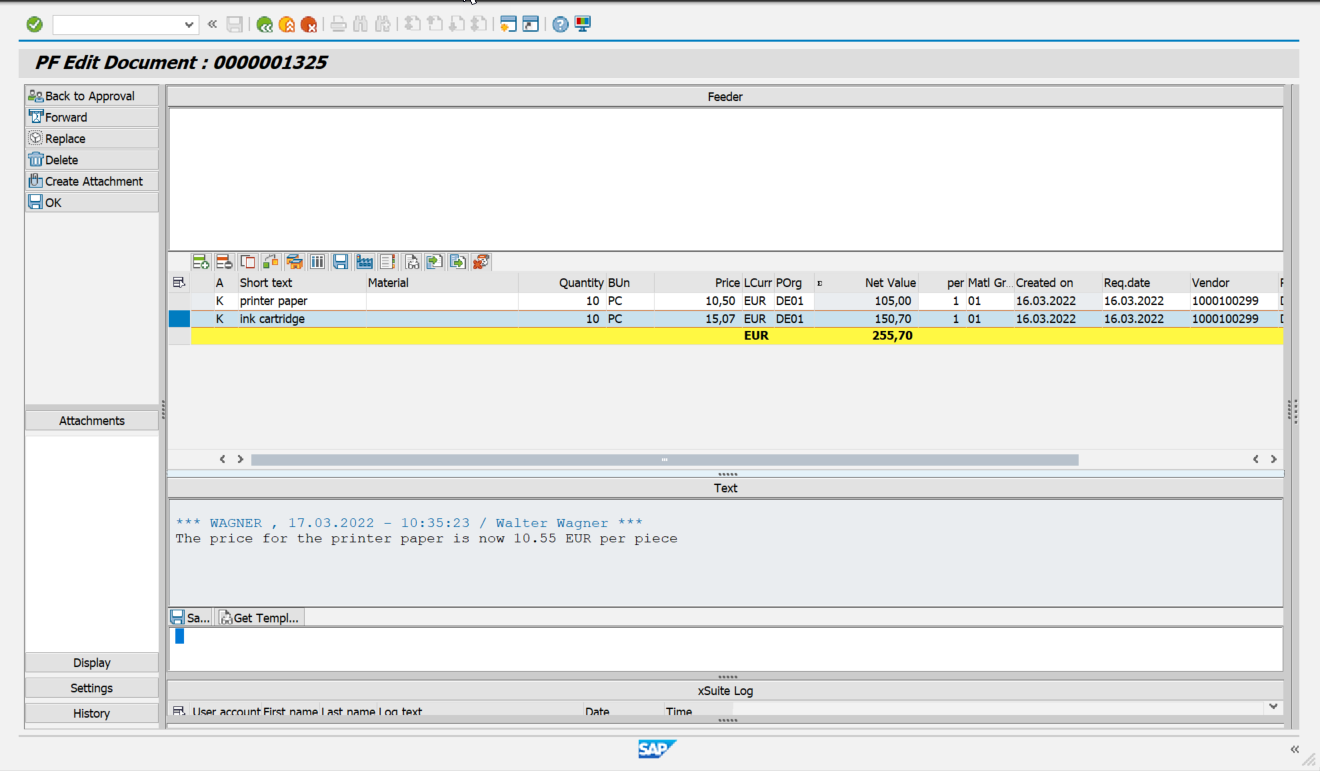 |
For more information on the areas for work items in the SAP GUI, see Work Items: Main Overview in the SAP GUI.
Main Overview in SAP Fiori
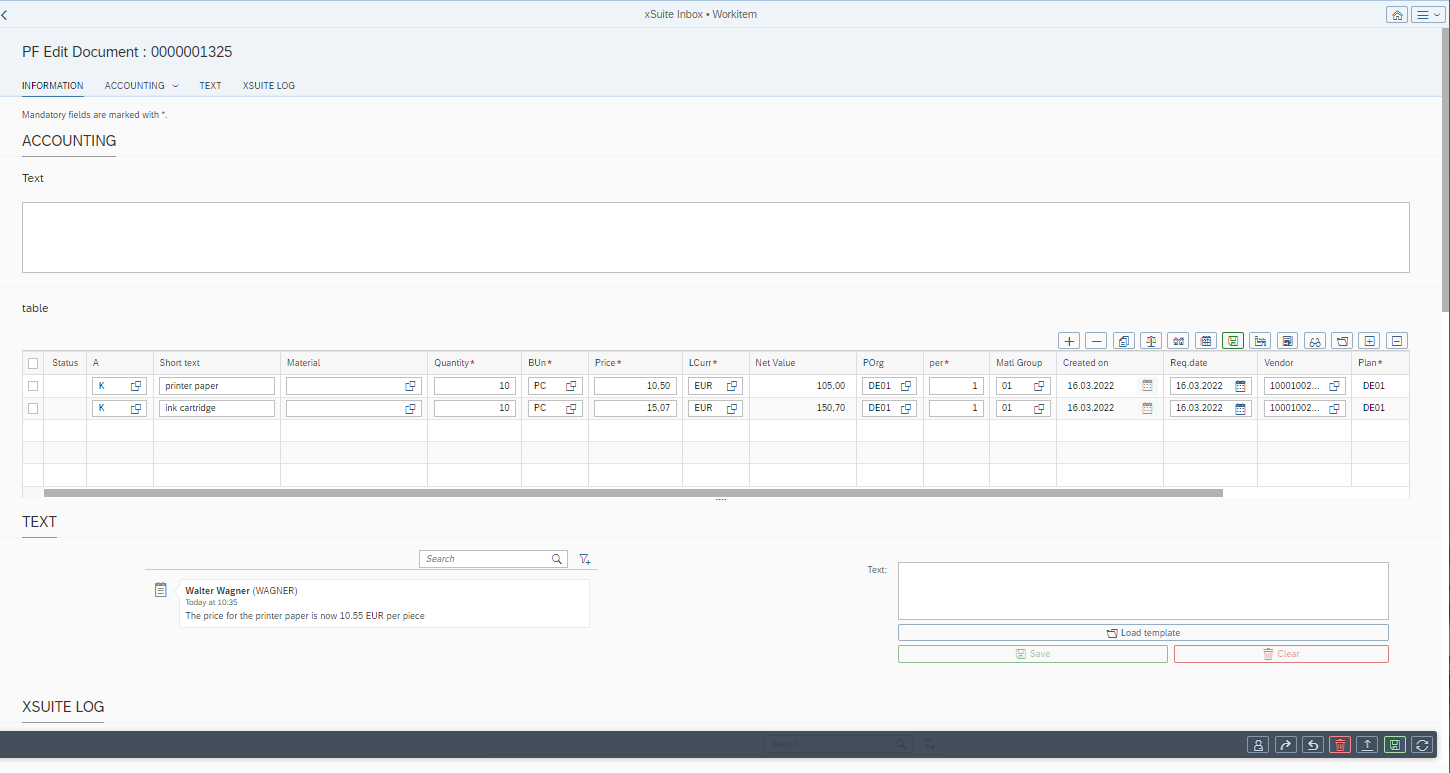 |
For more information on setting up a work item in SAP Fiori, see Work Items: Main Overview in SAP Fiori.
Main Overview in xSuite Web
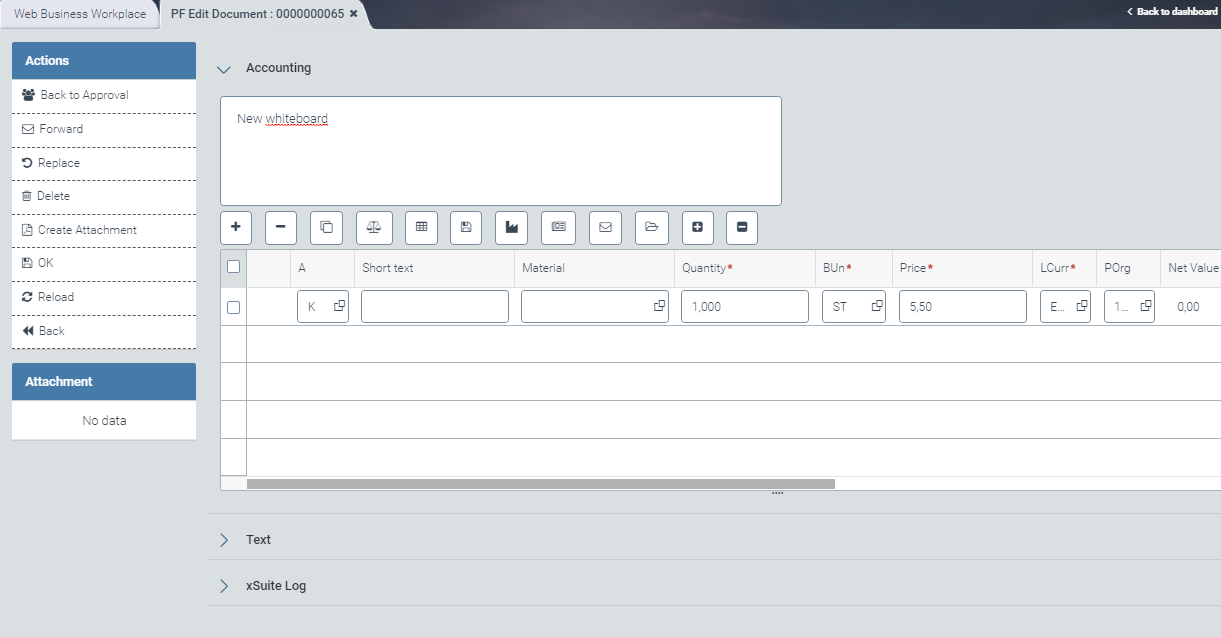 |
For more information on what a work item looks like in the xSuite web client, see Work Items: Main Overview in xSuite Web.
For more information on the buttons for editing the document, see Feeder Workflow: Buttons for Processing Work Items (Role PFER).
Feeder Workflow: Buttons for Processing Work Items (Role PFER)
SAP Fiori | SAP GUI / xSuite Web | Description | |
|---|---|---|---|
| Back to Approval | Directs the work item into the workflow step "Approve feeder" (role PFVA). For this, the agent must select an approver from the dialog. The agent can open the dialog by clicking the button Back to Approval. IFor more information on the workflow step "Approve feeder", see "Approve Feeder" (Role PFVA). | |
| Forward | ||
| Replace | ||
| Delete | Deletes the current work item and ends the workflow. | |
| Create Attachment | ||
| OK | Confirms that the work item has been customized; completes the workflow step. The following steps are executed:
Directs the work item into the workflow step "Approve feeder" (PFVA) if the work item was previously checked in the workflow step in the role PFVA. | |
| Refresh / Reload | Note: This button is only available in SAP Fiori and xSuite Web. | |
––– | Back | Note: This button is only available in xSuite Web. |
"Create Purchase Requisition" (Role PFCR)
The only purpose of this task is to generate a purchase requisition automatically in the background.
This role cannot be assigned to a human agent.
If the document cannot be created in the background, a human agent will be assigned the workflow task "Edit Feeder" (role PFET). In this task, the agent adds information that is missing in the feeder. Only then can the system generate a feeder-based purchase requisition in the background through the background task "Create purchase requisition."