Opening the Procurement Overview Summary
Opening the Procurement Overview Summary in the SAP GUI
Call the transaction /WMD/XF_PU_SUMM.
➣ The selection screen will open.
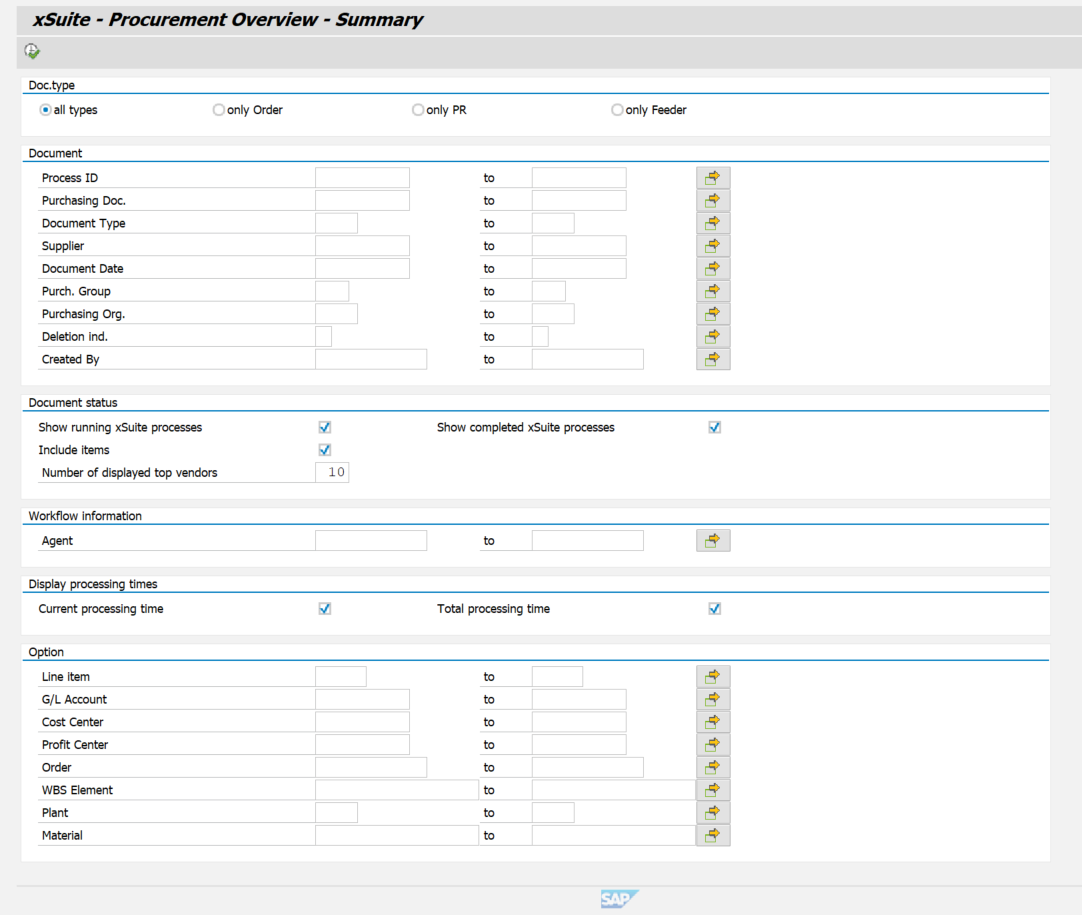
Enter search terms in the search fields as needed.
For information on search fields, see Procurement Overview Summary: Search Fields.
Click the
 Execute button or press F8 on your keyboard.
➣ The Summary Report will open.
Opening the Procurement Overview Summary in SAP Fiori
On the SAP Fiori start page, click the Procurement Summary tile.
➣ The selection screen will open.
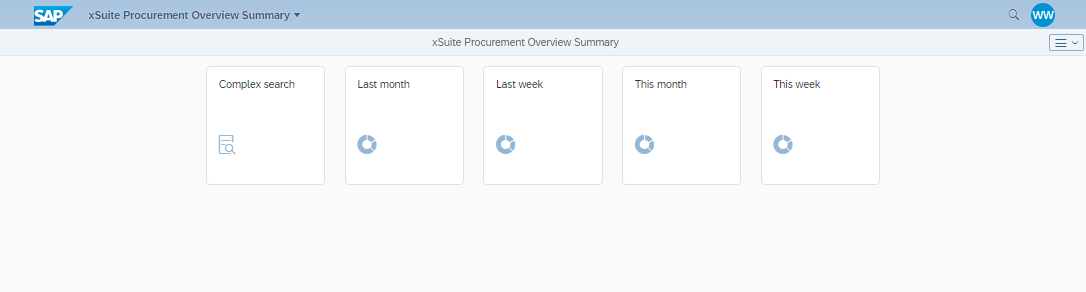
Click one of the five tiles in the selection screen:
Last month: Opens the overview for the last month.
Last week: Opens the overview for the last week.
This month: Opens the overview for the current month.
This week: Opens the overview for the current week.
Complex Search: Opens the search parameters for the complex search. Complex searches offer the option of generating an individual overview based on the search parameters specified.
For information on search fields of complex searches, see Procurement Overview Summary: Search Fields.