Work Items in the SAP GUI
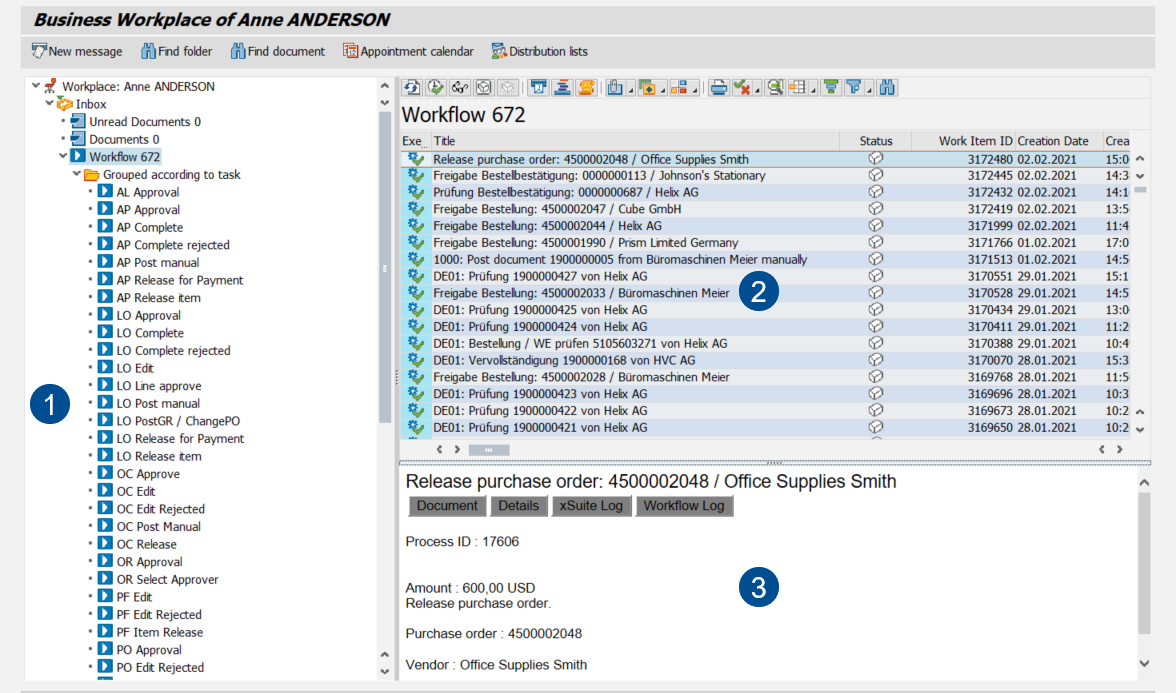
In the SAP GUI, work items are displayed in the SAP Business Workplace (transaction SBWP).
SAP Business Workplace: Main Overview
 |
Area | Information and comments | |
|---|---|---|
1 | Folders | This is where the folders in your SAP Business Workplace are displayed, in hierarchical order. To see work items that relate to the xSuite workflow, go to Inbox → Workflow. |
2 | Work Item List | This is where work items from the selected folder are displayed. Double click on a work item to open it. |
3 | Work item preview | This is where a preview of the selected work item is displayed. The preview can be hidden. |
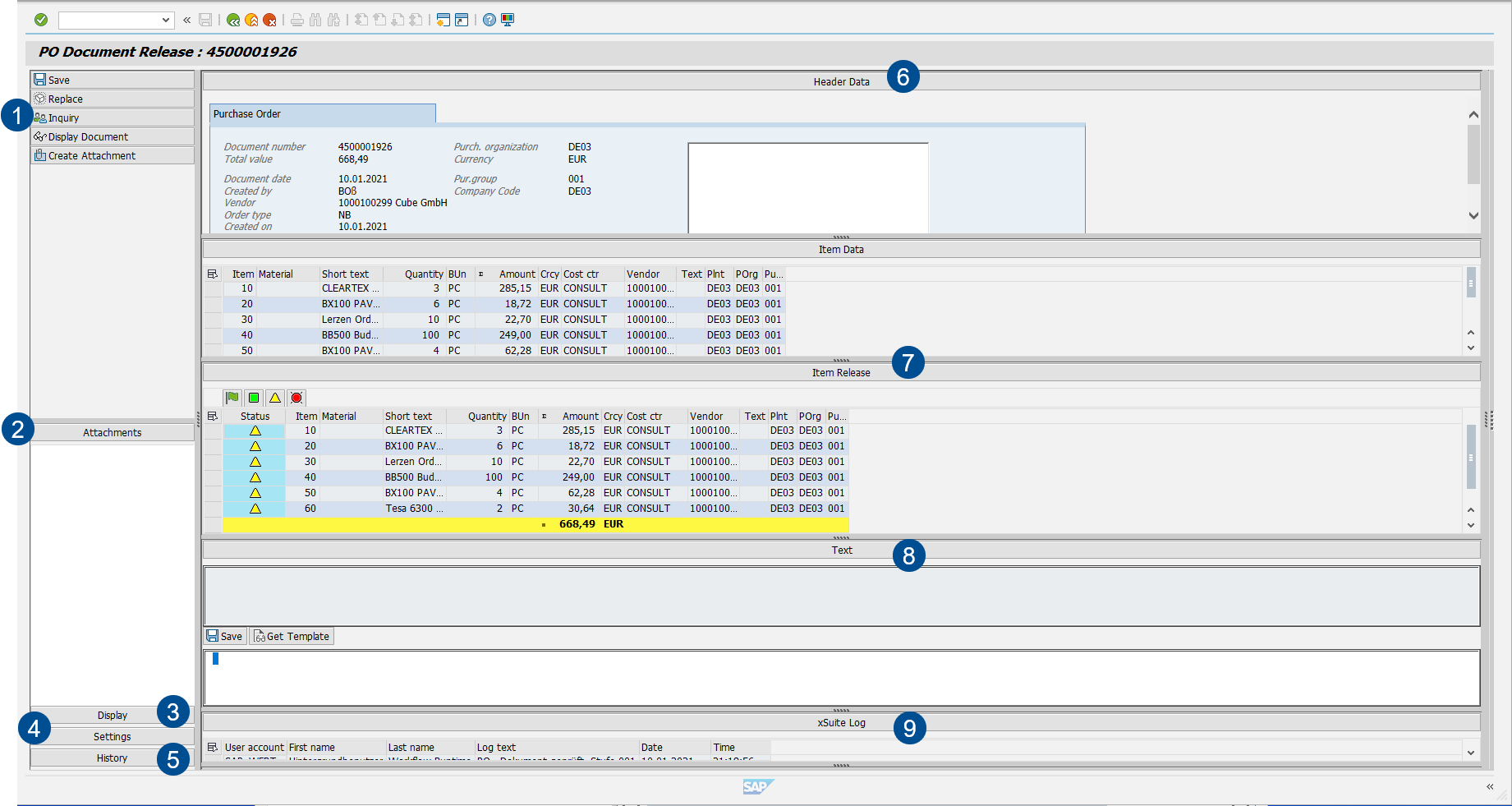
Work Items: Main Overview in the SAP GUI
Area | Information and comments | |
|---|---|---|
1 | Document buttons | The buttons and actions available in this section will differ depending on workflow task. For information on the buttons available for work items in workflows, see: For feeders:
For purchase requisitions:
|
2 | Attachments | This is where the attachments to the document are displayed. The first attachment is the document itself, meaning the order. You can add other files (e.g., emails) as attachments. The file type of the attachment is indicated in parentheses. All other attachments are displayed in a simple page view. |
3 | Display | Here, you can open and close the sections Header Data, Item Data, Text and xSuite Log. To open and close the sections, click on the title bar of the section. Settings can be saved (go to Settings → Save Screen Settings). |
4 | Settings | |
5 | History | |
6 | Header Data | |
7 | Item Data | This is where you can view the order items in the work item (see Appendix C, Item Data: Columns). Note: In the workflow tasks leading up to release, you can find additional release data below the item data. |
8 | Text | |
9 | xSuite Log | |
-- | Image display | Note: When a purchase order has been released and the release indicator has been set, an image of a document will appear on the right side of the window. This is the area where attachments are otherwise displayed. |
Substitute Maintenance in the SAP GUI
You can set your own substitute for planned times of absence. If you have multiple roles, you can select substitutes by role.
Substitute maintenance can be accessed in the SAP GUI with transaction /WMD/XF_USR_SUB.
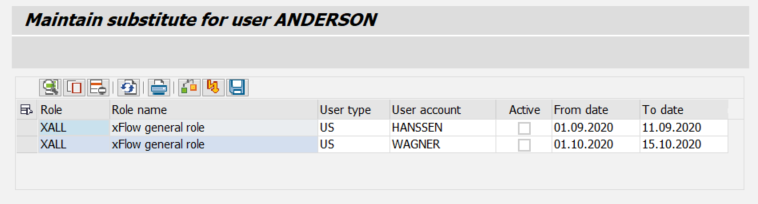 |
During the period for which you are being substituted, both you and your substitute will receive the work items that are assigned to your role. Your substitutes will be able to process your work items during your absence.
If the substitutions you specify for individual users or for user groups conflict with other substitutions, or if the substitutes you specify do not exist, an error message will appear.
Notice
Do not use SAP substitute maintenance. SAP substitute maintenance does not include any xSuite roles, so always maintain substitutes for xSuite roles within xSuite itself.
Substitute Maintenance: Columns
Column | Description | Editable |
|---|---|---|
Role | Indicates your role. | |
Role name | Indicates the description of a role. | |
User type | Indicates whether the substitute is a user (US) or a user group (GR). | X |
User account | Indicates the name of a substitute. | X |
Active | Activates a substitute assignment. | X |
From Date | Indicates the date on which a substitution period is to start. | X |
To Date | Indicates the date on which a substitution period is to end. | X |