Customizing search filters
To drill down to specific documents in the Invoice Monitor, filters are used. When you set filters, specific search fields that correspond to those filters will be displayed in the header area. Once you have set your search fields, you can enter your search values.
Open the Invoice Monitor.
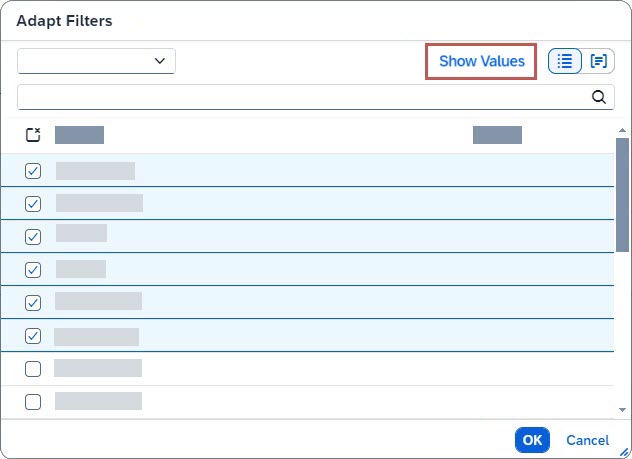
Click Adapt Filters.
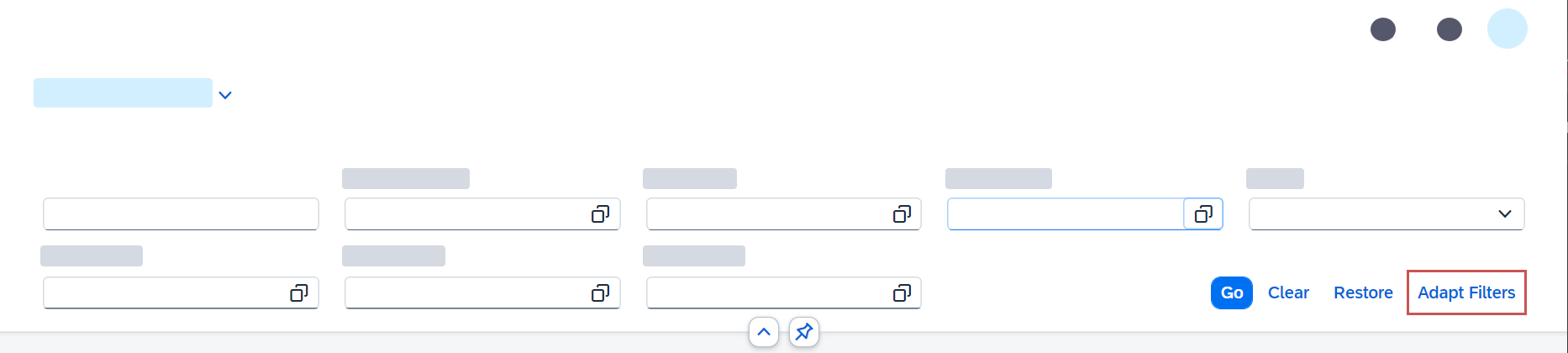
➣ The dialog Adapt Filters will open.
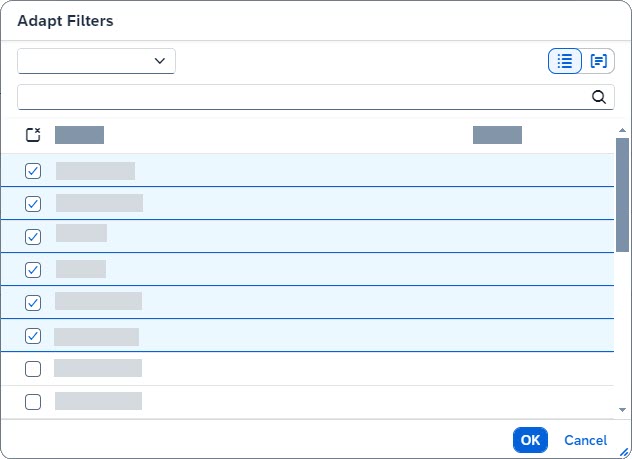
Activate the checkbox for each search field to be displayed.
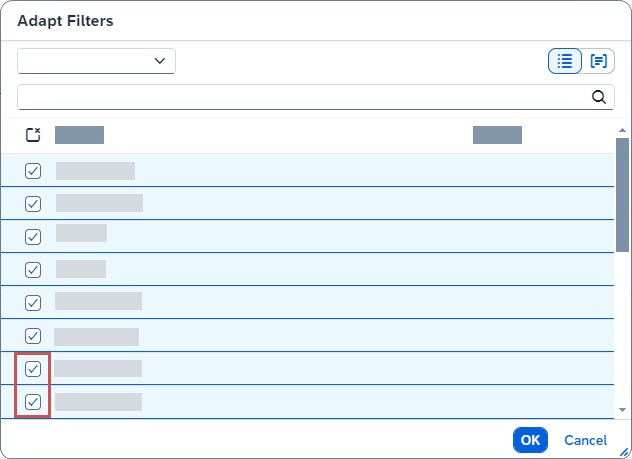
Deactivate the checkbox for each search field to be hidden.
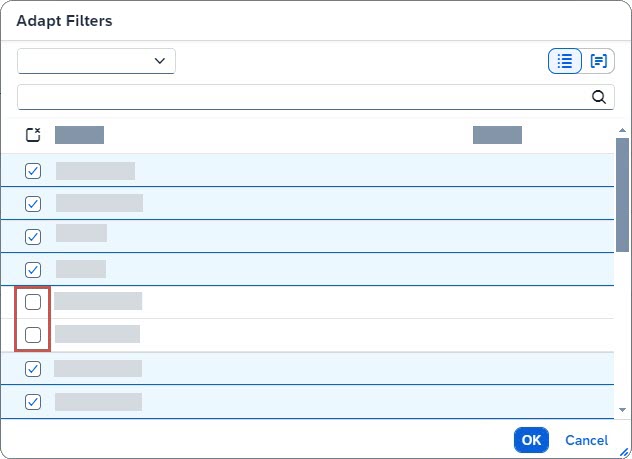
Click OK.
➤ The search fields will be displayed as specified.
Click Show Values.
➣ The fields for entering the values will appear.
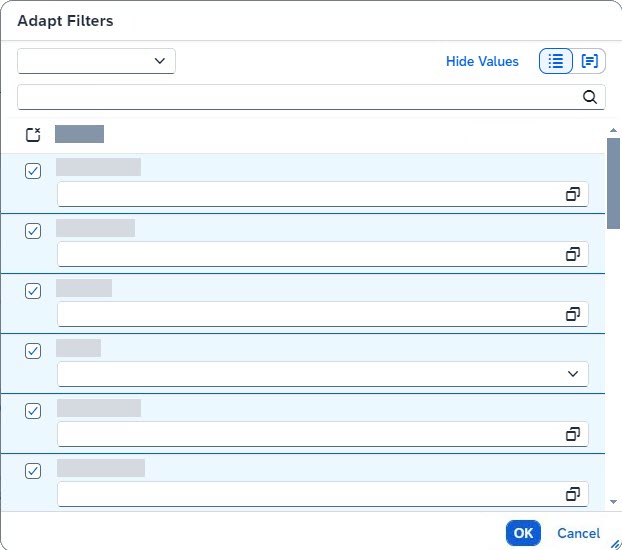
Enter search values in the fields you want to use for the search.
Notice
You can either enter the values directly in the fields or use input help. Click on the
 icon in the field to open input help.
Click OK.
➤ The search values have now been set. Click Go to start the search.