Creating a workflow task configuration entry
On the start page, click on the tile Workflow Task Configuration.
➣ The workflow task configuration will open.
Click the button
 Create workflow configuration.
➣ The dialog Create workflow configuration will open.
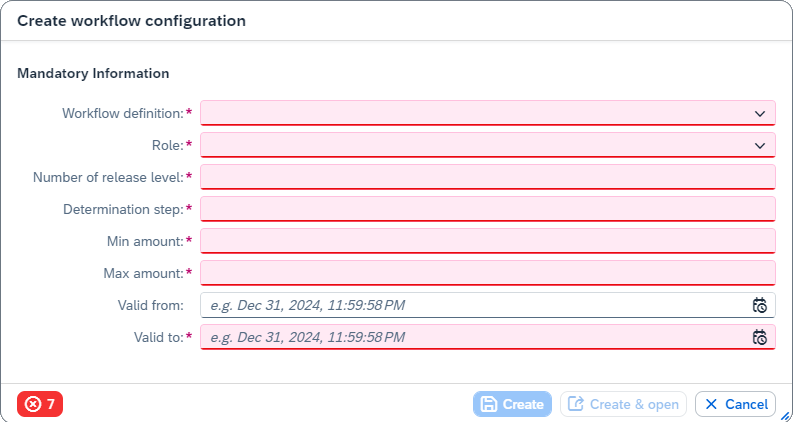
Fill in the following mandatory fields:
Field
Description
Workflow definition
Select one of the available workflow definitions from the drop-down list.
The workflow definition defines the workflow for which the workflow task configuration entry is valid.
Role
Select one of the available roles from the drop-down list.
The role defines the workflow task for which the workflow task configuration is valid.
Number of release level
Enter the total number of levels in which the selected workflow task is to be edited.
Notice
Release level
0specifies that the task is processed in the background. No agent is involved here.Determination step
Enter the number of the determination step.
The determination step determines the order in which the workflow task configuration entries are processed. Workflow task configuration entries with a lower determination step are processed first.
Notice
Specify the determination step in steps of at least 10. This allows you to place entries between existing entries, which makes it easier to add at a later point in time.
Valid from
Enter the date and time from which the workflow task configuration is valid.
Valid to
Enter the date and time until which the workflow task configuration is valid.
Click Create.
Notice
To open a workflow task configuration entry right after it has been created, click Create & open.
➤ The workflow task configuration has now been created. You can open the entry you created and continue to add criteria.
Creating a criterion for a workflow task configuration entry
When a workflow task configuration entry is created, some basic data is automatically created through the mandatory fields. You can supplement this with additional criteria (e.g., a business partner or a company code). Multiple criteria can be added to a single entry.
For the workkflow task configuration entry to take effect, all specified criteria must match to data in the invoice. For example, if only 2 of the 3 specified criteria apply, the entry will not take effect.
Notice
If no criteria are defined for a workflow task configuration entry, the entry will apply to all invoices.
Open a workflow task configuration.
Click
 Edit.
Edit.➣ The workflow task configuration entry can now be edited.
In the area Configuration, click the button
Create Criterion.➣ A new line will be added to the table Criteria.
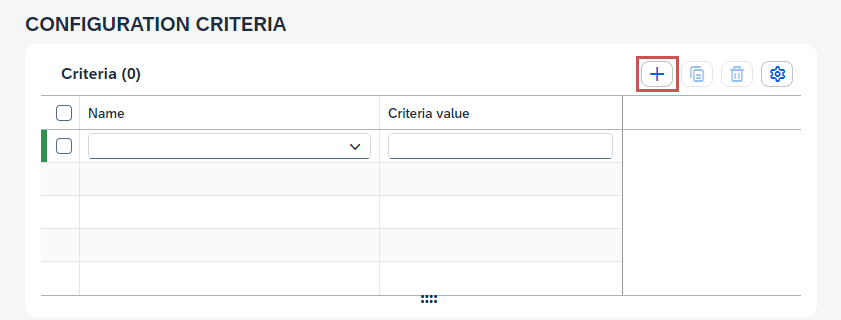
In the column Name, select one of the following values:
Business Partner (BusinessPartner)Company Code (CompanyCode)Cost Center (CostCenter)GL Account (GLAccount)Goods Receipt Is Expected (GoodsReceiptExpected)Internal Order (InternalOrder)Plant (Plant)Price Block (PriceBlock)Product Type (ProductType)Profit Center (ProfitCenter)Quantity Block (QuantityBlock)Record Type (RecordType)WBS Element (WBSElement)
In the column Criteria value, enter the value of the criterion selected.
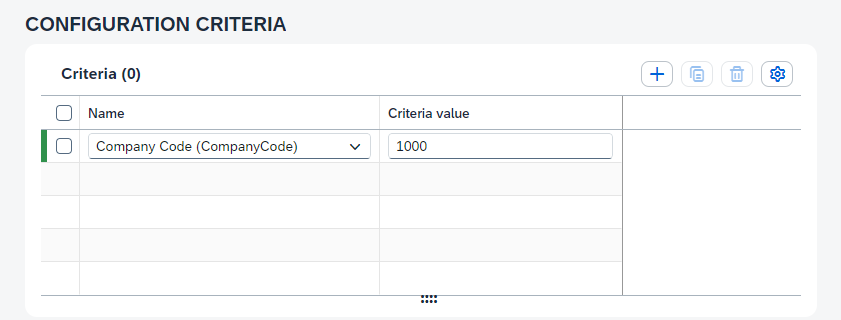
For instance, if your criterion is
Company Code (CompanyCode), then enter the number of the company code to which the workflow configuration entry applies.Notice
The use of wildcards is not supported.
Notice
If you have selected the criteria
Price Block (PriceBlock),Quantity block (QuantityBlock), orGoods receipt expected (GoodsReceiptExpected), go to the columnCriteria valueand enter either the valuetrue(meaning that it is to apply) or the valuefalse(meaning that it is not to apply).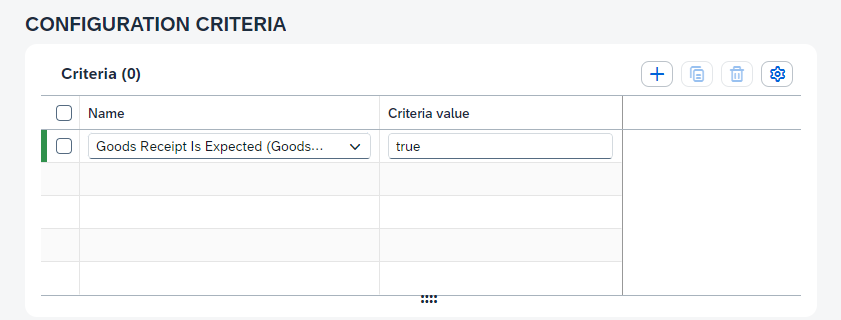
If you have selected the criterion
Product type (ProductType), go to the columnCriteria valueand enter either the value1(material) or2(service).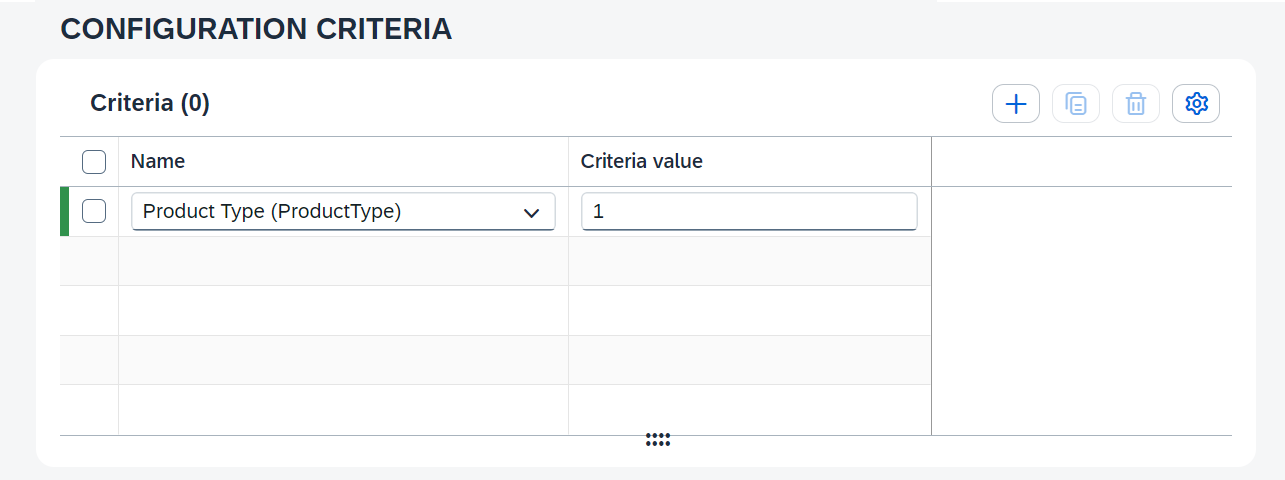
Click
 Save and exit editing.
➤ The criterion for the workflow task configuration entry has now been created.