Managing views
Your search criteria and displayed columns can be saved as custom views in the Invoice Monitor. These custom views and all preconfigured xSuite views will be displayed in "Manage Views." In this pane, you can specify which view is to be your default view. You can also change the names of your views, or delete them.
Notice
The following xSuite views are available as standard options:
View name | Description |
|---|---|
All Records | Searches for all available records without restricting search criteria. |
Posted Records | Searches for all records with the status |
Parked Records | Searches for all record with the status |
in Workflow | Searches for all records with the status |
Open the Invoice Monitor.
Click the arrow next to the name of the view. Then click Manage.
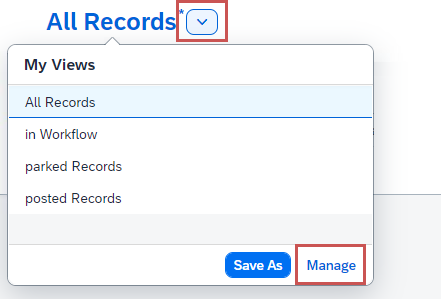
➣ The dialog Manage Views will open.
Select the view to be loaded when the Invoice Monitor is opened, and set it as Default.
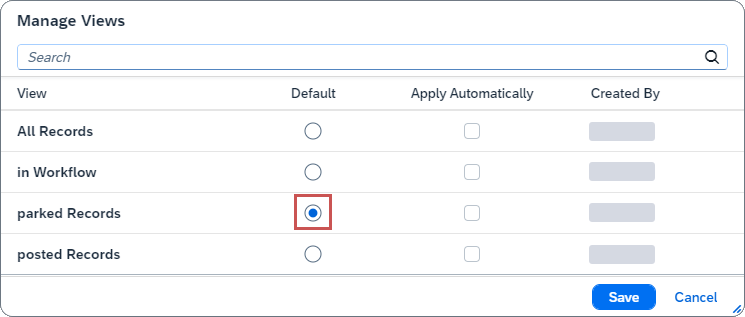
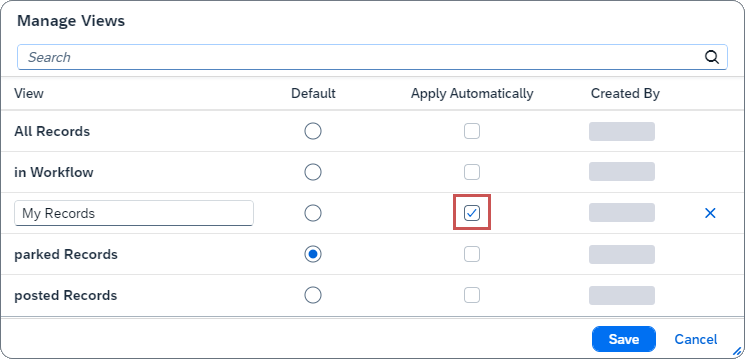
If you want any of your views to show search results immediately upon opening, activate the checkbox Apply automatically for those views.
Notice
You can only activate the checkbox Apply automatically for views that you have created yourself.
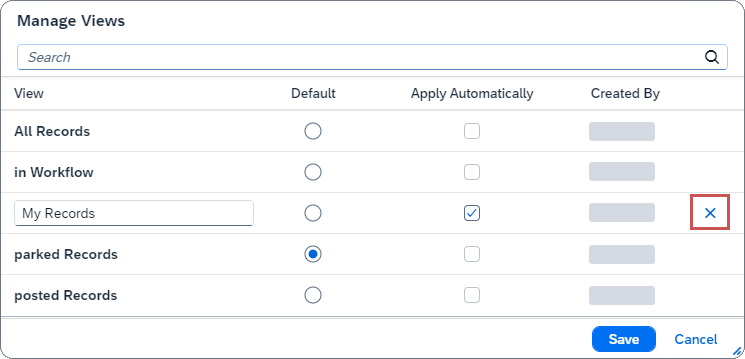
To delete your views, click the button
 Delete View.
Notice
You can only delete views that you have created yourself.
Click Save.
➤ The changes to the views have now been saved.