Work Items in xSuite Web
You can use xSuite Web for browser-based processing of your work items. xSuite Web neither requires SAP, nor an SAP user master record.
In xSuite Web, work items are displayed in the xSuite Web Business Workplace.
Notice
From your xSuite Web Business Workplace, you can only access those work items which are in the workflow task "Approve order confirmation" or "Release order confirmation."
Opening Your xSuite Web Business Workplace
○ The Web browser is HTML5-compatible.
For further information on all system requirements, see the publication xSuite Cube System Requirements.
Open your browser.
Enter the URL for xSuite Web.
➣ The login screen will open.
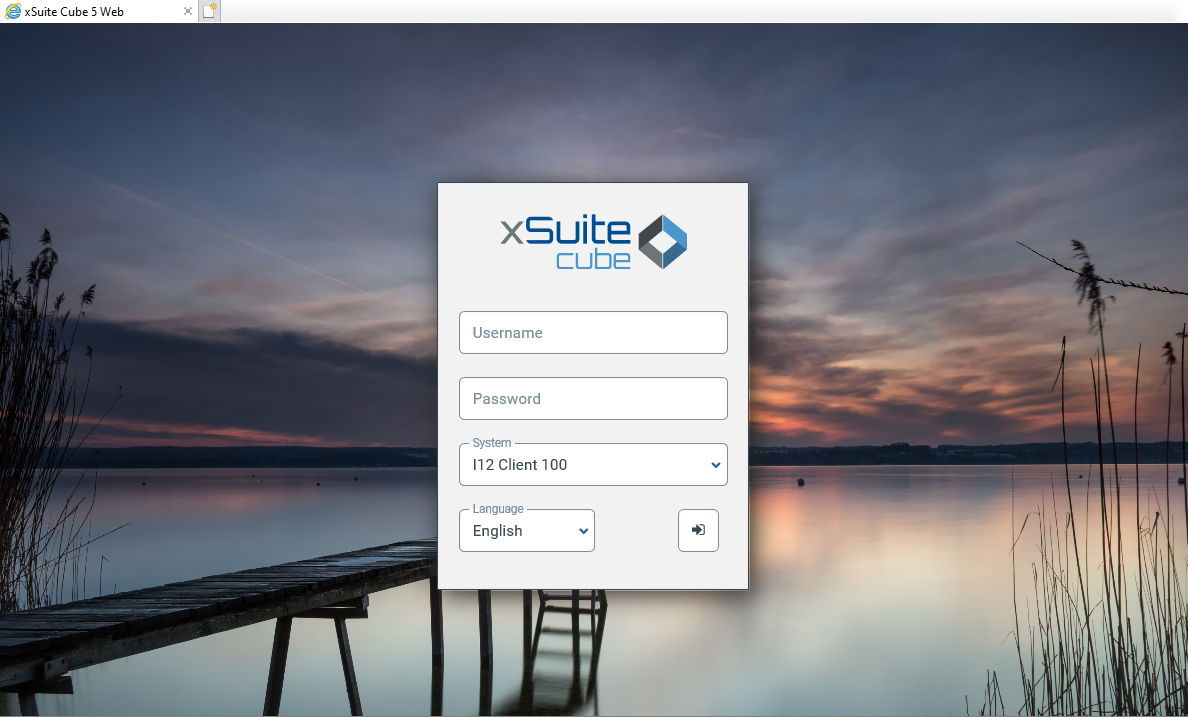
Enter your user name and password.
Select a system and the language.
Both settings will apply throughout the session.
Click on the
 Login button.
➤ The xSuite Web Business Workplace will open.
How to Change Your Password in xSuite Web
Open your browser.
Enter the URL for xSuite Web.
➣ The login screen will open.
Enter your user name.
Do one of the following:
If you have forgotten your password, leave the field Password blank and press Enter.
If you wish to change your initial password, enter it and press Enter.
➣ The New Password button will appear.
Notice
The New password button will also appear if you have entered an incorrect user name or password and pressed Enter.
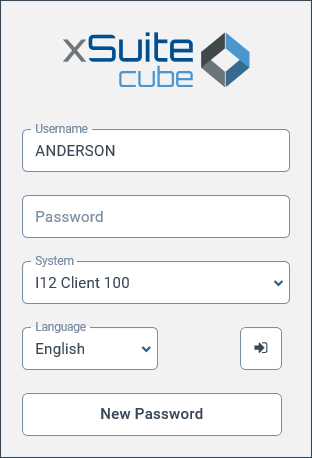
Click the New password button.
➣ The dialog screen New Password will open.
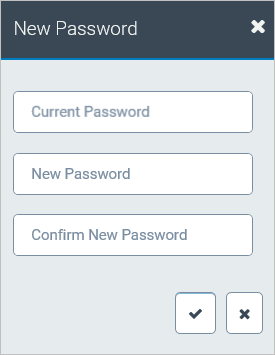
Enter your old password and your new password, and confirm.
➤ Your new password has now been set.
xSuite Web Business Workplace: Main Overview
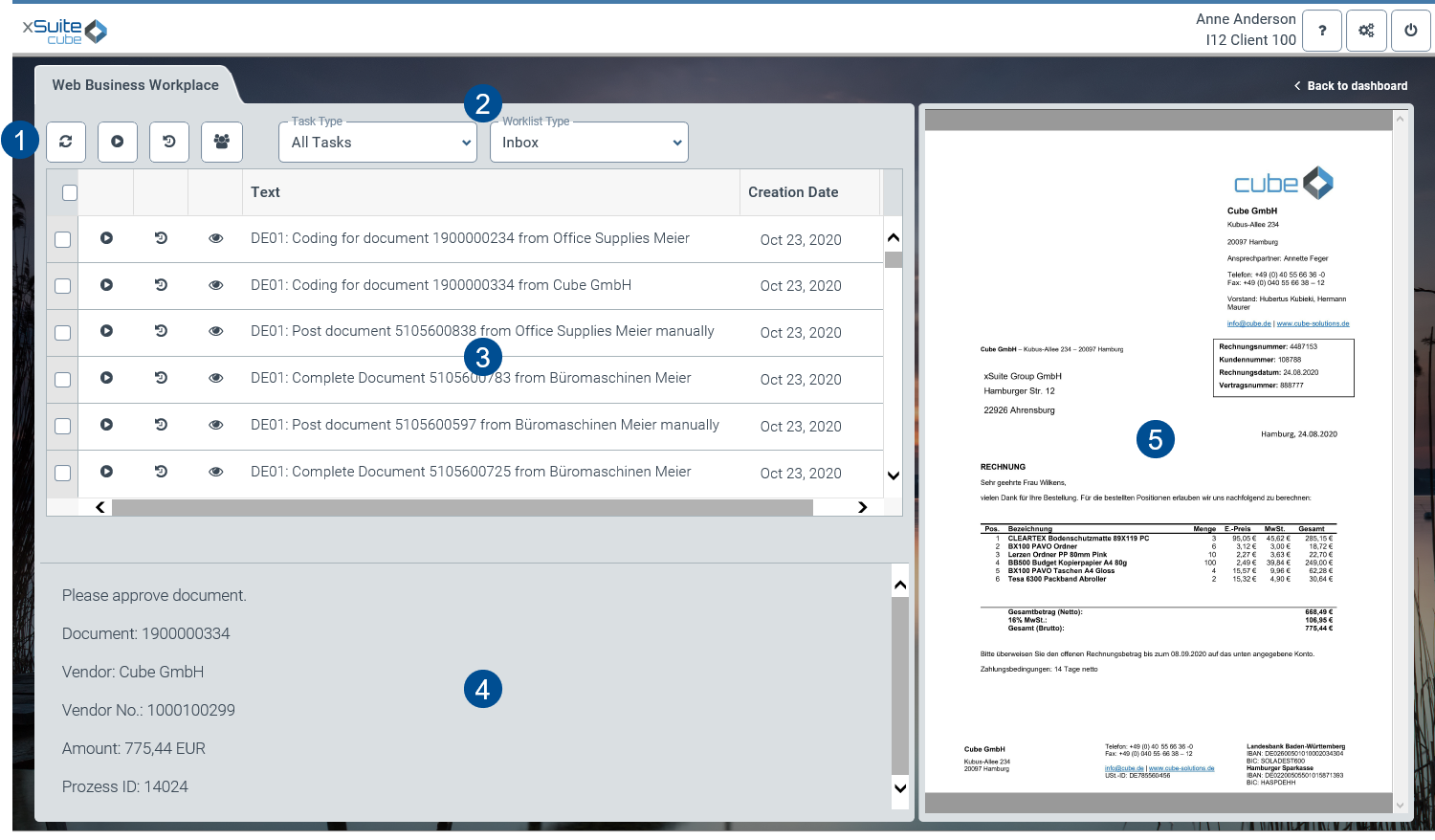 |
Area | Information and comments | |
|---|---|---|
1 | Buttons | |
2 | Filter | |
3 | Work item list | For information on the columns, see xSuite Web Business Workplace: Columns. You can change selected columns with the |
4 | Work item preview | Here, the most important data of the flagged work item is displayed in a preview. With the appropriate authorization, you can release work items in the release step by clicking the Release and Reject buttons directly from the work item preview. Note: The buttons are only visible if the corresponding attribute is activated in xSuite User Administration. |
5 | Image display | This is where the image of a work item is displayed. |

xSuite Web Business Workplace: Buttons
Button | Name | Context | Description | |
|---|---|---|---|---|
| Refresh Worklist | xSuite Web Business Workplace | Refreshes the Web Business Workplace. Now the information displayed will be supplemented with work items and other changes added after the Web Business Workplace was opened. | |
| Open selected Workitems | xSuite Web Business Workplace | Opens the selected work items. This allows multiple work items to be processed quickly in sequence. Note: You can select several work items with Ctrl or by clicking the corresponding checkboxes. If you set a check mark in the table header of the selection column, all work items will be selected. | |
| Resubmit selected workitems | xSuite Web Business Workplace | Returns one or more documents to the inbox for later editing. Documents that have been flagged for resubmission will not be displayed in the hit list until the resubmission date. | |
| Substitute maintenance | xSuite Web Business Workplace | Opens substitute maintenance. For information on substitute maintenance, see Substitute Maintenance in xSuite Web. | |
| Delete from history | xSuite Web Business Workplace | Deletes the selected work items from the list. The work items themselves are not deleted, they are simply no longer displayed in the list. This button is only available under Worklist Type → Outbox. | |
 | Open Workitem | Work item | Opens a work item. | |
 | Forward Workitem | Work item | Forwards the work item to the selected user for editing. | |
 | Workitem Preview | Work item | Opens a preview and displays the image of the work item. |


xSuite Web Business Workplace: Filters
Filter | Description |
|---|---|
Task type | Filters the xSuite Web Business Workplace for a workflow task. |
Worklist type | Filters the xSuite Web Business Workplace according to Inbox, Outbox, or Resubmit. |
xSuite Web Business Workplace: Columns
Column | Description |
|---|---|
Creation date | Indicates the date on which the work item was created. |
Description | Shows data specific to a customer. |
Object Key | Indicates the object key of the SAP purchase order. |
Object Type | Shows the xSuite module which houses a given workflow task. |
Obj.type/Obj.ID | Shows the task type of a work item. |
Process ID | Shows the process ID of a document. The process ID is assigned by xSuite. The purpose of a process ID is to identify a document throughout the process of workflow-supported document approval. |
Role | Shows the role assigned to the workflow task in which a work item is located. |
Text | Shows the description of a work item. |
Work Item ID | Shows the ID of the work item. |
Work Items: Main Overview in xSuite Web
 |
Section | Information and comments | |
|---|---|---|
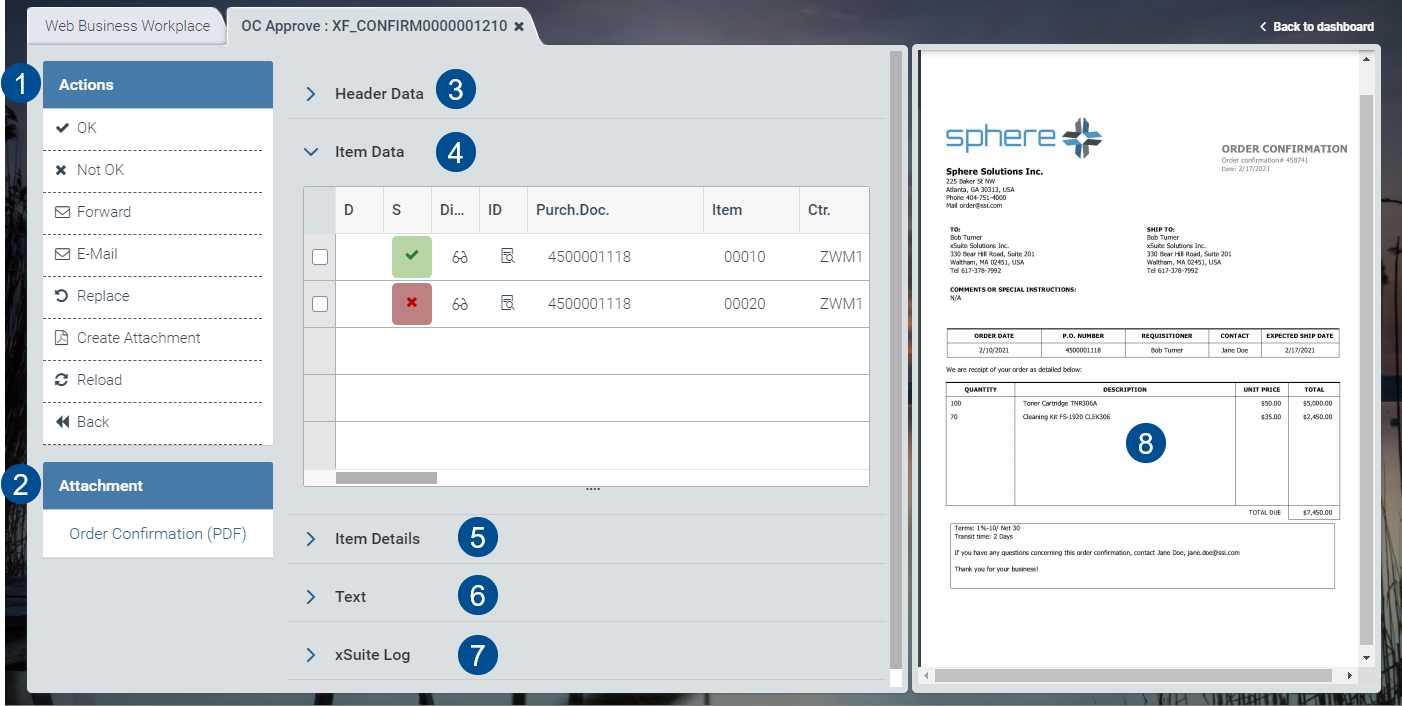
1 | Actions | Depending on the workflow task in which a document is being processed, different buttons will be available. For information on the buttons available for the document, see: |
2 | Attachment | You can add more attachments by drag-and-drop. |
3 | Header Data | In the header data section, the primary data of the document (e.g., vendor or company code) is displayed. The buttons If there is only one purchase order, these buttons are inactive. |
4 | Item Data | |
5 | Item Details | This is where you can view the PO items and the confirmation items in a document. The item details consist of the following sections:
|
6 | Text | |
7 | xSuite Log | |
8 | Image display | This is where the image of the document is displayed. |


Substitute Maintenance in xSuite Web
You can set your own substitute for planned times of absence. If you have multiple roles, you can select substitutes by role.
Substitute maintenance is opened in the xSuite Web Business Workplace with the button  Substitute maintenance.
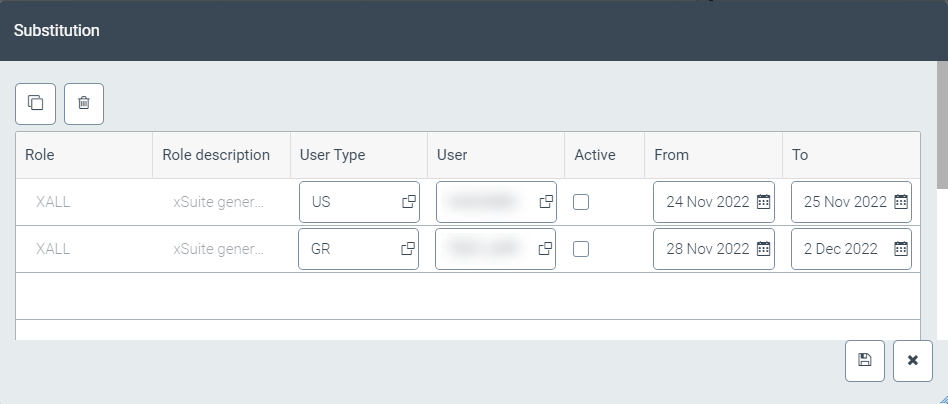 |
During the period for which you are being substituted, both you and your substitute will receive the work items that are assigned to your role. Your substitutes will be able to process your work items during your absence.
Substitute Maintenance: Columns
Column | Description | Editable |
|---|---|---|
Role | Indicates your role. | |
Role description | Indicates the description of a role. | |
User type | Indicates whether the substitute is a user (US) or a user group (GR). | X |
User | Indicates the name of a substitute. The substitute may be a user or a user group. | X |
Active | Activates a substitute assignment. | X |
From | Indicates the date on which a substitution period is to start. | X |
To | Indicates the date on which a substitution period is to end. | X |