Editing a document
To edit document data in the Document Hub, you must enable edit mode. In edit mode, you can edit all header and item data of a document.
Go to the Document Hub menu item.
In the document list, click a document with the status
NeworModified.➣ The document's data will be displayed in the main view.
Click Edit.
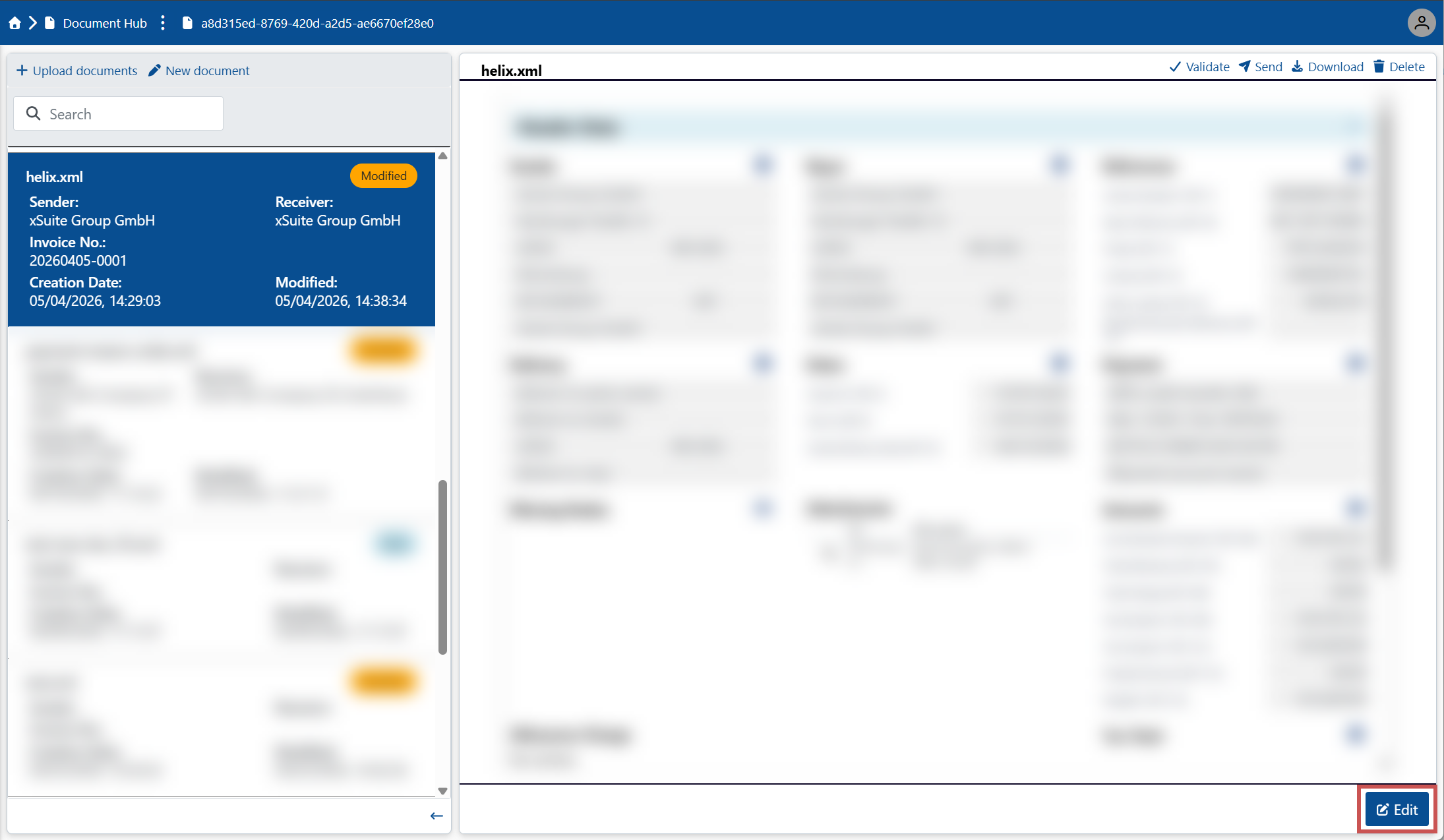
➤ Edit mode is enabled.
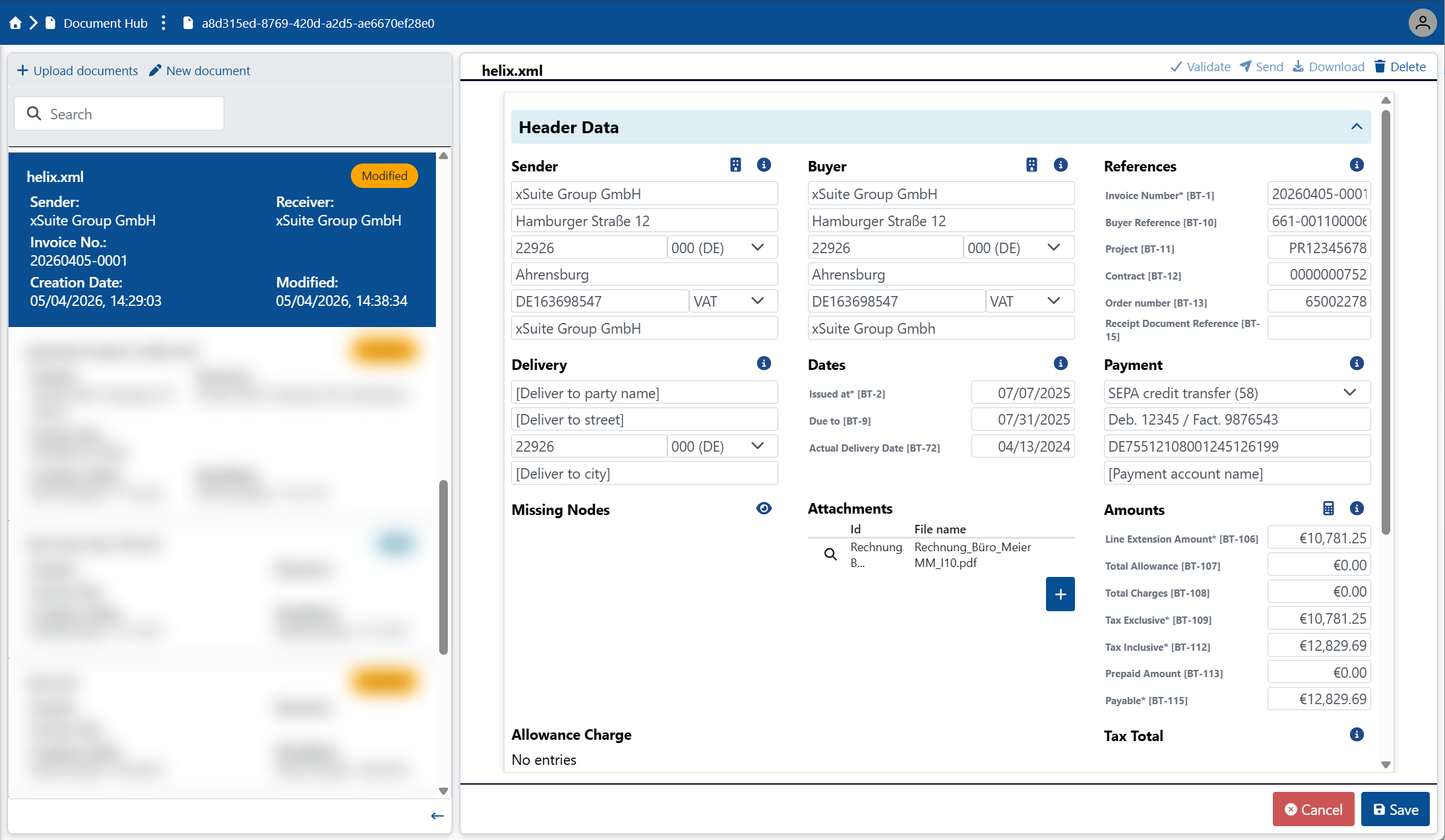
Selecting a sender and/or buyer
In edit mode, you can select a sender and/or a buyer. The details of the selected sender/buyer are automatically inserted into the header data of the document.
Go to the Document Hub menu item.
Open a document in edit mode.
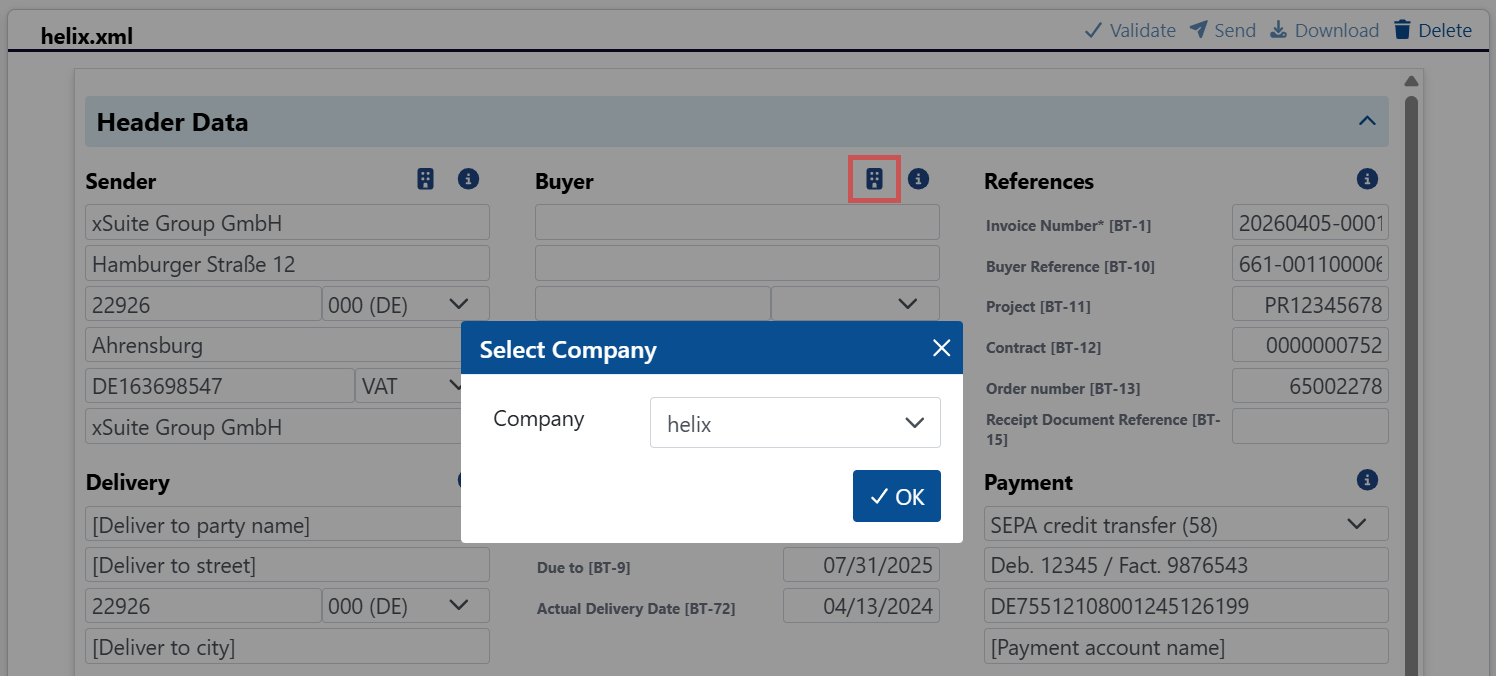
In the main view, click the
 Select Company button next to the Sender or Buyer heading.
➣ A dialog box for selecting a company will open.
Notice
The dialog box displays all companies that are defined under the Companies menu item and have a value in the PartyName field.
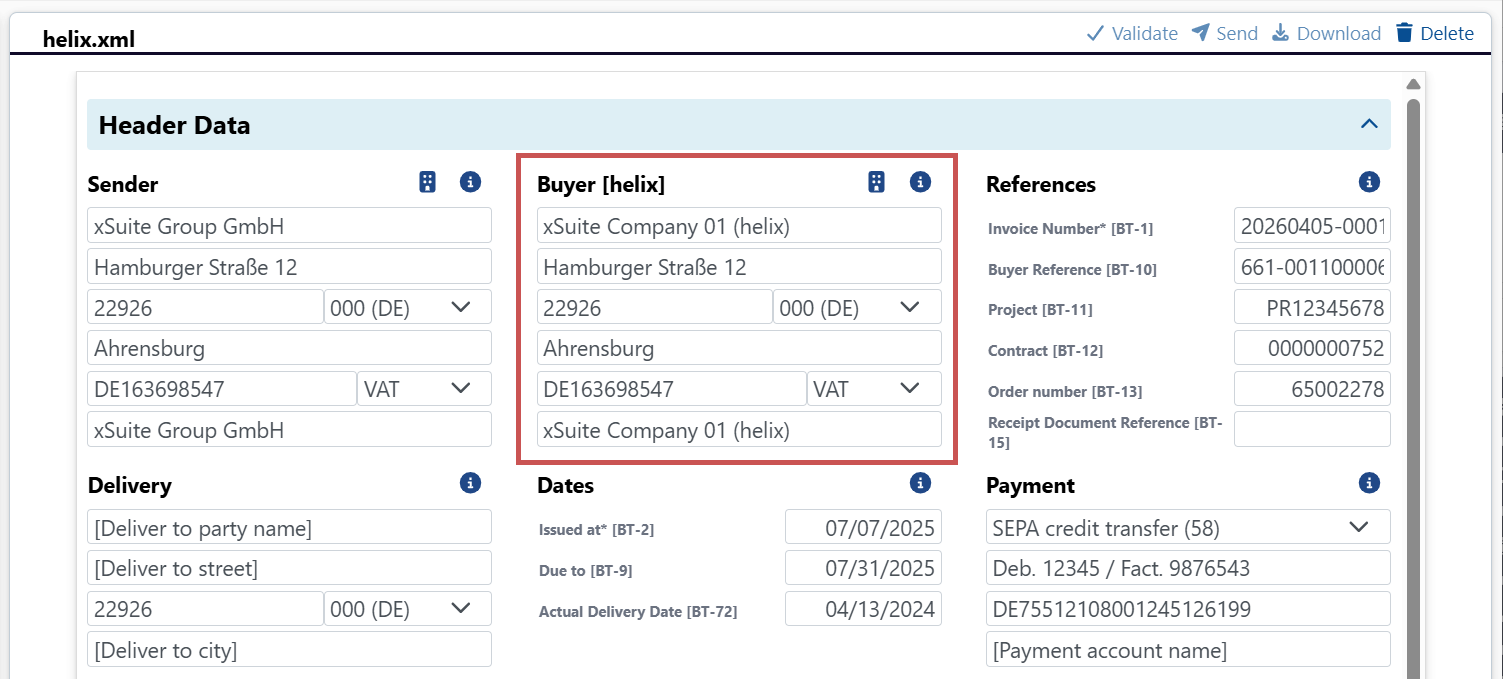
Select a company from the drop-down list, then click OK.
➣ The data for the selected company will automatically be inserted in the Sender/Buyer section. The name of the selected company is displayed in square brackets ([]).
Click Save.
➤ The changes have been saved.
Adding a line item
In edit mode, you can add line items to the document and edit the item data.
Go to the Document Hub menu item.
Open a document in edit mode.
In the main view, in the Line Item Data section, click
 Add line item data.
➣ The detail view for the new line item will open.
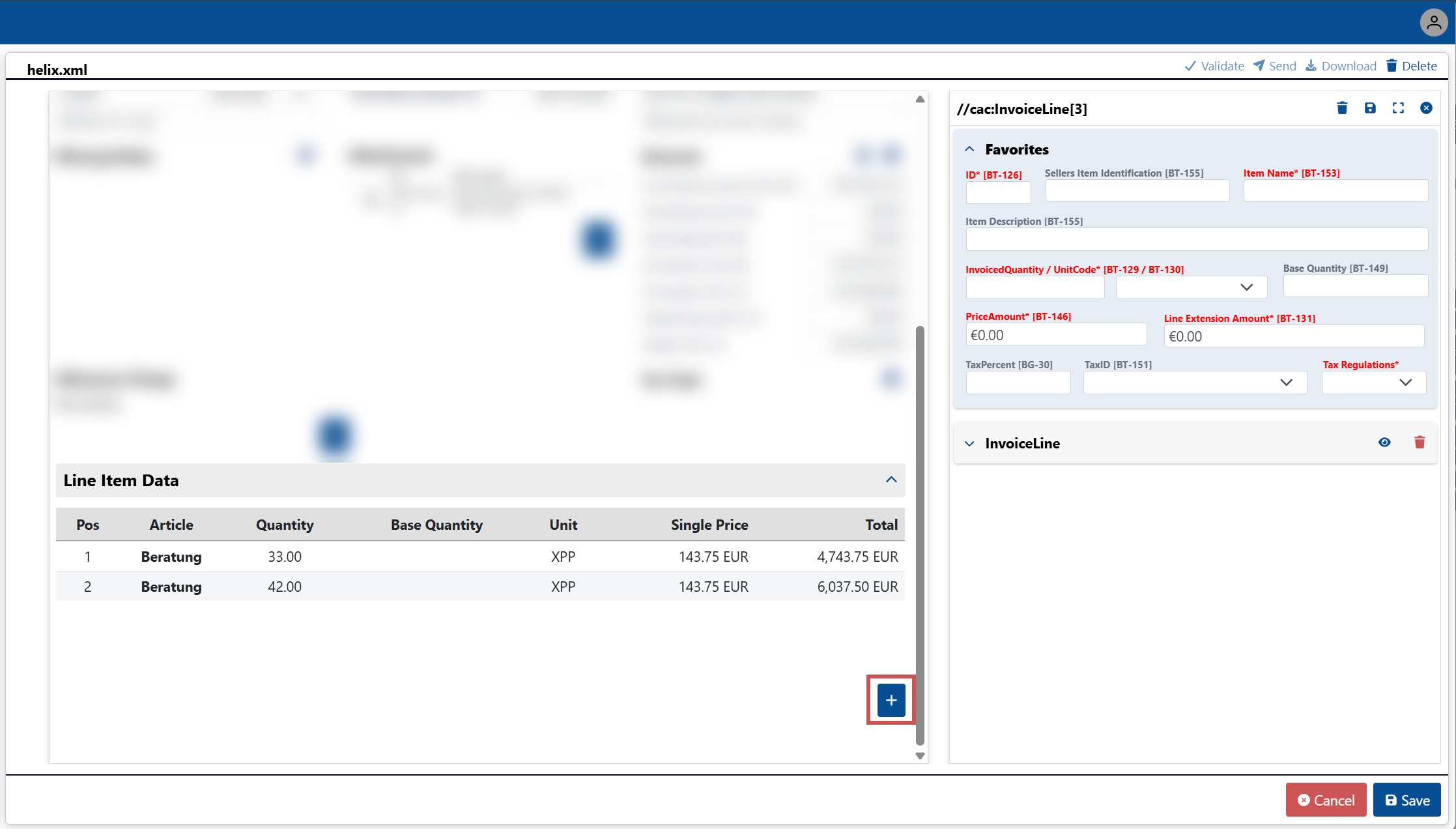
Tip
To open the detail view in a new window, click the button
 in the detail view.
Enter values in the following mandatory fields:
Notice
All mandatory fields, as specified by the EN 16931 standard, are highlighted in red and marked with an asterisk (*).
Field
Description
ID
Line item number
Item Name
Line item name
Invoiced Quantity
Quantity
Unit Code
Unit of measure
PriceAmount
Net unit price
Line Extension Amount
Line item total
The line item total is calculated automatically based on the quantity and net unit price.
Tax Regulations
Tax regulations
In the detail view, click the button
 .
.➣ The line item has been added.
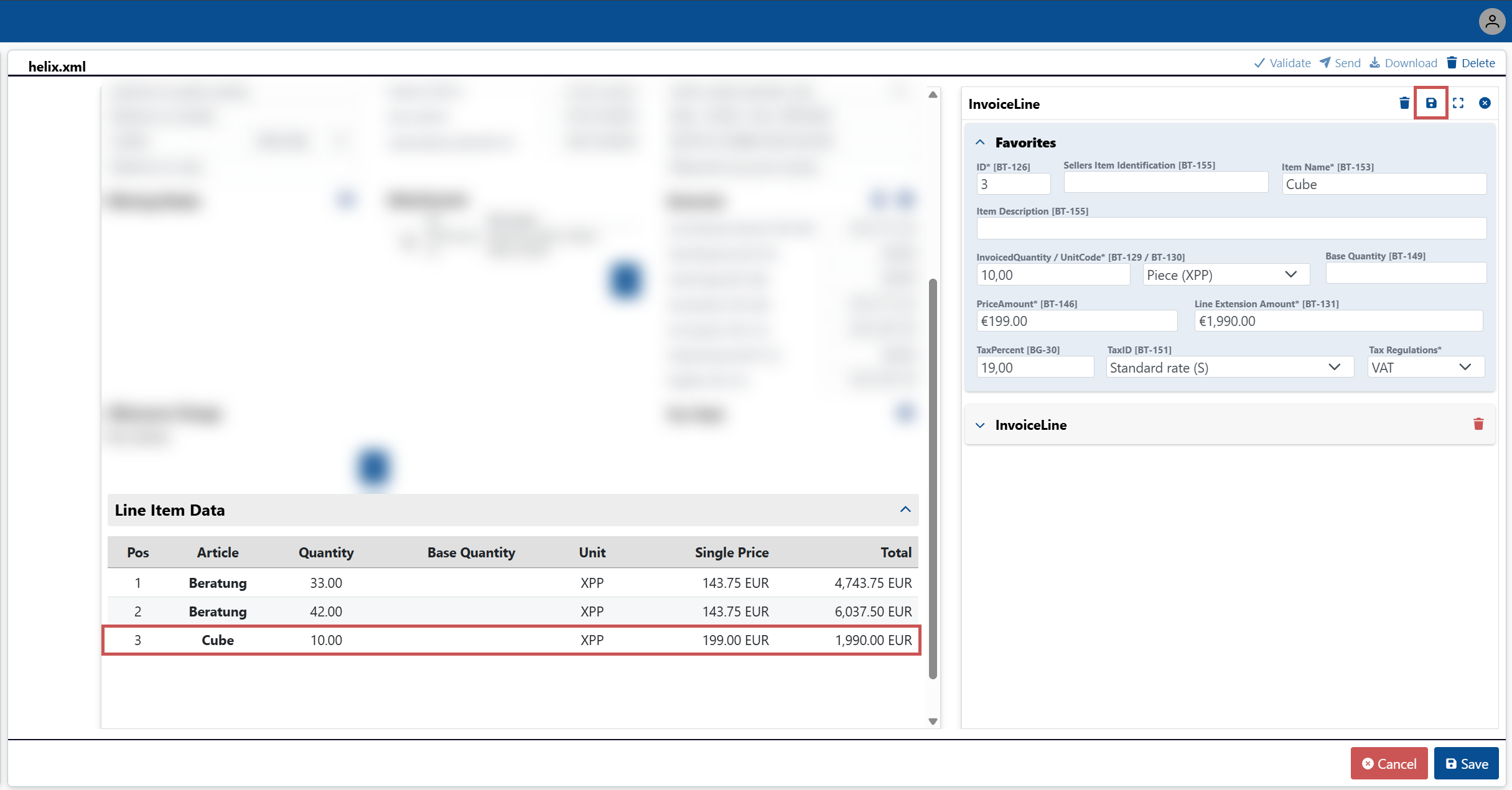
Click Save.
➤ The changes have been saved.
Caution
The total amount is not calculated automatically.
If you have added a new line item and/or changed the amounts for any line items, you must recalculate the total amount.
Recalculating the total amount
If you have added a new line item, changed the amounts for line items, and/or changed the allowance charge, you must recalculate the total amount. The total amount is not calculated automatically.
Go to the Document Hub menu item.
Open a document in edit mode.
In the main view, next to the header data title Amounts, click
 Calculate Legal Monetary Total.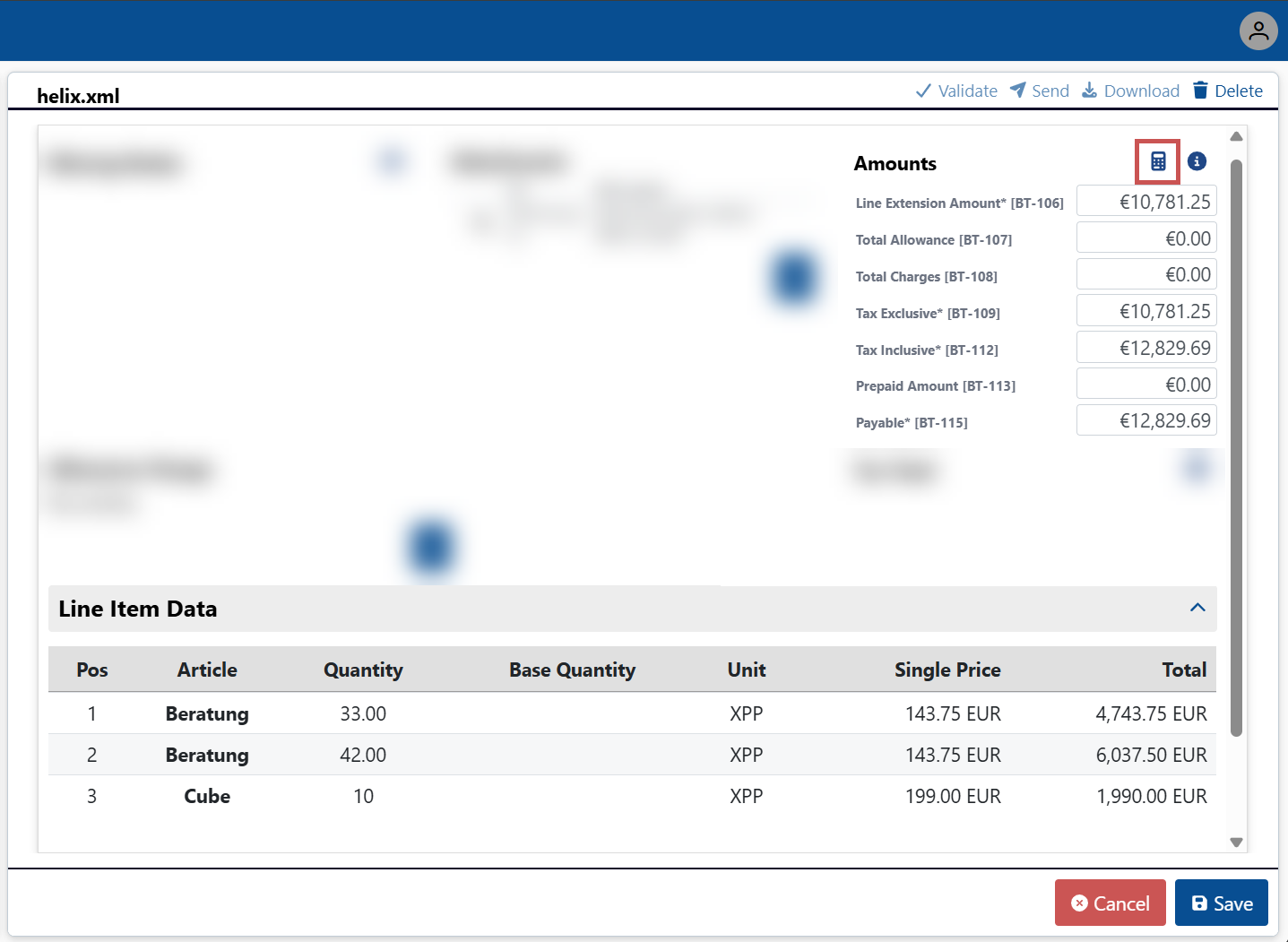
➣ All amounts in the Amounts section will be recalculated based on the current line item amounts and the current allowance charge. The current total amount is displayed in the Line Extension Amount field.
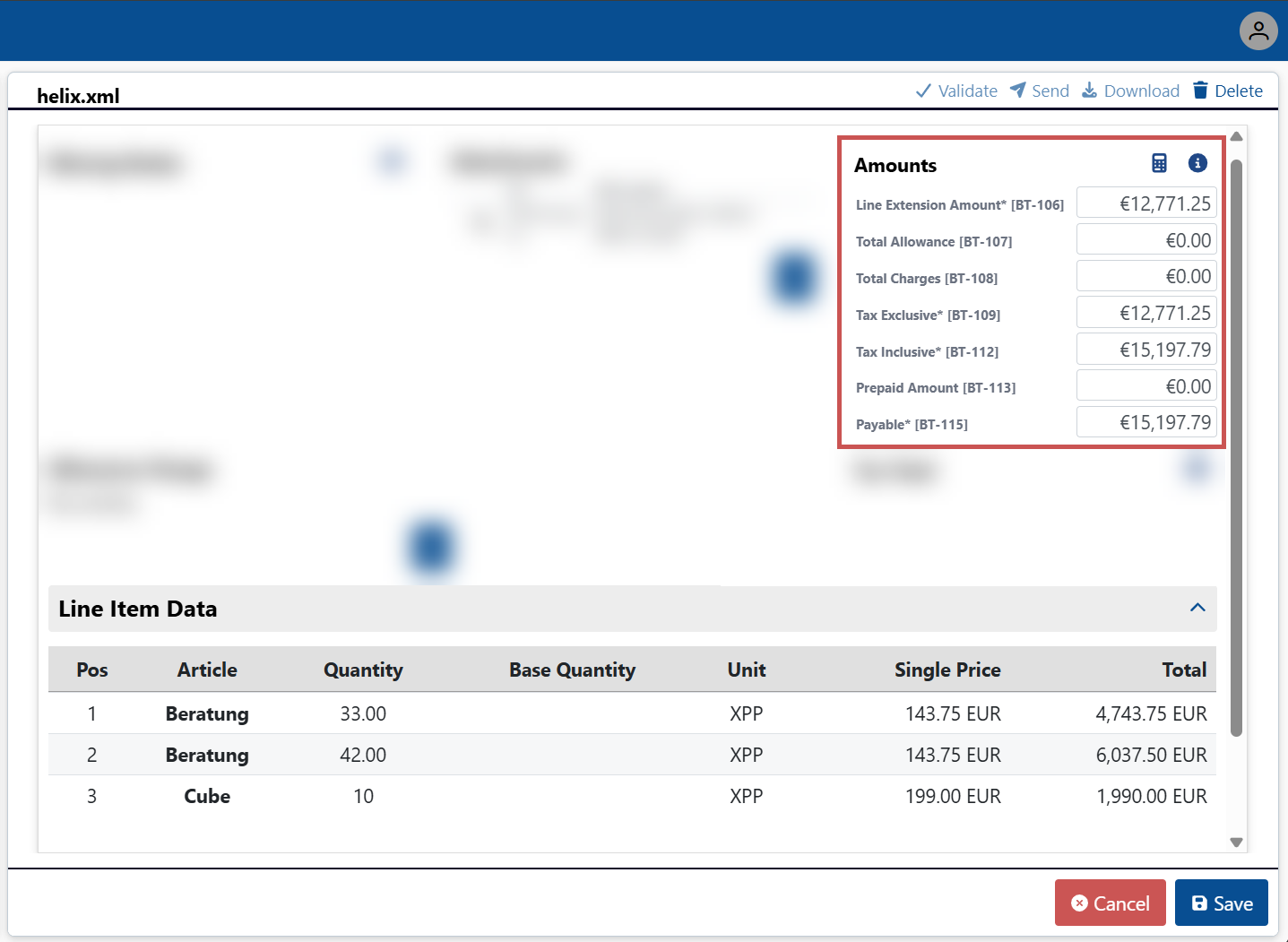
Click Save.
➤ The changes have been saved.