Uploading a document
In the Document Hub, you can upload one or more documents to edit, validate, and send them. You can upload up to 10 documents at a time.
When uploading documents, all file formats supported by xSuite eDNA Helix and the network used for sending are supported.
Under the Document Hub menu item, click Upload documents.
➣ The Upload Documents dialog box will open.
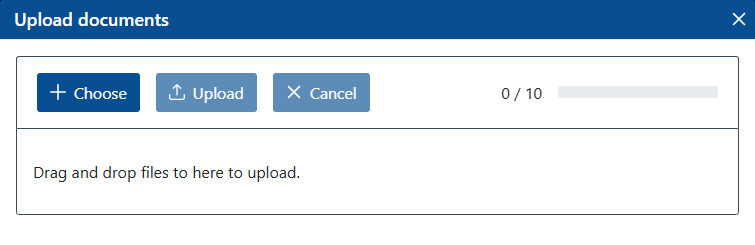
Click Choose.
➣ A file selection dialog box will open.
Select one or more documents in a supported file format, and then click Open.
➣ The file names of the selected documents will be displayed in the Upload Documents dialog box.
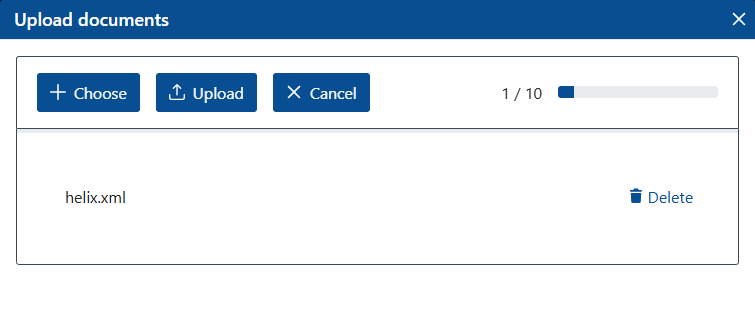
Tip
Alternatively, you can drag and drop the files directly into the dialog box.
Check that you have selected the correct documents, and then click Upload.
Notice
If you try to upload a document in a file format that is not supported, you will receive the error message Unsupported format.
➤ The selected documents have been uploaded and are displayed in the document list. You can now edit the documents.