Validation: Buttons in the Document View
SAP GUI | SAP Fiori | Description | |
|---|---|---|---|
Check |
| Checks to ensure that all mandatory fields are filled and that there are no incorrect entries. | |
Save |
| ||
Enter |
| Copies the document data to the corresponding fields of the order. When you enter information, an SAP document is automatically created. | |
Enter (SAP) |
| Copies the document data to the corresponding fields of the order in the SAP transaction. The document is generated directly from the SAP transaction with this option. Pricing also occurs in this transaction. The xSuite Viewer is not available in this transaction. | |
Workflow |
| Transfers the document to the technical workflow (SI workflow). You can use the technical workflow to obtain information without having to enter the document directly into the Orders workflow. For information on the Orders workflow, see The Standard Workflow. | |
Record type |
| Changes the record type of the document. | |
Create attachment |
| ||
| |||
Delete document |
| Sets a deletion flag in the Sales Document Monitor and in the validation screen. If the document is in the workflow, then the workflow will be aborted. The document can be viewed but no longer edited. When a deletion indicator has been set, you as a user will not be able to undo it. You will only be able to reactivate deleted documents (Sales Document Monitor → Reactivate button). | |
Create with template |
| Creates the xSuite Interface document based on a preceding document. F4 value help (VMVA0) for SAP documents will appear. The selected SAP document will then serve as a template for the xSuite Interface document in active use. The header and item data are copied from the SAP template document to the xSuite Interface document in active use. | |
Create business partner | --- | Opens SAP transaction XD01 for creating a business partner. The business partner is created including the company code and account group as one of the following business partner types:
A previously defined template can also be used to create the business partner account. Note: This button is only available in the SAP GUI. | |
Change documents |
| Each time a record is saved, the new status is compared with the old one, and the changes are updated in change documents. Such changes might involve the user who made a change, the field in which it was made, or the time at which it was made. You can call up change documents with the button. | |
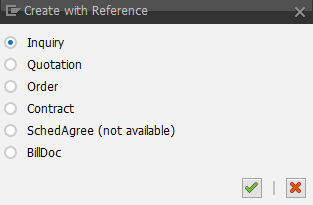
Create with reference | --- | Creates an SAP sales document with reference. You can click this button to select the type of reference document.
The header data and file attachments are adopted from the xSuite Interface document. The item data is adopted from the reference document. Note: This button is only available in the SAP GUI. | |
Refresh |
| Updates the data in the work item. |