Creating a gateway destination
Within the Cloud Foundry subaccount, click Connectivity → Destinations.
Click the New Destination button.
Create a destination as shown in the screenshot below:
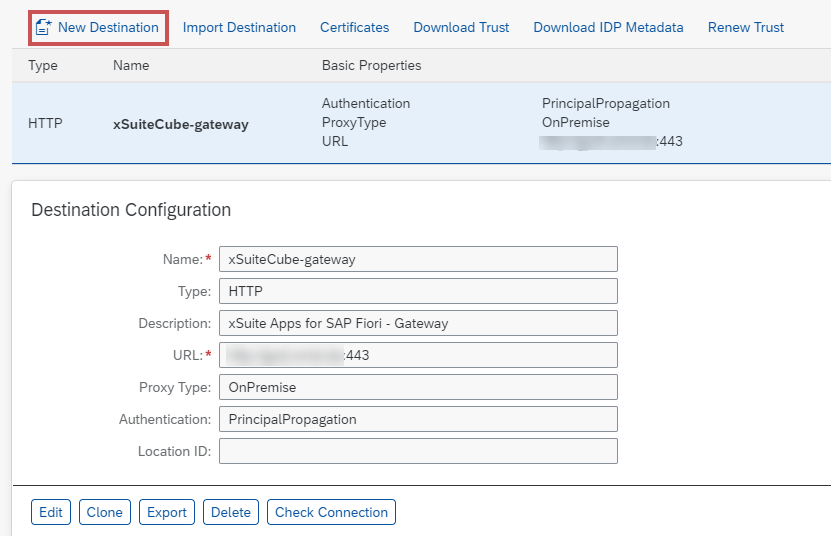
Field
Description
Name
xSuite Apps use a default destination, xSuiteCube-gateway.
Type
The default type is HTTP, although, depending on the URL, HTTP can also map to HTTPS.
Description
The gateway destination can be described as desired.
URL
The URL is based on the gateway system and corresponds to the URL through which the gateway services can be reached.
ProxyType
The default ProxyType used is the value
OnPremisein accordance with the instructions in the Cloud Connector Guide.If the Cloud Connector is configured differently, select the appropriate value.
Authentication
Select the authentication method that was also set up for the Cloud Connector.
Under Additional Properties, add the
HTML5.DynamicDestinationproperty with the valuetrue.Click Save.
➤ The gateway destination has now been created.
Click the Check Connection button to test the connection.

➤ If a connection has been established, the message Connection to {name of destination} successful will appear.
➤ If it was not possible to establish connection, an error message will appear indicating the cause.