Toolbar
 |
Option | Description | |
|---|---|---|
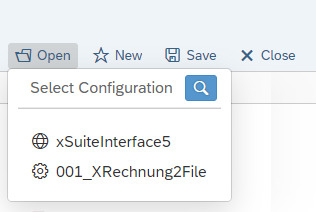
Open | Opens an existing global configuration or an existing scenario configuration for further editing. Global configurations are identified by the Provided that this functionality is activated in the global configuration of the running program instance, the file system and, optionally, the administrative database, are supported as a source for configuration data. For using files, a free selection of the directory when loading and saving the configuration data is only provided if it is required. By default, the system assumes the storage location of the files to be the directory in which the global configuration file of the running instance is located. The configurations have a unique technical name which, in the case of files, corresponds to their base name (i.e., excluding the file extension). The user can enter a meaningful technical name in the configuration properties. This name will be what is seen when the configuration is selected. When the files from the configuration file directory appear, you can select one of them to open. To search for files in other directories, click
| |
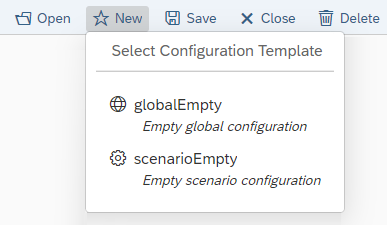
New | Creates a new configuration based on a template. Select the template to be used. This option offers blank configuration templates for global configuration and scenario configuration. Depending on the package delivered, additional templates may also be available containing default settings for certain standardized use cases.
| |
Save | Saves the current status of the configuration that is being edited. When a configuration is saved for the first time, the configuration file directory will by default be used as the storage location. When saving, specify the technical Base name (ohne file extension) under which the file is stored. If required, select a different target directory. When an existing configuration is saved, backup copies are automatically created on a rolling basis in accordance with the global property | |
Close | Closes the configuration that is currently being edited. Caution: All unsaved changes will be lost when closing. | |
Delete | Deletes the currently loaded configuration file from the directory. When deleting, a backup copy is automatically created according to the global property | |
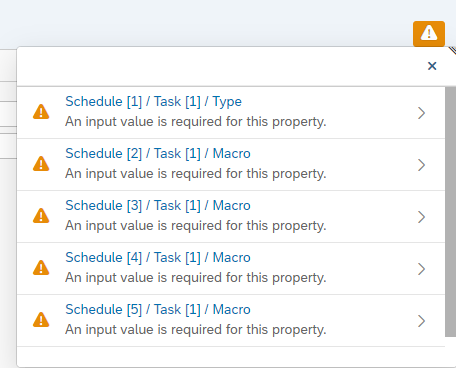
Validate | Performs a rudimentary validation of the current configuration. For more information, see Validation. NoticeValidation does not apply to content. If validation is successful, it does not mean that a configuration is either operable or meaningful; it only means that basic configuration errors can automatically be detected. A configuration can still be saved if the validation is not successful. Validation errors and warnings are displayed as a list. Click on the Error
The path to the respective configuration property is displayed in the list for each warning and each error. Click on the path to open the configuration property directly in the configuration form. |





Validation
The following basic properties are checked when validation is performed:
Property | Description |
|---|---|
Missing entries |
|
Syntax error |
|
Field Name |
|