The "Fields" Tab
The mask fields are defined in the Fields tab. New fields can be added and existing fields deleted via the selection list on the left-hand side. The order in which the fields are displayed in the mask will correspond to the order of the fields in this list and can later be adjusted by drag-and-drop. Displayed on the right-hand side, you will find the properties of the field currently selected.
You can import all fields of a field catalog from a scenario configuration as default values by clicking on the  button. To create a copy of the currently active field including all configuration properties, click on the
  button.
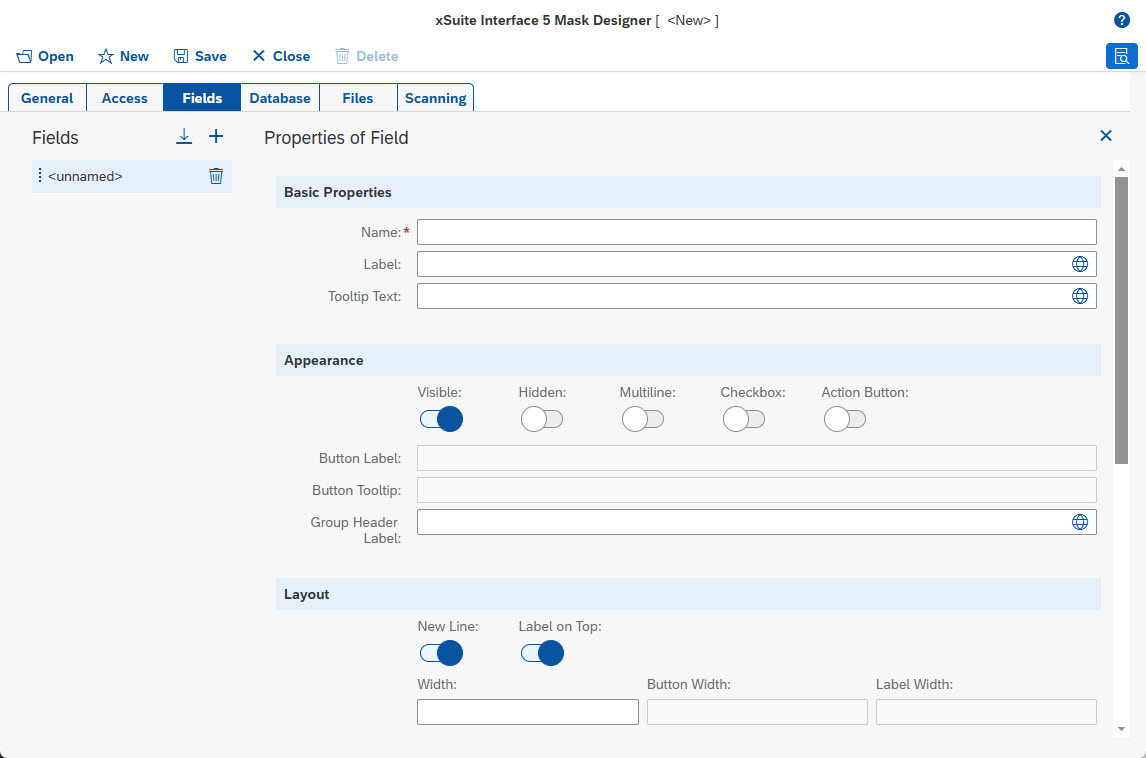 |
Basic properties
Field | Description |
|---|---|
Name | Technical field name The name must be specified and must be unique within the mask. The field name in the associated scenario configuration is used for determination of the field contents to be taken from the template. |
Label | UI name of the field |
Tooltip Text | Supplementary description text of the field in the form of a tooltip |
Appearance
Field | Description |
|---|---|
Visible | Determines whether the field is displayed or hidden in the mask. |
Hidden | Determines whether the field is hidden in the mask. A hidden field will not be displayed in the mask. Instead, an empty area will be reserved for the fields in the mask. |
Multiline | Determines whether multi-line content should be entered in the field. The user will be able to open a multi-line input window if required. |
Checkbox | Determines whether the field is displayed as a checkbox. If the field is displayed as a checkbox, the data type will implicitly be set to "Boolean." |
Action Button | Determines whether an action button is displayed next to the field. The user will be able to execute an action macro by clicking on this button. The action button can also be used without assigning a macro. To do this, assign a database lookup definition to the field. This database lookup will be executed implicitly when the user exits the field whose content has been changed. The user can also start this type of database query by clicking on the action button. |
Button Label | Labeling text of the action button |
Button Tooltip | Supplementary description text of the action buttons in the form of a tooltip |
Group Header Label | Title for a group of fields To group input fields, a group title can be specified for the field with which a group is to begin. The group title will be displayed as a heading line in the mask. |
Layout
Field | Description |
|---|---|
New Line | Determines whether each field is displayed in a new line or whether a field is displayed in the same line as the previous field. By default, each field is displayed in a new line. |
Label on Top | Determines whether the display name of the field is shown above the field or to the left of the field. Determines whether the display name of the field is shown above the field. |
Width | Width of the field in pixels By default, fields are dynamically scaled to the width of the mask window. If there are multiple fields in a row, the fields will share the space available. If a field is to have a fixed width, you can specify this here in pixels. Specify the total width, spanning label, field, and action button. Specifying a fixed width can be useful, for example, for achieving a flush column layout across multiple lines when displaying multiple fields per line. NoticeInput fields and buttons in particular can only be reduced to certain minimum widths. |
Button Width | Width of action buttons in pixels By default, the buttons will scale dynamically with the button text. If a button is to have a fixed width, this can be specified here in pixels. |
Label Width | Width of field labels in pixels By default, the labels preceding the input fields will scale dynamically with the text. If a field is to have a fixed width, this can be specified here in pixels. |
Content
Field | Description | |
|---|---|---|
Mandatory | Determines whether the entry of a field value is mandatory. If the entry is mandatory and a value is missing, the user will receive an error message. | |
Read-Only | Determines whether the field is a display field, and whether the value is a fixed value or one that is set automatically. Display fields are locked to prevent the user from entering values manually. If write protection is activated and is used in combination with a selection list, the user can select a list entry but cannot make a free entry. | |
Data Type | Data type of a field ( If the data type of a field is not specified, then, by default, the field will be handled as a text field. If the field is marked as a checkbox, the field will have the data type "Boolean." Specifying a data type will enable the typed transfer of the field value to the xSuite Interface scenario, as well as an automatic syntax check. If an input format has been defined for the field under Input format, the input value will be formatted accordingly. For date fields, a value help for selecting a date value will also be displayed. If a time is also to be selectable, an input format containing a time component is required. | |
Input Format | Definition of the input format of a number field or a date field For number fields, the input format is used for formatting the input value. However, if the input format is set, numerical values will not be transferred to the xSuite Interface scenario in typed form, but as a string. This is the only way to maintain a fixed format with something like a fixed number of decimal places to be filled in. For date fields, the input format is used to restrict input characters, to parse the input value and to format the input value. Date fields are always transferred to the xSuite Interface scenario in typed form, i.e., a predefined format is only used to support user input. Examples of input format syntax of number fields:
Examples of input format syntax of date fields:
| |
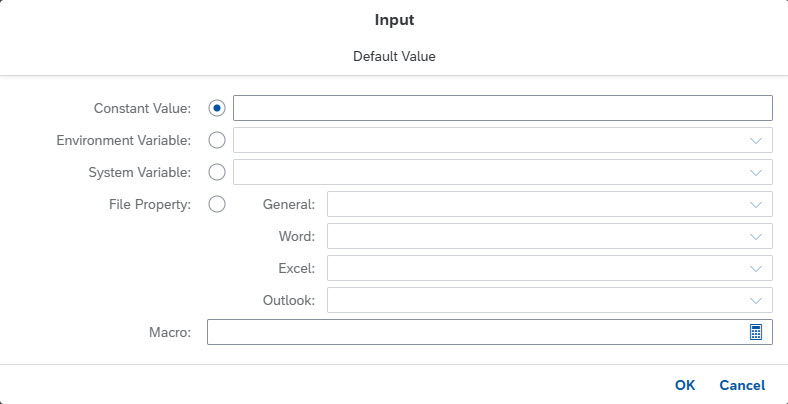
Default Value | Initial value of a field after opening or reinitializing an indexing mask by the user If an initial value has not been specified, the value will be empty by default. The initial value can be generated dynamically. In addition, the value can be obtained via a field macro expression, or the previously generated value can be formatted later through a macro such as this. The current value is addressed in the macro as a field variable of the respective field. For some methods for reading system variables and file properties that return a date value, a formatting pattern can be specified as an additional parameter, if the field in question is not a date field anyway, already having a corresponding input format.
| |
List Values | List of input values The list of input values is displayed to the user as a selection list. The order in which the values are defined corresponds to the order in which they are displayed. The order can be changed in the Mask Designer by drag-and-drop. | |
List Values from DB | Selection of a database lookup definition More extensive lists can be loaded at runtime from an external data source instead of entering them manually. A database lookup definition previously defined in the "Database" area can be selected for this purpose. In this case, no field assignments need to be defined. The first value of each line is implicitly read from the query result. The use of field variables in the query string is not permitted in this context. If a special sorting of the values is required, it must be carried out directly in the query. For multilingual selection lists, the database query must return the values in the same syntax that is used to manually define a multilingual value. |
Macros
In the Index Client, macro functions can be executed, triggered in different ways and serving different purposes. The same macro interpreter is used as in the main program. The macro editor is available here as a value help for macro expressions. Only field macros, i.e. functions that return a single result value, can be used in an indexing mask. Field variables can be used in these macros in the same way as in the main program. Here, however, the variables refer to the fields of the mask and not to the fields of a field catalog.
Notice
All field macro functions that are also available in the main program are offered unfiltered in the macro editor. In practice, however, not all of these functions are useful, and may return unexpected results or an error message.
Indexing masks are also usually defined independently of specific scenarios, so there is no scenario context. This applies without restriction to the preview view in the Mask Designer. At runtime, however, a mask can access the active scenario to which the mask data is to be transferred. This means that macros in the mask can also reference lookup lists and external data sources defined in the scenario configuration if so required. It should be noted that in some cases such a mask can then no longer be used universally for other scenarios.
Field | Description |
|---|---|
Macro | Standard variant of a macro in an indexing mask The macro is executed after the field value has been changed, i.e. usually when the field is exited. For selection lists and checkboxes, the selection of the value or the status change triggers the execution of the macro. The macro is primarily used to adjust the content of the input in the field. The result value of the macro execution is therefore written directly to the current field. However, the macro can also be used to perform an individual validation of the field content and to report an existing input error. The SetError() macro function is called for this purpose. This macro function is not classified as a field macro function and is therefore not directly selectable in the macro editor. Instead, the function can be entered manually. A full macro expression for checking a field content might look like this example: IfElse({Condition}, @{FieldName}, SetError("{ErrorText}"))In the condition, the field content to be checked is usually accessed via a field variable in order to compare it with a rule. If the condition is not fulfilled, an error is thrown with a specific message. If the condition is fulfilled, the current field content (or, if required, modified field content) is explicitly returned. This corresponds to the way the program works, in that the current field value is overwritten by the result value of the macro execution, which would otherwise be an empty value. |
Action Macro | A macro that is executed when the action button is clicked The operation of the action macro is similar to the operation of the standard macro. However, the action macro is not executed implicitly, but only when the user explicitly starts it. |
Property Macros | Macro that changes the content of mask fields, certain properties of mask fields, or the mask itself A property macro is executed after a field value is changed. However, the property macro will not change the current field content, but the content of other mask fields, certain properties of these fields, or the mask itself. Multiple property macros can be assigned to a field. The macros are executed in the order defined. A maximum of three parameters can be defined in the input help for a property macro:
|