The "Scanning" Tab
The settings for scanning image files are defined in the Scanning tab.
Notice
The settings for scanning image files are only relevant if the Index Client is used in conjunction with the additional "Web Scan" function.
As a basic property, you can use the Activate button in this area to specify whether the indexing mask is to support scanning, or whether the corresponding functionality is to be deactivated in the Index Client.
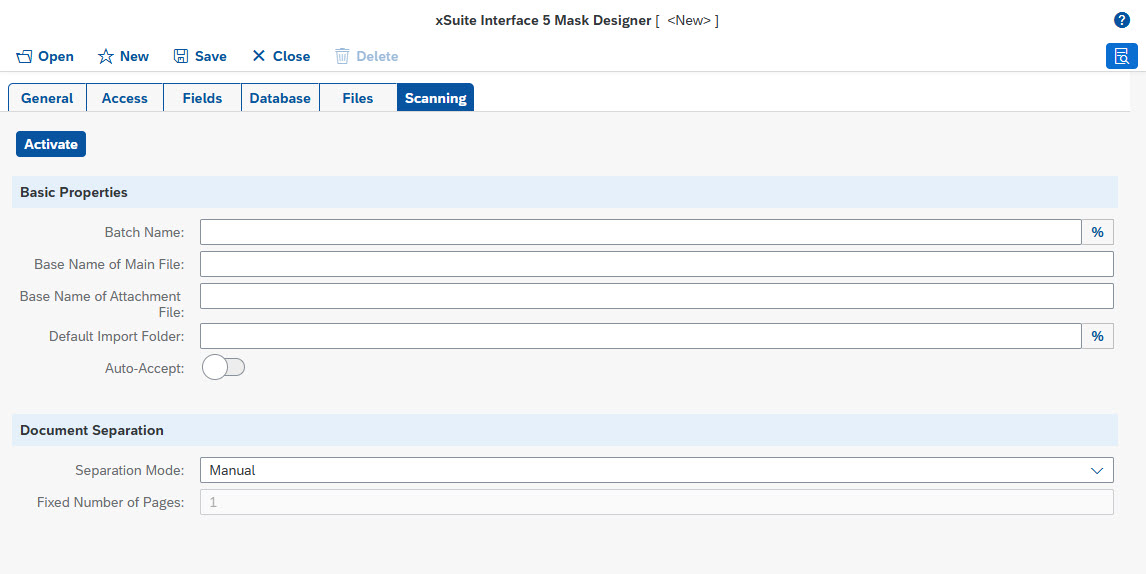 |
Basic properties
Field | Description |
|---|---|
Batch name | Default value for the name of a new scan batch to be created Use the input help to insert various system variables as dynamic components at the current cursor position or selection in this name. |
Base Name of Main File | Base file name of the main file The file is transferred to the xSuite Interface scenario under this name. The specification of a base file name serves to distinguish the main file from the attachment files by name. The main file is always the first file within a scanned document. All subsequent files are considered attachments to this main file. |
Base Name of Attachment File | Base file name of attachment files The file is transferred to the xSuite Interface scenario under this name. The specification of a base file name serves to distinguish the main file from the attachment files by name. |
Default Import Folder | Default value for the directory path if the scan files are not captured via a local scanner but imported from a file system directory This file system directory might, for example, be an exchange directory in which a network scanner stores the files. The user name can be inserted into this path as the only system variable. |
Auto-Accept | Determines whether the values in the indexing mask are automatically adopted when a document is scanned. The prerequisite for this is that all mandatory fields are filled. This function is useful, for example, if a barcode is read from a scanned page and all other mask fields are automatically filled using it as a key. |
Document separation
Field | Description |
|---|---|
Separation Mode | Mode for separating scanned pages into separate documents The following separation modes are available:
|
Fixed Number of Pages | Number of pages after which a new document starts This information is only relevant for the |
Barcode recognition
Field | Description |
|---|---|
On Separator Sheet | Defines whether the barcode pages are single, distinct separator pages that do not contain any data. If this switch is activated, the barcode pages will be deleted automatically. |
Barcode Type | Type of barcode to be read If required, the type of barcode to be read can be restricted to the specific type used (e.g., to exclude the reading of third-party barcodes of other types). |
Primary Barcode Pattern | Wildcard expression for the main document (with the wildcard characters This wildcard expression limits the search to barcode values that correspond to a specific syntax pattern. |
Attachment Barcode Pattern | Wildcard expression for the attachment documents (with the wildcard characters This wildcard expression limits the search to barcode values that correspond to a specific syntax pattern. |
Search Area [mm] | Search area for the barcode within the page The search area is a rectangular area which must be defined in terms of height, width, and distance from the top and from the left edge of the page. Use millimeters. If no search area is defined, the entire page will be searched by default. |
Destination field | Field to which the read value is assigned If the barcode of the main document is not solely used for document separation but holds a functional value, this value can be assigned to a field here. |