Finding Documents
In the dashboard, click Search Documents.
The document list view will open.
Enter search criteria.
Click Go.
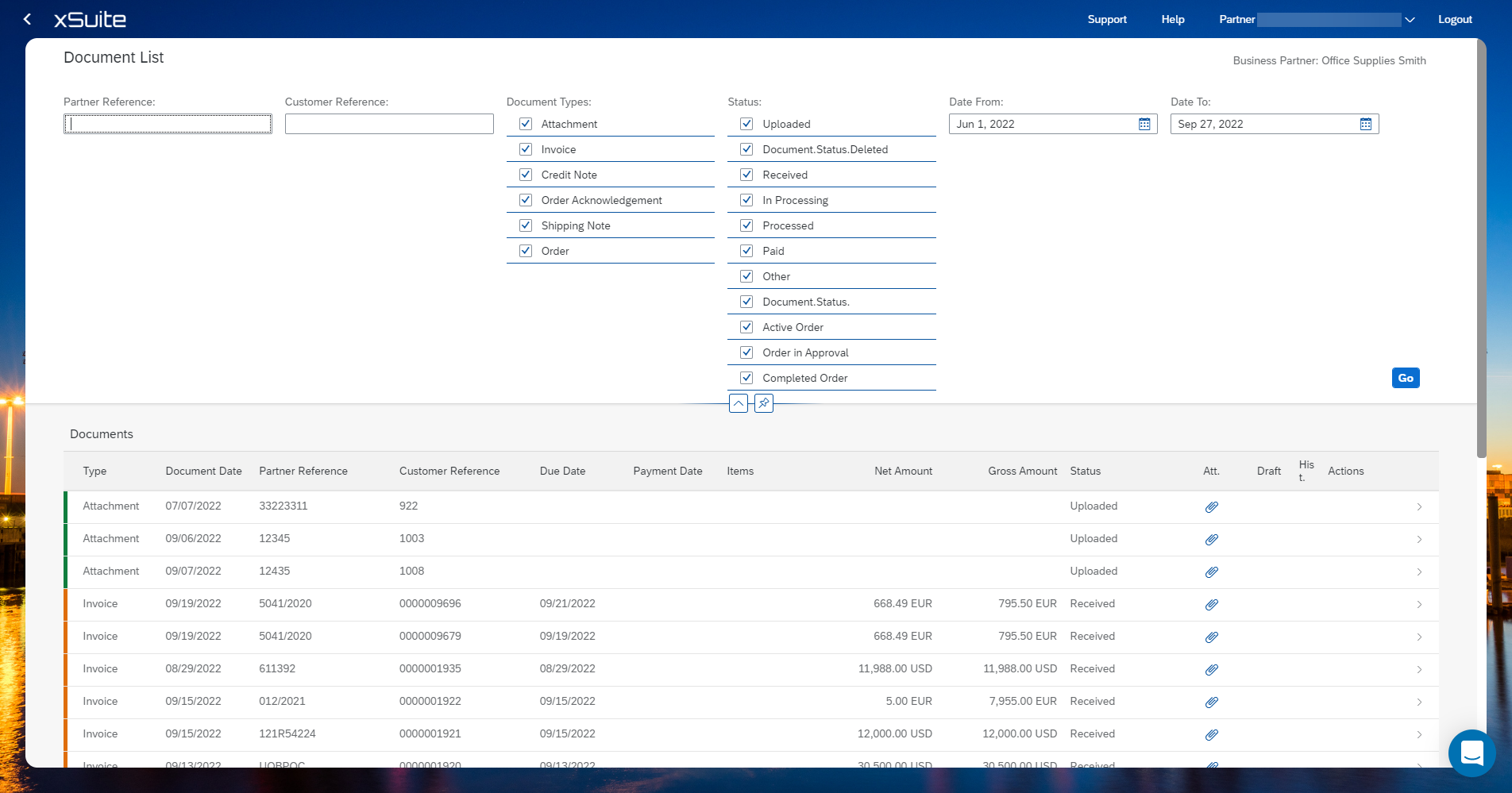
Overview of search fields in the list of documents
Name | Description |
|---|---|
Partner Reference | Filters documents by reference number. |
Customer Reference | Filters documents by customer reference. |
Document Types | Controls whether documents of the following document type are found.
|
Status | Controls whether documents of the following status are found. Which statuses are available depends on the document type. Attachment
Invoice and Credit Note
Order
|
Date From | Finds documents, filtering by related documents that were created within a specified time period. |
Date To |
Overview of columns in list of documents
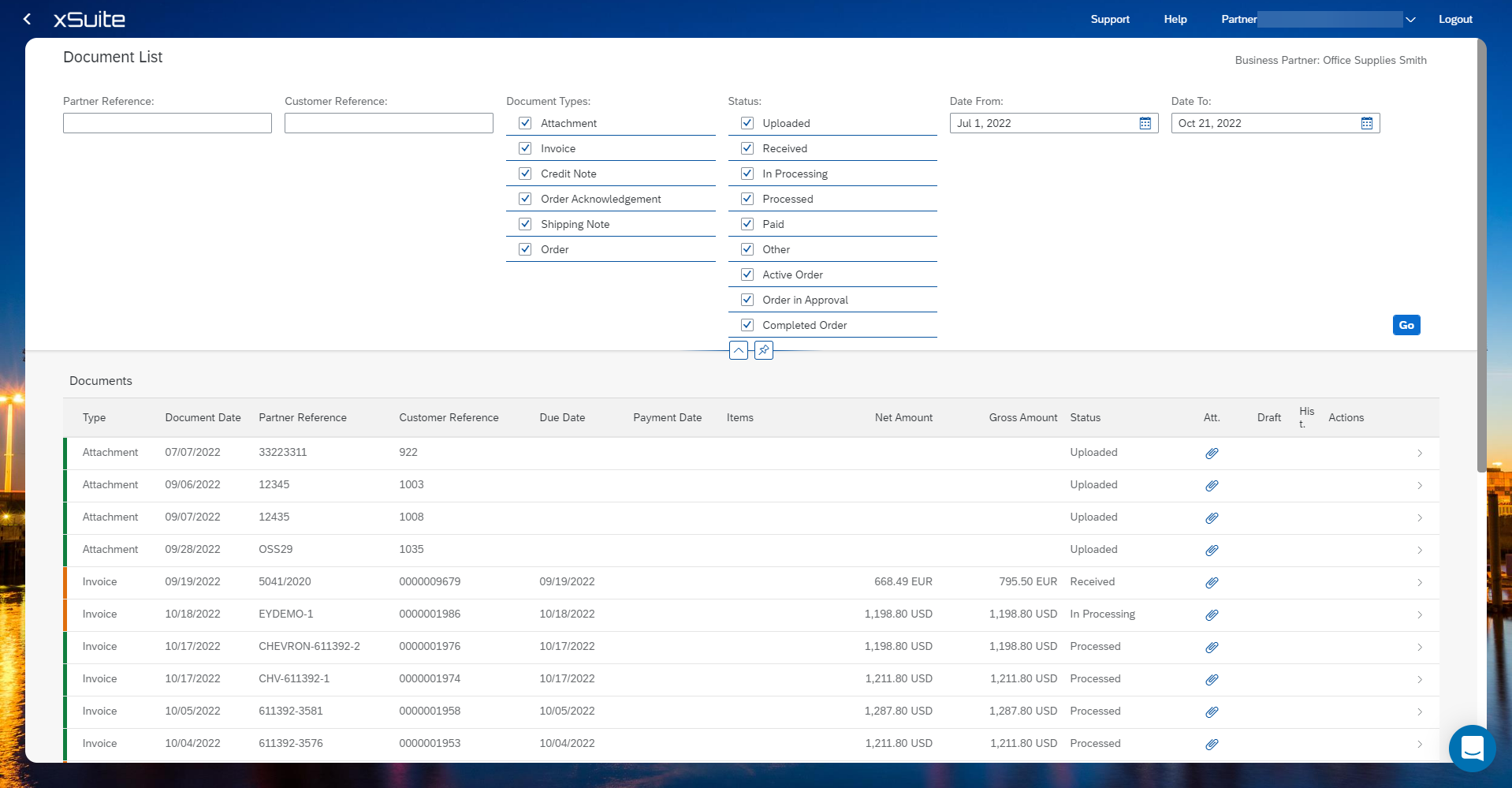
Name | Description |
|---|---|
Type | Shows the document type of a document. |
Document Date | Shows when the document was created. |
Partner Reference | Shows the reference number of the document. |
Customer Reference | Shows the customer reference number of the document. |
Due to | Displays the due date of the document. |
Payment Date | Displays the payment date of the document. |
Items | Displays the part number or the material number. |
Net Amount | Shows the net amount of the document. |
Gross Amount | Shows the gross amount of the document. |
Status | Displays the processing status of the document. The status indicator is displayed at the beginning of a line. Yellow indicates one of the following statuses:
Green indicates one of the following statuses:
|
Att. | Shows whether the document has an attachment. |
Draft | Displays information regarding designs. |
Hist. | Displays the document history of an order. The history function is only available for orders. |
Actions | Shows the actions of a document. Information on the actions can be found at Creating follow-up documents. |