Adding or Removing a Domain
Adding a Domain
Open xSuite Archive Prism.
Click the tile Authorization Management.
➣ The Tab Authorization Management will open.
Click Domain Manager.
➣ The Tab Domain Manager will open.
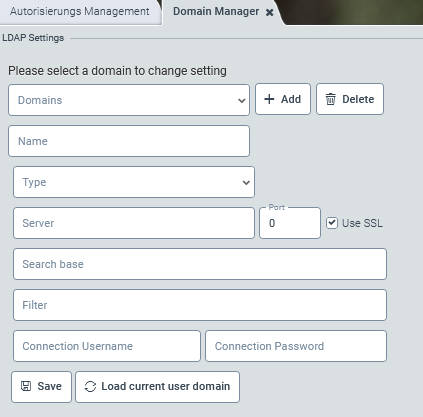
Click the Add button.
➣ The remaining fields will now be editable.
Perform one of the following steps:
To add the domain of the user currently logged in, click Load current user domain....
➣ The Name, Server name, and Server port fields are automatically filled with the data of this domain.
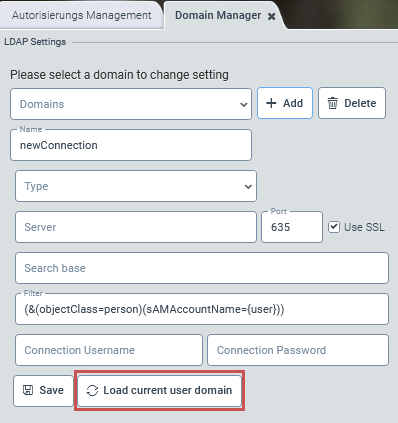
To add another domain, enter the domain data in the fields Name, Server name, and Port.
Under Type, select the directory service, e.g.,
Active Directory.If necessary, select the Use SSL check box to enable SSL encryption.
In the Search base field, enter the search base.
In the Filter field, enter the search filter.
Enter the user name in the Connection Username field and the user password in the Connection Password field.
Click Save.
➤ The domain has now been added.
Removing a Domain
Open xSuite Archive Prism.
Click the tile Authorization Management.
➣ The Tab Authorization Management will open.
Click Domain Manager.
➣ The Tab Domain Manager will open.
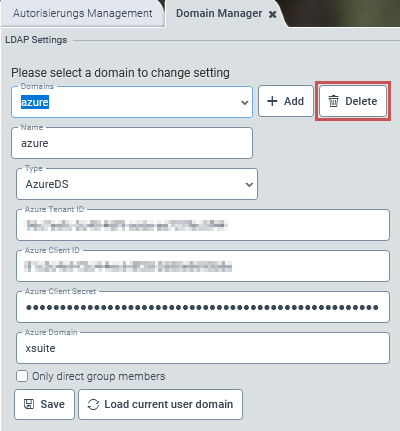
Under Domains, select an existing domain.
Click Delete.
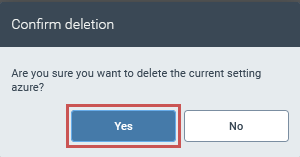
➣ The Dialog Confirm deletion will open.
Click Yes, to delete the chosen domain.
➤ The domain has now been deleted.