Configuring OAuth APIs and OAuth Clients
Notice
Configuration of Auth APIs and OAuth clients is only available, if the OAuth server is activated.
For information on activation, see Activating an OAuth Server.
Open the file
ArchiveEncoreSetup.exe.➣ The configuration dialog will open.
Select the OAuth-Apis tab.
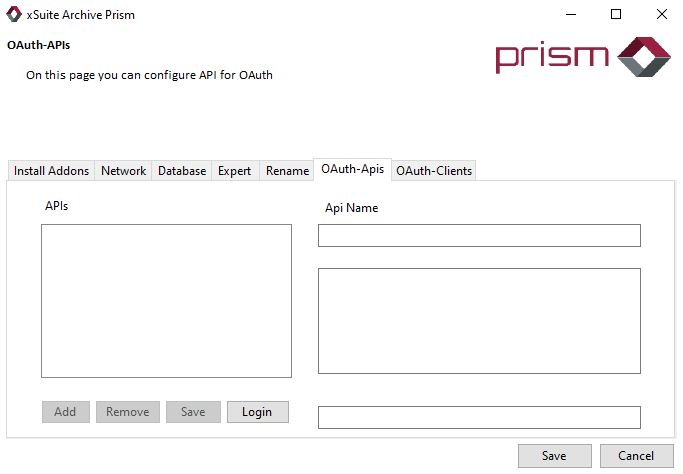
Click Login.
The Tenant Admin Login dialog will open.
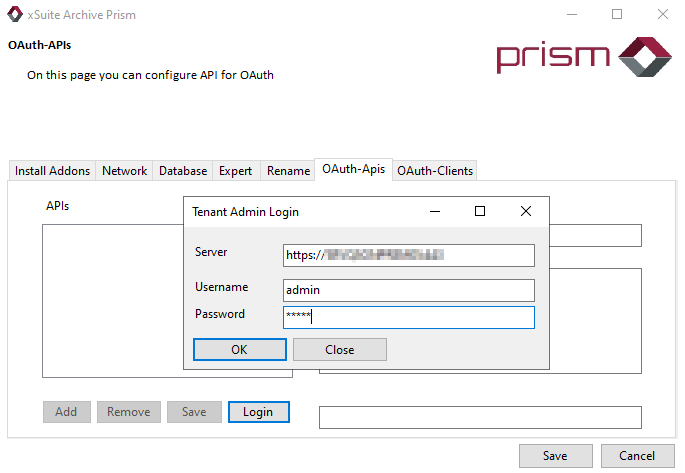
Enter your user data and click OK.
➤ The fields in the OAuth-Apis and OAuth-Clients tabs can now be edited.
Adding an OAuth API
In the APIs area, click Add.
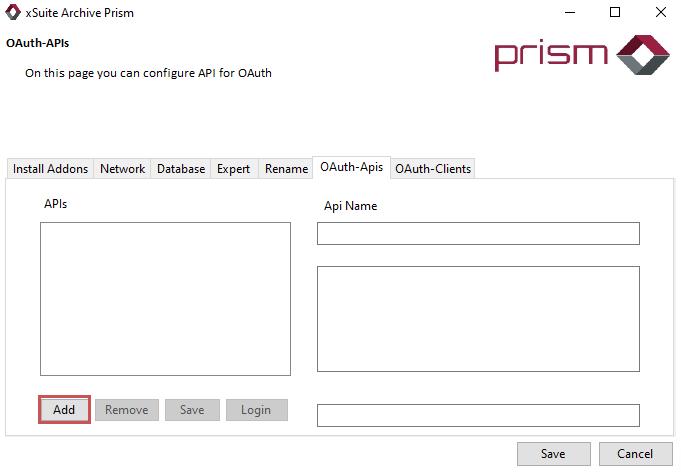
In the Api Name field, enter the name of the API.
xSuite Group GmbH recommends the API name
cmis.Enter a scope for each xSuite archive tenant in the middle field on the right-hand side (Scopes)
Notice
The scope specification must correspond to this pattern:
cmis.{tenant}The scope of the default tenant is
cmis._default.In the Secret field, enter a string of your choice.
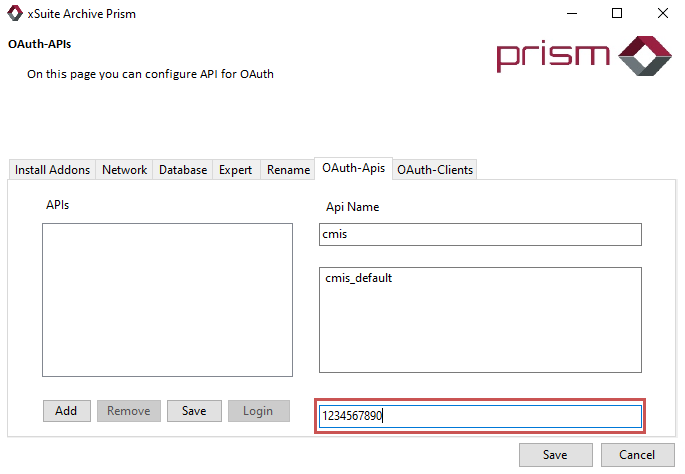
In the APIs area, click Save.
➤ The APIs have now been added.
Adding an OAuth Client
Select the OAuth-Clients tab.
In the Clients area, click Add.
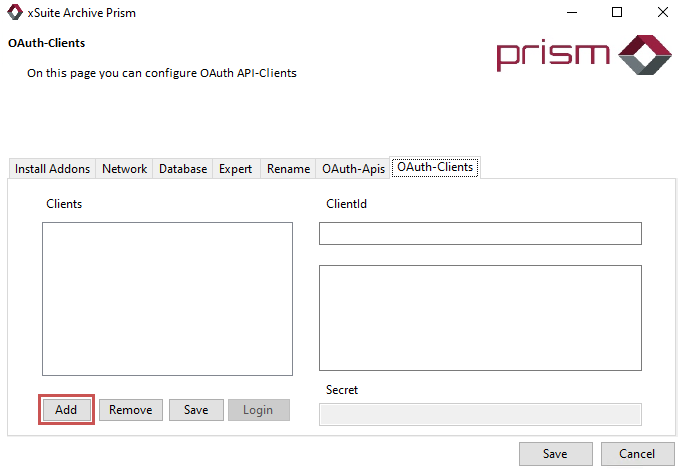
In the ClientId field, enter the name of the OAuth client.
Enter a scope for each xSuite archive tenant in the middle field on the right-hand side (Scopes).
Notice
The scope specification must correspond to this pattern:
cmis.{tenant}The scope of the default tenant is
cmis._default.In the Secret field, enter a string of your choice.
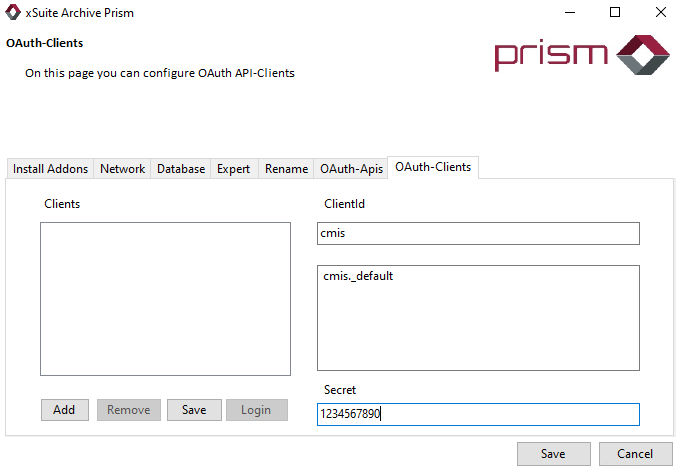
In the Clients area, click Save.
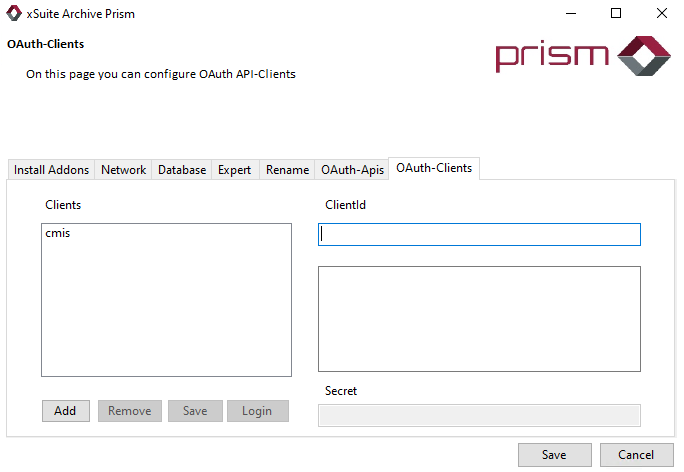
➤ The client has now been added.